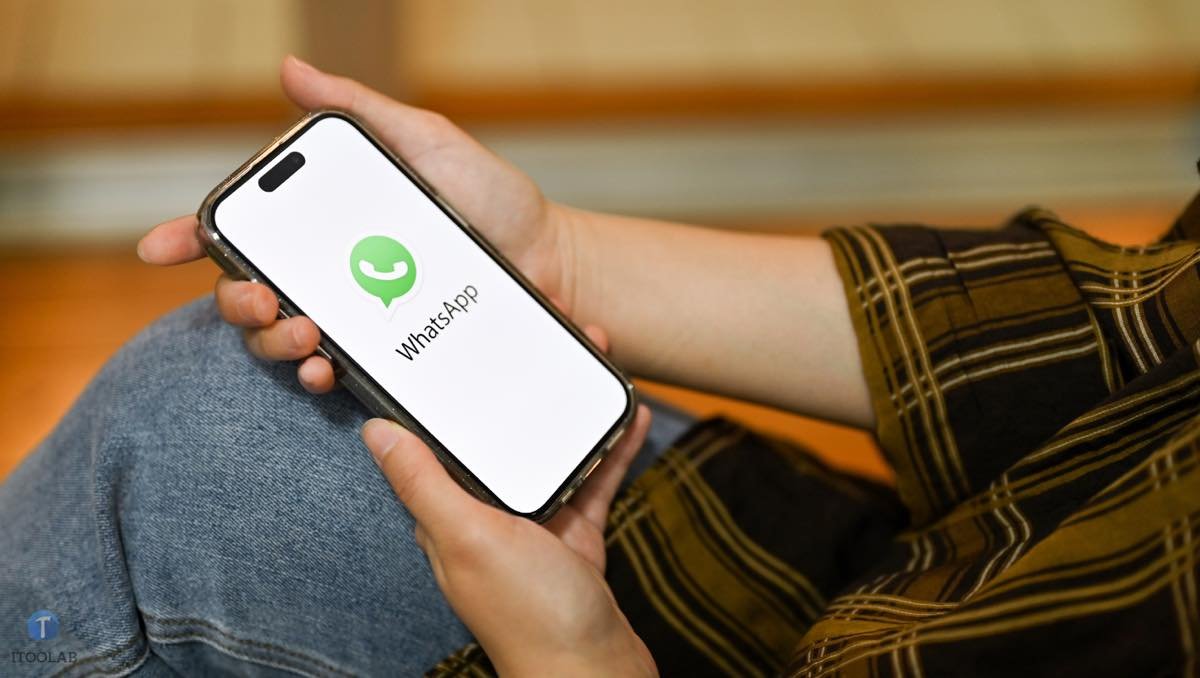
Backing up your WhatsApp conversations is essential to avoid losing valuable messages and media. Google Drive is the preferred solution for Android users, but how to restore this data effectively? This article guides you through the different methods to restore WhatsApp backup from Google Driveon both Android and iPhone.

Part 1. How to Backup and Restore WhatsApp Google Drive Backup on Android?
There restore a WhatsApp Google Drive backup on Android It is simple by following the correct steps.
Google Drive backup method
- Open WhatsApp on your Android device.
- Gonna Settings > Chats > Chat Backup.
- Link your Google Drive account if you haven’t already.
- Set the backup frequency (daily, weekly, monthly).
- Choose whether you want to include videos or not.
- Tap “Backup” to perform a manual backup.
Steps to restore your WhatsApp backup
- Uninstall and reinstall WhatsApp on your Android device.
- Open WhatsApp and verify your phone number.
- When prompted by the app, tap “RESTORE” to recover your messages from Google Drive.
- Once finished, tap “NEXT.”
- WhatsApp will start restoring media after restoring messages.
Although practical, this official method has some limitations:
- Restoration is only possible on Android.
- Mandatory use of the same number and Google account.
- Conversations cannot be selectively restored.
- Backups older than one year can be automatically deleted.
Part 2. Where can I see my WhatsApp backup on Google Drive?
After changing phones or resetting, it is common to wonder where to find WhatsApp backup on Google Drive. In fact, Google Drive does not clearly display these backups in its standard interface.
General method:
To locate your backup:
- Sign in to Google Drive through a browser.
- Click on the gear (Settings) at the top right.
- Go to “Settings” and then “Manage Apps.”
- Find WhatsApp in the list.
- The space used by WhatsApp backups will appear.
However, this method does not allow:
- Viewing the precise content of backups.
- Direct download from Google Drive.
- Access to individual files.
Alternative method:
For download WhatsApp backup Google Drive, iToolab WatsGo offers an effective solution that allows:
- Download and browse the contents of backups.
- Preview messages and media.
- Selective conversation restoration.

iToolab WatsGo Features:
- WhatsApp Transfer between Android and iPhone: Migrate your data easily.
- Backup and restore on PC without cloud: Take secure local backups.
- Downloading from Google Drive: Fully view and explore your backups.
- Accurate data selection: Collect only what you want.
- Guaranteed stability: Compatible even with large backups.
- Regular updates: Guaranteed compatibility with the latest versions.
Check the official guide for more details.
Part 3. How to Fix Unable to Restore WhatsApp Google Drive Backup?
Common problems and solutions:
- Google connection error: Check your connection, the account used and log in again.
- Insufficient space: Free up space on the device (at least twice the size of the backup).
- Incompatible versions: Update WhatsApp to the latest stable version.
- Numerical problem: Check the use of the correct number and the correct installation of the SIM card.
- Corrupt or old backup: Use a third-party solution like WatsGo.
Part 4. Restore WhatsApp Google Drive Backup on iPhone?
Direct restore on iPhone is not officially possible because WhatsApp exclusively uses iCloud on iOS.
Why it is difficult:
- WhatsApp for Android and iOS uses incompatible backup formats
- Google Drive backups cannot be imported directly to iCloud
- Apple and Google use different encryption systems for their cloud services
Solution with iToolab WatsGo:
1.Discharge iToolab WatsGo on your computer.

2. Select “Restore from Google Drive” and sign in.

3. Choose the backup to restore.

4.Transfer data to iPhone.

This method allows you to bypass the limitations of official services and easily migrate your conversations from Android to iPhone. For detailed instructions, see complete guide.
Other FAQs about Google Drive backups
P1. Is it possible to transfer WhatsApp Google Drive backup to iCloud?
HE transfer WhatsApp backup from Google Drive to iCloud It is not possible directly through official applications. The two services use different and incompatible backup formats.
However, you can achieve this using iToolab WatsGo:
- Download your Google Drive backup with WatsGo
- Transfer data to your iPhone
- Then set up a standard iCloud backup from iPhone
This two-step method allows you to efficiently migrate your data from one cloud platform to another.
P2. How to delete WhatsApp backup from Google Drive?
For delete WhatsApp backup from Google Drive:
- On your Android phone, open WhatsApp
- Go to Settings > Chats > Chat Backup
- Tap “Back up to Google Drive” and select “Never.”
- To completely delete existing backups:
- Sign in to Google Drive in a browser
- Go to Settings > Manage apps
- Find WhatsApp and click “Options” > “Delete data”
This action is irreversible, so make sure you no longer need these backups before continuing.
P3. Are WhatsApp backups taking up space on my Google Drive?
Until 2021, WhatsApp backups did not count towards your Google Drive storage quota. However, Google has changed this policy:
- New WhatsApp backups now count towards Google Drive storage
- Users get 15 GB of free space shared between Gmail, Google Drive and Google Photos
- For large backups, you may need to purchase a Google One subscription to get more space.
Therefore, it is recommended to periodically monitor the space used by WhatsApp backups and delete old ones if necessary.
Q4. How to recover deleted WhatsApp backup from Google Drive?
There recover a backup of WhatsApp Google Drive removed can be complex:
- First check the Google Drive Trash:
- Sign in to Google Drive
- Click “Recycle Bin” in the left menu.
- Find your WhatsApp backup and restore it if possible
- If the backup is not in the Trash or has been permanently deleted:
- Contact Google Support for possible restoration (within 25 days of deletion)
- Use iToolab WatsGo to try to recover data from your phone
- Create local backups periodically with WatsGo to avoid this problem in the future
Conclusion
There WhatsApp backup to Google Drive It is an essential tool to protect your important conversations, but restoring it can sometimes present challenges. The official methods offer a basic solution but with certain limitations, especially for transfers between platforms.
For more flexible and complete management of your WhatsApp backups, use third-party tools such as iToolab WatsGo It is judicious. This app not only allows you to view and download your Google Drive backups, but also selectively restore them and even transfer them to iOS devices.
Whichever method you choose, remember to backup your WhatsApp conversations regularly to avoid major data loss. Also consider the storage space used by these backups, especially now that they count toward your Google Drive quota.
By following the tips presented in this article, you will be able to confidently navigate the process of restoring your WhatsApp backups from Google Drive.
[Sponso]