Like many people, I like to keep an eye on my PC’s performance. For this, I use a Windhawk mod that shows processor (CPU) and RAM (RAM) usage in the notification area of Windows 11. This saves me from having to open Task Manager every time.
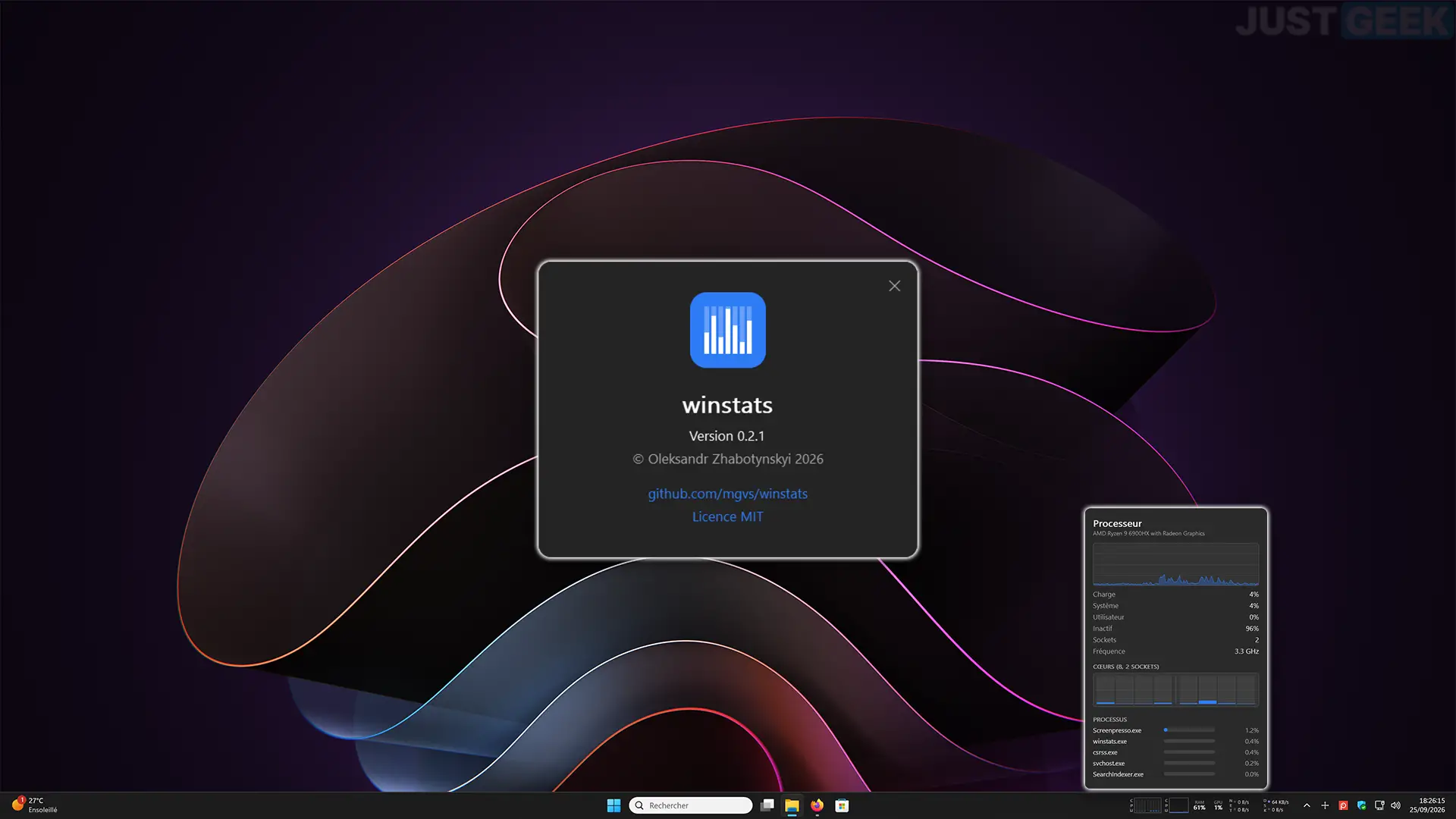
But I recently came across winstats, a small free and open source software that goes a little further. In addition to CPU and RAM, it allows you to monitor graphics card usage, disk activity, and network speeds, all from the taskbar.
I obviously installed it on my PC and for such a small piece of software I was pleasantly surprised by how much it can do.
winstats, all your PC statistics in the taskbar
winstats is a free and open source software developed by Oleksandr Zhabotynskyi, which allows you to monitor your PC’s performance from the Windows taskbar. It weighs only 1.50 MB and requires no installation. You download the executable, run it, and the indicators appear right next to the notification area.
We find the use of the processor, RAM and graphics card, but also network speeds and disk activity. Each indicator can be customized to your preferences, with percentages, graphs or numerical flow rates. For the processor, it is even possible to display small bars to monitor the activity of each core.

Then, if you click on one of the indicators, you will notice that a small window opens with more detailed information. For the processor, for example, you can see its frequency, the use of each core and the processes that use it the most. For RAM we find a graph of its use and the most demanding applications.
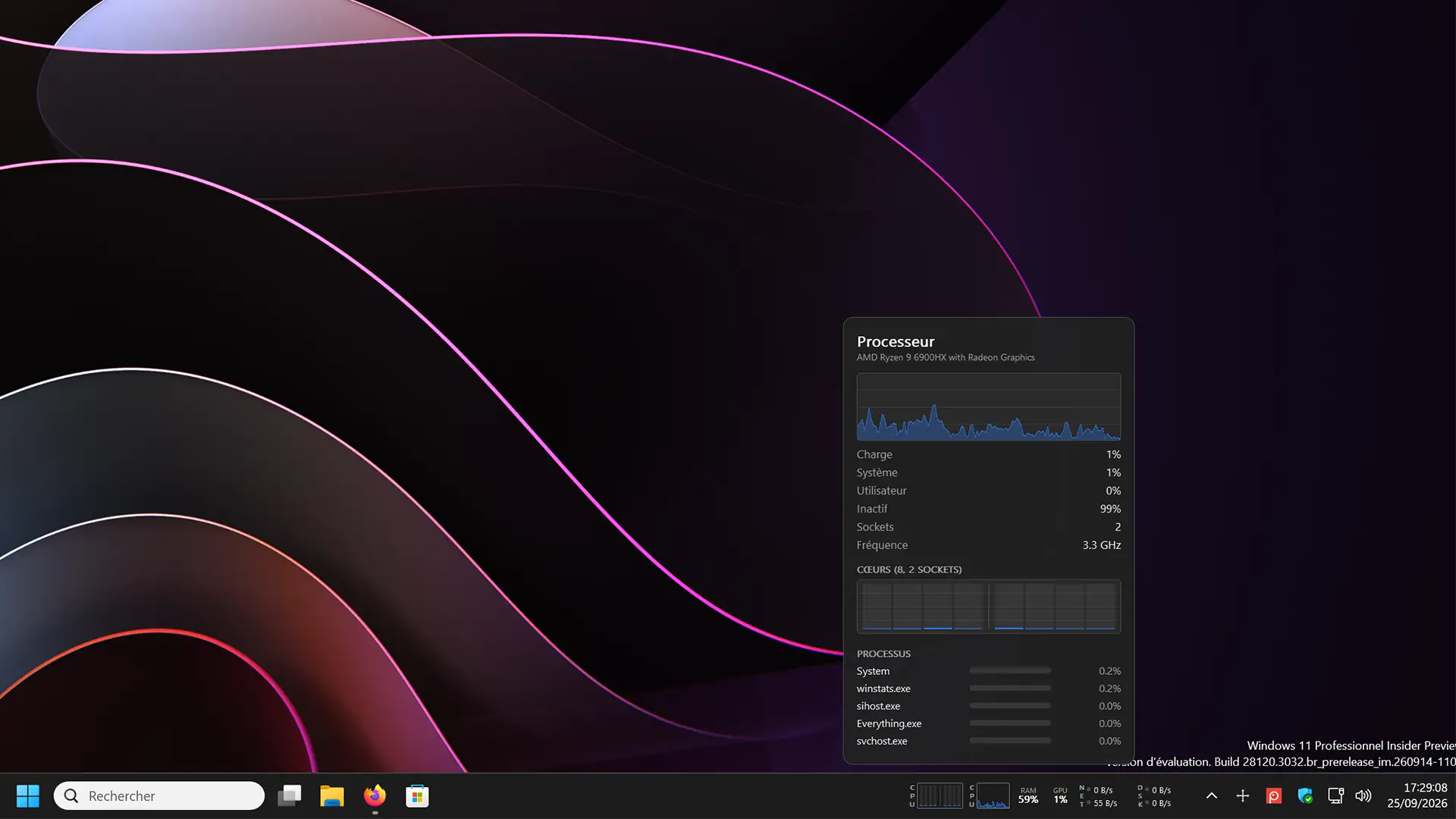
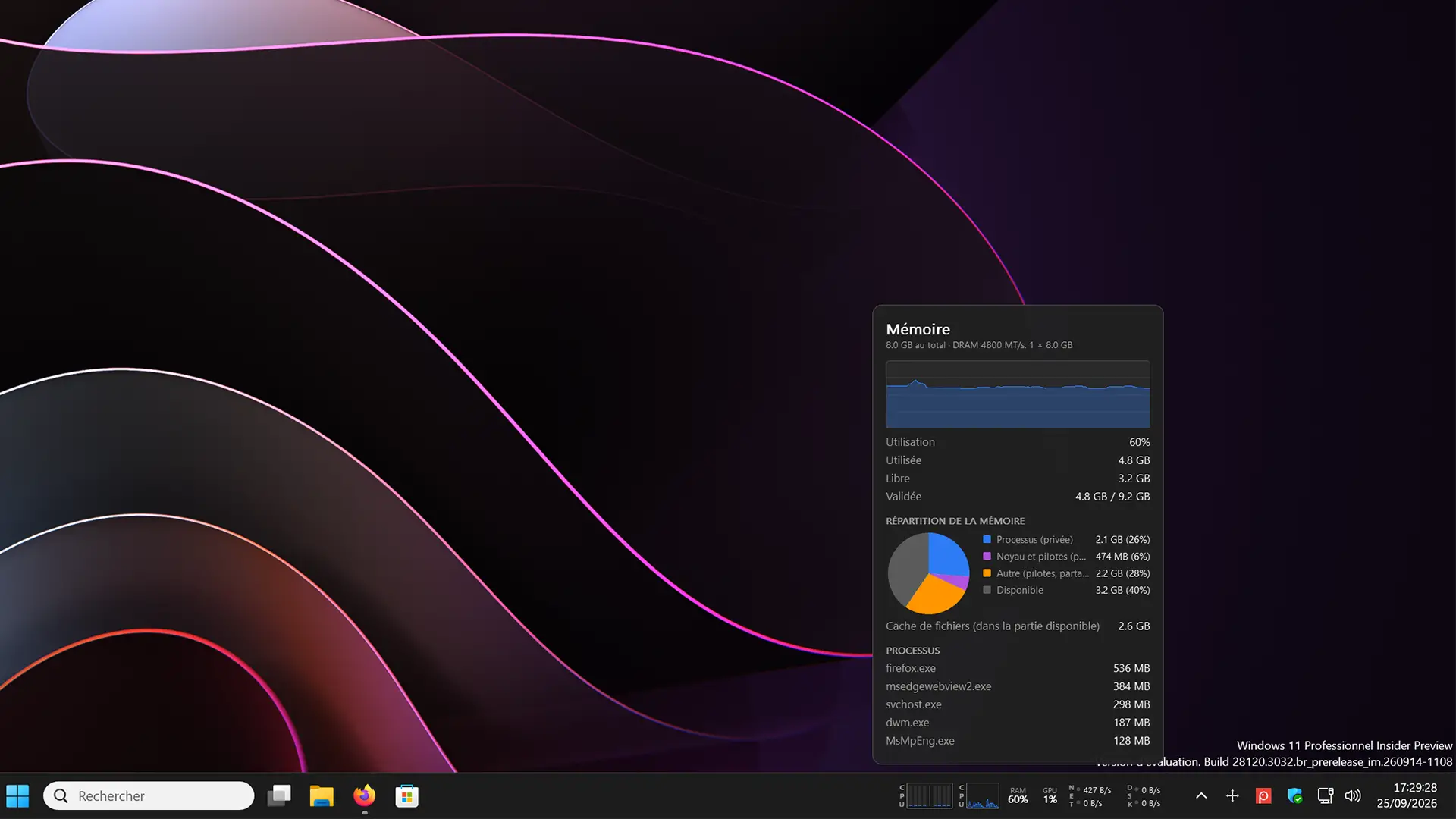
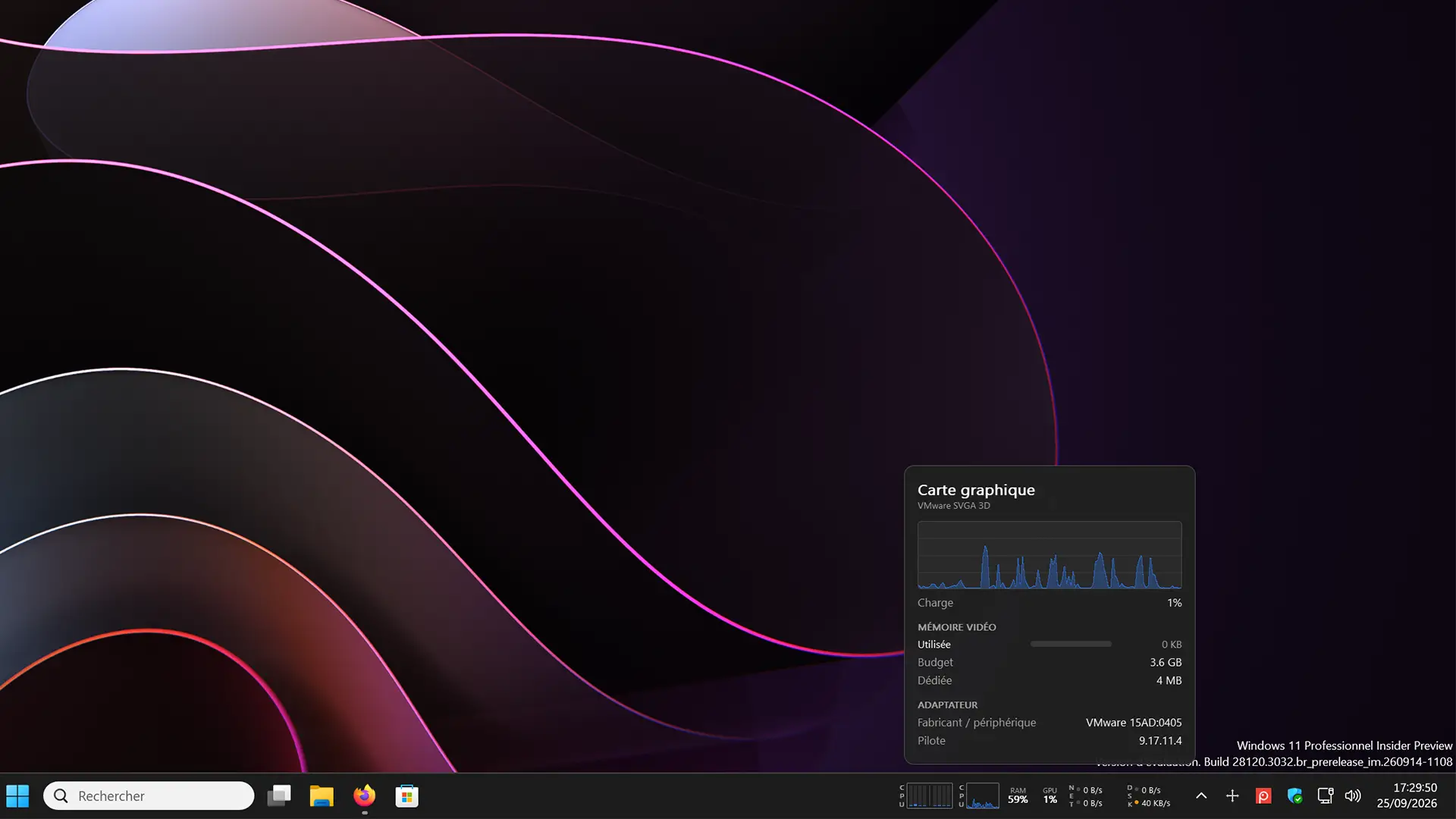
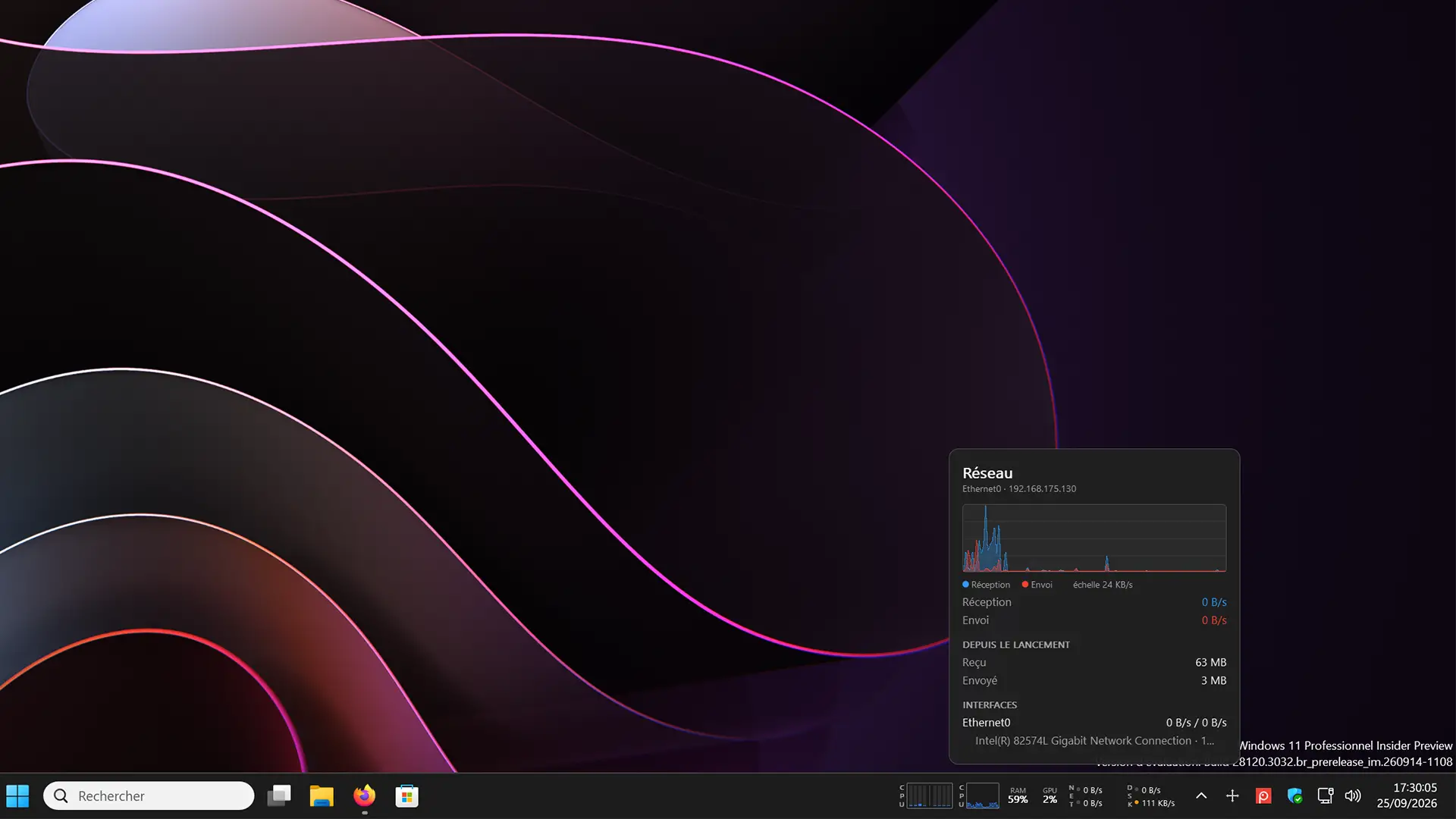
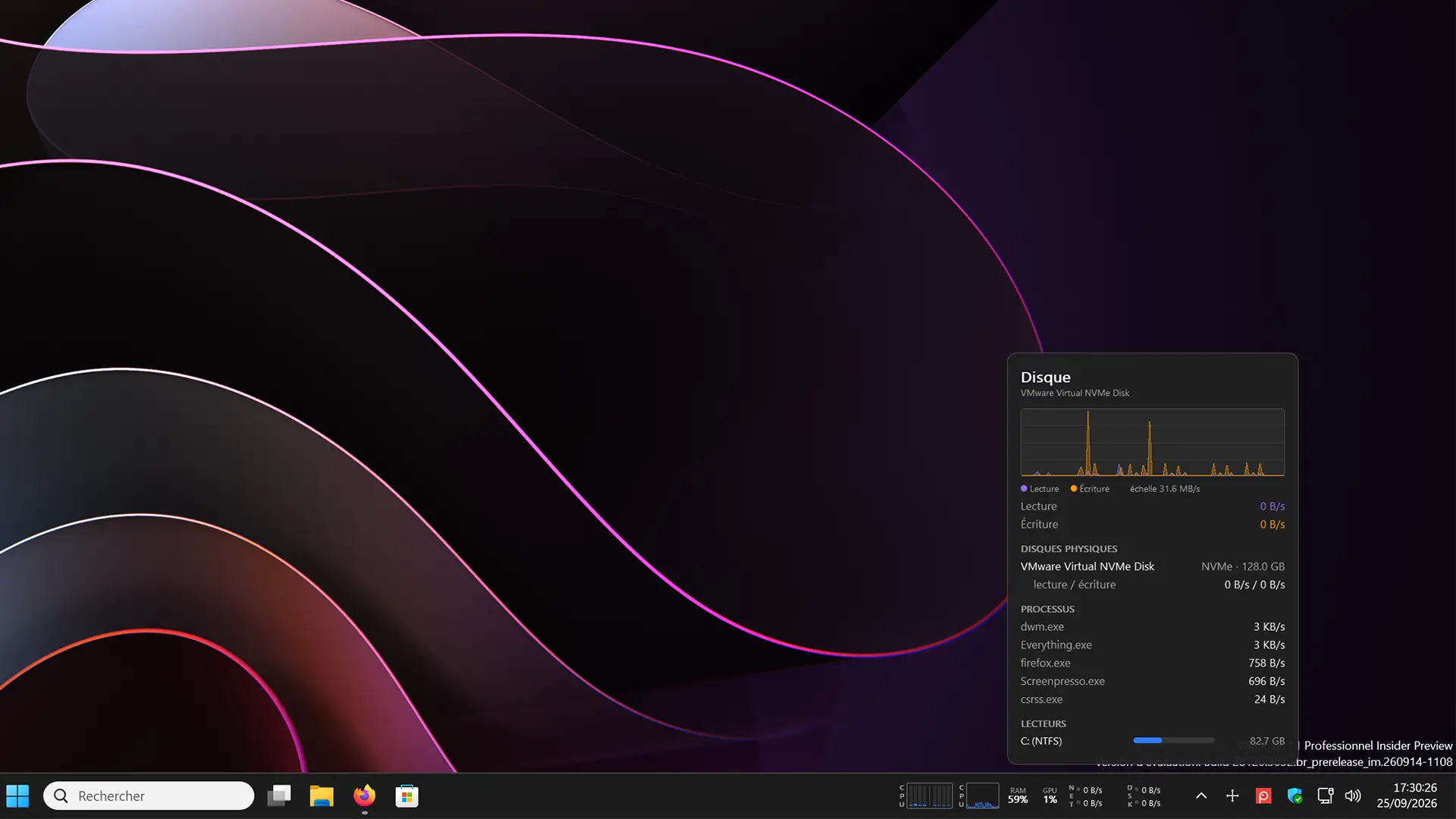
The same principle applies to the graphics card, network and disks, with information specific to each. And if you need to open Task Manager, simply double-click an indicator.
Software that you can customize to your liking
Right clicking on winstats accesses all of its settings. And there are many things to solve! You can choose which indicators to show, change their order by dragging them to the taskbar, or even move them to the left, instead of leaving them near the notification area.
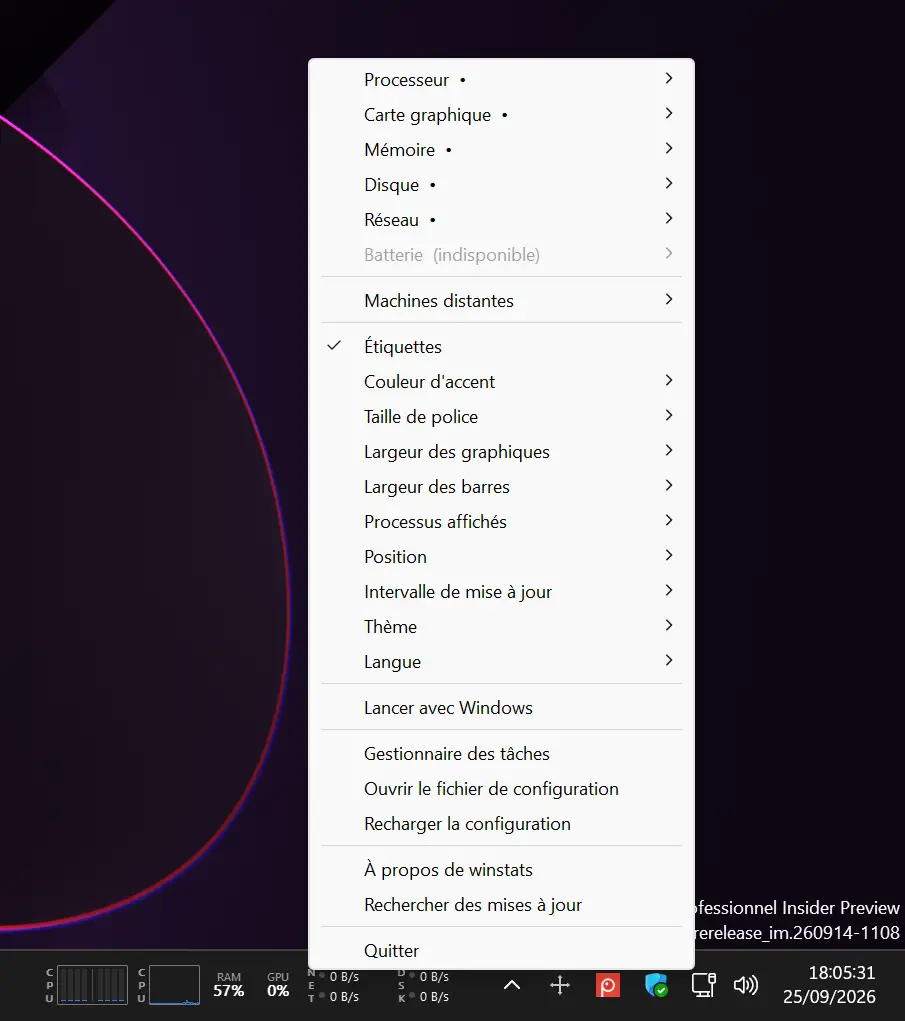
Each indicator can have its own color. You can also use the Windows accent color, opt for a monochrome display, or vary colors based on resource usage. Character size, graphics width and the width of the small processor bars are also adjustable.
The software also allows you to choose the data update frequency, between 0.5 and 5 seconds, as well as the number of processes displayed in the detailed windows. It offers a light or dark theme, an interface fully translated into French, and an option to automatically start with Windows.
All of these settings can be accessed from the context menu and changes are applied immediately. There is no need to restart the software for each change.
You can even monitor other PCs on your network
winstats also offers a slightly less common feature. You can display the performance of other computers connected to your local network, right on your own taskbar.
To do this, you need to download and start a small program called winstats-agent on the machines you want to monitor. It is available for Windows, Linux and macOS. Once the search for remote machines is activated in winstats, the detected machines can be added to your usual indicators.
Then you can check its processor usage, its RAM or even its network activity, without having to move in front of each screen.
Please note that I have not tested this feature. It may be interesting if you have several PCs or a small server at home.
To try winstats, go to GitHub Downloads Page. Several files are offered, but for controlling your own PC, only two are of interest to you. Download winstats.exe if you are using 64-bit Windows or winstats-x86.exe for 32-bit Windows. You can also recover the corresponding ZIP files.
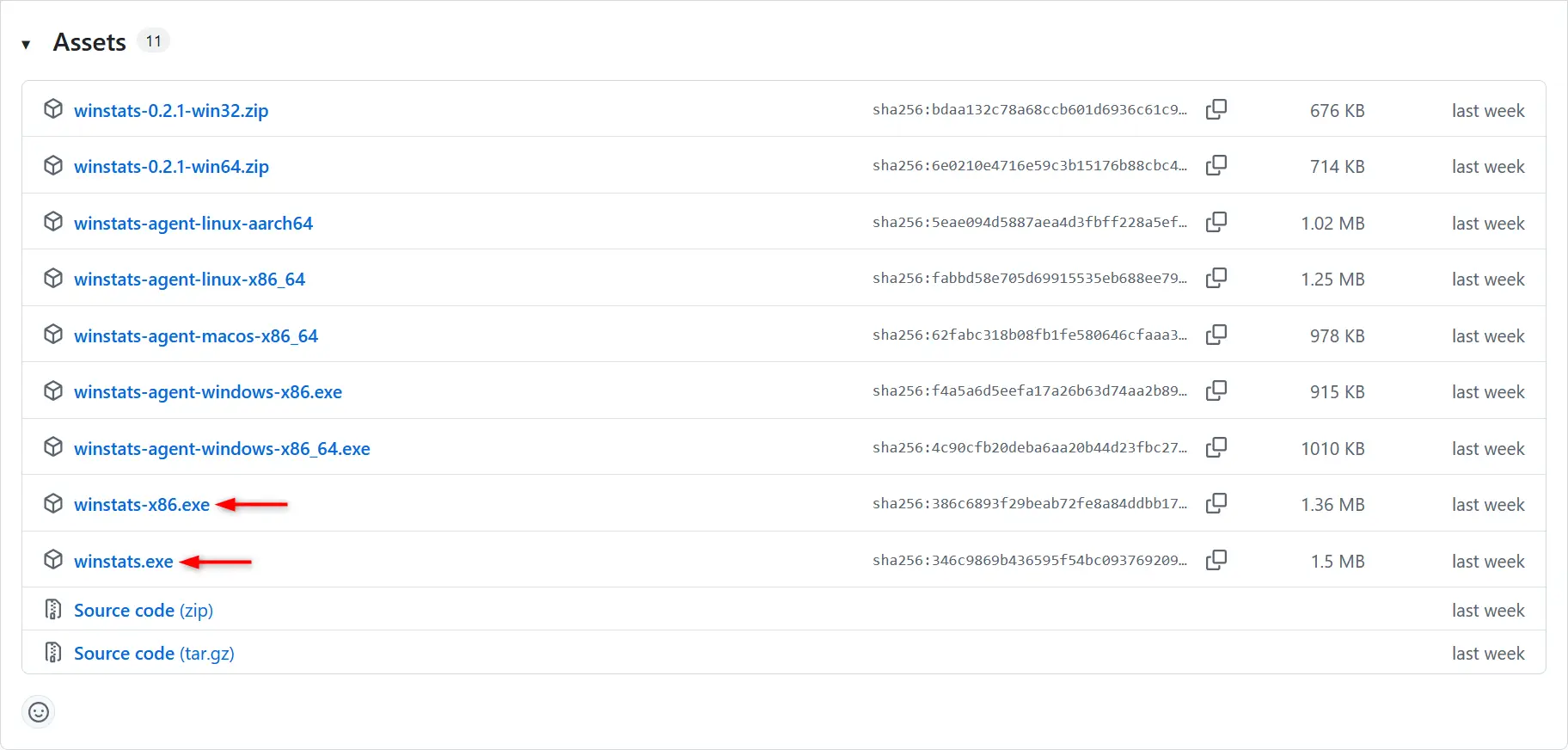
Files with names starting with winstats-agent are only for monitoring other machines on your local network. They are available for Windows, Linux and macOS. Therefore, you don’t need it if you just want to see your computer’s performance.
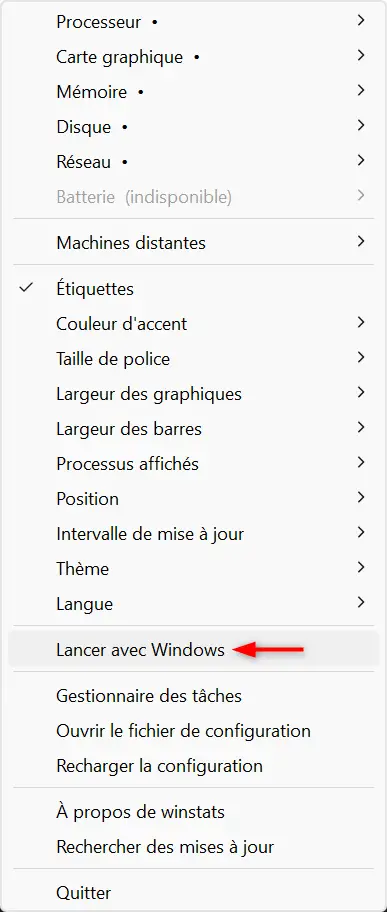
Once the file is downloaded, simply launch the executable. The indicators appear immediately on your taskbar. If you want to find winstats every time you start your PC, remember to activate the corresponding option in its menu.
The software is compatible with Windows 7 SP1, 8, 8.1, 10 and 11. However, certain features are not available in older versions of Windows, notably GPU monitoring. In Windows 7, the indicators even float above the taskbar instead of being directly embedded there.
You should also know that winstats does not allow you to monitor the temperature of the processor or graphics card, or the speed of the fans. And in Windows 11, indicators can sometimes overlap app buttons when many windows are open. In this case, you can move them to the left of the taskbar or use the floating mode available in the configuration file.