Microsoft has just updated WSL Containers to a stable version. Tested for several months, this feature is now available to all WSL users.
It allows you to create, launch, and manage Linux containers directly on Windows, without the need to install a third-party container engine.
Microsoft provides a new command line tool for this called wslc. The final version also adds several commands and functions that were not present during the first tests.
Let’s see how it all works and what WSL Containers can actually replace.
WSL Containers allows you to manage your containers directly in Windows
WSL Containers is order-based wslcwhich allows you to manage containers directly from Windows. In particular, you can create images, start or stop containers, check their status, or even run commands within them. Microsoft also offers container.exe as alias.
Since the preview, Microsoft has added several features that were still missing in WSL Containers. You can now restart a container, copy files, connect or disconnect it from a network, check its status, and choose where to store your data.
Performance has also been improved. Microsoft announces access to Windows files from Linux up to two times faster thanks to the work done around WSL Containers.
Can WSL containers replace Docker Desktop?
This is inevitably the question that arises with the arrival of WSL Containers. Since WSL can now manage Linux containers, do you still need to install Docker Desktop on Windows?
For certain uses, this will no longer necessarily be necessary. WSL Containers already allows you to create images, launch and manage containers, or even connect them to a network directly from Windows. Visual Studio Code can also use wslc with its Dev Containers extension.
But WSL Containers still doesn’t offer everything found in Docker. It is worth noting that support is missing for Compose, which allows multiple containers to be launched from a single configuration file. Microsoft is already working on it and wants control wsl compose up can work with files compose.yaml existing without having to modify them.
At the moment, WSL Containers can cover certain needs, but it still does not cover all the possibilities that Docker Desktop offers.
If WSL is already installed on your PC, Microsoft indicates that you simply need to update it from Terminal or PowerShell with the following command:
wsl --update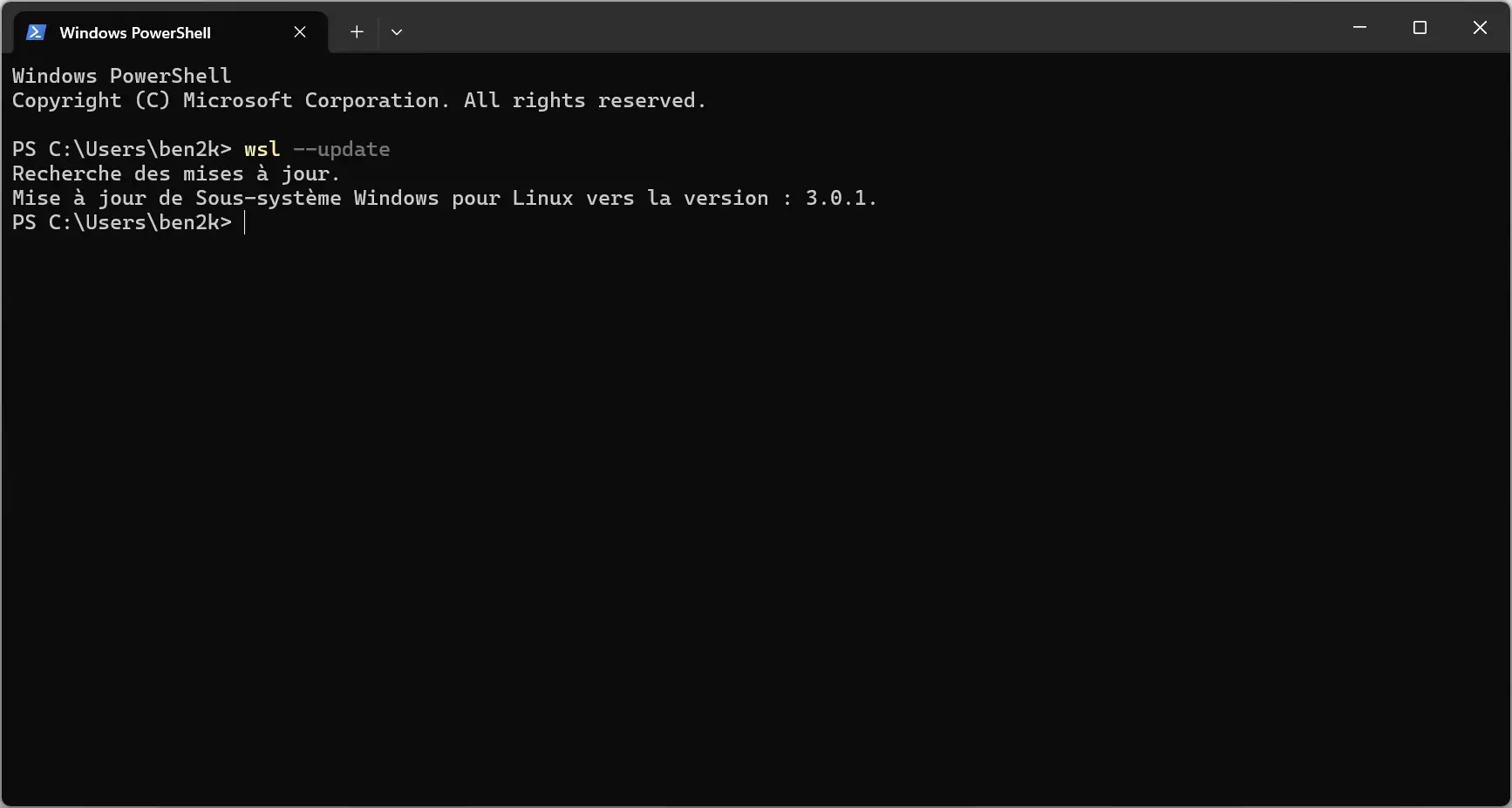
Once the update is complete, you will be able to verify that WSL Containers is available with:
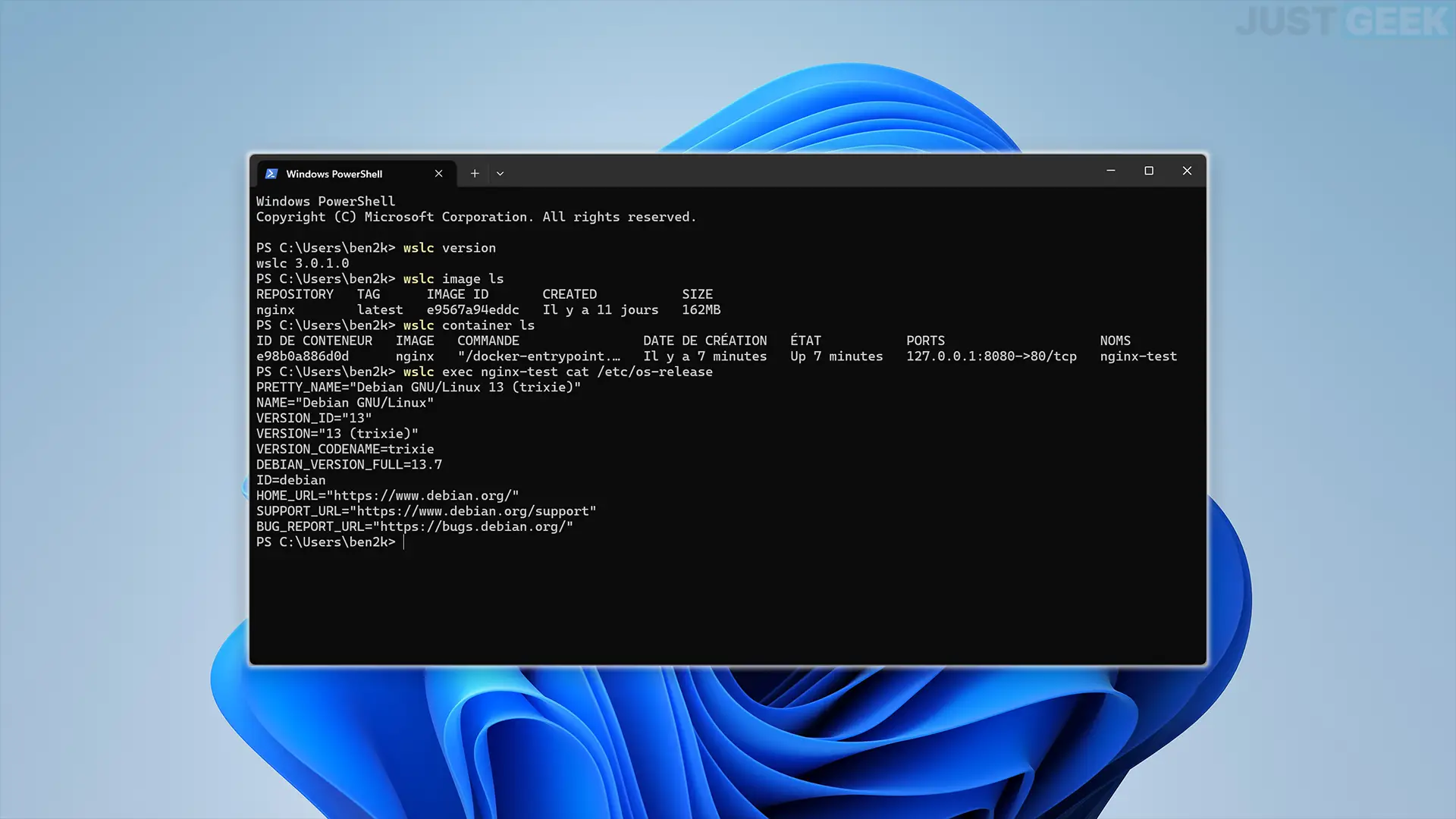
wslc versionThe command should then display the installed version. In my case, WSL Containers works with WSL 3.0.1.
WSL Containers is now offered with the stable version of WSL. Therefore, it is no longer necessary to install a Preview version to benefit from it.
A little test with Nginx
To verify that WSL Containers was working correctly, I did a test with Nginx. I started by recovering its image, then started the web server in a container by redirecting its port 80 to Windows port 8080.
wslc image pull nginx
wslc run -d --name nginx-test -p 8080:80 nginx
The container appears as active with the command wslc container ls. I also checked the environment used by Nginx and in my case it runs Debian 13 (Trixie).
wslc exec nginx-test cat /etc/os-release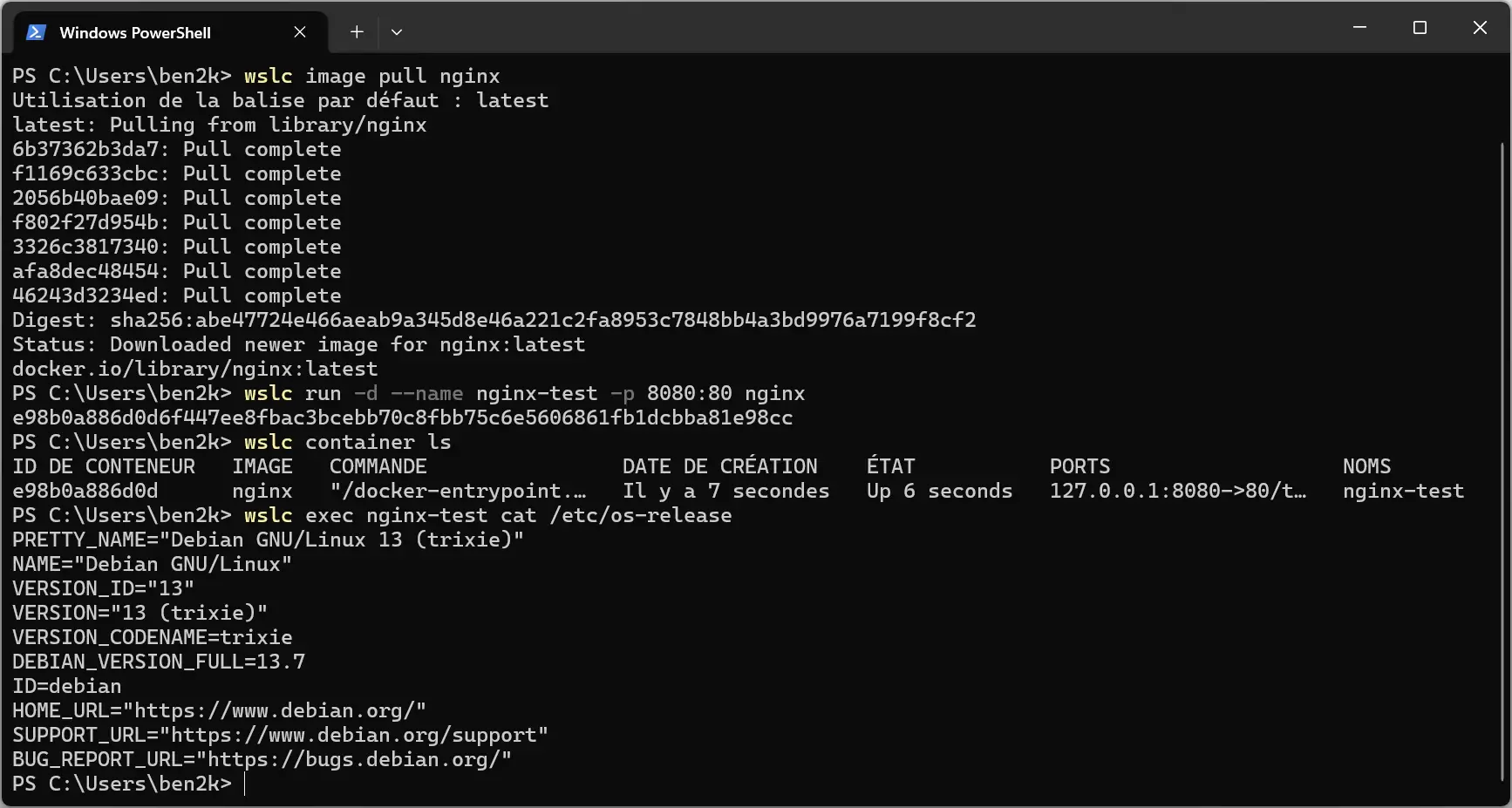
Then all that remains is to open localhost:8080 in the browser to access the page served by Nginx. The server works fine under Linux in its container, without having installed Nginx directly on Windows or using Docker Desktop.

Fountain : microsoft