Although Android is based on the Linux kernel, distributions such as Ubuntu, Debian, Fedora or Arch Linux do not allow you to run Android applications directly. For this, there is Waydroid, a free and open source software that allows you to run Android on Linux, without having to use a traditional emulator. So you can access the Google Play Store, install and run your favorite Android apps on your Linux PC.
In this tutorial, I explain how to install, configure and use Waydroid. Follow the leader !
Waydroid: a complete Android system integrated with Linux
Waydroid it is a tool open source which allows you to run Android on Linux using a container system (LXC). In other words, instead of using an emulator or virtual machine, Waydroid runs Android using your computer’s Linux kernel directly. This allows it to consume fewer resources and offer good performance.
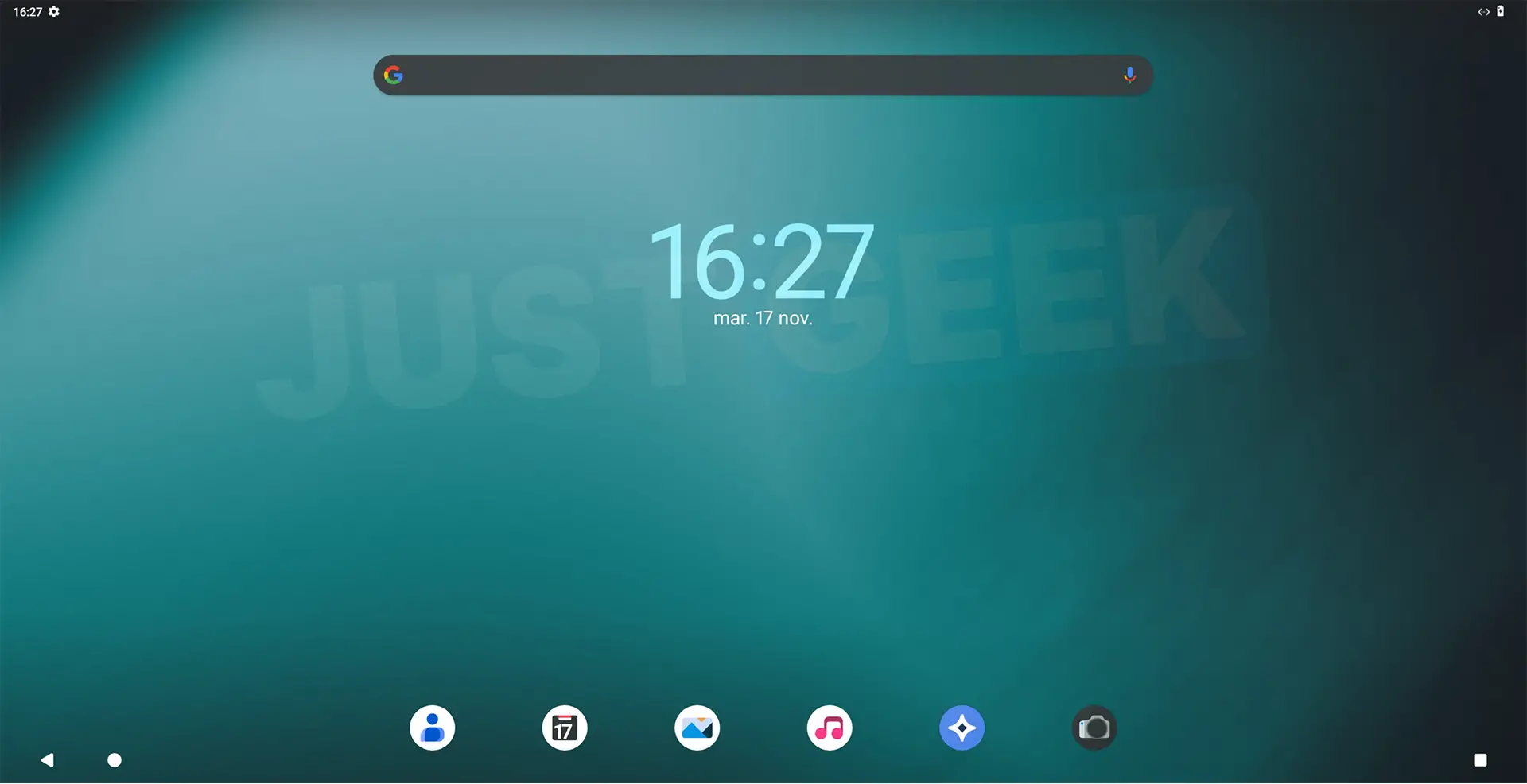
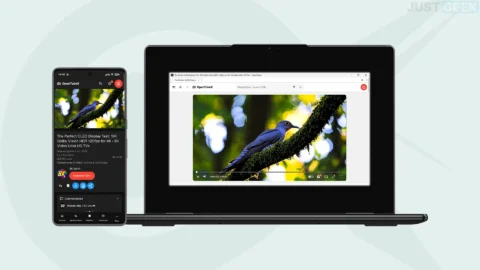
The Android system used by Waydroid is LineageOS 20, based on Android 13. Therefore, you will find a complete Android environment, with its home screen, settings and applications, just like on a smartphone or tablet. You can use it in full screen, but also open your Android apps in separate windows, right on your Linux desktop.
The software also supports graphics acceleration on supported computers, allowing you to run many Android apps and games without any slowdown. To install your applications, you can go through the Google Play Store (if you choose the version with Google services) or manually install the APK files.
Waydroid supports several Linux distributions, including Ubuntu, Debian, Fedora, Arch Linux, and openSUSE. To work, it simply requires a Wayland graphics session as well as a compatible Linux kernel.
Installing Waydroid depends on the Linux distribution you are using. In this tutorial we will take the example of Ubuntu 26.04, but the procedure is also valid for other compatible versions of Ubuntu.
If you are using another distribution such as Debian, Fedora, Arch Linux or openSUSE, you will find the corresponding installation instructions in the Waydroid official documentation.
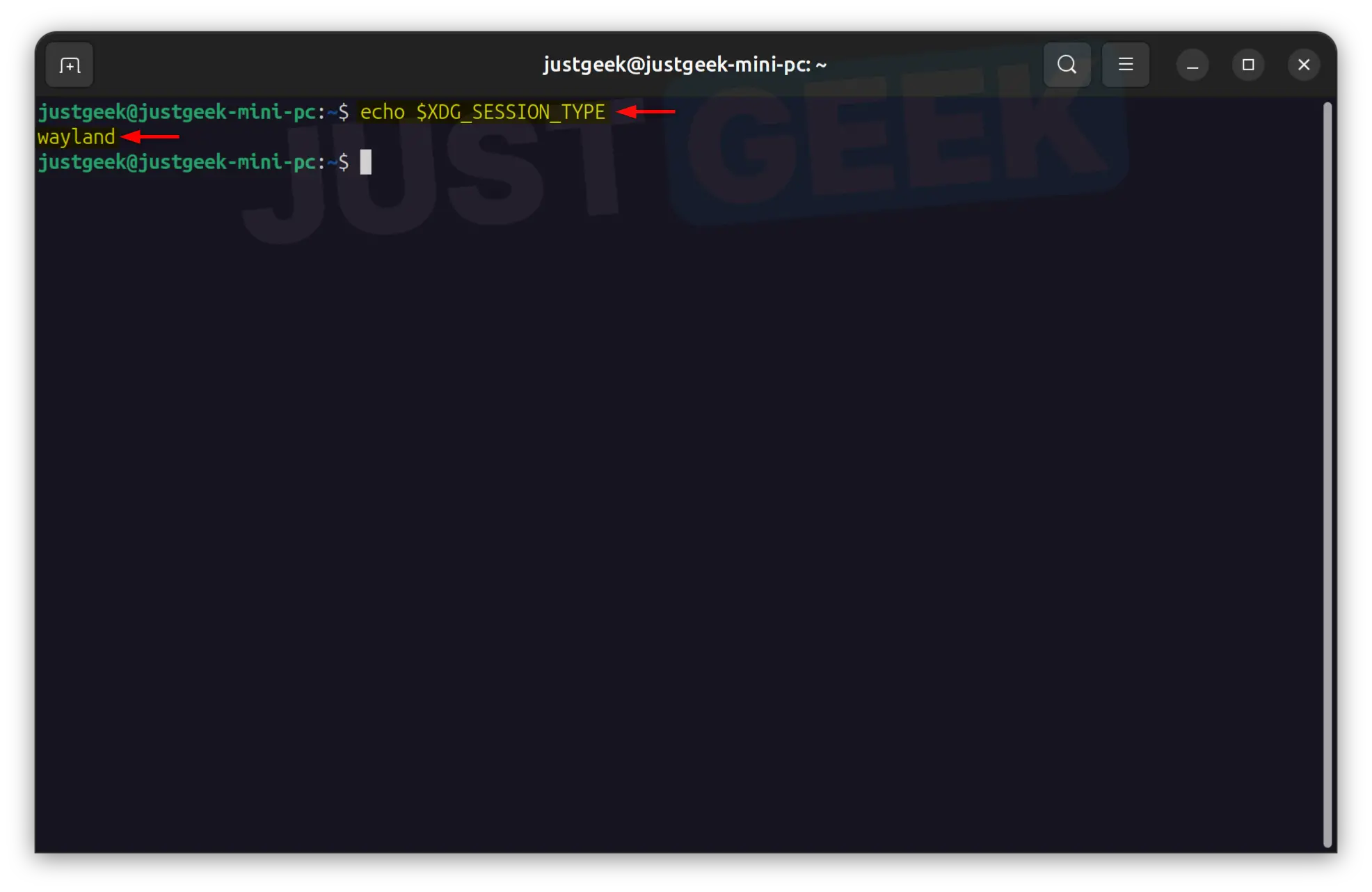
Before you begin, make sure your Linux session uses Wayland, which is essential for Waydroid to work. To verify this, open a Terminal and enter the following command:
echo $XDG_SESSION_TYPEIf the Terminal shows waylandyou can continue with the installation.
- Start by installing the necessary packages to add the official Waydroid repository with this command:
sudo apt install curl ca-certificates -y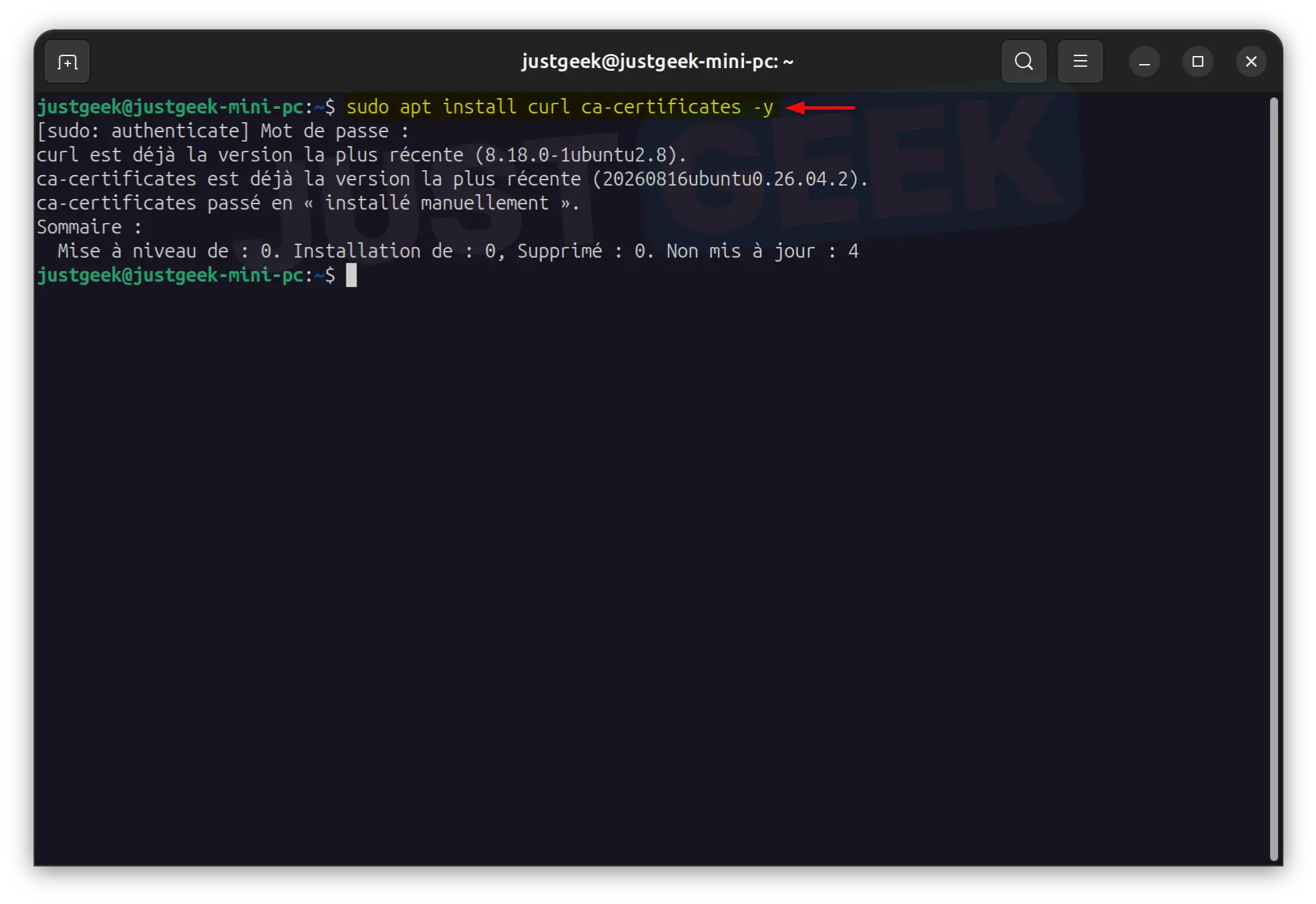
- Then add the official Waydroid repository to your system:
curl -s https://repo.waydro.id | sudo bash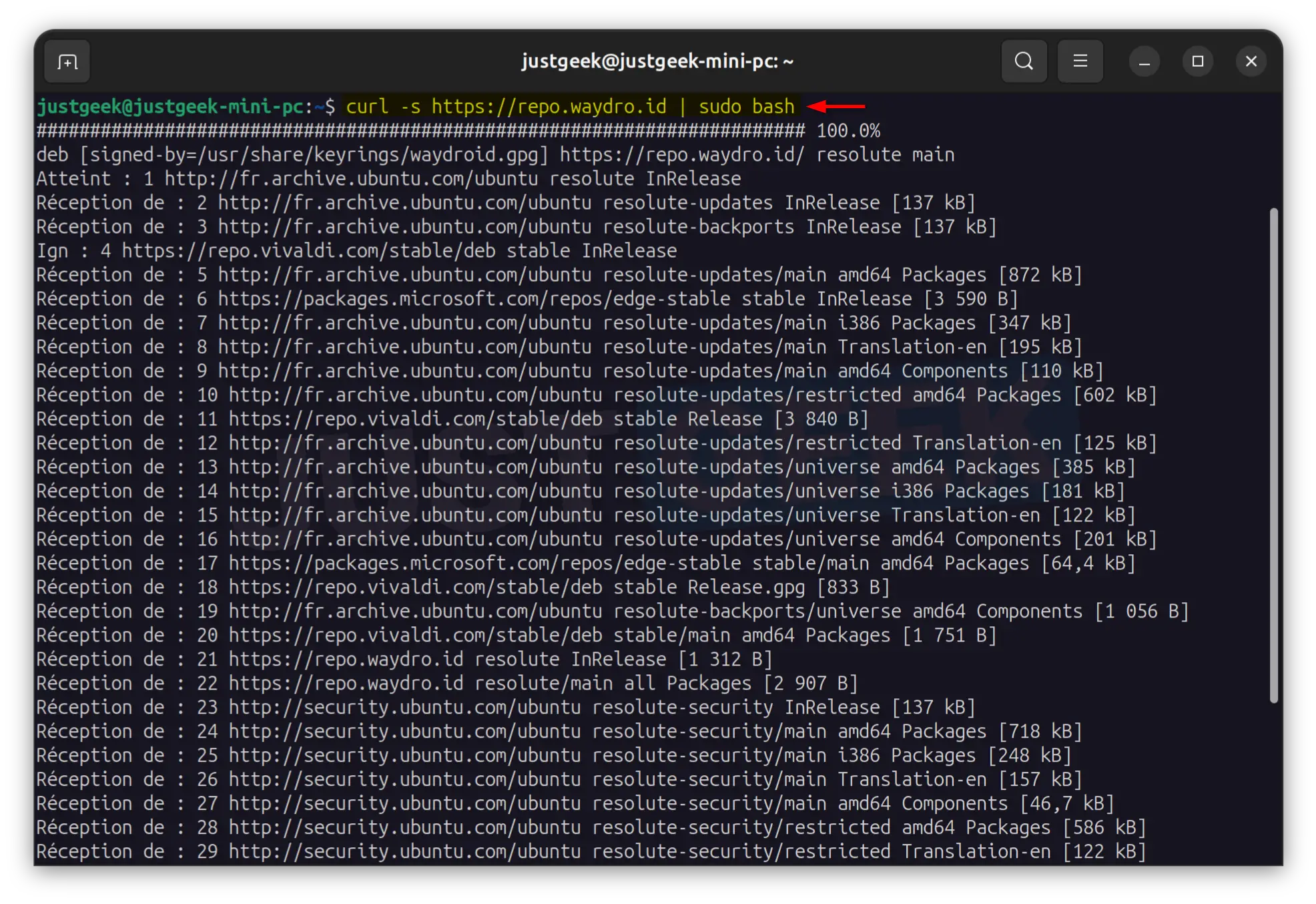
- Once the repository is added, install Waydroid by running the following command:
sudo apt install waydroid -y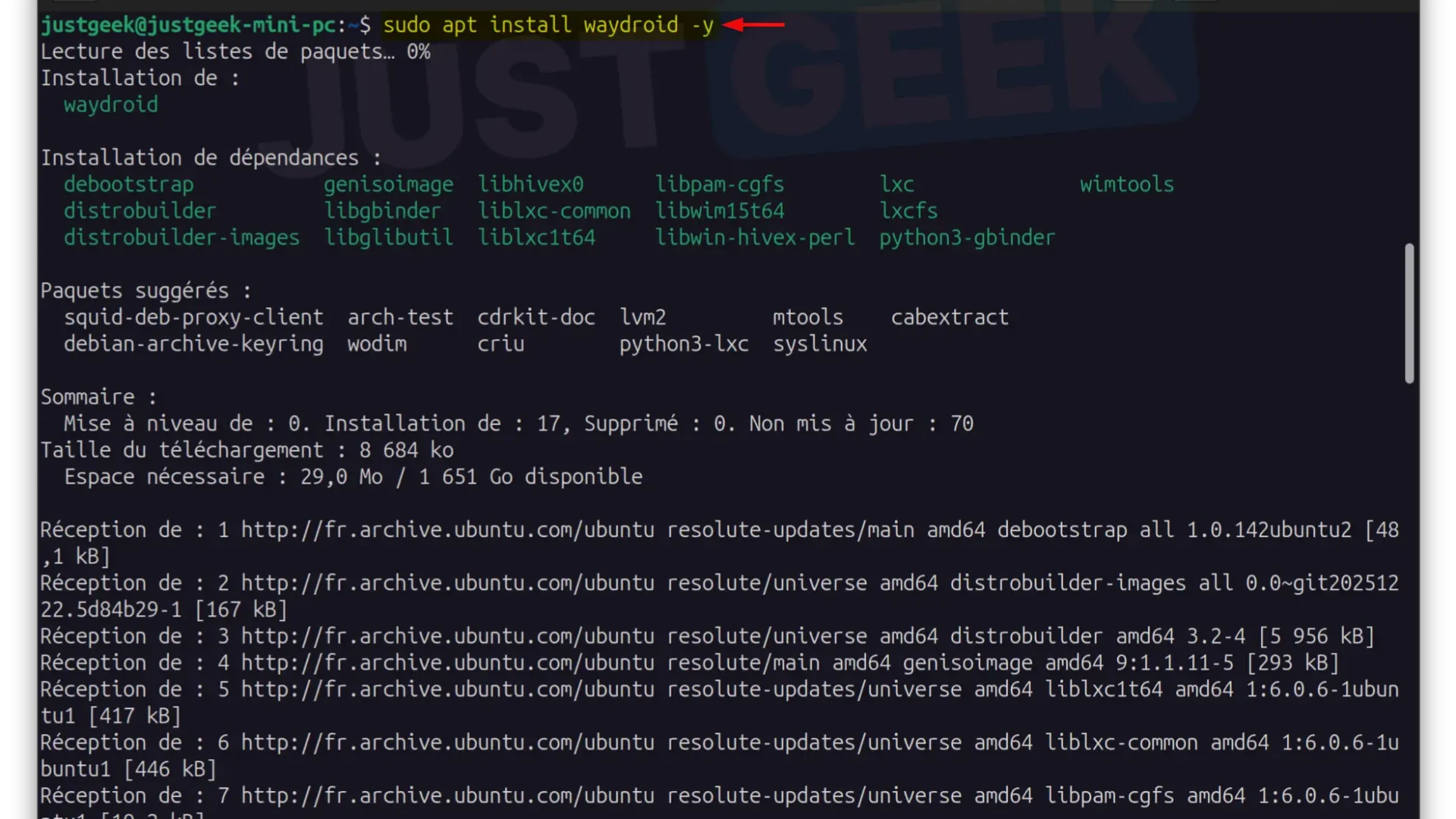
Please wait while the software and its dependencies download and install.
- Once the installation is complete, open the applications menu of your Linux distribution, look for Waydroidthen click on its icon to start it.
- On first startup, Waydroid displays a window titled ” Initialize Waydroid “. This is where you can choose the version of Android to install.
leave the addresses OTA system AND OTA Provider as is. In the dropdown menu Android typeTwo options are offered:
- Minimal Android – Install Android without Google apps and services.
- Android with Google applications – Install Android with Google services, including the Google Play Store.
For this tutorial, we will choose Android with Google applicationsso you can easily download and install Android apps from Play Store.
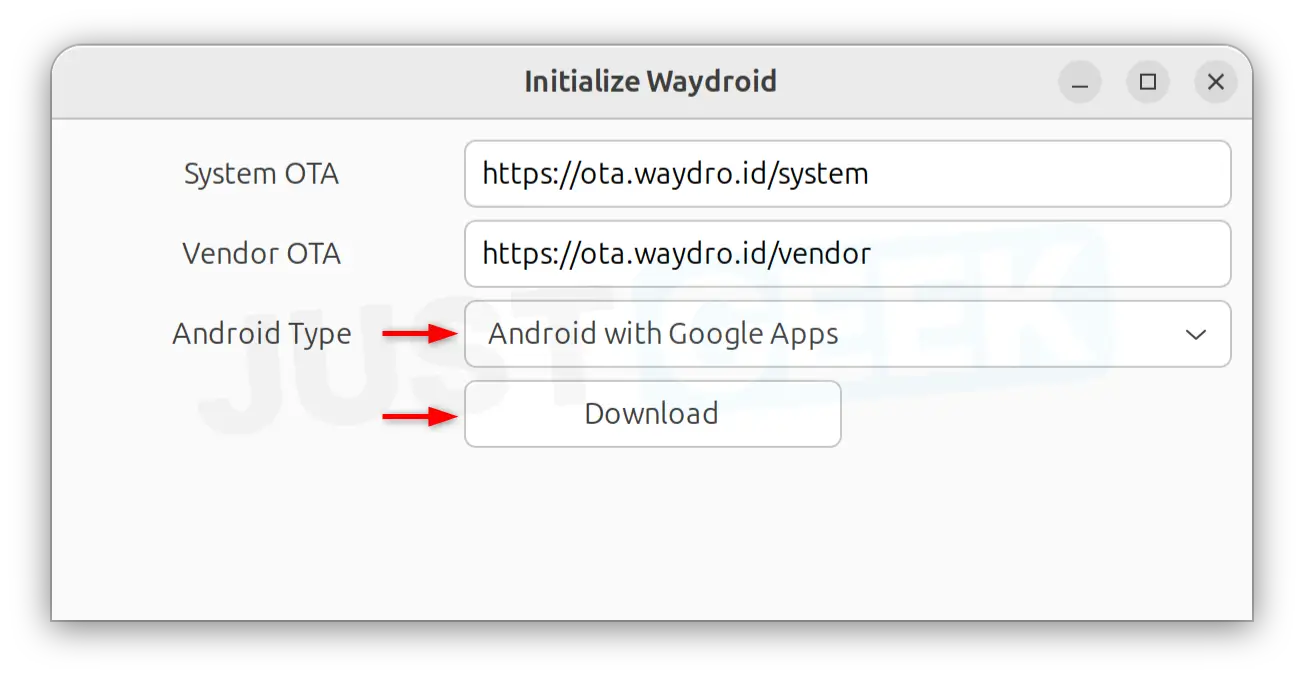
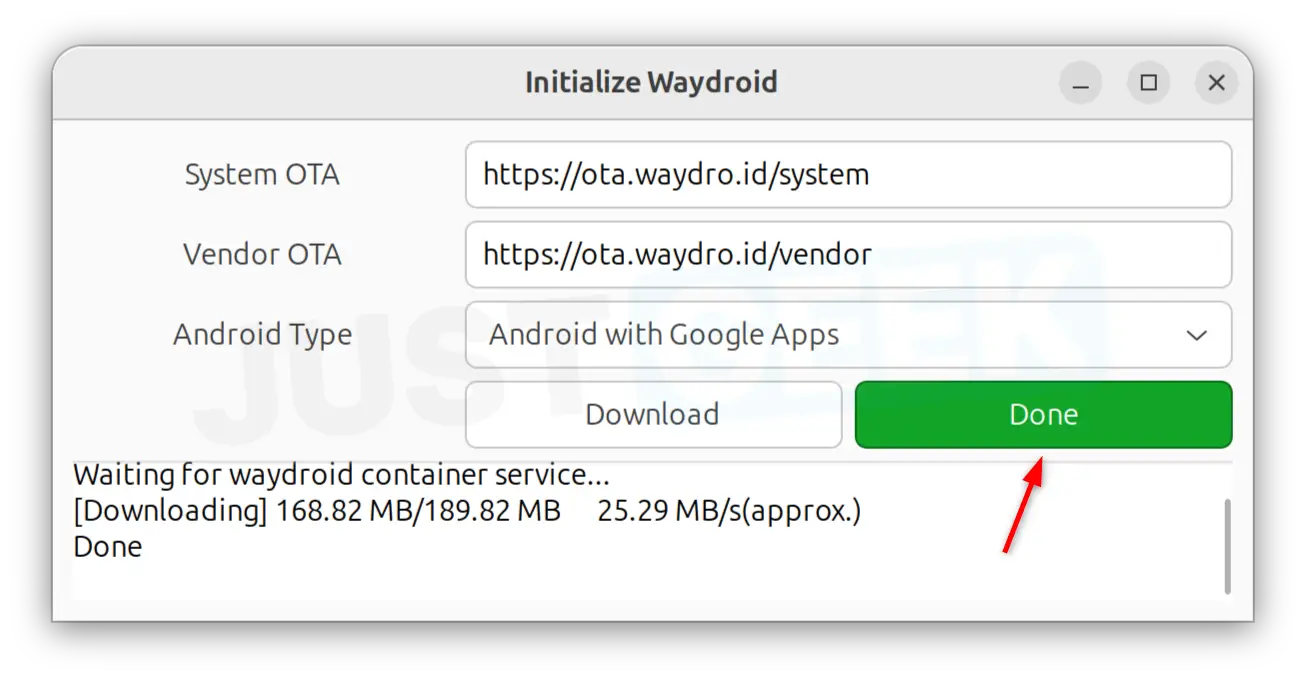
- Then click on the “ Discharge » and wait while the files necessary for Android to work are downloaded. This operation may take a few minutes depending on your Internet connection.
Once the download is complete, the message ” Made » appears in green. Click on it to complete the initialization.
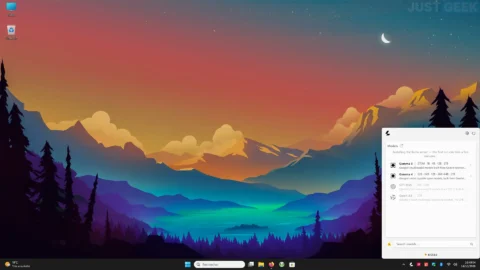
- Waydroid is now ready to use. Once Android is started, you find your home screen, with pre-installed applications and an interface similar to that of an Android tablet.
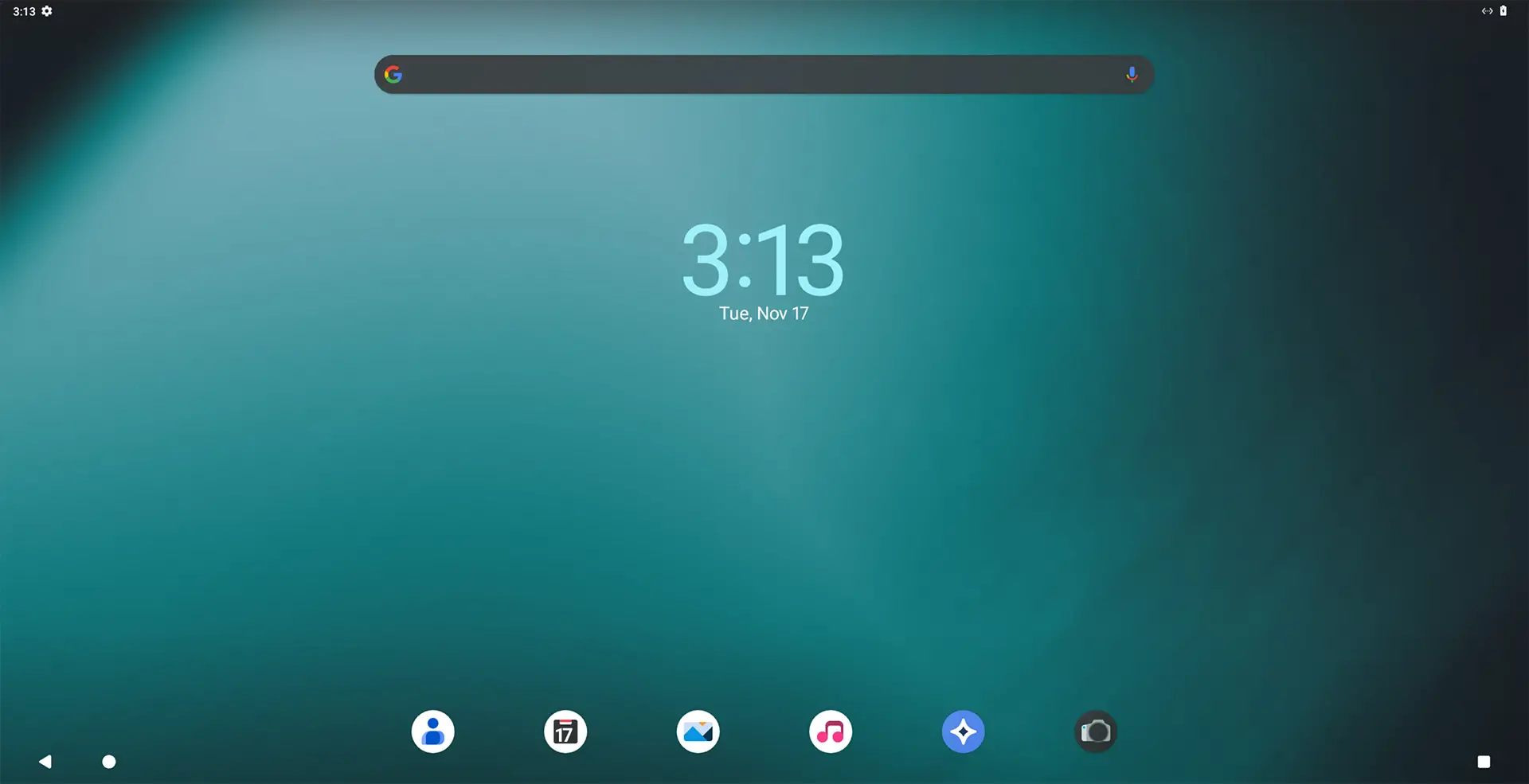
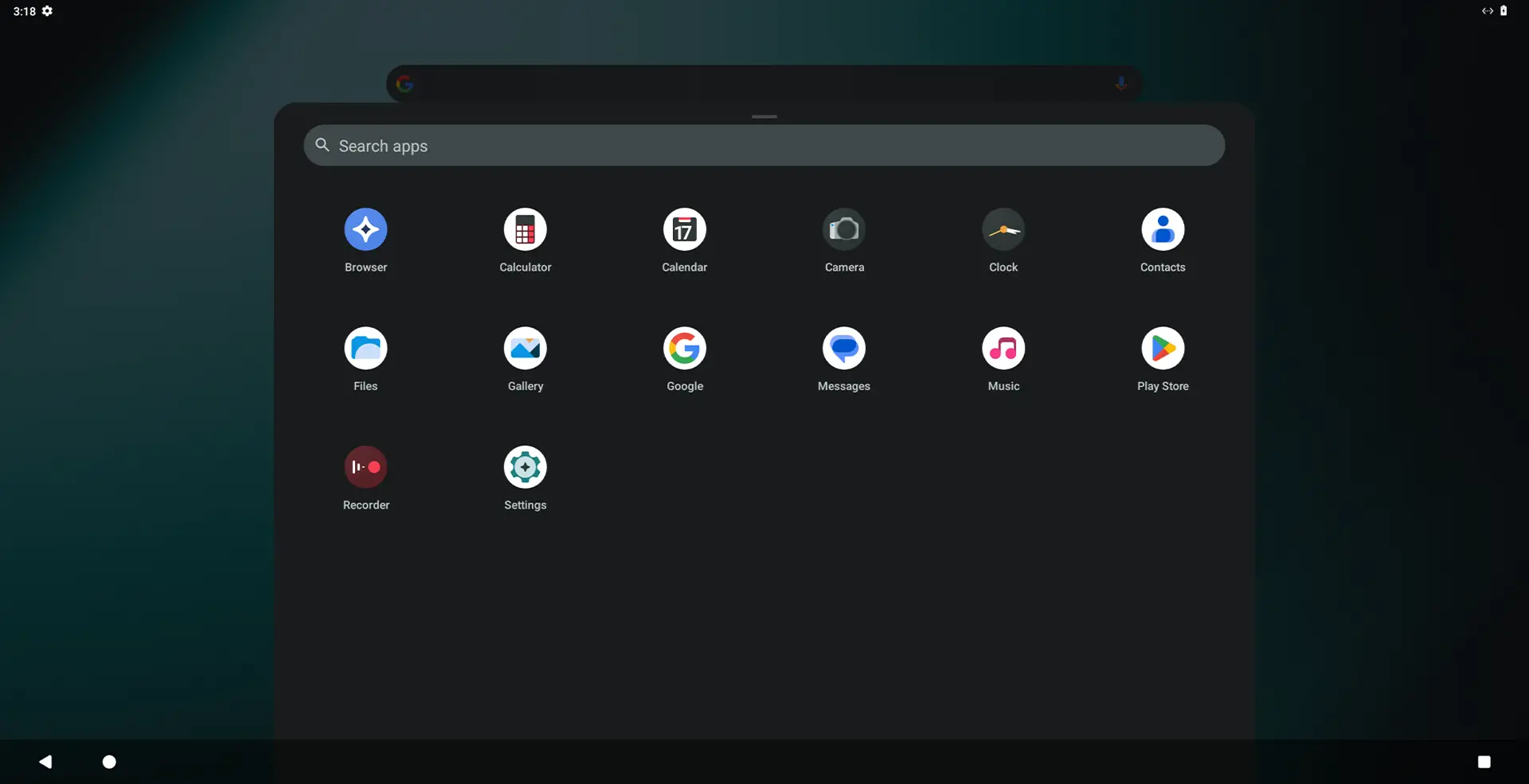
Now that Waydroid is installed and configured, you can start using your Android apps on Linux.
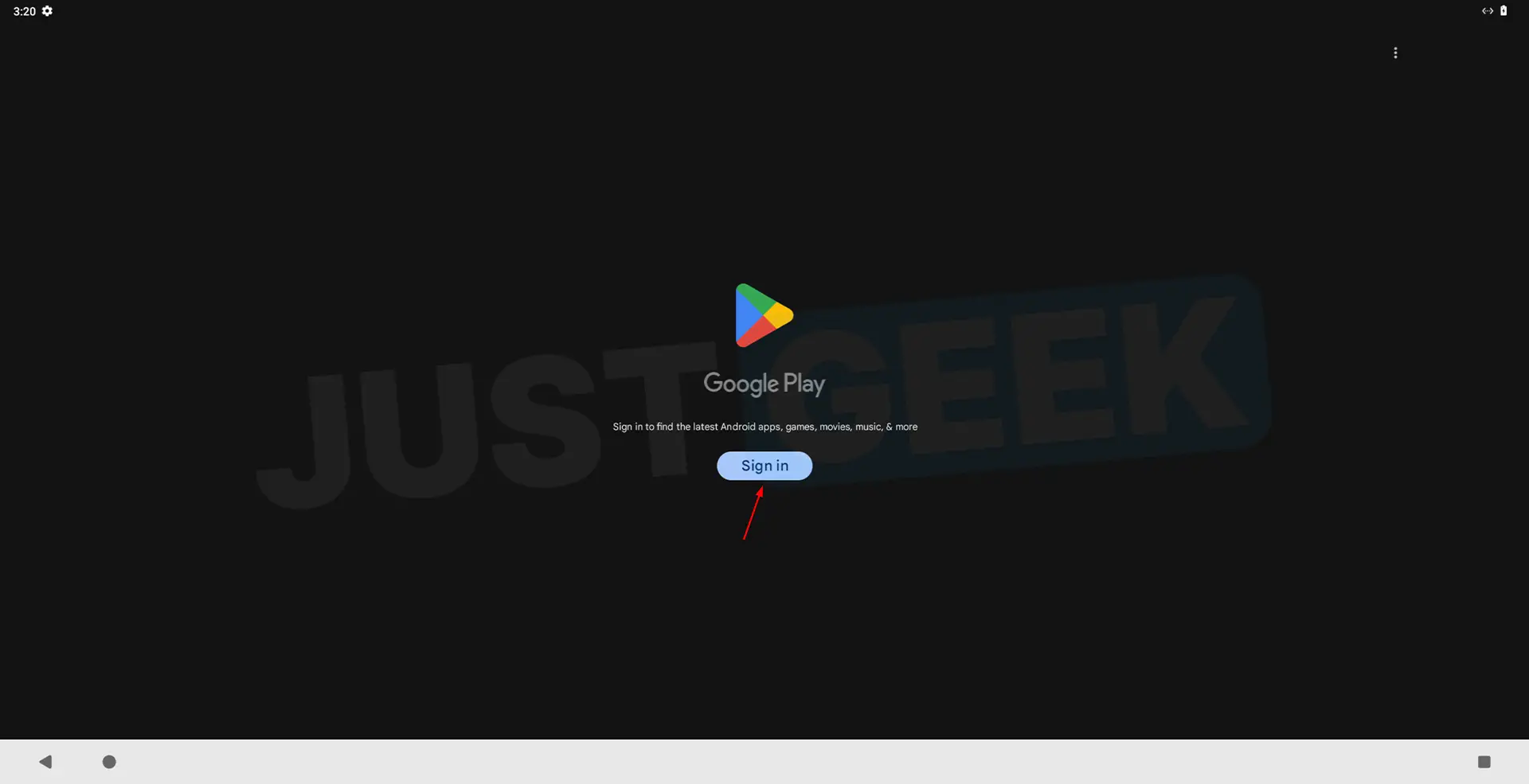
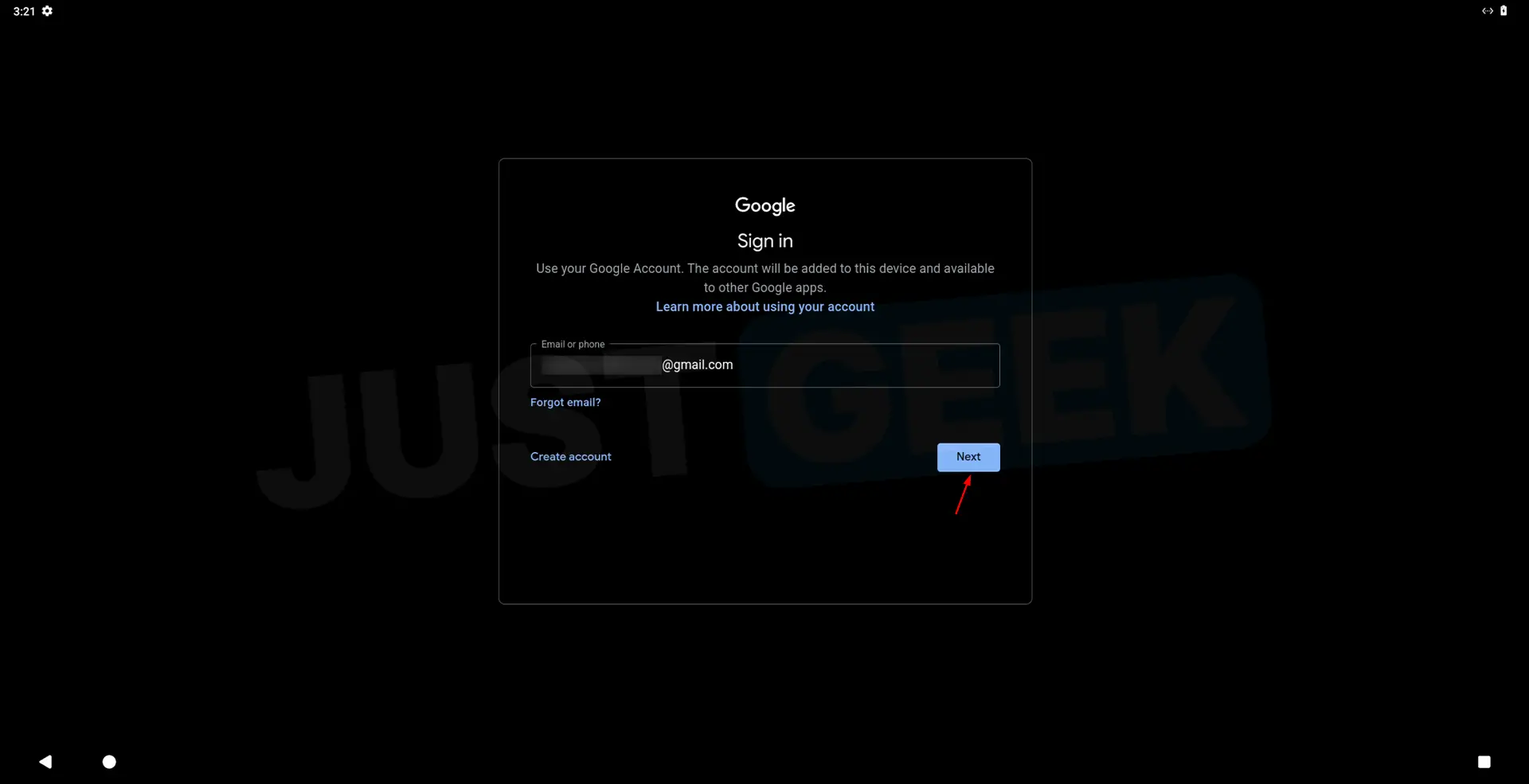
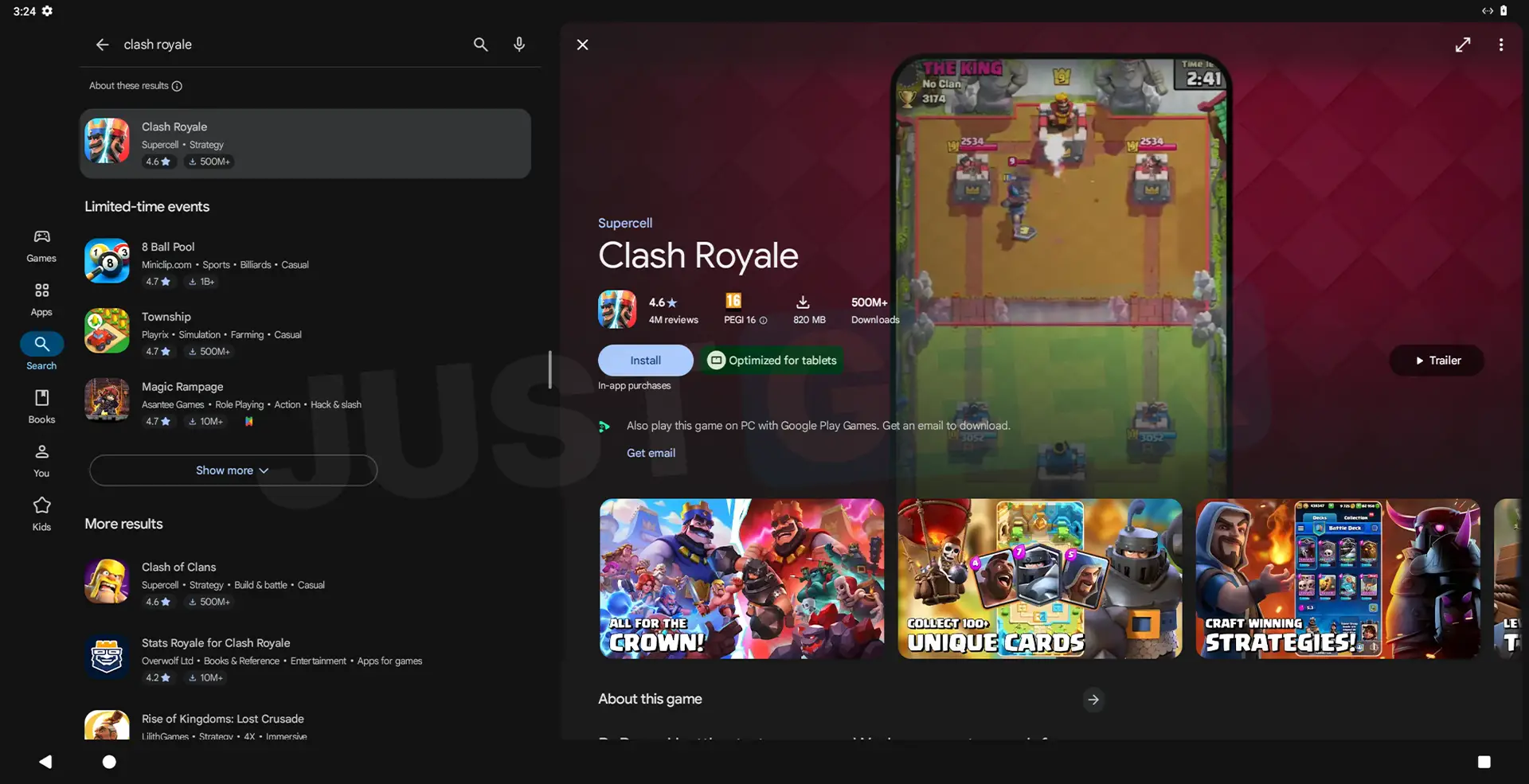
If you have chosen the version of Waydroid with Google services, the easiest thing is to go through the Google Play Store. Open it from the Android apps menu, sign in to your Google account, and then search for the app or game you want to install. Then click “ Install ” as you would on an Android smartphone or tablet.

You can also install apps from APK files. To do this, download the APK file of your choice, then open a Linux Terminal and enter the following command:
waydroid app install /chemin/vers/application.apkObviously, consider replacing /chemin/vers/application.apk by the actual path of your APK file.
Once the installation is complete, you will find your app in Waydroid’s Android app menu.
By default, Waydroid’s Android interface is in English. If you prefer to use it in French, you can easily change the language from Android settings. Here’s how to do it:
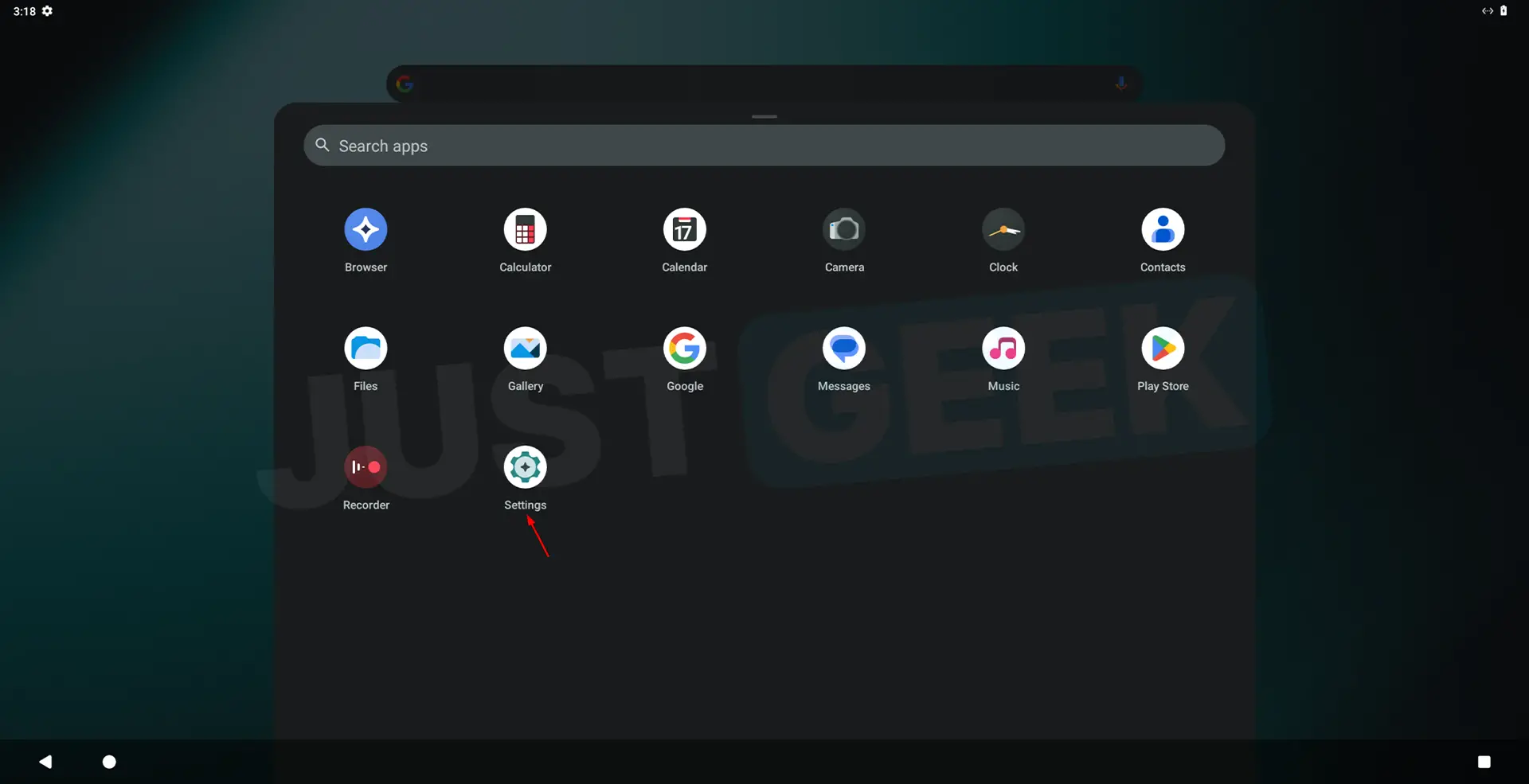
- Open the Waydroid app list, then click ” Settings ” (Settings).
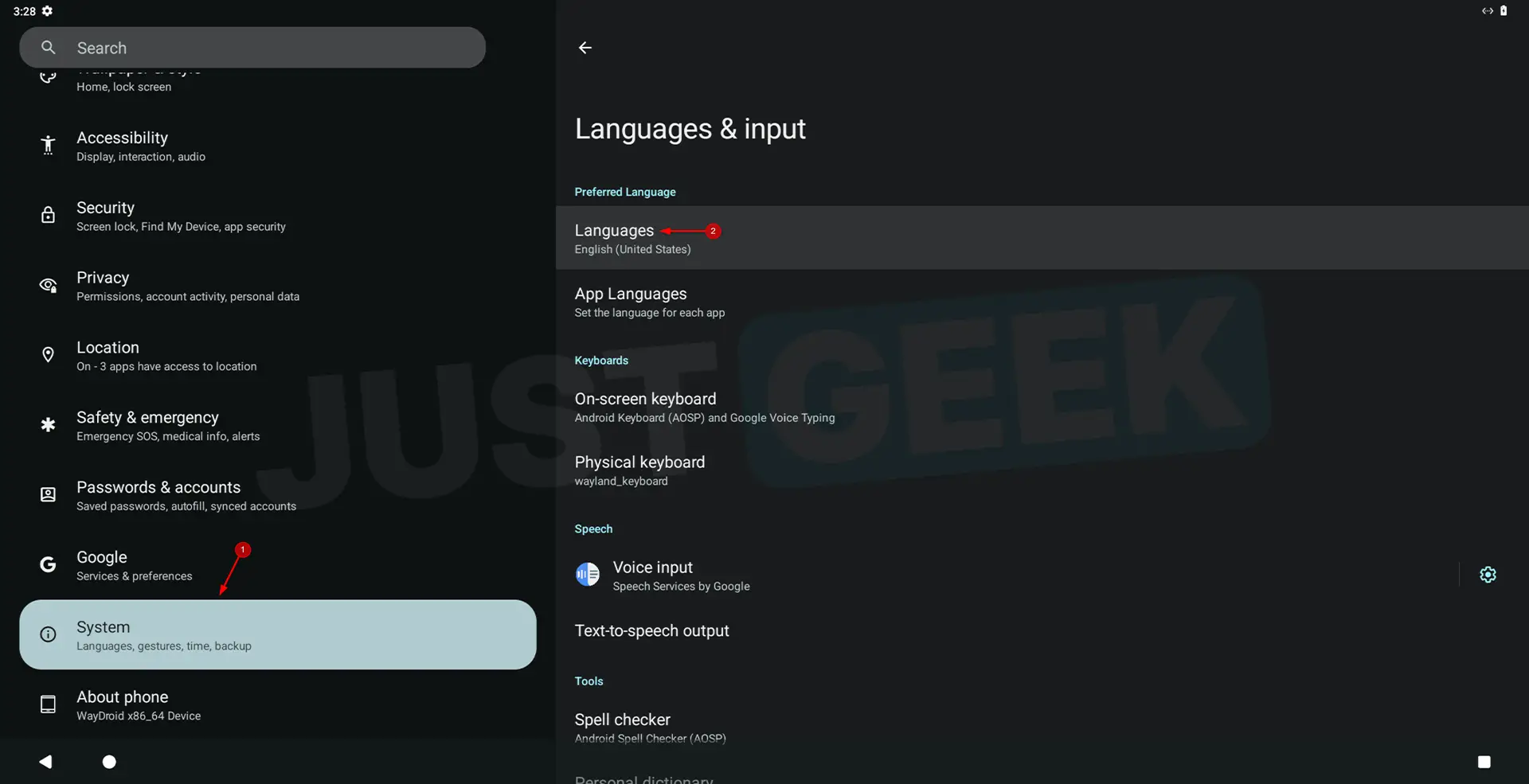
- In the left menu, click ” System “, then in ” Languages and input ” AND ” Languages “.
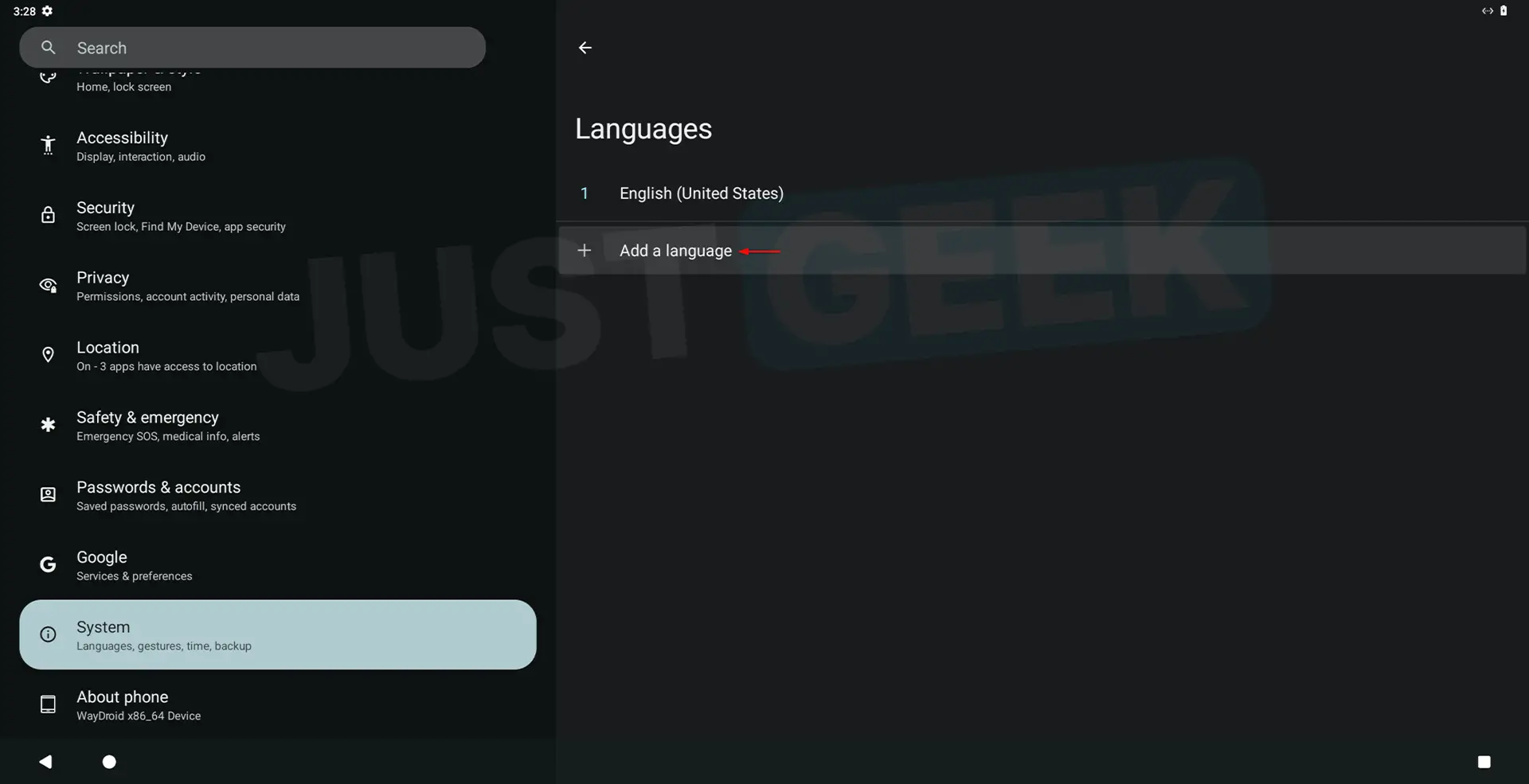
- Then click “ Add a language » (Add a language), then select “ French “, followed by ” France “.
- Once French has been added, click on the two small bars to the right of ” French (France) ”, hold down click and drag the language to the first position in the list.
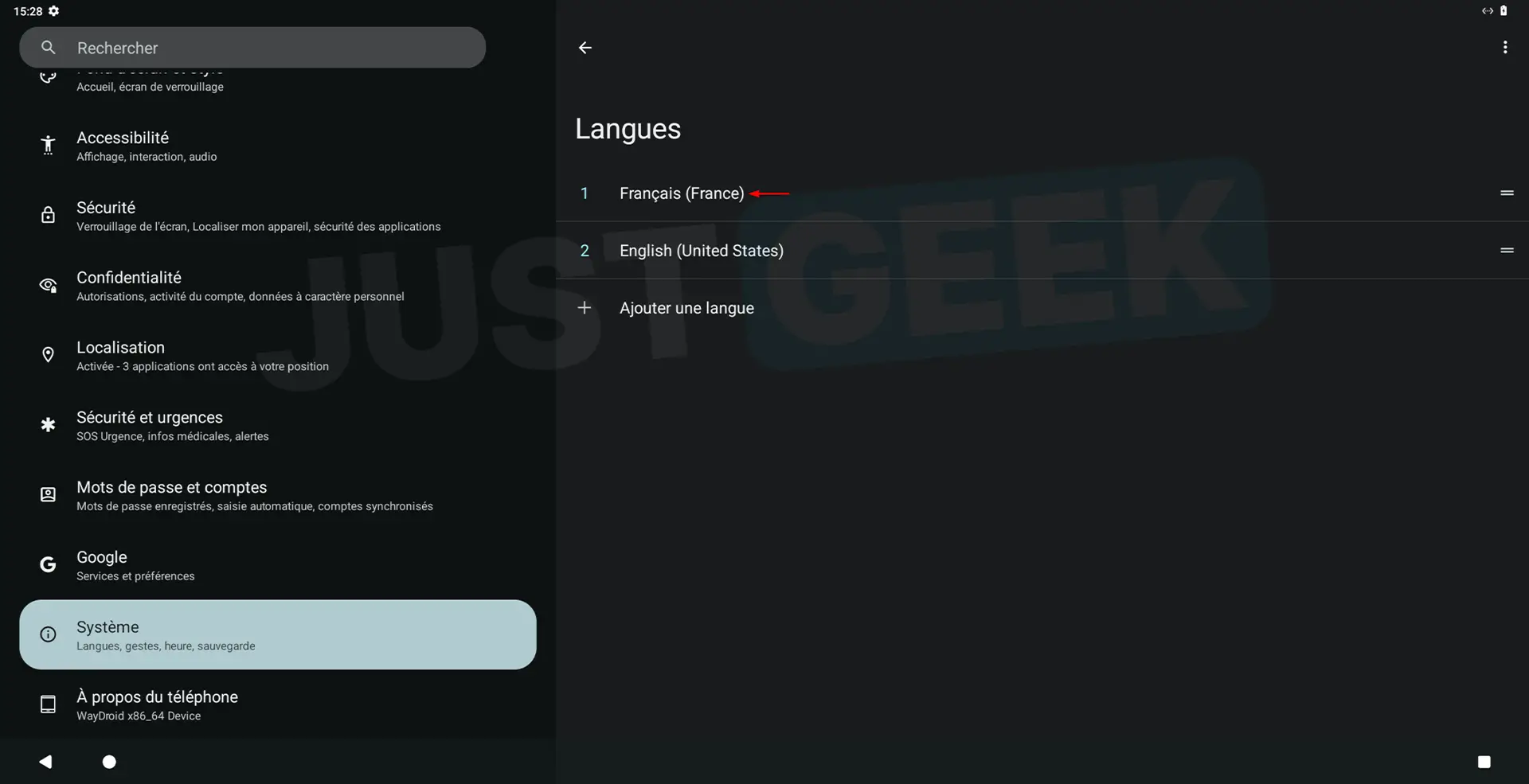
The Android interface automatically switches to French, without the need to restart Waydroid.