To run artificial intelligence directly on your PC, without going through an online service like ChatGPT, Gemini or Claude, there are already several software programs, including Ollama and LM Studio. But recently a newcomer has been added to the list. It’s called Llama, it’s free, open source, and allows you to download and use different AI models locally on Windows, without having to write a single command line.
I obviously wanted to try it! So I installed it on my PC, downloaded two pretty robust models, and started asking them a bunch of questions. I also took the opportunity to check on my PC, because running big AI at home is still resource-intensive. So what does that bring? I’ll tell you!
Call Windows: Local AI just a click away
Developed in collaboration with Hugging Face, Llama Windows relies on llama.cpp, a popular open source engine, to run artificial intelligence directly on your computer, without having to worry about complicated commands or configurations.
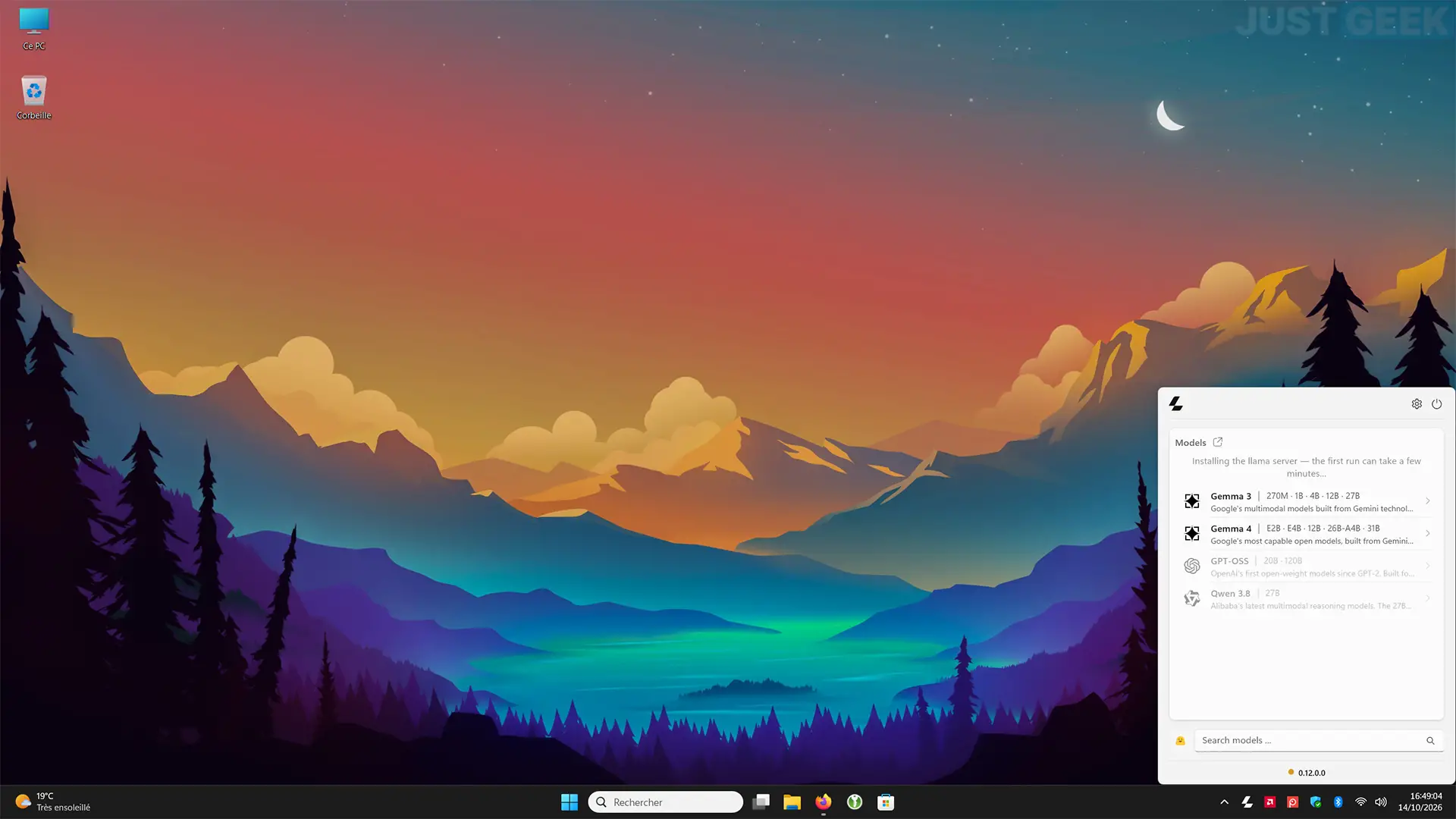
The software is located in the Windows 11 notification area, right next to the clock. Simply click on its icon to bring up a small window from which you can search and download AI models. For example, you can download models from Google (Gemma), Alibaba (Qwen), Meta (Llama) or even OpenAI (GPT-OSS).
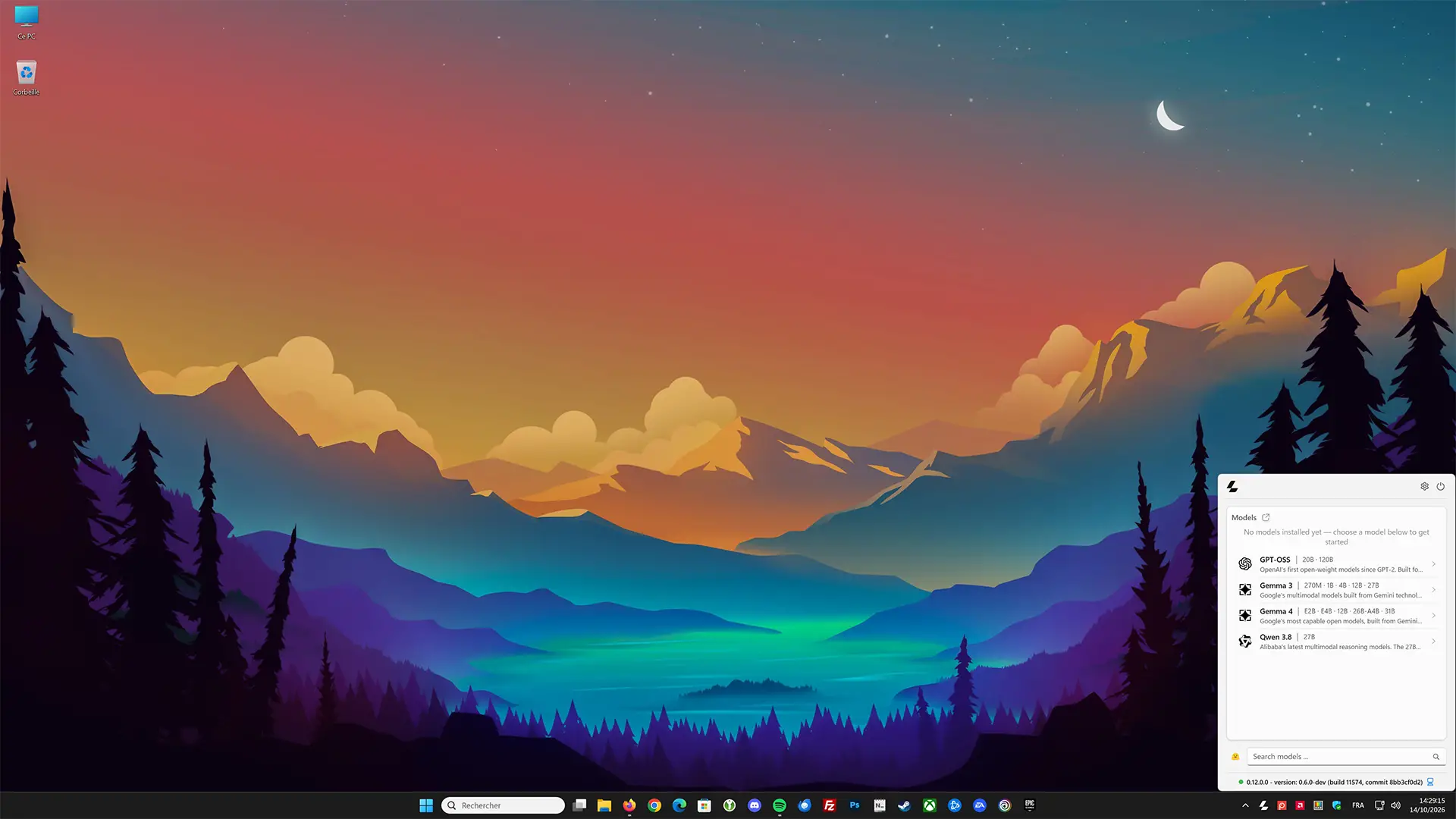
Once your model is downloaded, simply load it into memory and click the button provided to open a discussion interface in your browser. Then you can ask it questions, ask it to write text, help you program or even analyze images, if the chosen model allows it.
And because the calculations are done directly on your PC, your conversations are processed locally and remain private. You can disconnect the Internet, it still works.
Download and install Llama on Windows 11
To install Llama, nothing too complicated. Go to official websiteClick on the download button (“Download for Windows 11”), then launch the recovered file to install the app on your PC.
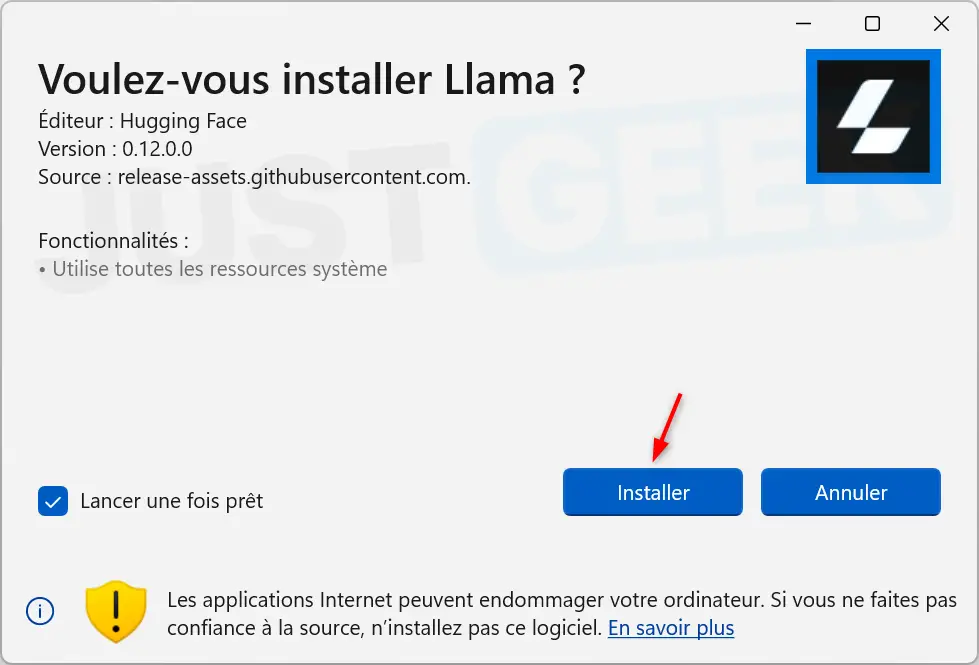
Once the installation is complete, Llama starts and is placed in the Windows notification area, next to the clock. Click its icon to open the interface.
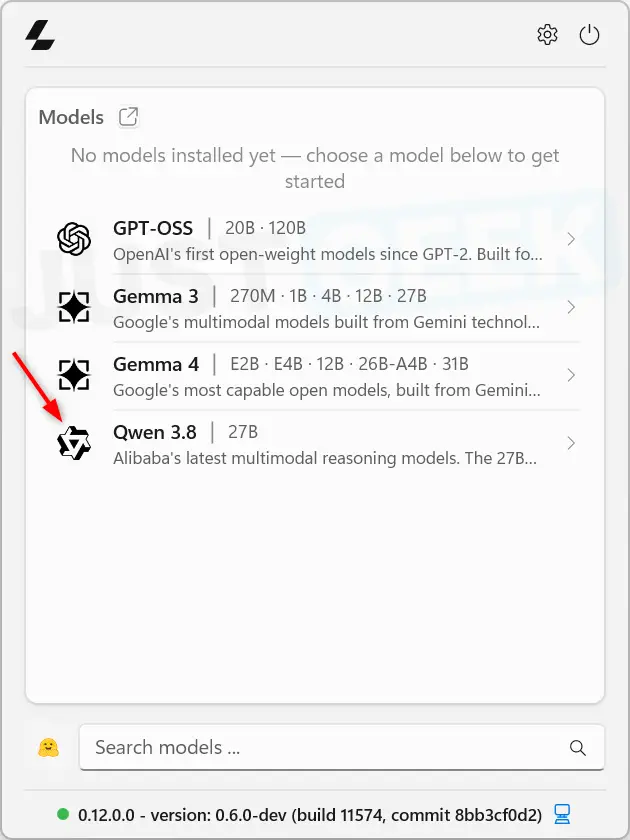
You will then see several AI models offered, but you can also use the search bar to find others. Be careful with the size of the models! Some only weigh a few gigabytes, while others can exceed 30 GB. And just because you have enough space on your SSD doesn’t mean your PC will necessarily be able to run them in good condition.
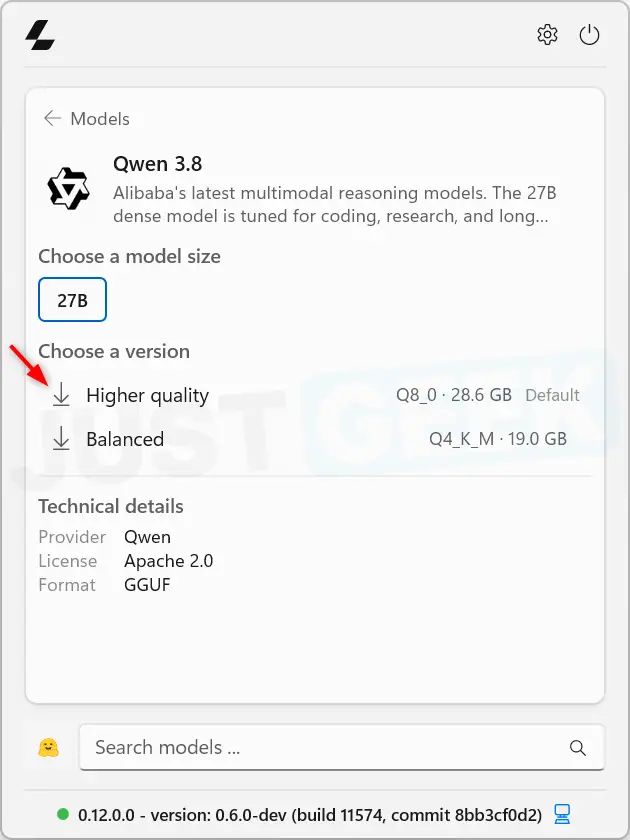
For my first test, I chose Qwen 3.8 27B, in its Q8_0 version, which occupies approximately 28.6 GB on disk. Needless to say, I didn’t start with the lightest model!
I tested Llama with Qwen 3.8 27B on my PC
For my first tests I used my main PC, equipped with an AMD Ryzen 7 9800X3D processor, 32 GB of DDR5 RAM and a Radeon RX 7900 XTX with 24 GB of video memory. A more than correct configuration on paper. But as I’ve noticed, that’s not necessarily enough to run large AI models under good conditions.
Once I downloaded Qwen 3.8 27B, I loaded it into Llama and opened the chat in my browser. The interface can be accessed at http://127.0.0.1:9931. This is the local address and port used by default, which you can change in the software settings.
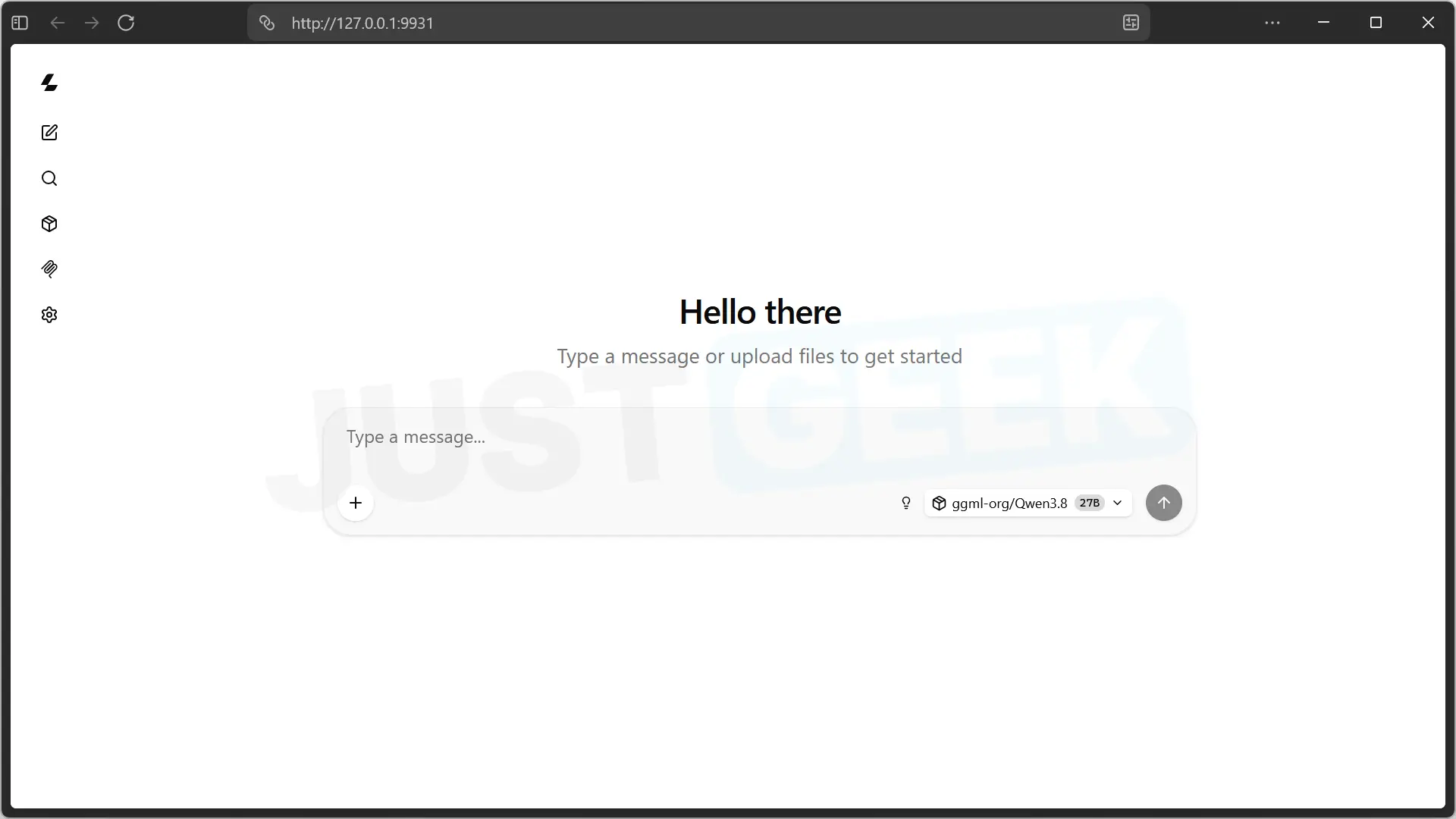
To start I simply asked him what the capital of Australia was. Canberra told me. Well, nothing too complicated so far.
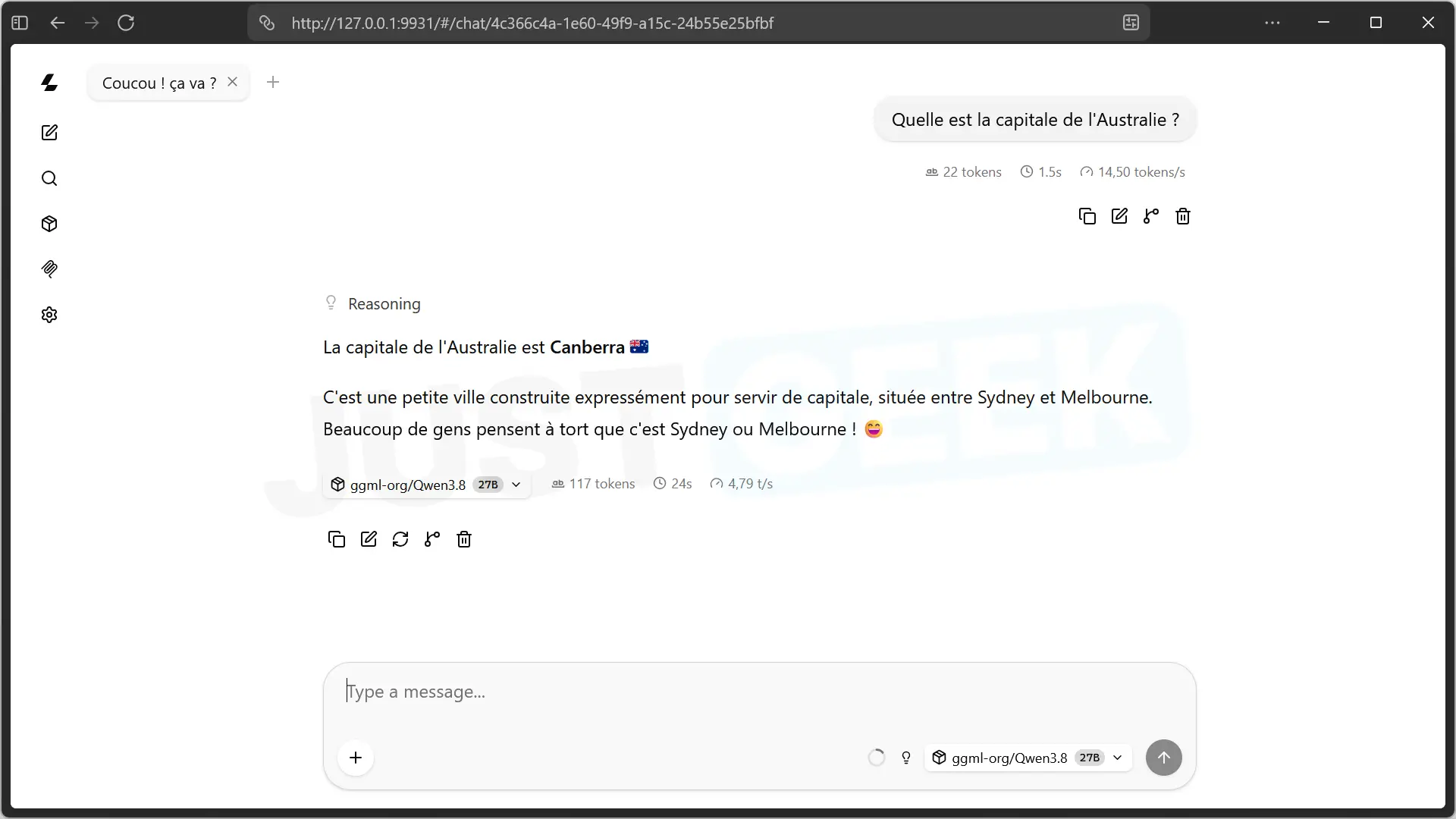
On the other hand, he took his time! For this first response, Qwen generated 117 tokens in 24 seconds, or just 4.79 tokens per second. Not very fast…
I then opened Windows Task Manager to see what was happening. And in fact, my PC was working quite well! Of my Radeon’s 24GB of video memory, approximately 23.8GB was used. The processor was also in good demand. With a model that weighs 28.6GB, I knew it was going to be greedy, but I didn’t think it would be this slow.
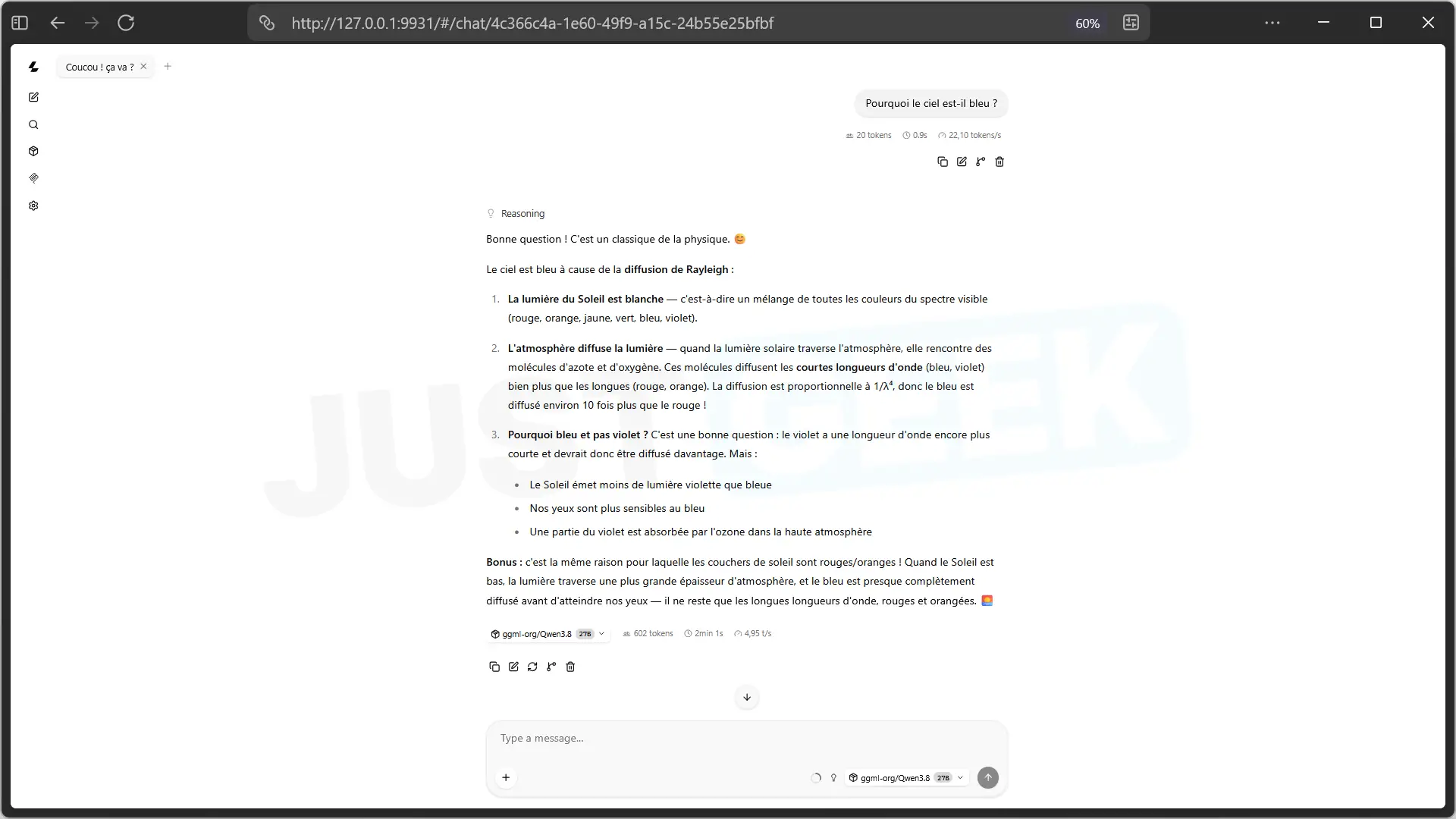
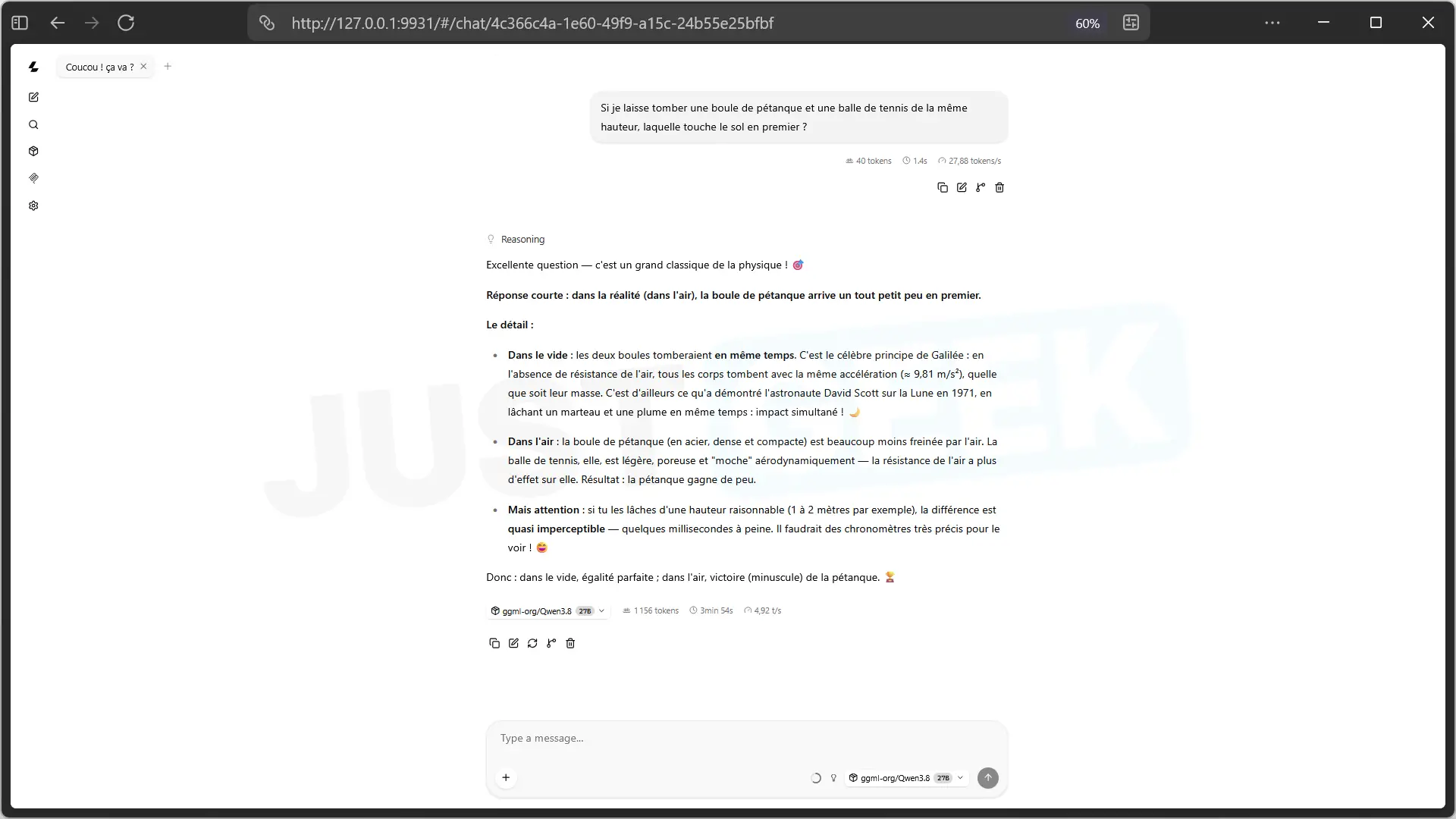
Still I continued with my tests. I asked him why the sky is blue and then what happens when you drop a pétanque ball and a tennis ball from the same height. In both cases, Qwen gave the correct explanations. No complaints about the answers, but you had to be patient to get them!
Gemma 4 31B: much faster responses!
After Qwen, I decided to try Google’s Gemma 4 31B. This time I chose the Q4_0 version, which takes up about 18 GB on disk. The Q8_0 version is over 33GB and given the results with Qwen, I didn’t want to bring my PC to its knees even further.
And there, big difference! I asked her again about the capital of Australia and Gemma responded in just 2.5 seconds, at a speed of 33.38 tokens per second. Nothing to do with Qwen’s 4.79 tokens per second!
I continued with my questions about the color of the sky and the fall of a pétanque ball against a tennis ball. The responses were good, but this time they came much faster. We are getting closer to the speed we can have with ChatGPT or Claude, for example.
Then I had fun asking him some riddles. If you overtake the second in a race, where are you? Gemma answered correctly second. I also asked him to calculate the ages of a father and his son who are 36 years old between them, 30 years apart. He found 33 years for the father and 3 years for the son.
To complicate things a bit, I asked him how to measure 45 minutes with two ropes that each take an hour to burn, but not constantly. There he also found the right solution.
In the end, Gemma 4 made a much better impression on me. The responses were quick, the explanations held up and I was able to chat with him without wasting time waiting.
Analyzing images and generating code works too!
I didn’t dwell on questions and riddles. I wanted to see if Gemma 4 could understand what was in a picture. So I sent him a photo of two macaws perched on a branch, with a simple question: “What do you see in this picture?” »
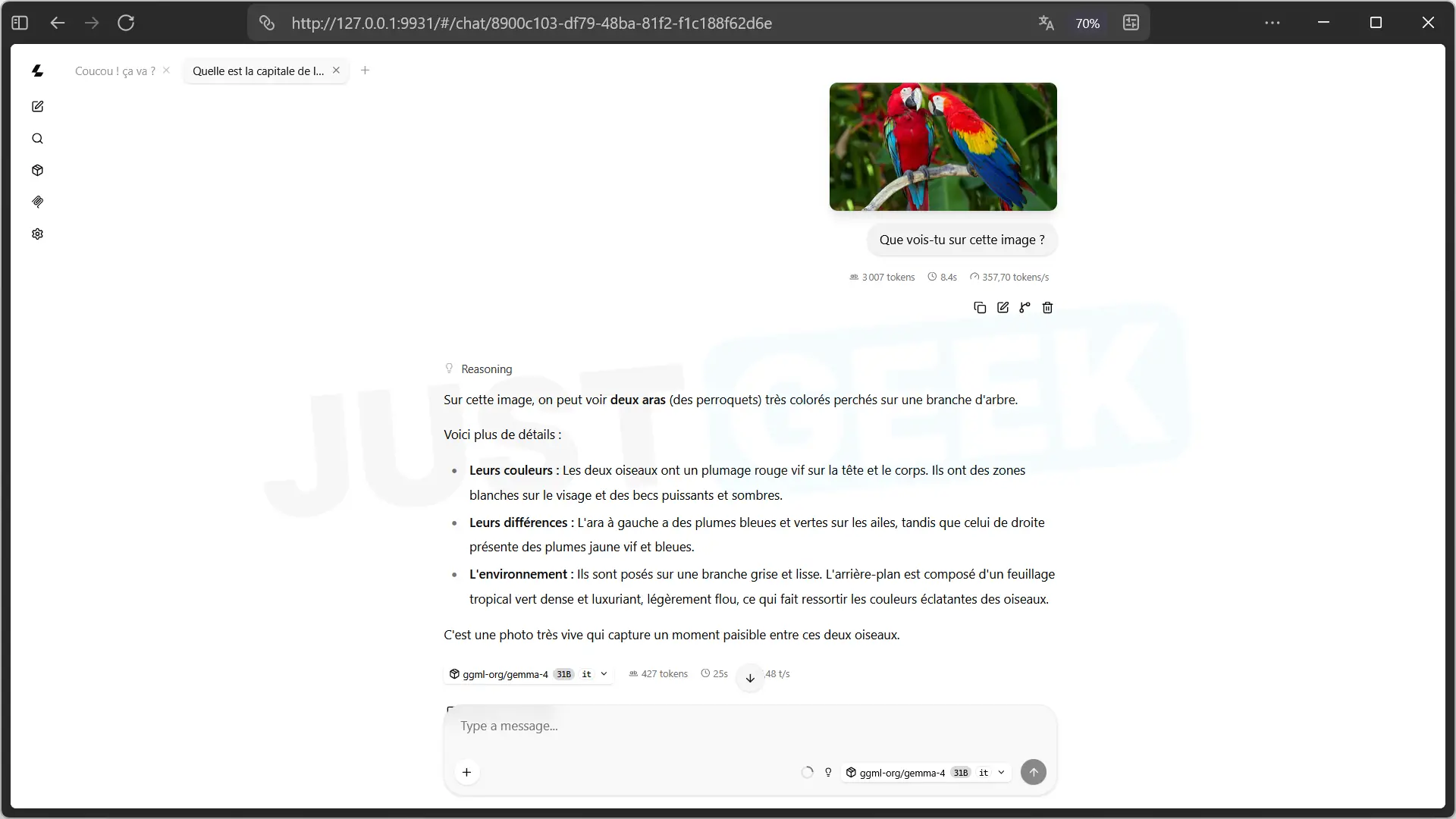
And again he did quite well! He recognized the two birds, described the colors of their plumage and observed various details in the photograph, particularly the branch on which they were perched and the vegetation in the background.
Then I tried a little programming. I asked him to create a Python script to find duplicate files in a folder and its subfolders, using SHA-256 to compare their contents. I also told him not to delete anything.
Gemma provided me with a complete script. And he even came up with a little time-saving trick: group files by size before calculating their SHA-256 fingerprints. It’s not stupid! The code seemed correct to me when I reviewed it, but I should point out that I did not run it.
I also cut off my internet connection during my test. No problem, Gemma continued to respond normally. Once the model is downloaded, you can use Llama without being connected.
Pay attention to RAM and VRAM consumption!
Although Gemma 4 was much faster than Qwen on my PC, it is resource intensive. During my testing, I opened Windows Task Manager to see what was going on.
While generating a response, my graphics card was running at 98%, with approximately 22.8GB of video memory used out of the 24GB available. For RAM, it wasn’t much better. Task Manager showed 30.1 GB used out of 30.6 GB, or 98% of available memory.
And the most annoying thing is that even after I finished chatting with Gemma, the RAM was still almost full. In fact, Llama kept the model in memory to avoid having to reload it with each new question.
So I manually downloaded Gemma from the app, just to see. As a result, the RAM used went from 30.1 GB to 7.5 GB. It still makes a big difference.
Then I took a look at the Llama settings and found two options that could be very useful:
- “ Download model when inactive » allows you to automatically download a model after 5 minutes, 15 minutes or 1 hour of no activity. For me the setting was “Never”, meaning the model remains loaded.
- “ Max Loaded Models » allows you to choose how many models can remain charged at the same time. By default, the value is 0, which means there is no limit. By changing it to 1 we avoid keeping several in memory.
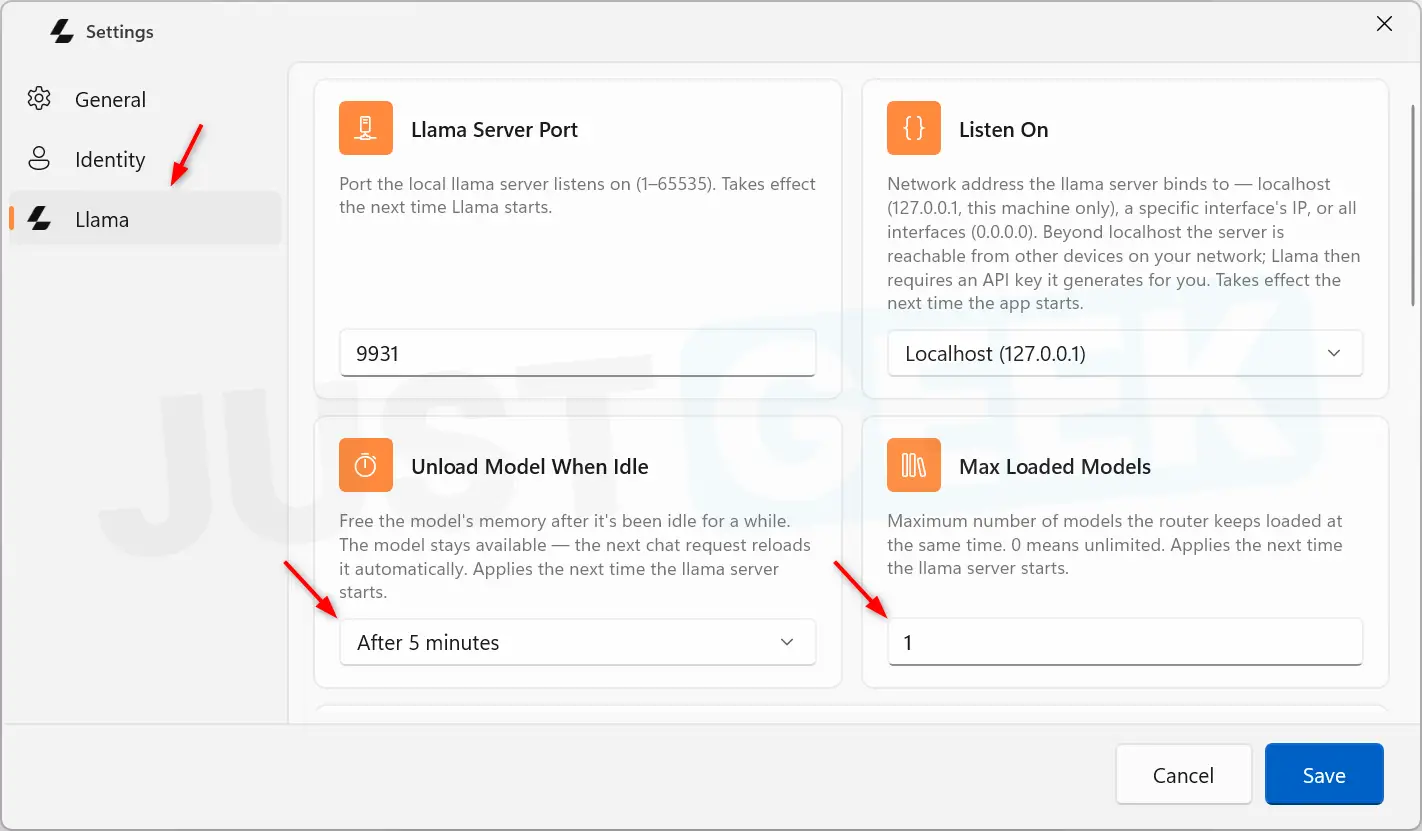
After modifying these settings, you must save and restart Llama for them to take effect.
With my 32 GB of RAM, I prefer to set the automatic download to 5 minutes and limit the number of loaded models to just one. This avoids leaving a large part of the memory occupied when I no longer use the software.
Otherwise, Llama Windows is not bad at all. So if you also want to run an AI locally on your PC, but don’t really know where to start, I think you might like this little app. It’s easy to use and you quickly get the hang of it!