Apple’s new Liquid Glass graphical interface, whether we like it or not. One thing is certain: it did not leave the developer Ryosuke Watanabe indifferent, who decided to be inspired by him to create an extension for GNOME under Linux.
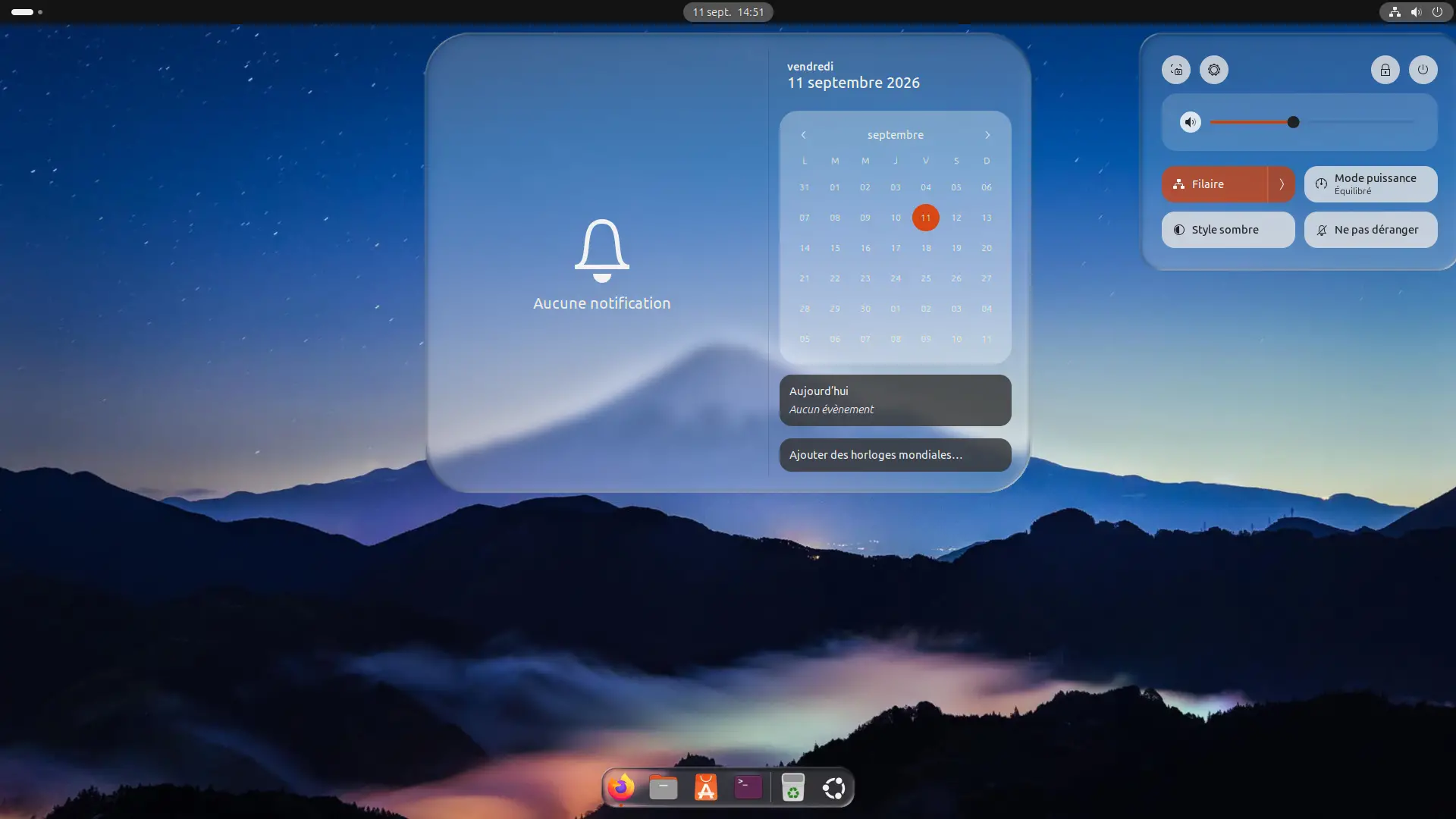
Soberly called Liquid Glass, this extension allows you to apply this glass effect to the dock, menus, notifications, quick settings or even volume and brightness indicators. And it’s even possible to use it in your application windows.
Obviously I wanted to see what it was like. I installed it on Ubuntu 26.04.1 LTS with GNOME 50.1 and after some tweaking the result is pretty good. It’s not perfect, but it’s nice nonetheless. Here’s what this extension offers and how to install it on your PC.
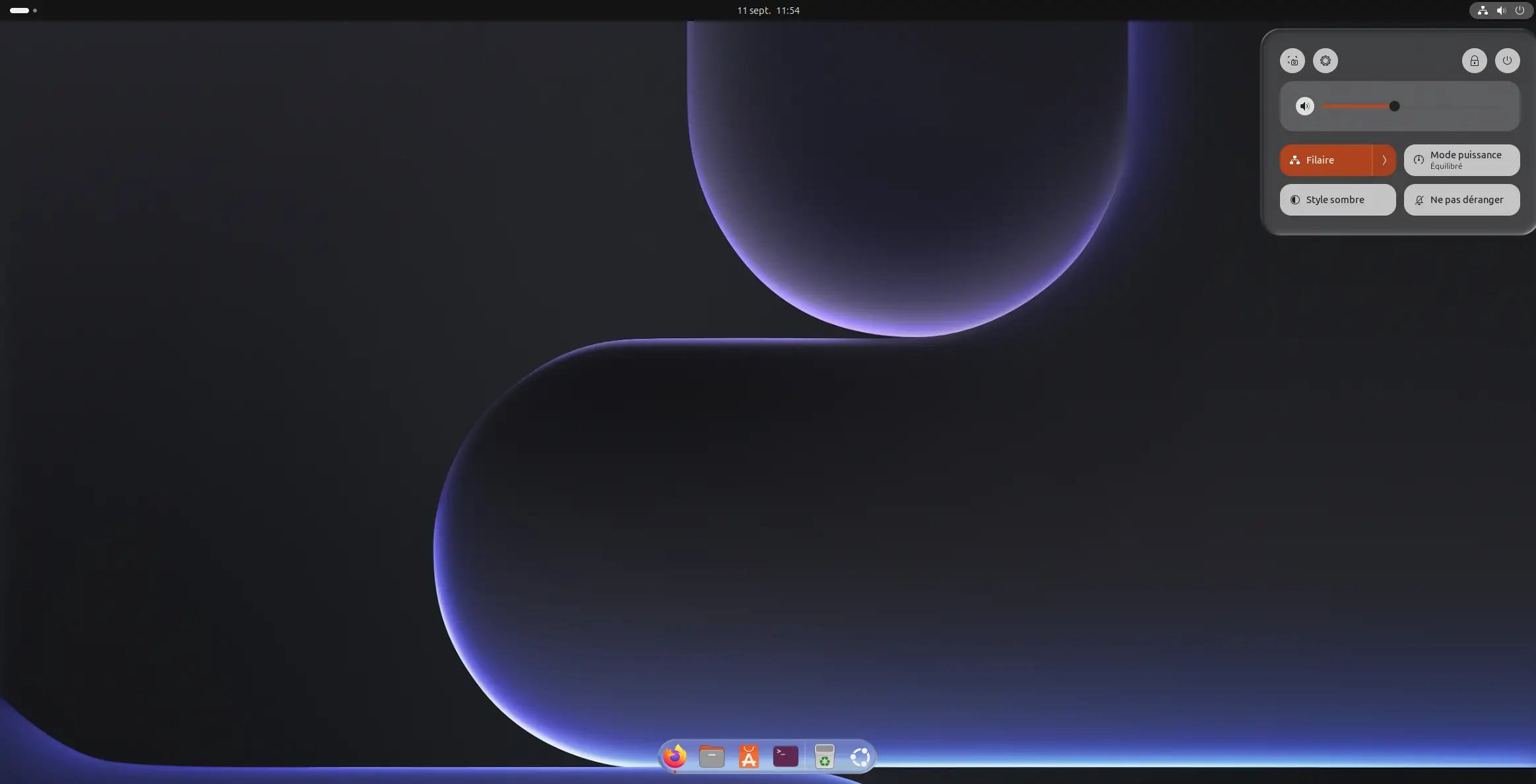
A small sample of Liquid Glass on Linux
So does it really look like Apple’s Liquid Glass? Well, yes… but not completely. We clearly find this transparent glass side that allows us to see what is behind it, with blurs, reflections and above all that small deformation of the background that is a good part of the charm of Liquid Glass.
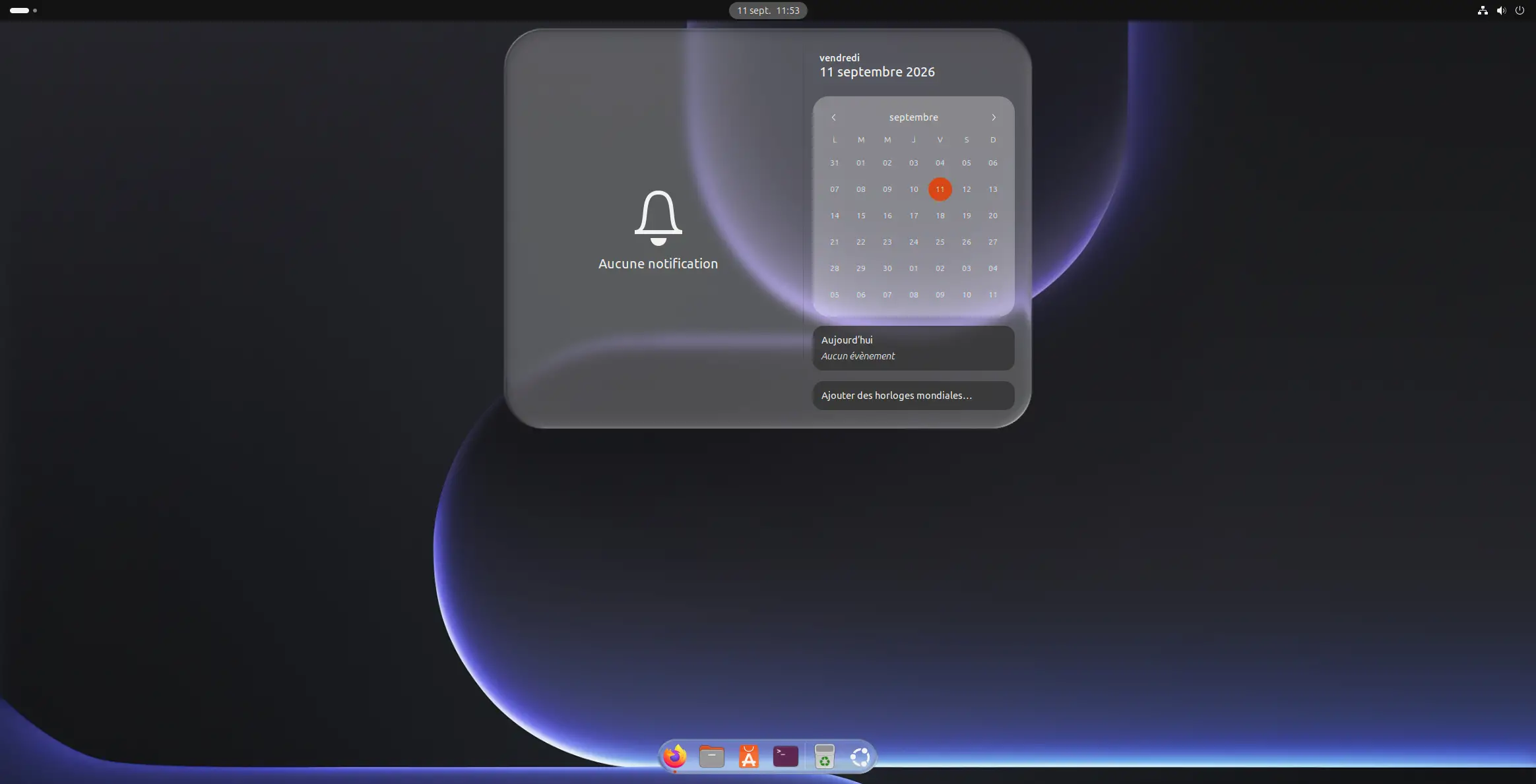
And this deformation is not just there to look pretty. Ryosuke Watanabe has developed a shader that simulates light refraction and is based in particular on the snell’s law. When you open a menu, for example, the items behind it actually distort through the glass instead of simply being covered with a blurry, transparent background.
The effect can be applied almost everywhere: in the Dock, in menus, in notifications, in quick settings or even in the volume and brightness indicators. And fortunately everything is independent. So you can only put Liquid Glass where you think it looks good.
And there are many configurations.
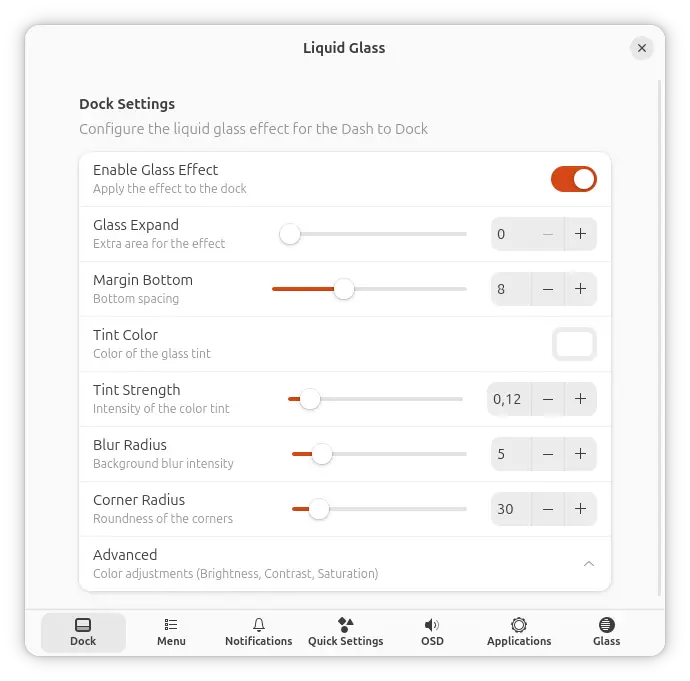
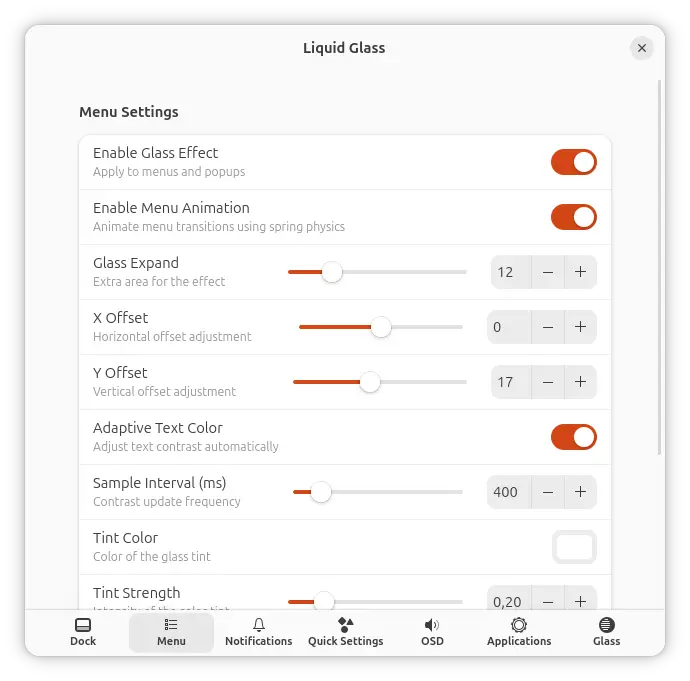
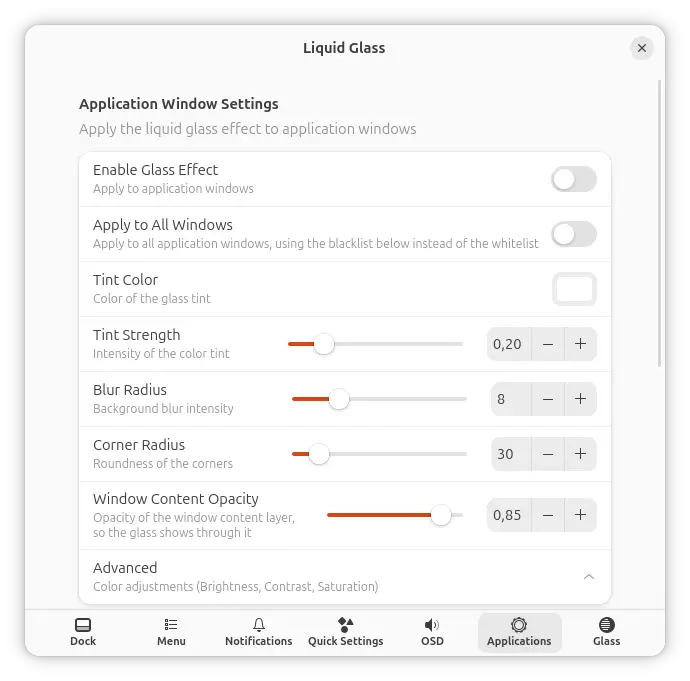
If you don’t like the default rendering, no problem. The developer has provided settings for almost all interface elements. The dock, menus, notifications, quick settings and indicators have their own options.
For example, you can modify the blur, the rounding, the color of the glass or even the intensity of certain effects. And as we saw above, each element can also be turned off completely if you find that it’s starting to become too much.
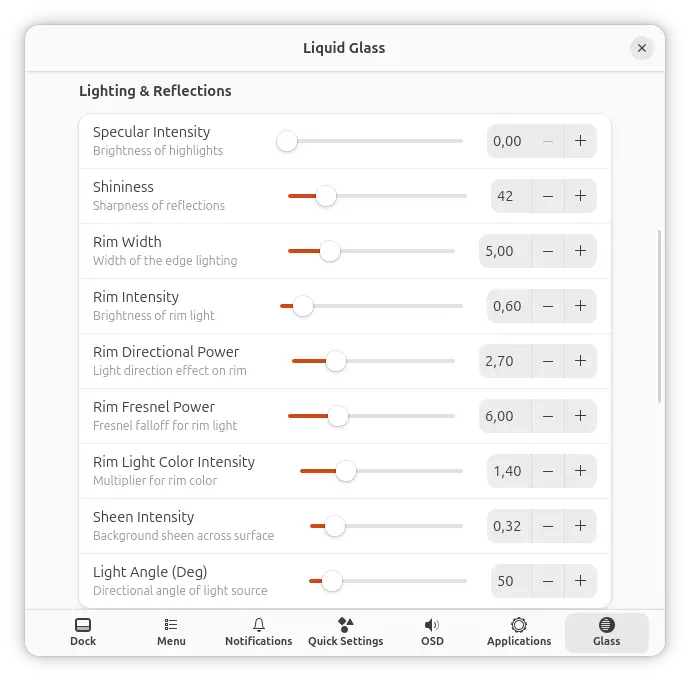
But it is especially in the “Glass” tab where you can have fun. There you will find all the settings that directly affect the rendering of the glass: refraction, warping, reflections, chromatic aberration, edge lighting, shadows… I spent a lot of time playing with the different sliders and some can actually change the result completely.
The animations can also be customized. Personally I have disabled them completely, because I find that it doesn’t add much, but again, it is still a matter of taste.
It’s even possible to apply Liquid Glass to your application windows. I tried it and I’m a little less convinced about this part. It’s good, but it’s not yet available in some apps.
All that glass still has a price.
Obviously all these effects are not free for the machine. Liquid Glass uses shaders to calculate in real time the blurring, reflections and especially the deformation of what is behind the different interface elements.
For my part, I didn’t experience any particular slowdown during my tests. And yet, Liquid Glass was running on a virtual machine. Well, it must be said that I had allocated quite a few resources to it, given the configuration of my main machine. Basically, if you have a recent and sufficiently powerful PC, the impact should be quite limited.
In any case, the developer is aware that its extension can be quite demanding since performance optimization is part of the planned improvements. On a more modest machine or laptop, you’ll probably have to be a little more careful here.
Before you start, check your GNOME version. At the time of writing, Liquid Glass is only supported on GNOME 49 and GNOME 50.
And believe me, it is better to respect this compatibility. I first tested the extension on Ubuntu 24.04 LTS with GNOME 46 by manually editing its file metadata.json to make believe that my version was compatible. The extension appeared in GNOME, but as soon as I activated it, the GNOME Shell completely crashed and restarted.
So I tried the experiment again on a virtual machine running Ubuntu 26.04.1 LTS with GNOME 50.1 and this time there was no problem. The extension activated normally and it is in this configuration that I performed all my testing.
For installation, Liquid Glass is not yet available on the GNOME Extensions site. It is therefore necessary go through GitHub and some commands in Terminal, but you’ll find that it only takes a few minutes.
Start by installing Git if you don’t already have it:
sudo apt install gitThen clone the Liquid Glass repository:
git clone https://github.com/ryohsuke1231/liquid-glass.gitCreate the GNOME extensions folder if it doesn’t already exist:
mkdir -p ~/.local/share/gnome-shell/extensions/Then copy Liquid Glass inside:
cp -r liquid-glass/[email protected] ~/.local/share/gnome-shell/extensions/Once finished, log out and log back in. Liquid Glass should now appear in the GNOME “Extensions” app. All you have to do is activate it and open its settings to start playing with all the settings.
So is it worth it?
After spending quite a bit of time playing with Liquid Glass, I have to say that I quite like the result. I haven’t added all the effects that the extension offers, but being quite light on configuration, it really gives something to GNOME.
Not everything is perfect yet, especially the effect applied to application windows, and there is also the question of performance on less powerful machines. But for an extension still in development, it’s not bad at all.
In short, if you like Apple’s Liquid Glass, you can now put it on your Linux desktop. And if you think it’s horrible… no one is forcing you to turn it on.