Do you need to convert an image to WebP, a Word document to PDF or even a video to another format? For this type of operation, we usually use various software programs or use online converters. However, a single tool may be enough.
It is called Filee and it is free and open source software capable of converting more than 250 file formats. It offers several conversion methods, including a rather original one that allows you to convert your files from Windows Explorer, simply by dragging and dropping. Let’s see together how it works.
A conversion wheel to quickly change the format of your files
The peculiarity of Filee is that it allows you to convert files without having to systematically open its interface. Once the software is installed, it runs in the background and remains accessible from the Windows notification area.
To start a conversion, simply select a file in Windows Explorer, press and hold Control pressed and starts moving it with the mouse. A wheel then appears around the cursor, with various output formats supported by the selected file.
All that remains is to move the cursor to the desired format and then release the mouse button to start the conversion.
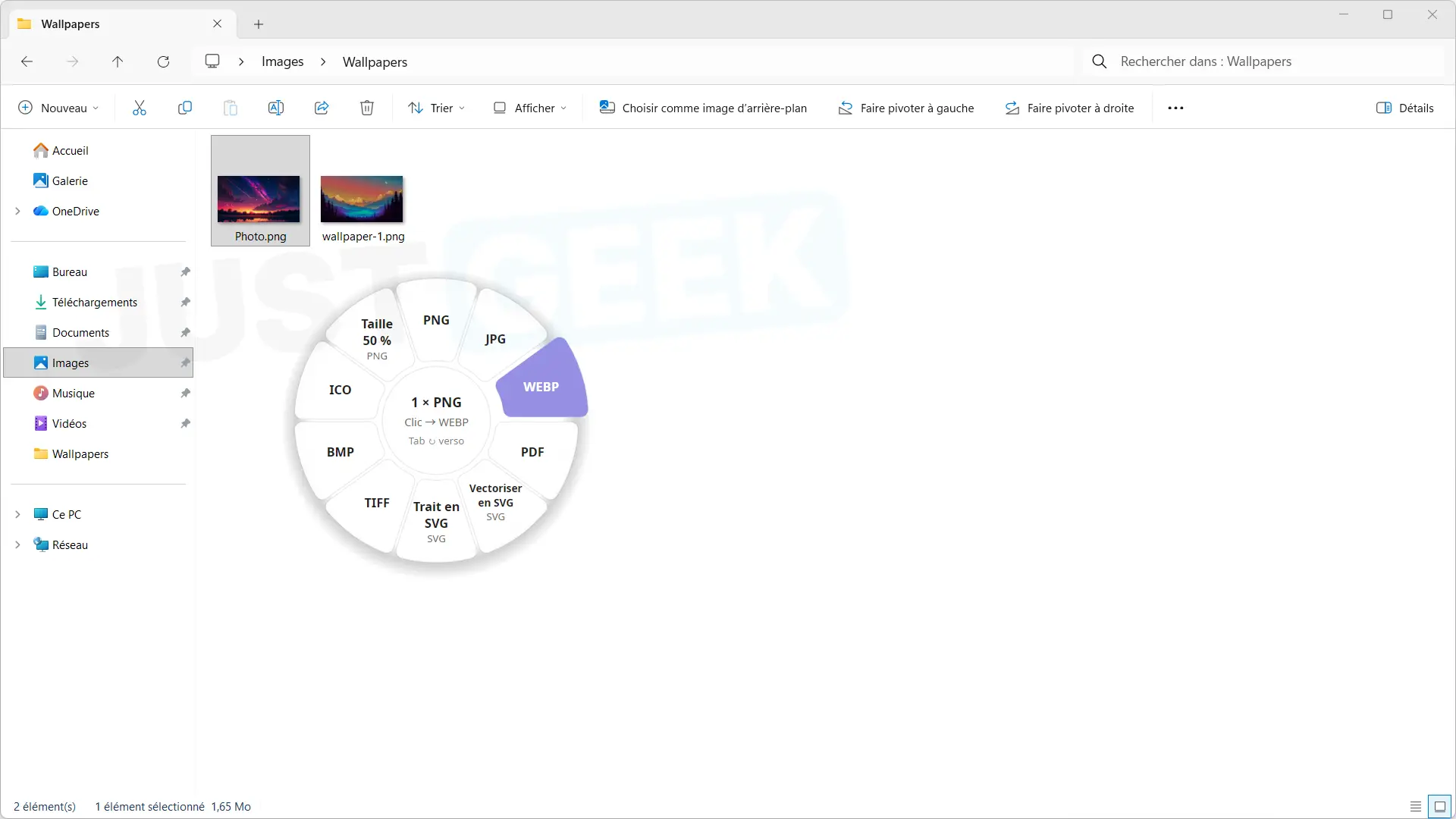
For example, if you select a PNG image, Filee may offer to convert it to JPG, WebP, or other supported formats. You can even select multiple files to convert at once.
And if this method doesn’t suit you, Filee offers other ways to convert your files, which we’ll look at now.
Various other ways to convert your files
Personally, I find the circular menu system to be quite convenient, but it is not the only method Filee offers for converting your files.
You can also go directly through the Windows context menu. Right click on a file, then select “Convert with Filee” to choose the desired output format.
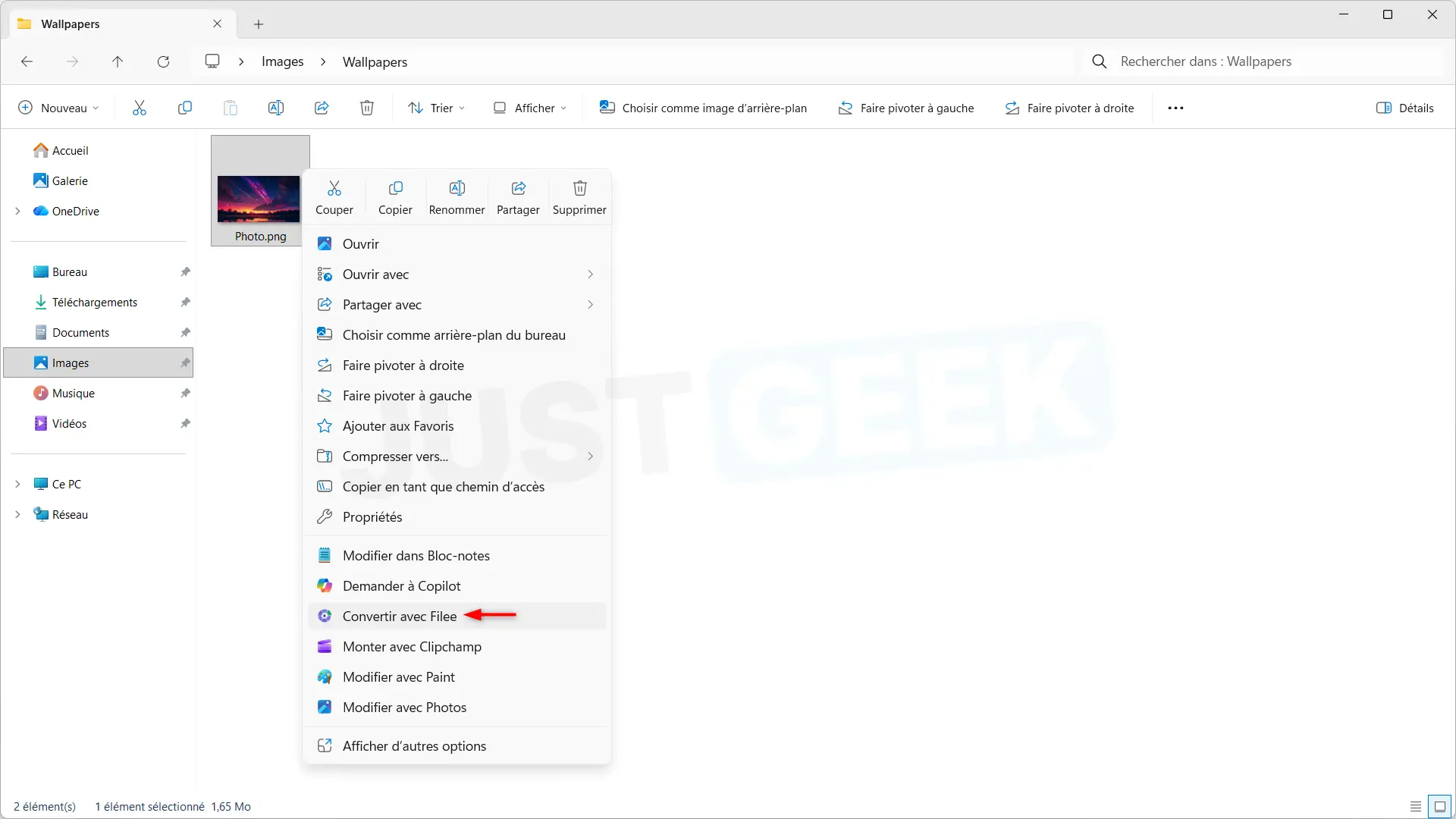
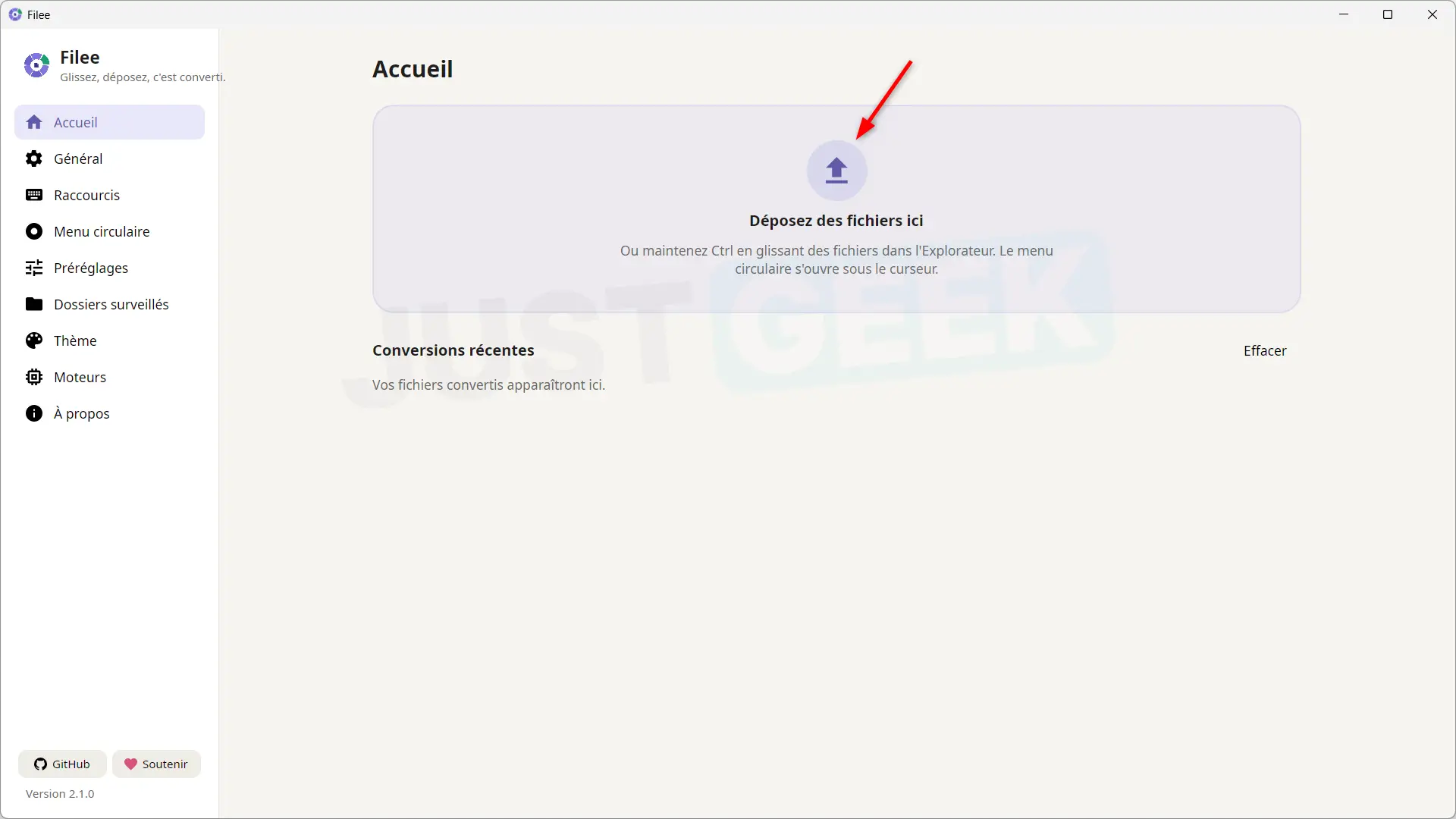
It is also possible to open Filee and drag and drop your files onto its interface. Then you can choose the conversion format and find your latest conversions on the software’s home page.
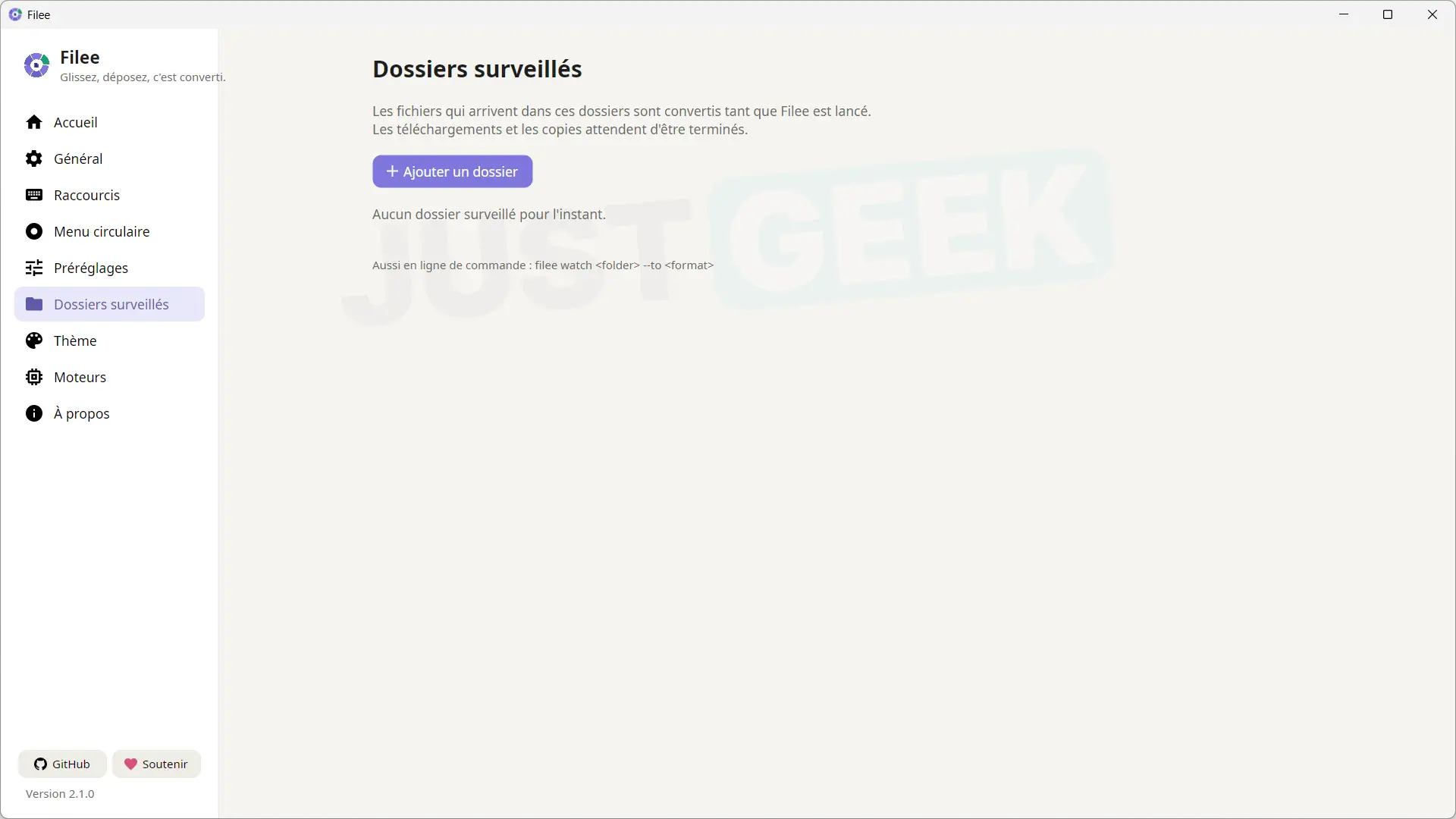
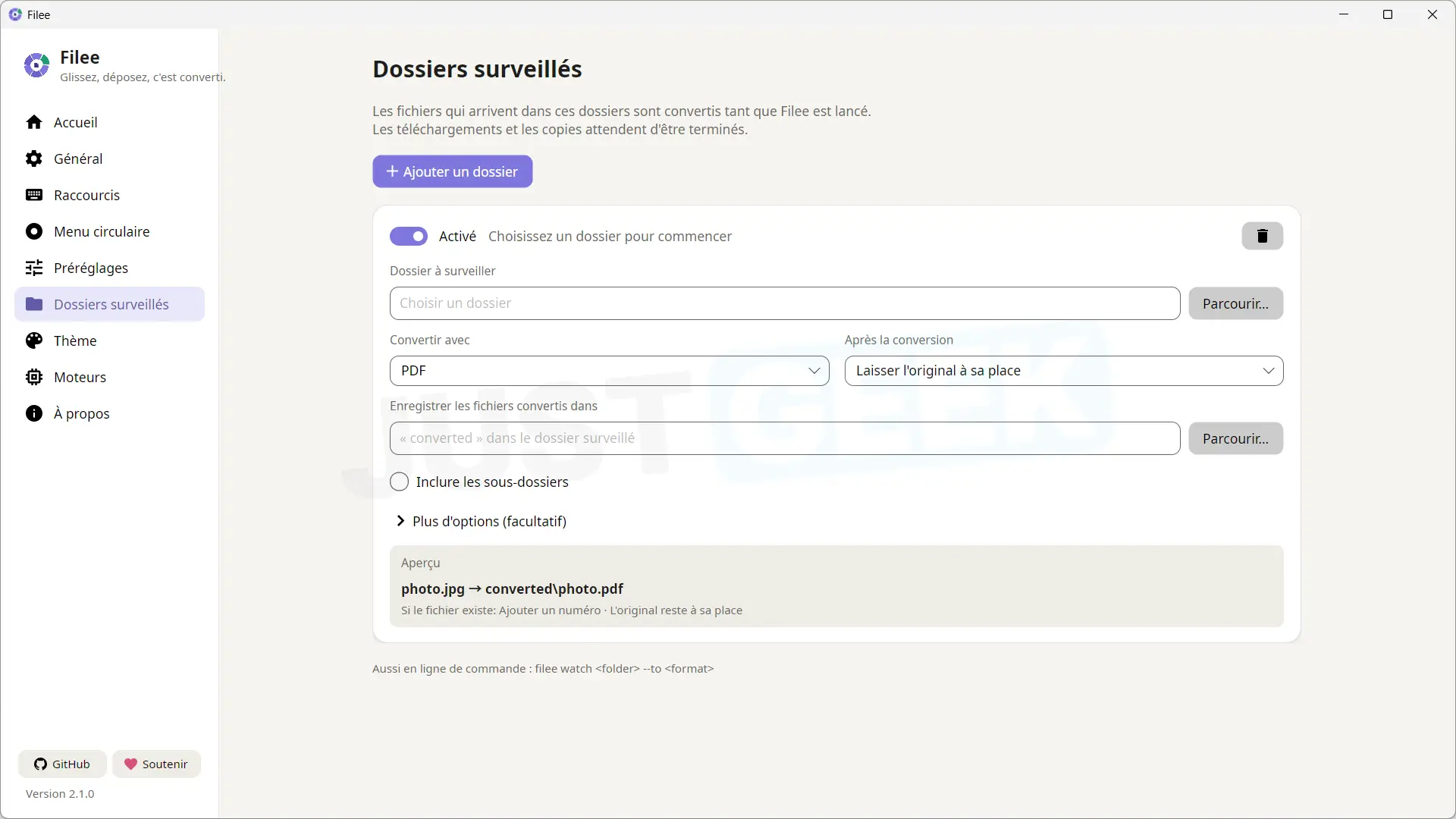
Filee even offers a watched folder system. From the “Monitored Folders” section, you can select a folder and define the conversions to perform. As soon as a new compatible file is added to this folder, the software will automatically convert it, as long as it is running.
And that’s not all! Filee also allows you to convert images or files directly from your web browser. To do this, hold down the key Control Press and hold, like in Windows Explorer, and drag an image or file link from Firefox, Chrome, or Edge. The wheel then appears to allow you to choose the desired format.
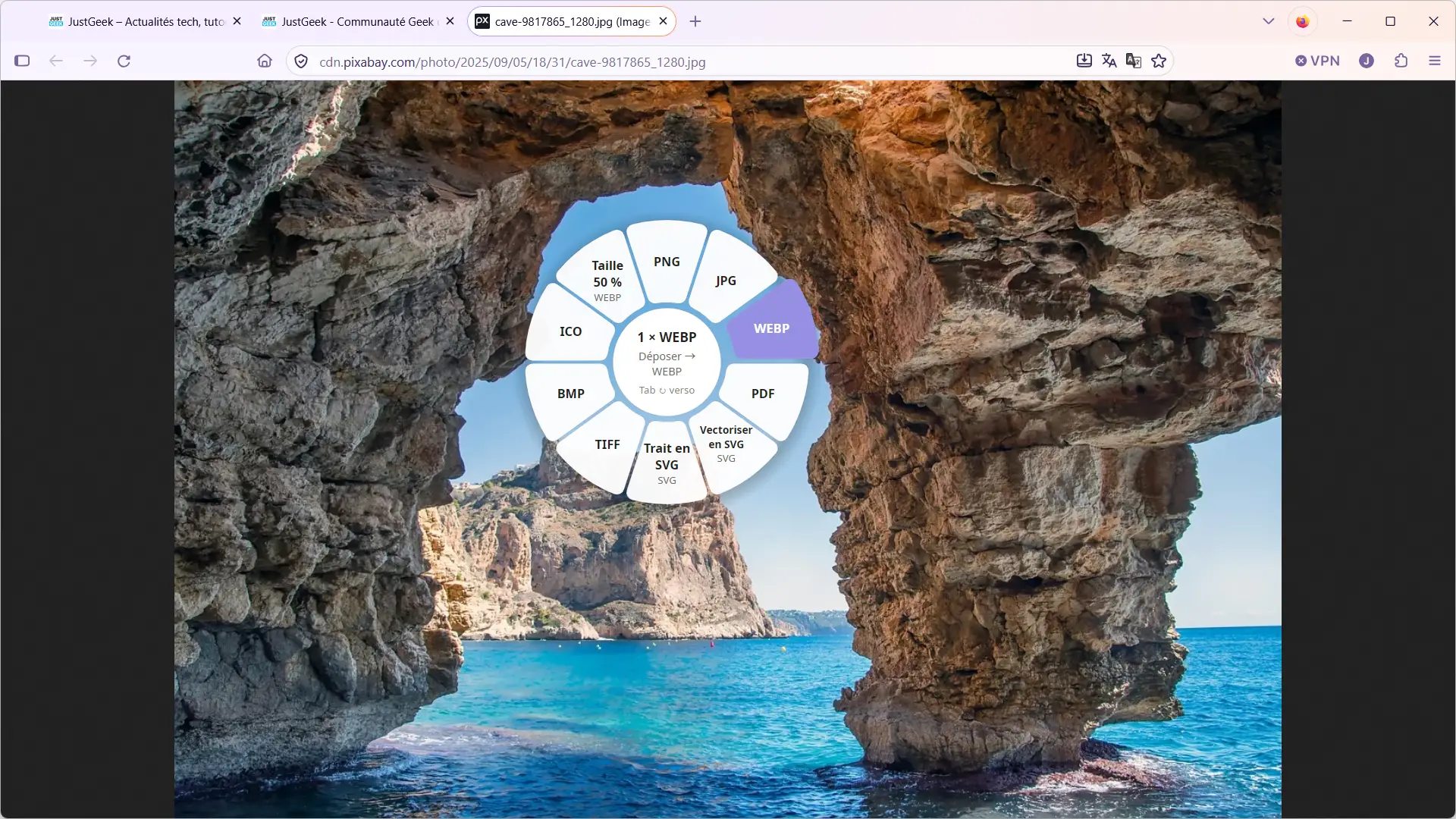
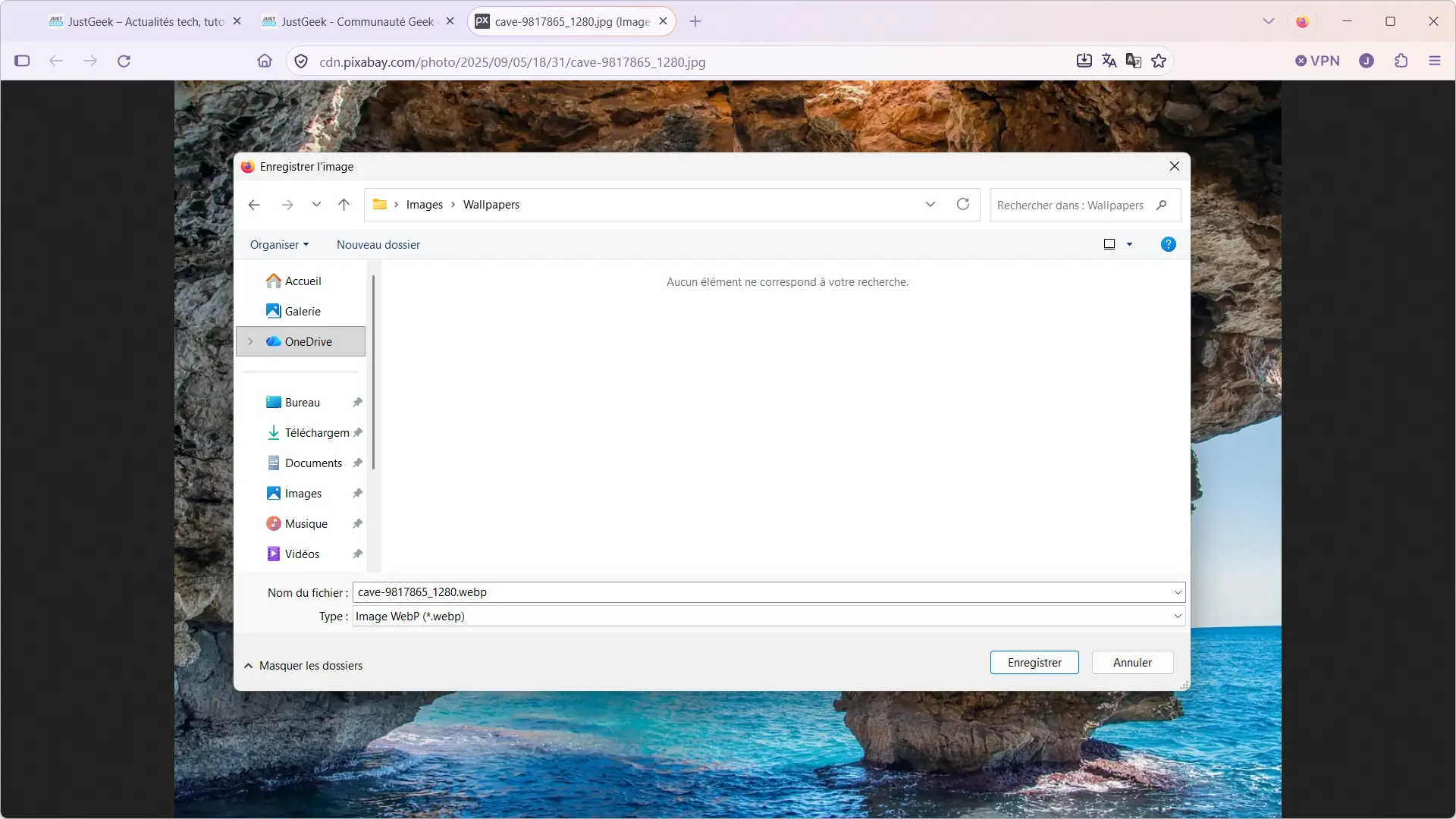
Once you select the format, you may feel like nothing has happened. But rest assured, the conversion has been taken into account. To check this, right click on the image and then select “Save image as…”. You will then see that the file is offered directly in the format you have chosen.
Fully customizable conversion software
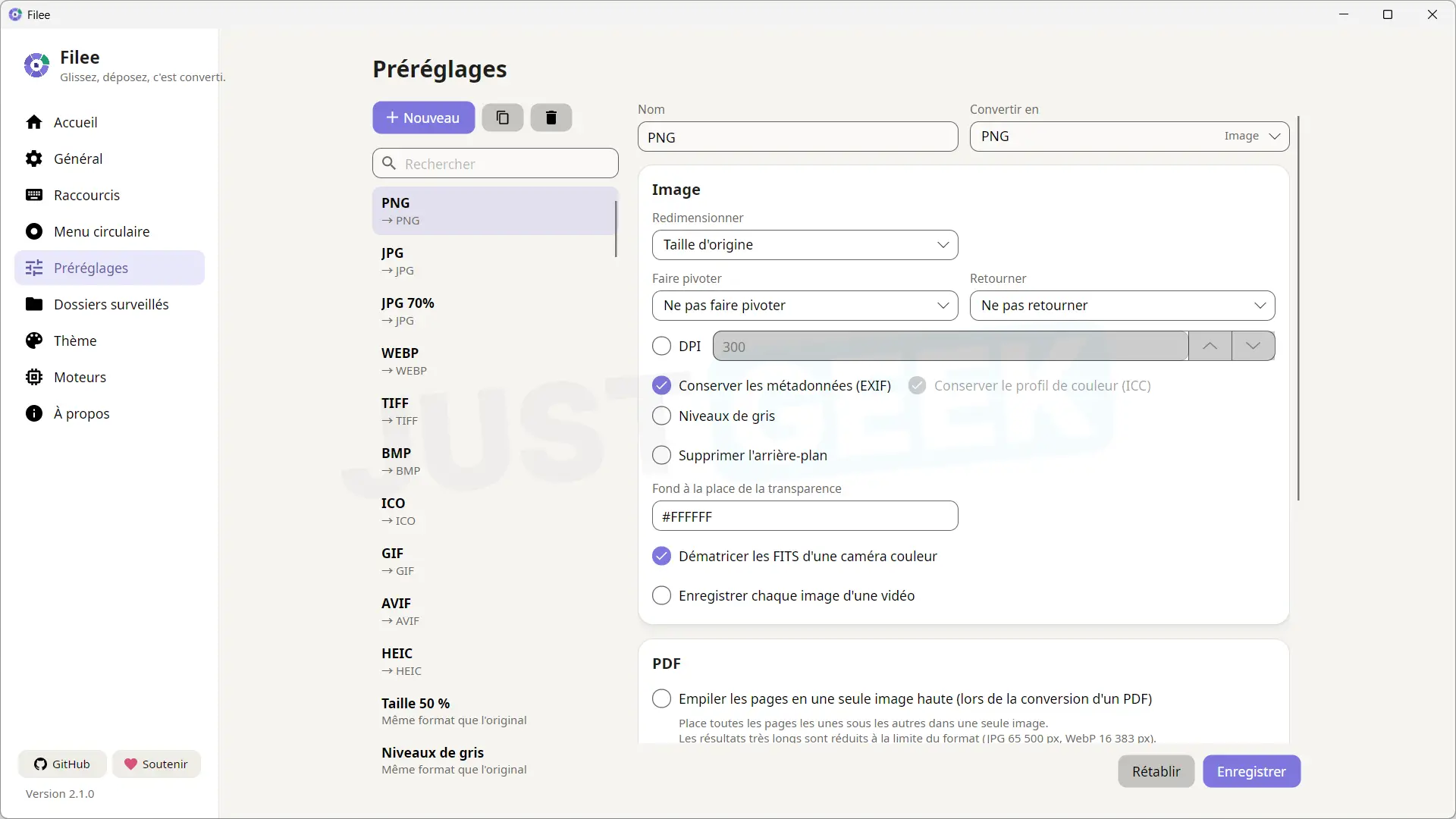
Filee offers quite a few options to adapt its operation to your preferences. In particular, you can modify the keyboard shortcuts, choose the formats displayed in the circular menu, or even create your own conversion presets.
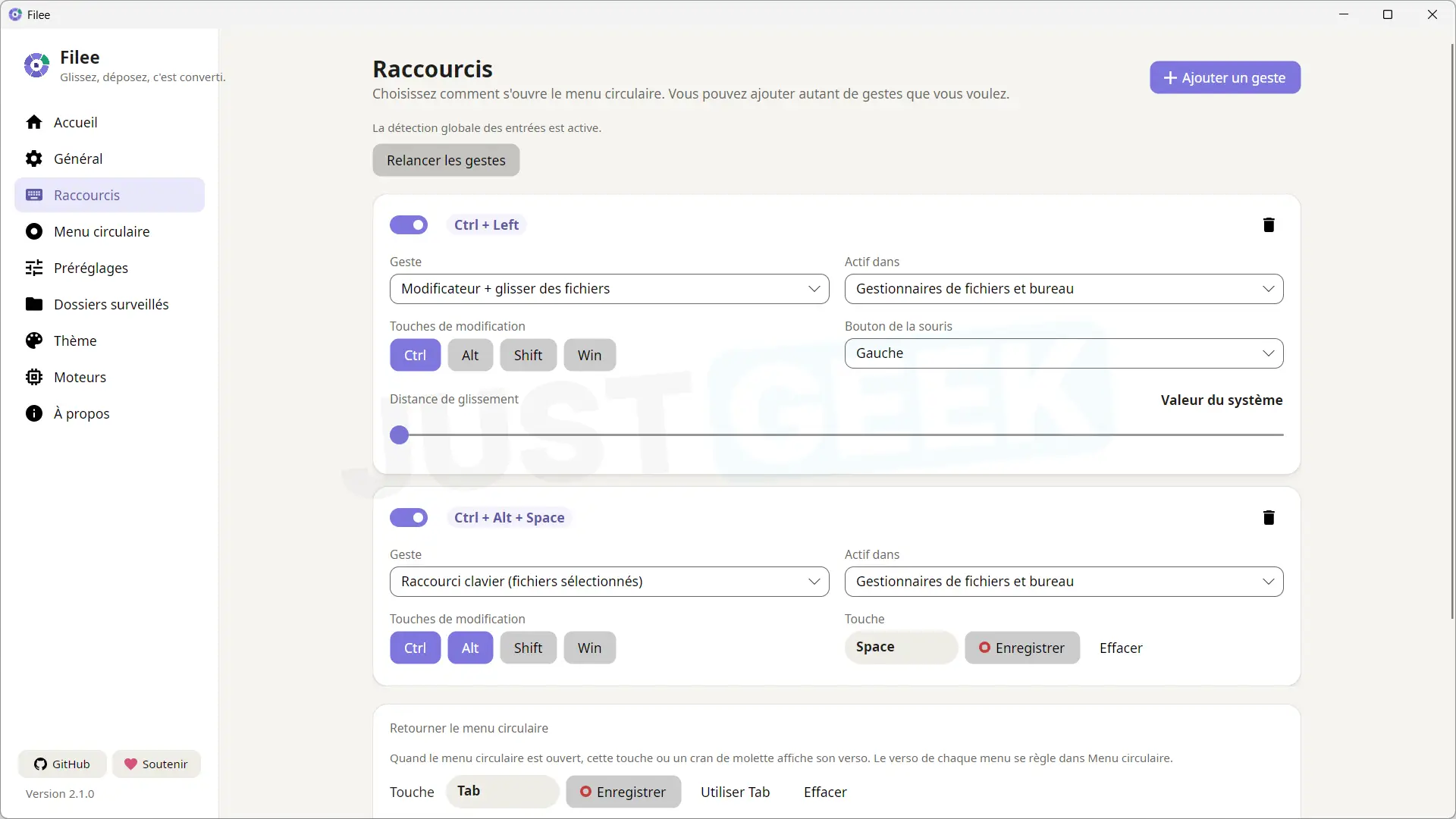
In the “Shortcuts” section, you can change the key combination used to open the conversion wheel. By default, you must hold down the key Control and move a file with the mouse, but you can choose another combination if you prefer. It is even possible to add several shortcuts depending on your habits.
The circular menu is also customizable. From the section of the same name you can choose the formats that appear on the wheel, modify their order or add new actions. Filee offers several profiles adapted to different types of files (images, PDF, documents, videos, audio, etc.).
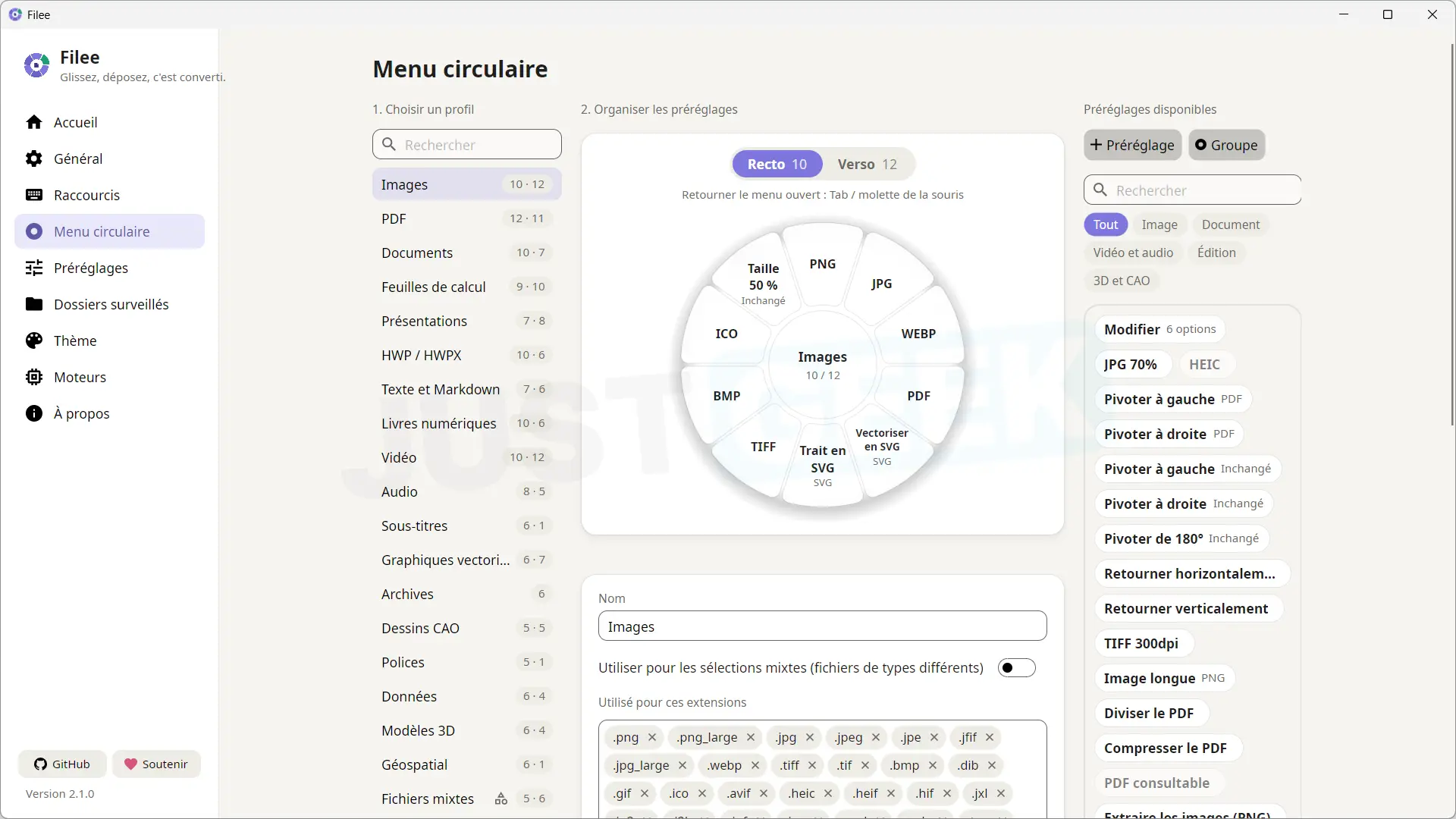
You can also create your own conversion presets. For example, if you regularly convert images to JPG at 70% quality, you can save this setting to find it directly in the circular menu. Other options include resizing images, rotating them, or preserving their metadata.
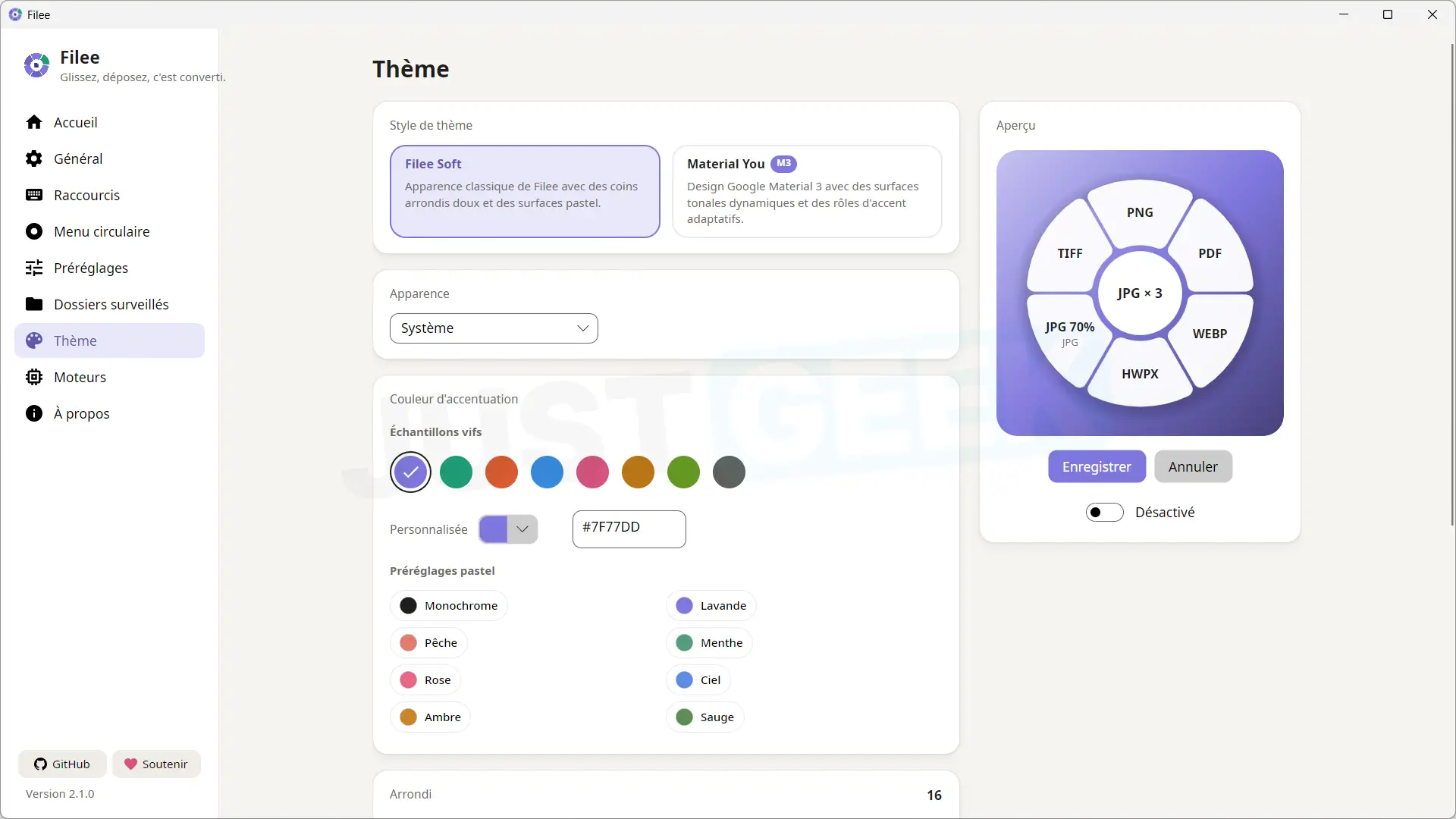
Filee also offers several options to customize its appearance. You can choose between a light or dark theme, change accent colors, and even change the appearance of the conversion wheel.
Over 250 file formats supported
To show you the different Filee conversion methods, I took the example of images. But the software is not only for that! It supports more than 250 file formats, eliminating the need to use several different programs depending on the type of file to be converted.
In particular, you can convert images (JPG, PNG, WebP, AVIF, etc.), documents (PDF, DOCX, ODT, etc.), videos (MP4, MKV, AVI, etc.), audio files (MP3, FLAC, WAV, etc.) or even digital books (EPUB, MOBI, etc.). The software also supports some more specific formats, such as subtitles, fonts, files, and 3D models.
To handle all these conversions, Filee uses several specialized engines. Some are directly built into the software, while others can be installed from the “Engines” section of the settings.
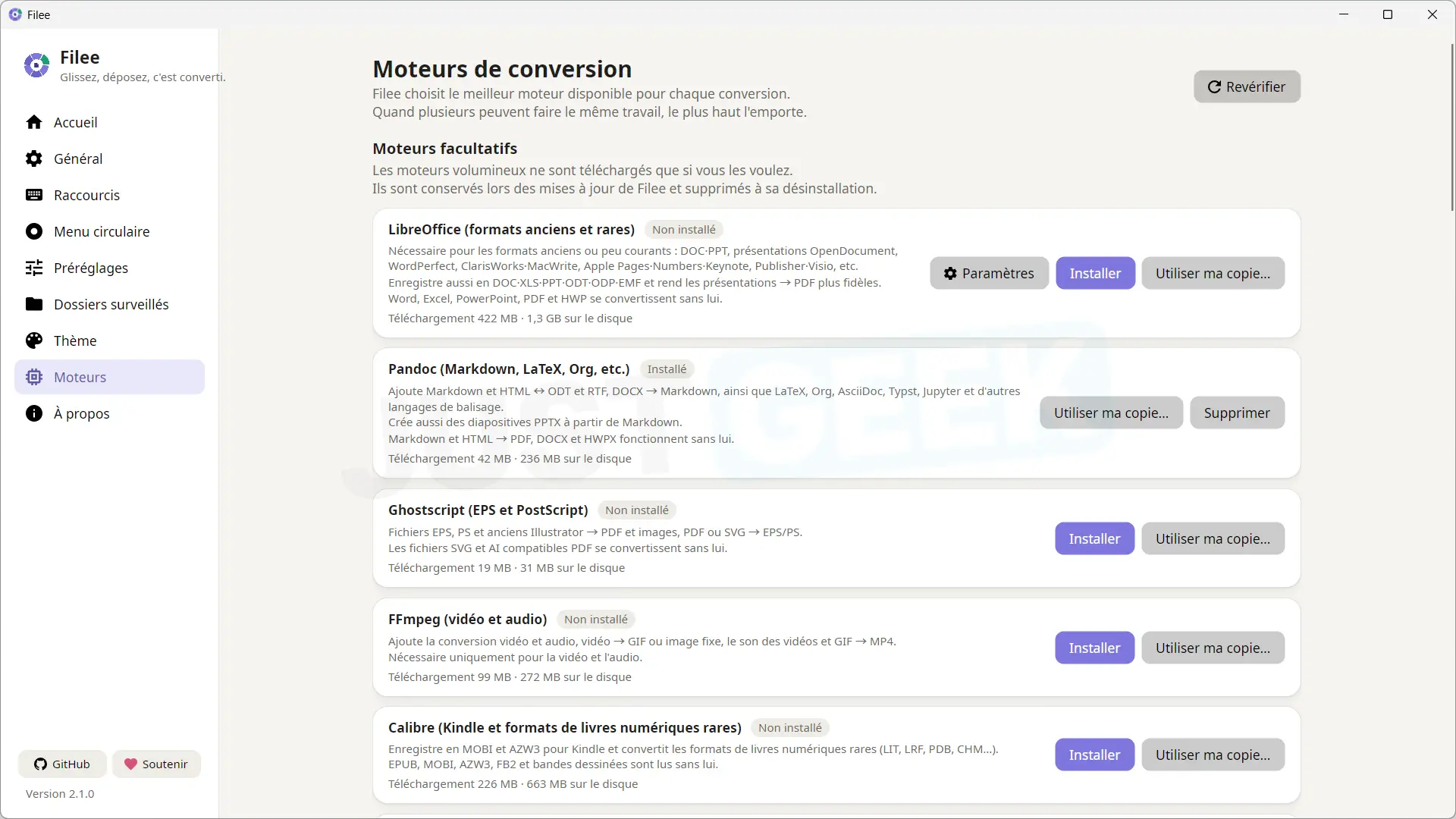
Among them we find FFmpeg for audio and video files, LibreOffice for office documents, Pandoc for certain document formats, Ghostscript for processing PDF files and Caliber for digital books.
Not all of these engines are essential to use Filee. You can install only the ones you need, directly from the software settings.
And for those wondering, the conversions are done locally on your computer. Therefore, your files are not sent to a remote server, unlike many online converters.
Download free file
Filee is free and open source software, distributed under the MIT license. It is available on Windows 10 and 11, but also on macOS and Linux. You can download it from their official website or directly from your GitHub repository (in the “Assets” section).
On Windows, you can choose between an installation version and a portable version. And the software has an interface completely translated into French.