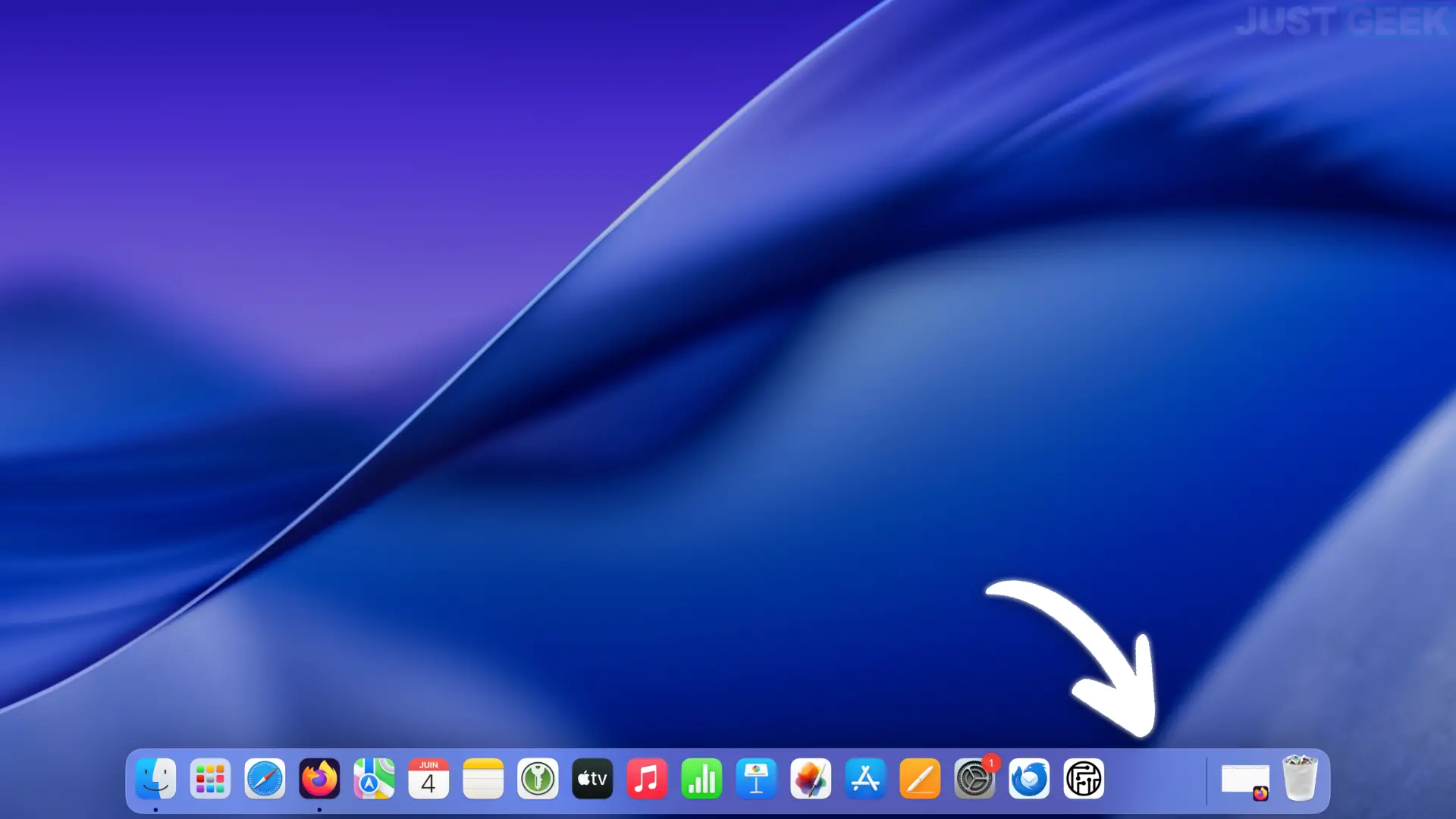
The macOS Dock lets you quickly access your favorite apps and folders. However, sometimes it happens that empty spaces appear instead of an icon, without it being possible to know exactly what they correspond to.
In some cases, it is simply an application that left an invisible icon after a crash or abnormal shutdown. More rarely, the problem may be related to a malfunction in the Dock itself.
In this tutorial, we will look at several methods to eliminate these empty spaces and find a perfectly functional Dock.
Method 1: Remove ghost icon from Dock
When an empty space appears in the Dock, it is not necessarily a macOS error. Sometimes an app may leave an invisible icon after being deleted, moved, or closed unexpectedly.
Start by right-clicking on the empty space in question.
If a context menu appears containing the option “ Remove from dock ”, just click on it.
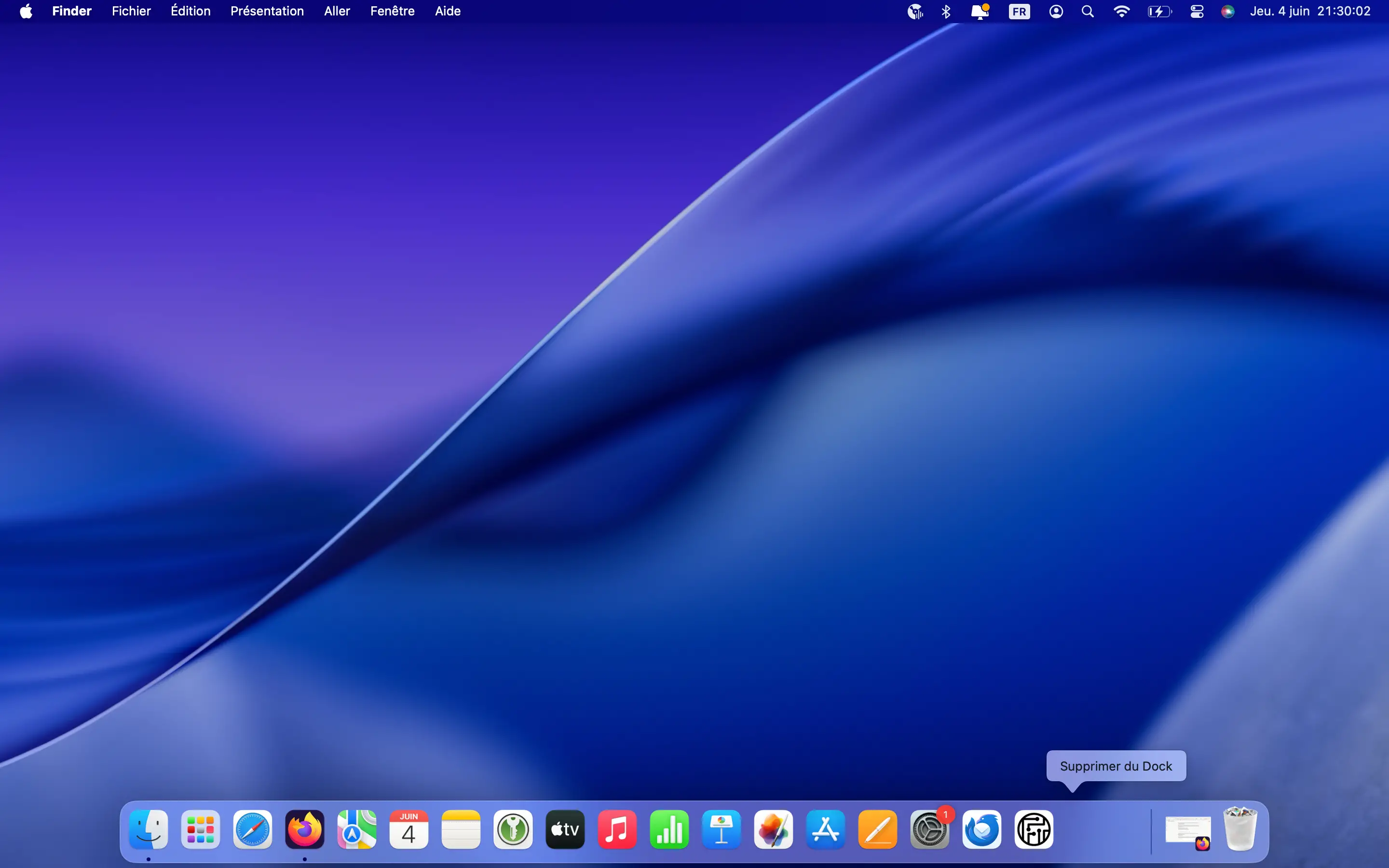
The item is then removed from the Dock and the empty space disappears immediately.
But if no menu is displayed or there is blank space, move to the next method.
Method 2: Restart the Dock
If the white space is still present, it may be a temporary problem with the Dock itself.
To restart it, open the app. Terminal. You can start it from Applications > Utilities or using Spotlight (⌘ + Space).
Then enter the following command and then validate with the key Entrance :
killall Dock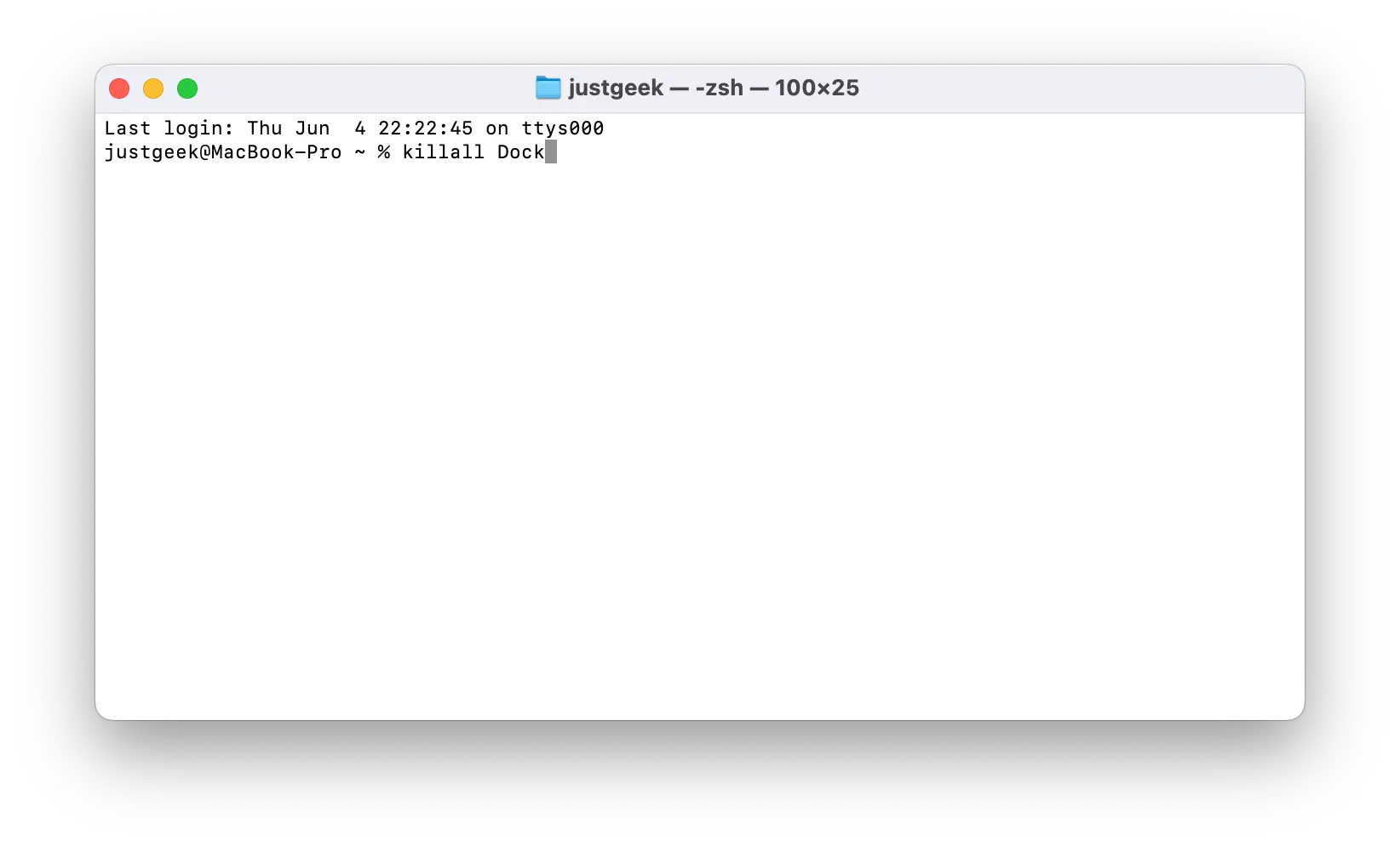
The Dock then disappears for a few seconds before restarting automatically.
This simple operation is usually enough to correct display problems and eliminate empty spaces that still remain in the Dock.
If the issue persists after restarting the Dock, try the following method.
Method 3: Completely reset the base
If the empty spaces are still present despite restarting the Dock, you can reset its settings.
⚠️ Attention : This operation returns the Dock to its default state. The apps you pinned will be removed and you will have to add them again.
Open the application Terminal.
Then enter the following commands and then validate with the key Entrance :
defaults delete com.apple.dock; killall Dock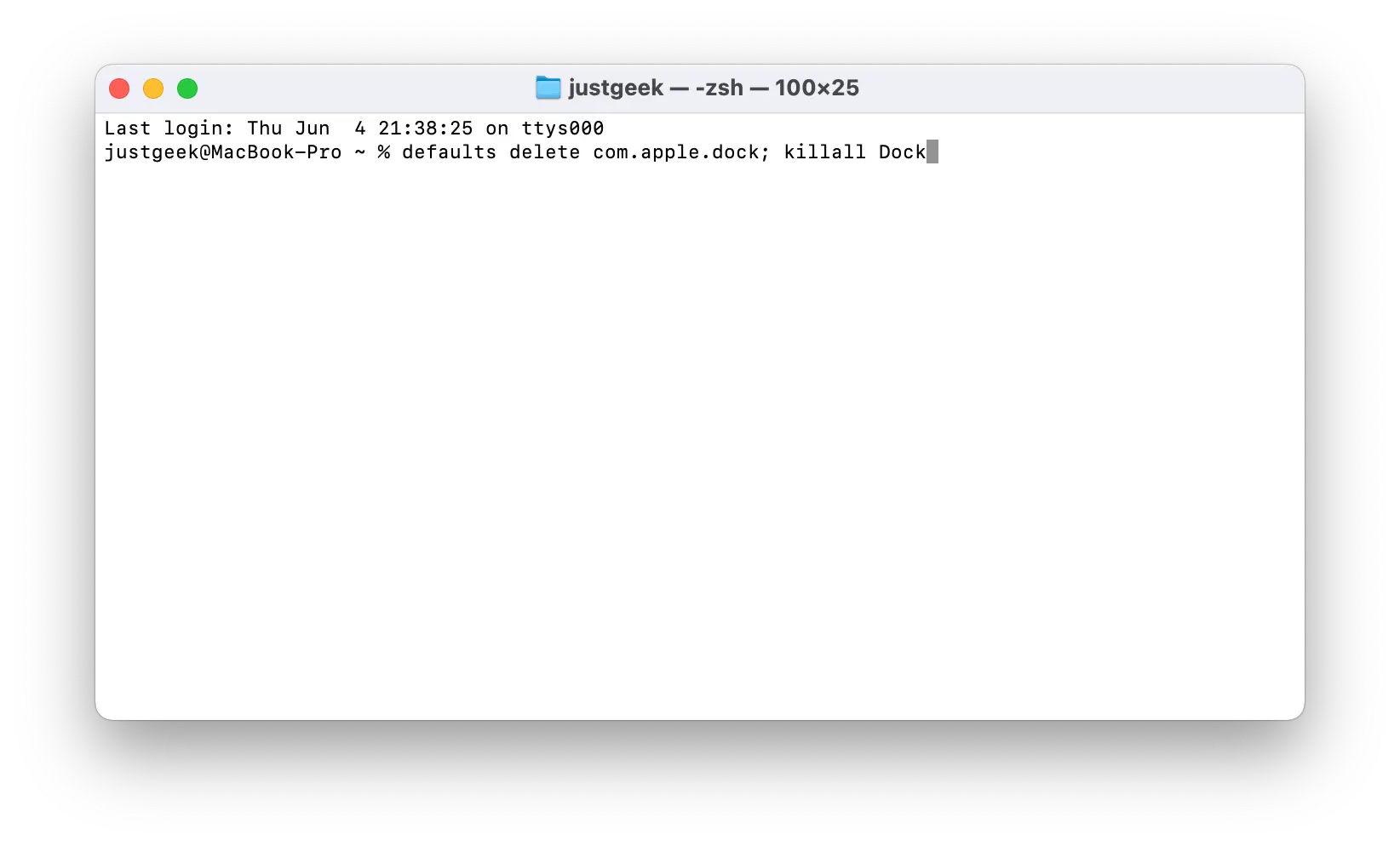
The Dock will automatically reboot to its original settings, and usually the problem will be completely gone.
If the problem persists, you can also try completely restarting your Mac. But one of the three methods presented usually fixes the problem.