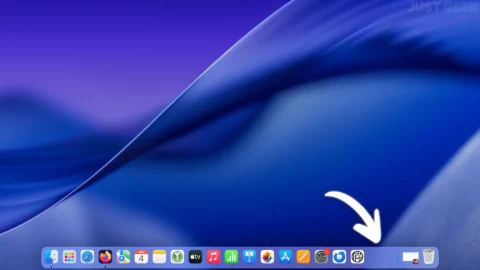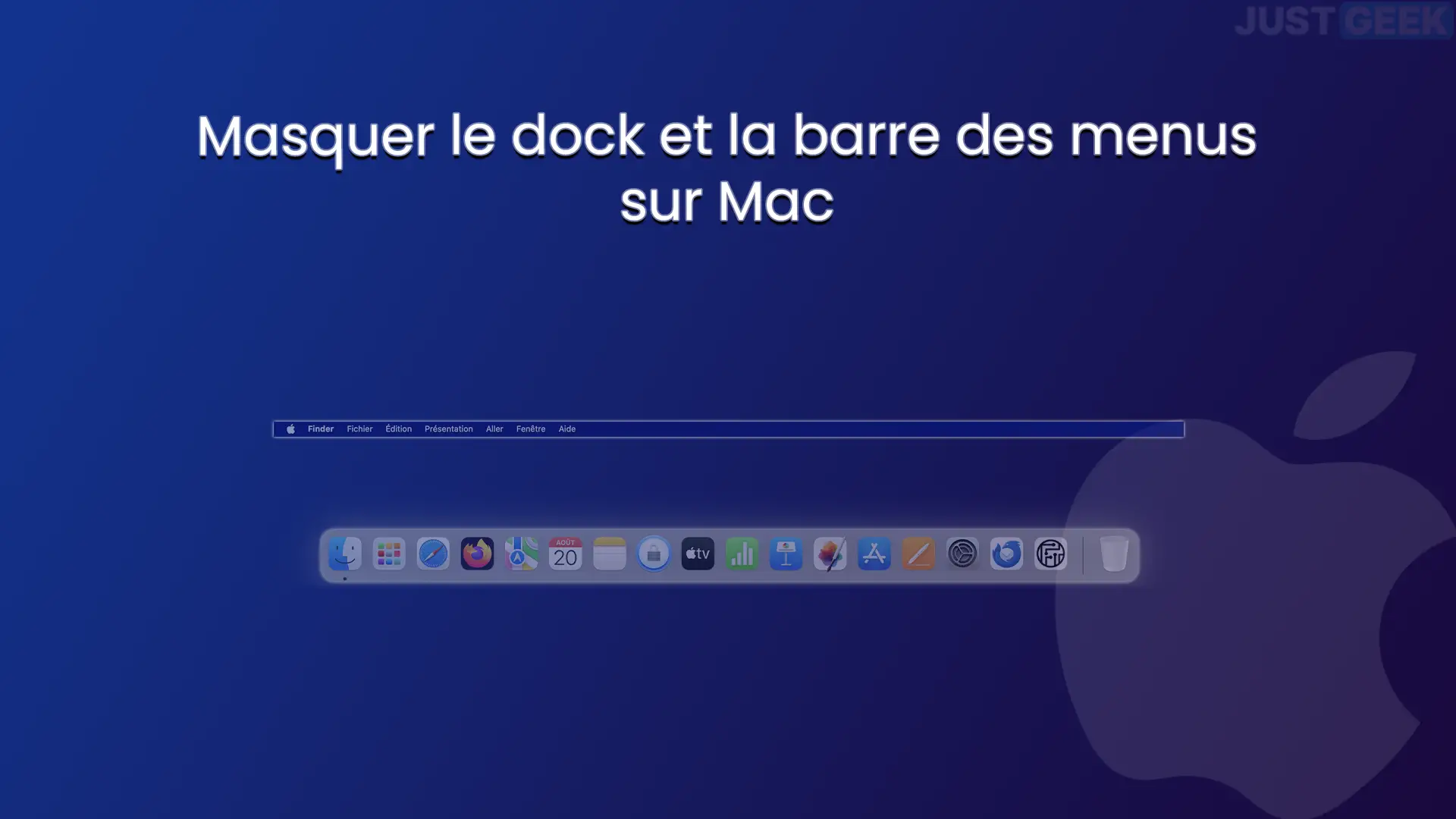
As you know, the operating system macos Includes a dock and a menu bar. The dock lets you launch apps quickly, while the menu bar provides access to app menus. By default, the Dock and menu bar are constantly displayed on your Mac screen. However, if you wish, you have the possibility to auto hide dock and menu bar. This allows you to have a larger workspace.
In this article we will see together how hide dock and menu bar on Mac. Here we go!
Automatically hide the Dock on Mac
Let’s start with the dock. If you want it to only appear when you need it, you can activate an option provided for this in the macOS settings. Here’s how to do it:
- Click on the menu

- Select ” Desk and base » in the sidebar.
- Scroll down the page a little.
- Activate the option “ Automatically hide/show Dock “.

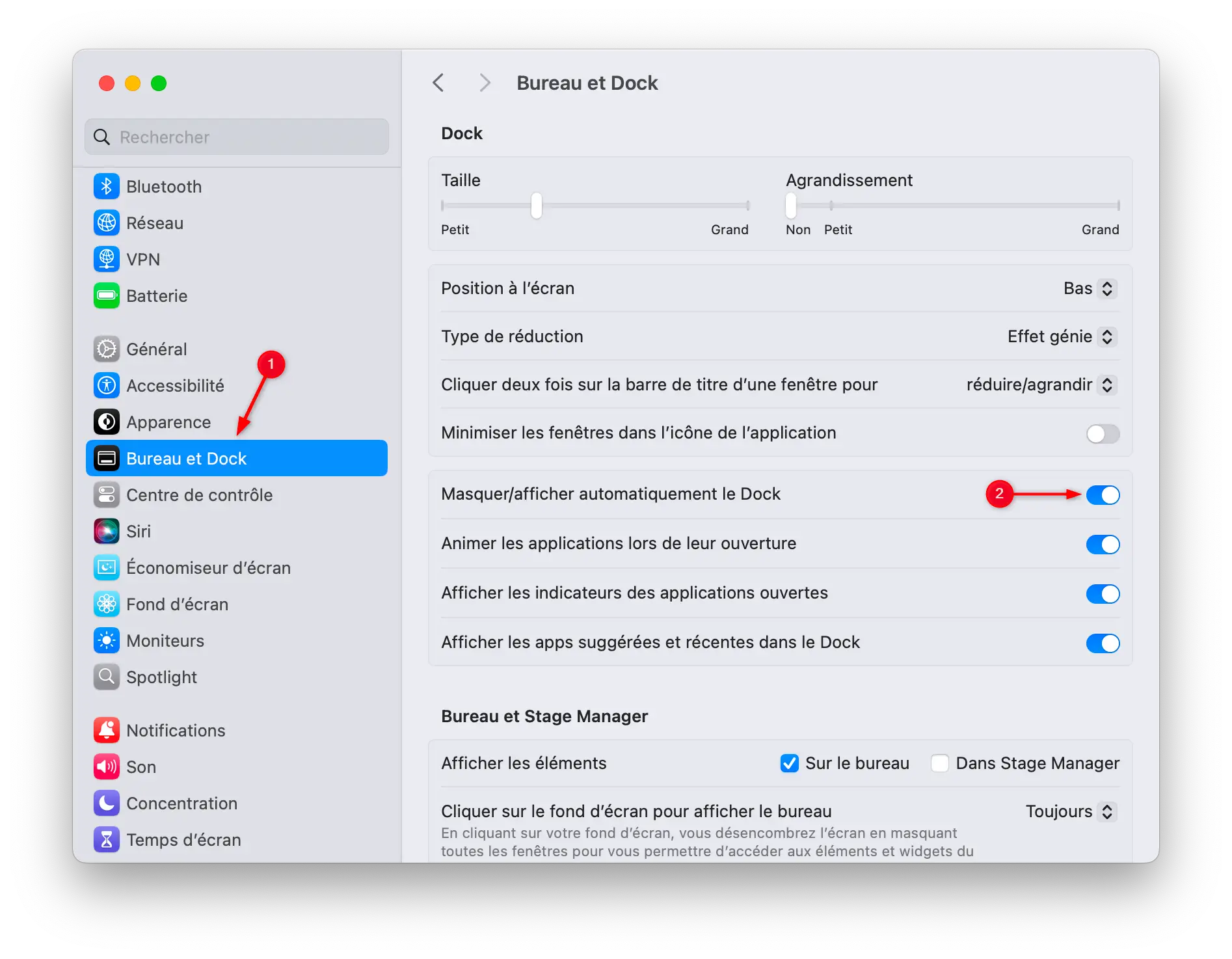
The dock will now automatically disappear when not in use and reappear when you move the mouse to the bottom of the screen.
💡 Trick : you can also make a CONTROL + click on the small dock separator, then select ” Enable hiding » to quickly access this option.
Automatically hide the menu bar on Mac
After the dock, let’s look at the menu bar, located at the top of the screen. By default, it always remains visible, even when you don’t need it. Again, macOS offers an option to automatically hide it.
Here is the procedure to follow:
- Click on the menu
- Select ” control center » in the sidebar.
- Scroll down to ” Menu bar only “.
- Click the drop-down menu to the right of ” Automatically hide/show menu bar » and choose one of the available options:
- Always : The menu bar disappears permanently.
- Desktop only : It is only hidden when you are on the desktop.
- Full screen only – Only hidden when an app is in full screen.
- Never – The menu bar always remains visible.
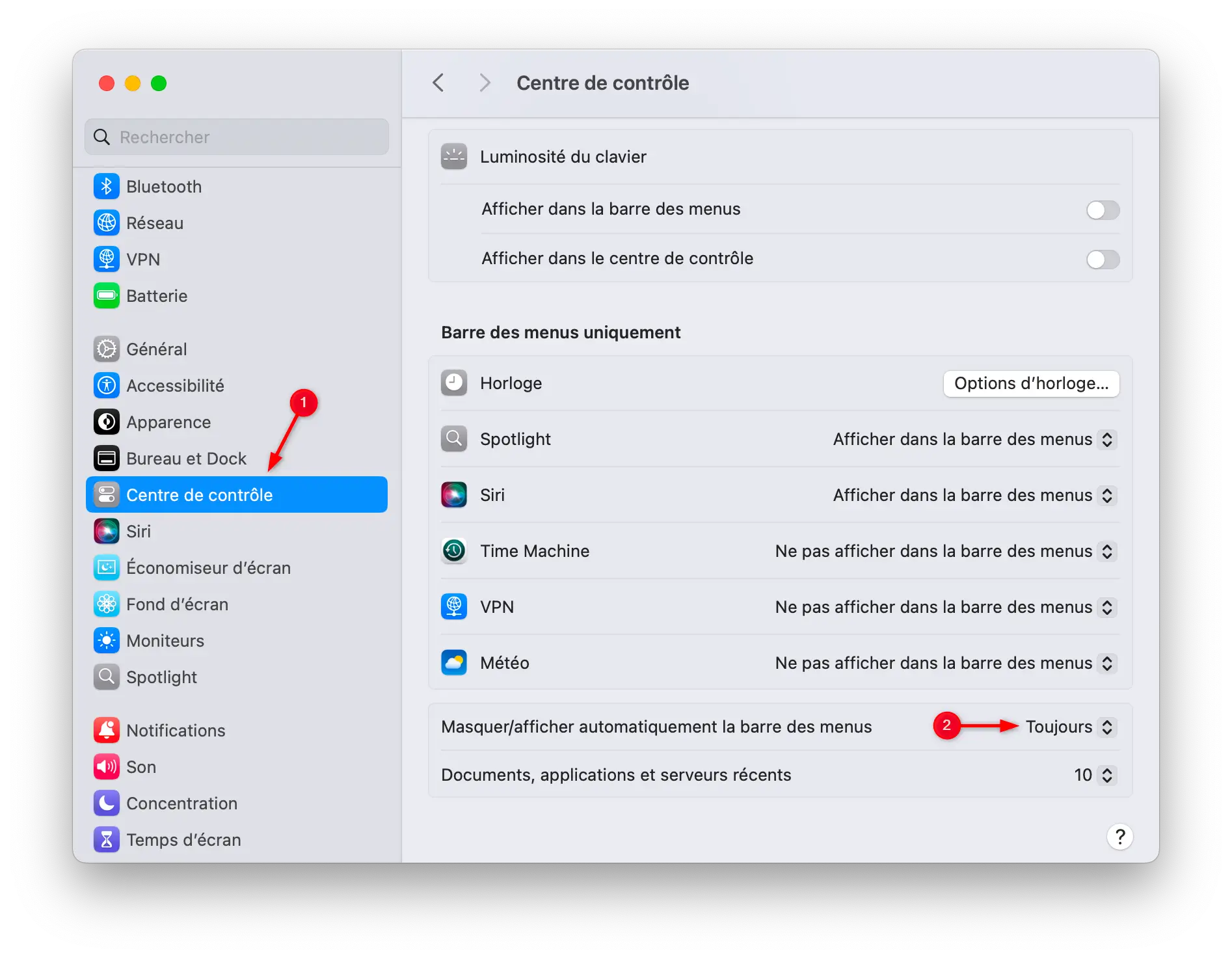
In all cases, as with the Dock, the menu bar automatically reappears as soon as you move your mouse to the top of the screen.
Conclusion
As you can see, macOS natively offers options to hide the Dock and menu bar. With just a few clicks, you can free up screen space and maintain a more discreet interface. Then you are free to choose the configuration that suits you best.