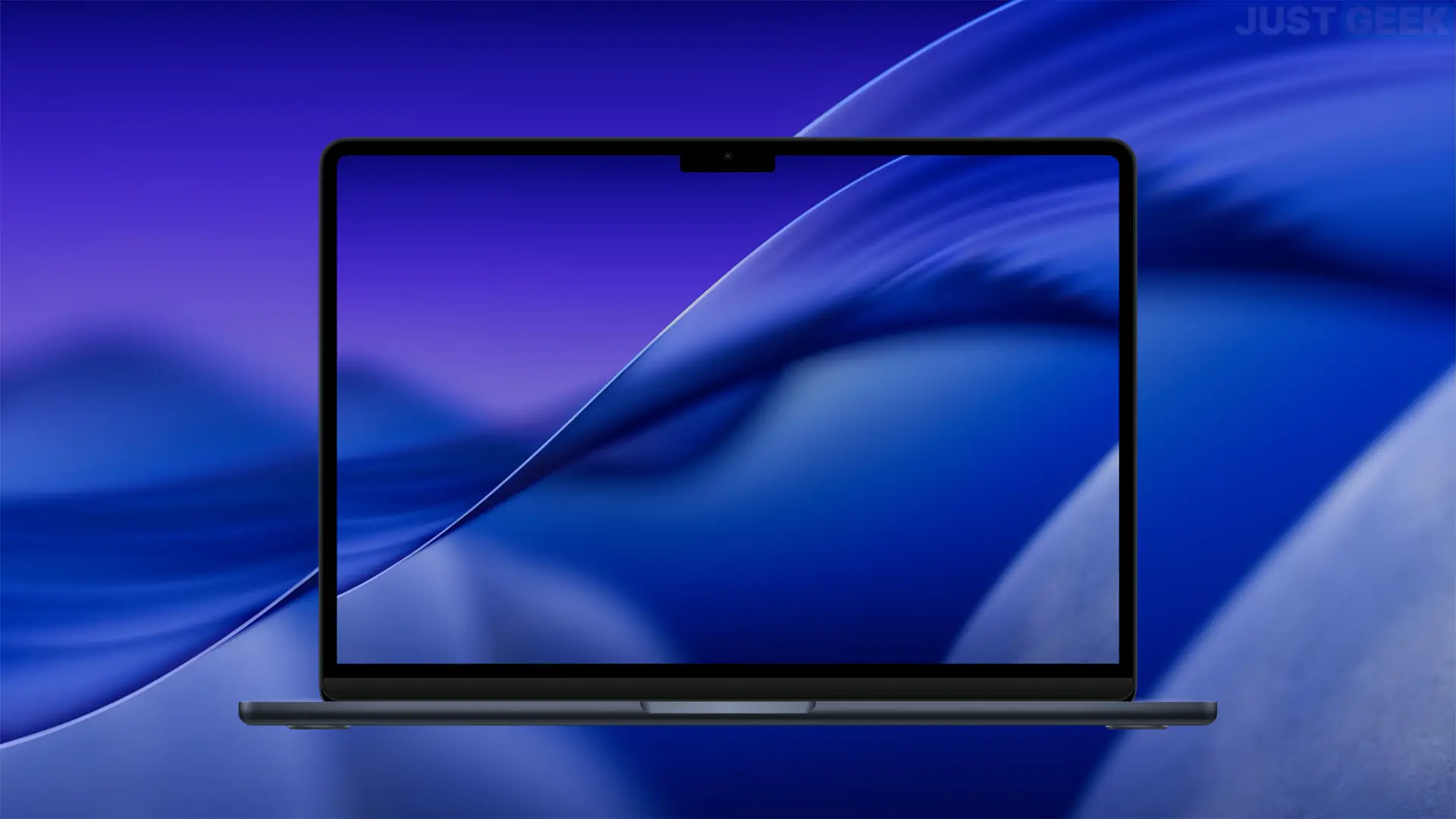
Like every year after WWDC, Apple presents a new version of macOS accompanied by its exclusive wallpapers. And this time it is macOS Tahoe 26 which enters the scene with a new design called liquid glass. A more fluid, more transparent interface and, above all… sublime wallpapers to dress up your desktop.
The good news is that you don’t have to wait for the official launch of the system to take advantage of it. These new wallpapers They are now available, in light and dark versions, and we explain just below how to download them in the best possible quality.
A preview of the “Liquid Glass” design
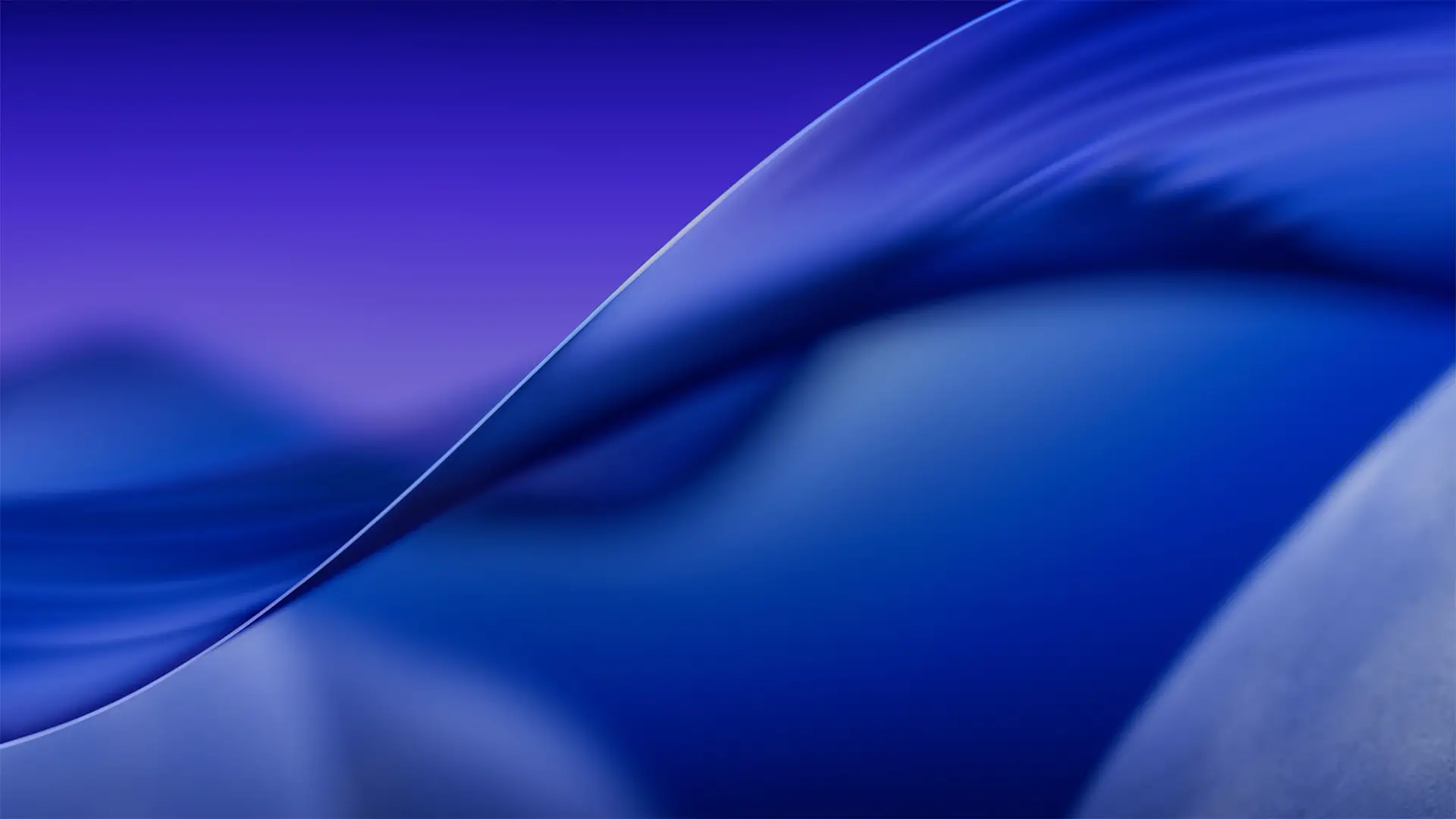
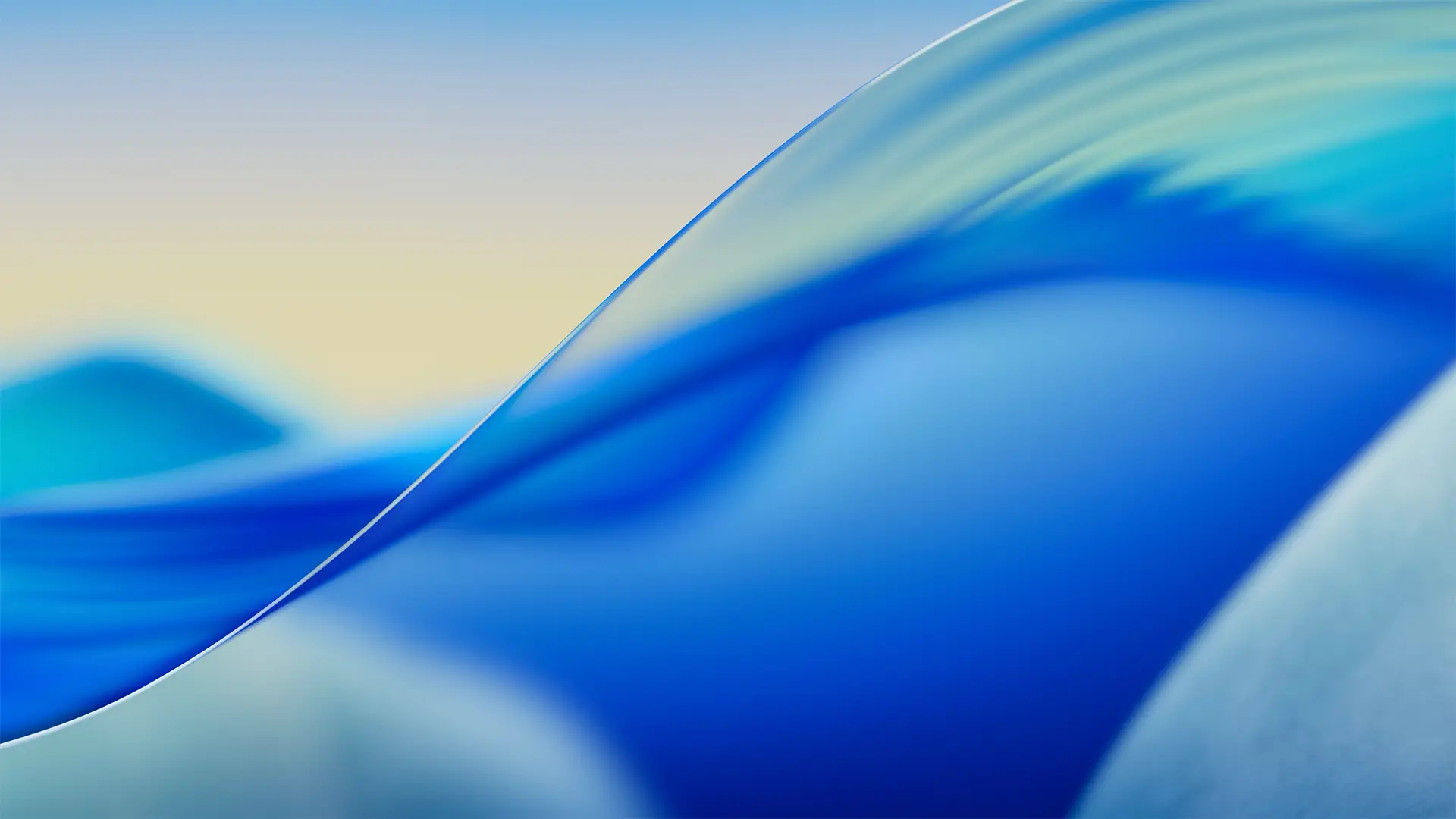
This year, Apple has focused on a transparent visual effect, with fluid shapes that evoke the reflections of glass and water. The default wallpaper for macOS Tahoe 26 picks up this idea elegantly: a translucent wave crosses the image diagonally, against a background of gentle hills and subtle gradients.
The result is as aesthetic as it is elegant:
- The clear version shows a pale blue sky fading to a soft beige, with light sliding over the wave revealing turquoise reflections. The atmosphere is bright, relaxing, perfect for the day.
- The dark version It dives into a dark, almost nocturnal violet gradient, with cobalt and navy blue tones that enhance depth and contrast. Ideal for night sessions.
These wallpapers are available in very high definition, with a 6K version (6016 x 6016 px) and a 4K version (3840 x 2160 px), to fit both Retina displays and traditional monitors.
Download macOS Tahoe 26 wallpapers
We’ve bundled both versions (light and dark) into a single ZIP file to make your life easier. Simply click the link below to capture the images in 4K and 6K quality.
👉 Download macOS Tahoe 26 wallpapers (ZIP)
You have two simple options at your disposal:
- quick method : Right click on the downloaded image, then select “Choose as desktop image”.
- Method through settings :
- Click on the apple menuthen in “ System configuration “.
- Go to ” Wallpaper “.
- Click ” Add a photo “, then in ” Choose » to select your image.
And there you have it, your Mac adopts the macOS Tahoe style even before the system’s official release.