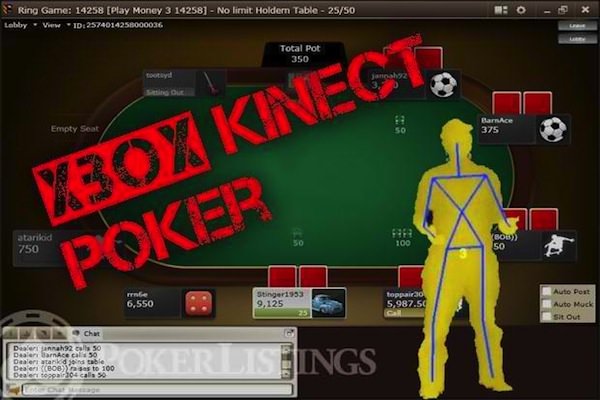
Why connect Kinect for Xbox 360 to your PC? Simply because it will considerably improve your online gaming experience. The Pokerlistings site has created a tutorial that will allow you to use your Kinect to play all types of games from a PC (online poker but also role-playing, arcade or adventure games, etc.).

Specifically, you will have to use macros to:
- Connect keyboard keys to software functions;
- Associate shortcuts with movements (there is very practical software for this: FAAST).
Requirements:
To start, you need to equip yourself. In addition to the Kinect and a Windows 7/8 PC, you must download, in order and after connecting your Kinect to the PC with a USB cable:
1) the Kinect Controllers : https://people.ict.usc.edu/~suma/faast/SensorKinect091-Bin-Win32-v5.1.0.25.msi
2) the API Open NI and PrimeSense NITE : https://people.ict.usc.edu/~suma/faast/primesense-win32-fullinstaller-dev-20.4.2.20.exe
3) FAAST : https://projects.ict.usc.edu/mxr/faast/
Good to know: Sometimes Windows does not automatically detect the sensor when you connect Kinect to your PC. In this case, you will find the drivers in the platform\windows32\driver folder.
Procedure :
STEP 1: Configure FAAST
Start the software:
- First screen: not much to do. Ultimately, you can modify the “smoothing factor” parameter to set it to 0.7 but since it is used to control the mouse… it’s not really useful. On the other hand, you definitely shouldn’t touch the camera’s depth resolution.
- Second screen: you do nothing;
- Third screen: you have to disable the mouse driver (too unstable if you keep it on, although it is quite nice sometimes);
- Last screen: you will associate your movements with the keyboard keys. You should always follow the same formula: [partie du corps_direction] [ampleur du mouvement] [action] [touche ou bouton à presser]. If you do not want to create your personal movements, you can also use the list of actions found on the home page of FAAST.
STEP 2: Set up macros
– Lambda macro software is ideal for this basic operation. Otherwise, but you pay, EZ Macro It is quite complete. Simply create a new macro every time you want to assign a keypress to an action button in your gaming software.
It may seem that complicated, but it’s actually quite simple (once you master it, you’ll just have to repeat it to keep it accessible to the vast majority of players). On the other hand, remember to configure the macros according to the maximum window size of the gaming software you are interested in. Otherwise, you will have problems when you want to play with the Kinect (the buttons will no longer be in the same place on the screen).
STEP 3: It’s almost done!
All you have to do is start FAAST and initialize the emulation. There you have it… you open your favorite online game and all you have to do is move in front of the sensor. Soon you will see your body appear in the window. FAAST. Raise your arms along your body to see if there are juxtaposed red lines on your silhouette. If so, you’ve done it!