Are you running out of space on your hard drive or SSD, but aren’t sure what’s taking up so much space? Over time, software, downloaded files, and forgotten folders can end up taking up several tens of gigabytes. And it’s not always easy to find them with Windows File Explorer.
To help you see things more clearly, you can use TreeSize Free. This free software allows you to analyze your drives and quickly identify the largest folders and files. Let’s see together how it works.
TreeSize Free: find out what’s taking up space on your drive
Developed by JAM Software, Free tree size is free software that allows you to analyze the space occupied by files and folders on your computer. It is compatible with Windows 10 and Windows 11 and offers an interface in French.
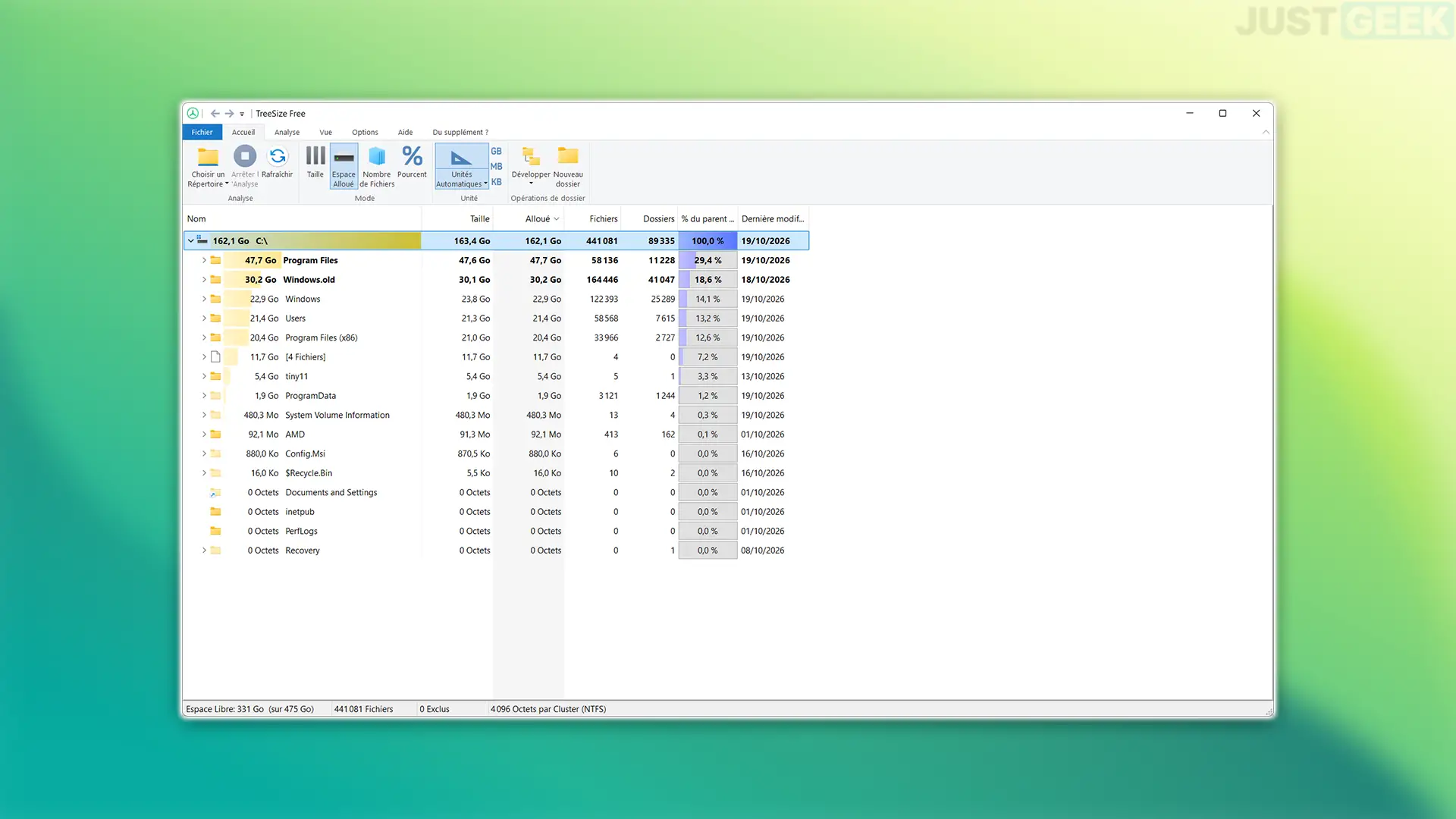
To get started, simply select a disk or folder to scan. TreeSize Free then displays its contents in tree form, with the largest folders at the top of the list. You can see their size, how many files they contain, and how much space they take up on the disk.
The yellow bars allow you to quickly identify the folders that consume the most space. You can then navigate the tree to identify the responsible files.
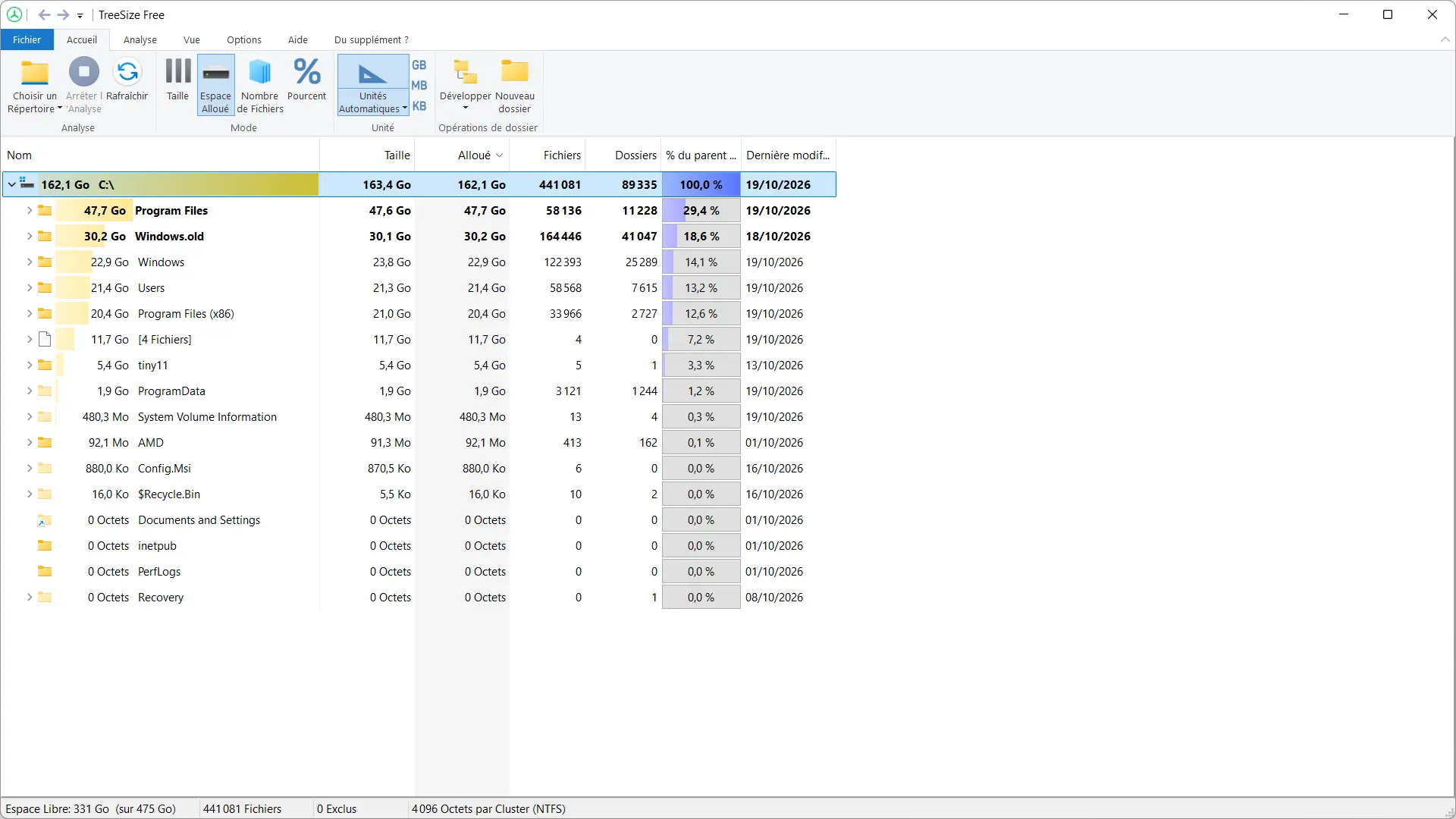
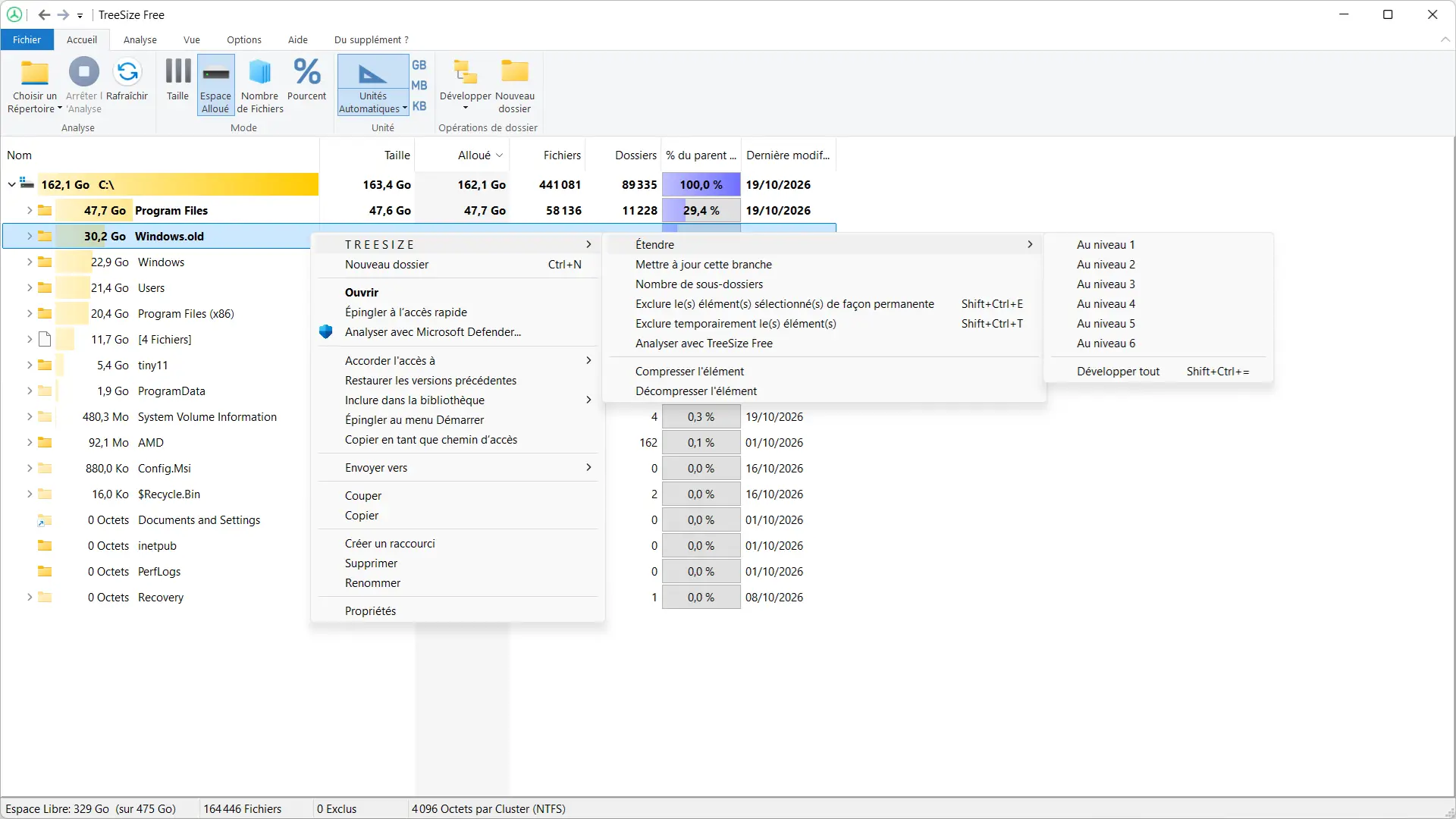
Right-clicking on a folder will give you several options for further analysis. In particular, you can expand its tree structure by several levels, update the results or exclude certain elements. It is also possible to delete files or folders directly, but be careful not to delete items necessary for Windows to function.
The software also offers various display modes, including file size, actually allocated space on the disk, number of files or their distribution in percentage.
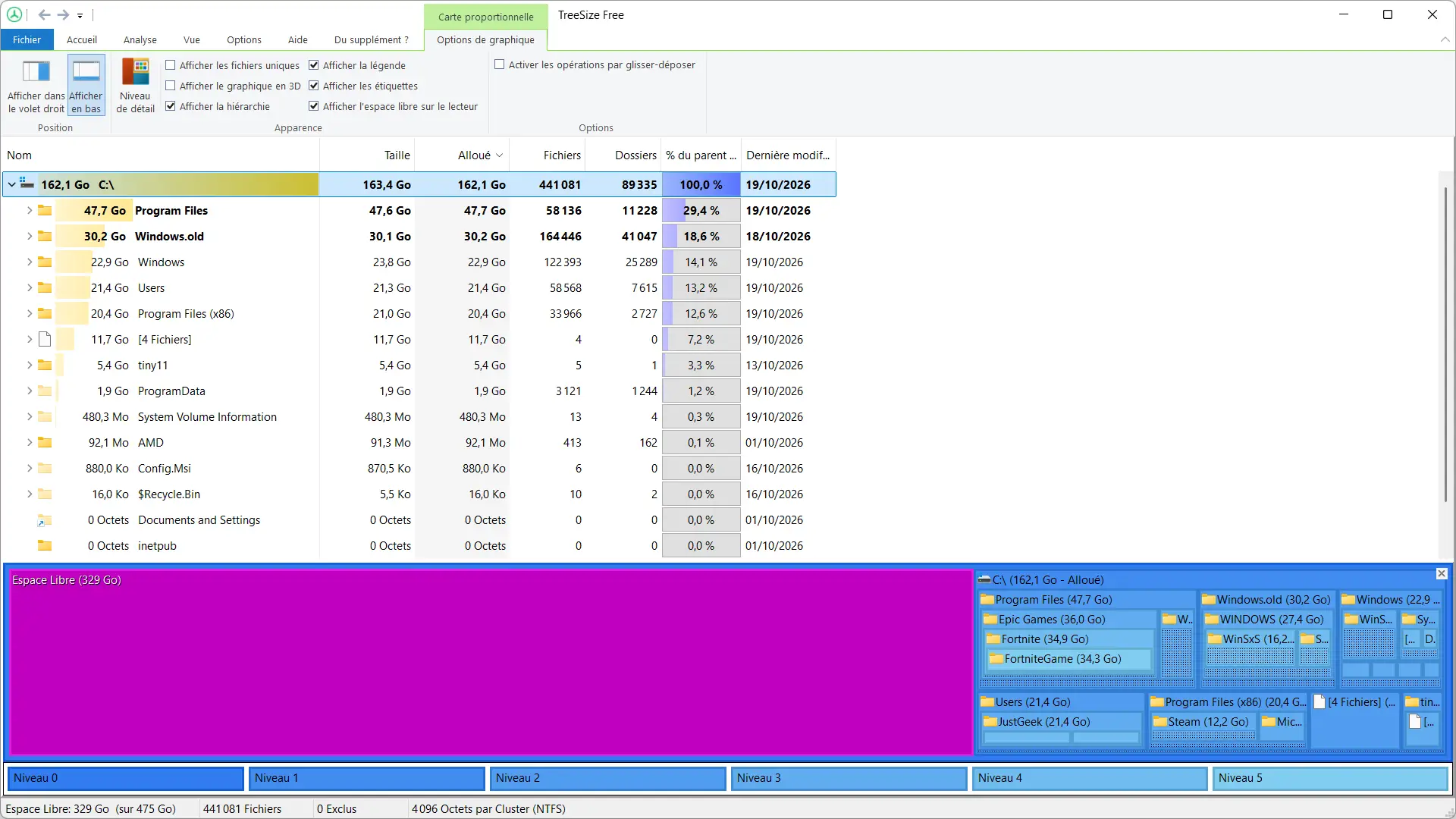
You can also display the results as colored rectangles by clicking “Show Tree Chart” on the “View” tab. The size of each rectangle depends on the space occupied by the corresponding file or folder. Larger elements quickly draw attention.
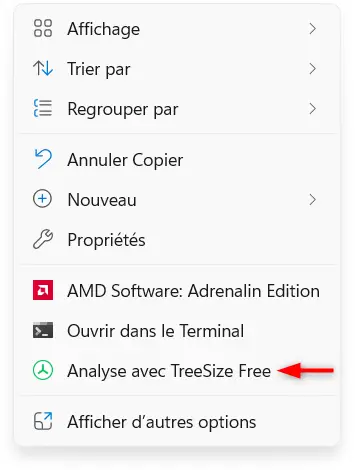
TreeSize Free also allows you to filter results, export reports in PDF format, and open files or folders directly in Windows Explorer. It can also be integrated with the Windows context menu to start a scan more quickly.
Please note that TreeSize Free is free for private, non-commercial use. Some features, such as finding duplicate files, are reserved for the paid Personal and Professional editions.
What to do once large files are detected?
Once the scan is complete, you will know which folders are taking up the most space on your drive. But be careful, just because a folder is large doesn’t necessarily mean it should be deleted.
You can start by searching your Downloads, Documents, or Videos folders. There you may find old installation files, files or videos that you no longer need.
However, avoid manually deleting items in the Windows, Program Files, or Program Data folders. If a software or game takes up too much space, it is best to uninstall it properly from Windows Settings.
The same goes for the Windows.old folder, which can sometimes take up several dozen gigabytes after a Windows update. If you no longer need to go back to the previous version, you can remove it using Windows’ built-in cleanup tools, rather than directly from TreeSize Free.
Download and install TreeSize Free on Windows
To download TreeSize for free, go to JAMSoftware official websitethen click on the “Download TreeSize for Free” button.
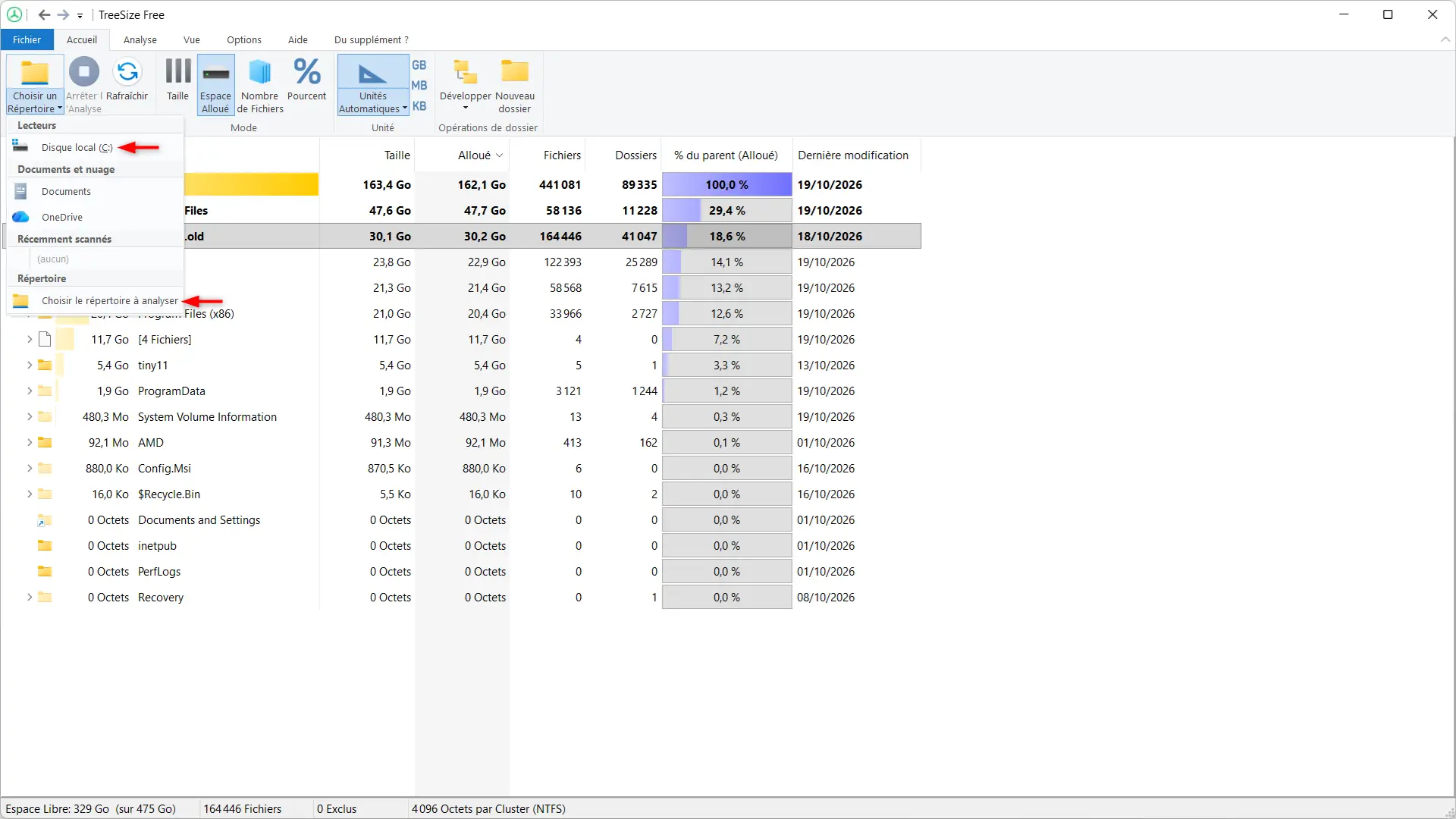
Once the file is downloaded, run it and follow the instructions of the installation wizard. Then open TreeSize Free, then click “Choose Directory” to select the disk or folder you want to scan.
The software then starts the analysis and gradually displays the results. You can then explore the tree to identify the folders that are taking up the most space on your drive.
If you prefer to use the software without installing it, JAM Software also offers a portable version of TreeSize Freeto download directly from its official website.