One of the main vaults that support the building. windows 10 remains (again and always) Start menu. And with Windows 10 almost everything changes regarding this menu, which manages both the “classic” Windows desktop and the famous tiles. Metropolitan user interface. Therefore, it is useful to know some things about it to master an operating system that has never left so many options to the user:
1 – Change menu size
The Start menu takes up more space on the screen than its predecessor. This is normal since it also shows on the right side the Metro UI tiles that open (and are visible) directly every time you log in to your PC. To resize this menu window, nothing could be simpler as you simply place your mouse cursor on the top edge to vary the height, on the right edge of the window to vary the width dimensions, and on the top right corner to reduce the size by a single block.

2 – Change the size of the tiles
Tiles also take up space; and here it is also possible to gain a little visibility by reducing their size. A simple right click on a tile, then “Resize” and finally choose from the different sizes offered, i.e. Small, Medium, Large and Large.

3 – Change colors
By default, in Windows 10, the menu color “matches” the dominant shade of the wallpaper. But of course it is possible to force the choice of a preferred color with a few mouse clicks. Go to the desktop, right-click the mouse, and click “Personalize.” In the window that appears then select “ Flag » then choose between the two options offered, either “Automatically choose a theme color from my background“(usually this is the default option) or “Show the color of the Start menu, taskbar, and notification center”; if you choose this last option, you will be able to choose your color, knowing that this choice will impact in the tint (always close) to the taskbar color (to stay in the same color tone).

4 – Activate/deactivate automatic updates
Most tiles offer a static display but some show small animations related to tracking events in real time, such as the Weather or News application. If you want to stop these permanent updates they necessarily consume your machine resources. , simply right click on the desired tile and then select ” Disable thumbnail”(see image part 2).
5 – Go full screen
If some want to save space (see above), others want to have a beautiful Start menu that takes up the entire screen. For those, the procedure to follow is simple: on the desktop, right-click and then choose the option “ Personalize“; then click “Welcome” then in the option “Use the Start menu in full screen”; and there you have it, you have a Start menu that will take up the entire available display area, which is much more readable.

6- Move tile blocks
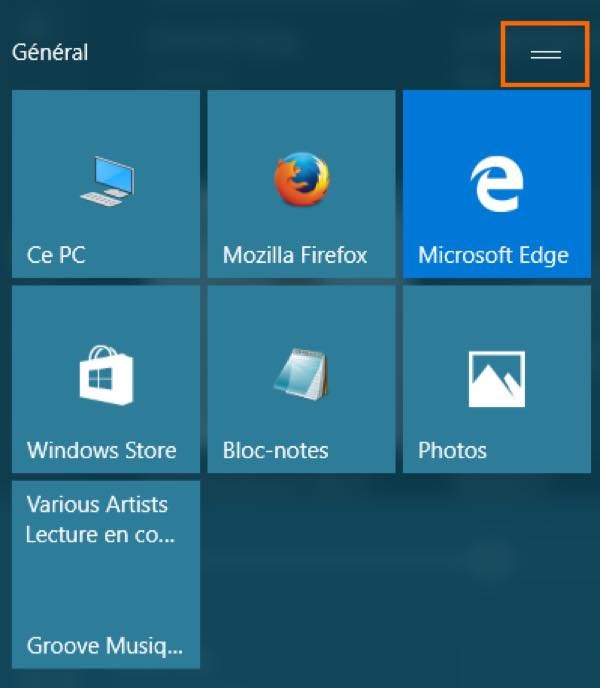
There are so many of these pretty blocks of colored tiles, but sometimes we would like what is on the left to be on the right, and vice versa; question of organization. It couldn’t be simpler there. Do you see the block in question? See the icon at the top right of the block (two small lines on top of each other)? Click on these lines while holding down: you can move the block as you wish. Changing the name of the block is even easier as you just have to click on its name.