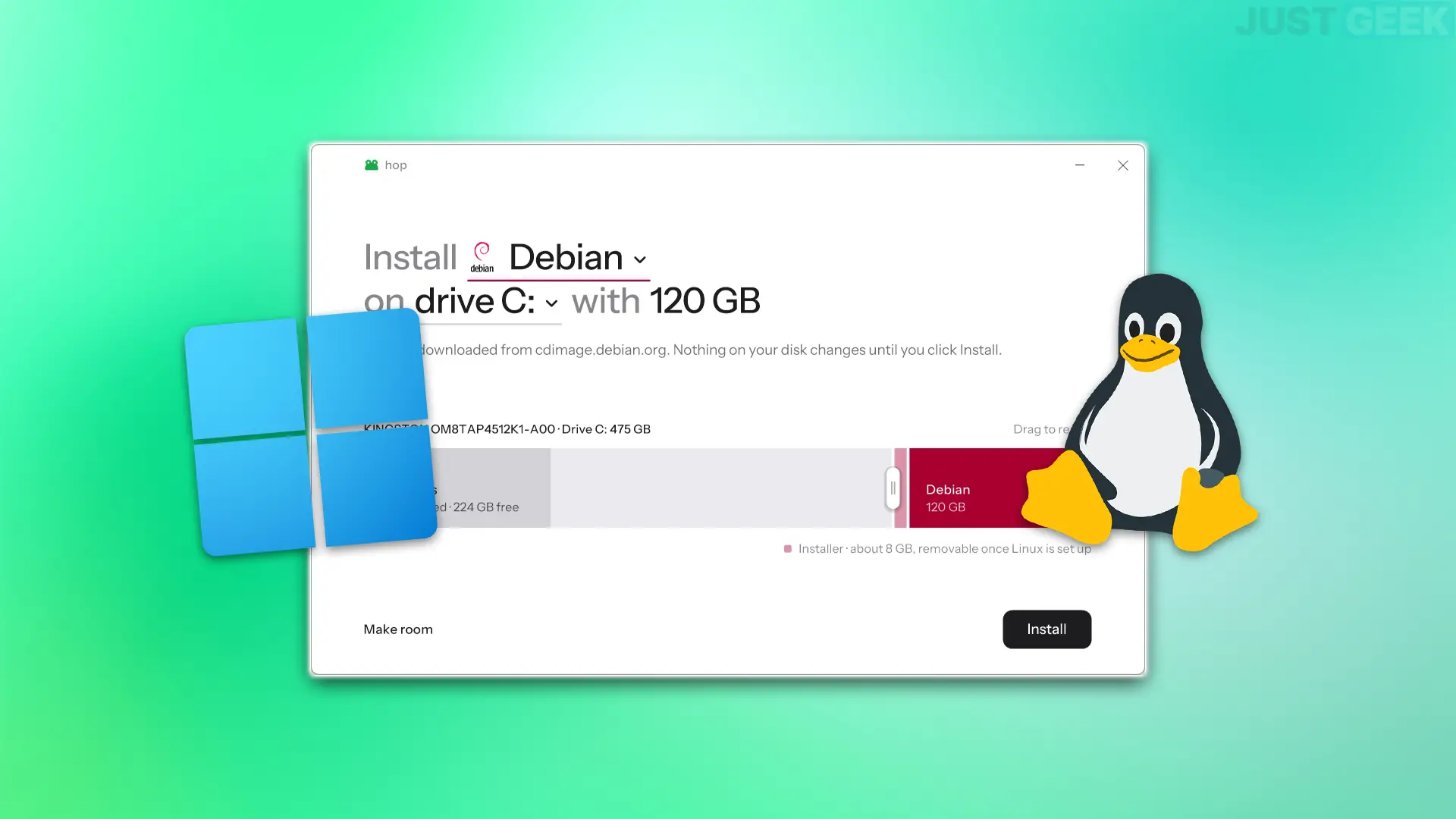
Do you want to install Linux alongside Windows 11, but don’t have a USB stick on hand? No problem ! With hop, a small free and open source software, you can install a dual-boot Linux distribution directly from Windows, without needing to create a bootable USB key.
I tried the tool to install Debian along with Windows 11 and it works! I explain everything to you in this article.
Typically, to install Linux, you need to download an ISO image, create a bootable USB key with software like Rufus, and then boot your PC to it. With jumpYou don’t need to do all that! He takes care of everything (or almost).
The software downloads the Linux distribution of your choice, reduces the size of the Windows partition if necessary to free up space, and then prepares the necessary files to start the installation.
Then all you have to do is restart your computer and follow the usual Linux installation steps. If you opt for dual boot, Windows remains in place and you can choose which system you want to use when starting your PC.
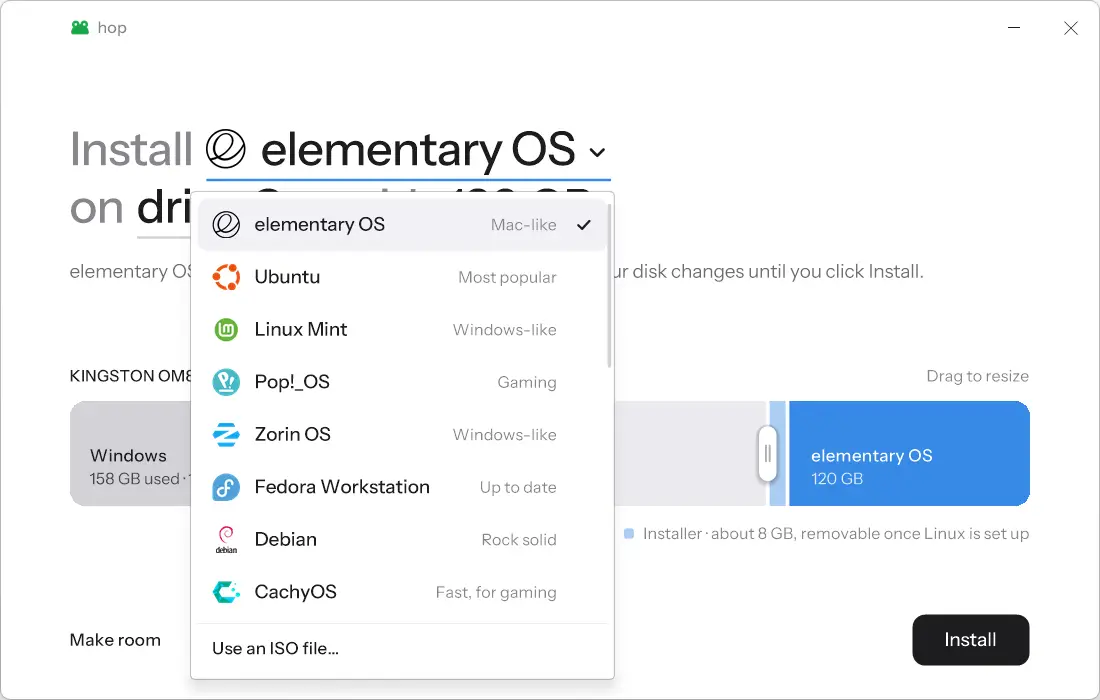
Depending on the distribution chosen, you can also install Linux on a second internal drive or replace Windows completely. But be careful, this is not possible with all distributions. According to the developer, Debian, Linux Mint, Zorin OS and CachyOS cannot yet be installed on a second jump disk. And if you choose to replace Windows, all data on the affected drive will obviously be erased.
hop also offers a “Make Space” feature, which comes in handy when Windows refuses to shrink a partition enough even though there is still free space on it.
For this tutorial, I used a jump on a Windows 11 PC to install Debian 13 in dual boot, on the same SSD. But the procedure is essentially the same with other supported Linux distributions.
To use hop, your PC must be running Windows 10 or 11, boot in UEFI mode, and have a GPT format disk.
And before you start, I advise you to make a backup of your important files. We’re still going to touch disk partitions, so it’s best to take some precautions.
1. Download and start hop
Go to hop GitHub page and download the hop.exe file of the latest available version.
Once the download is complete, double-click the file to launch the software. No installation is necessary.
Windows may display a SmartScreen warning because the program is not yet digitally signed. If you downloaded the file from the official repository, click “Additional information”, then “Run anyway”.
Then accept the administrator’s authorization request to access the jump interface.
2. Choose your Linux distribution and disk space
Once you open it, you can choose from 20 Linux distributions, including Ubuntu, Debian, Linux Mint, Fedora, Zorin OS, Arch Linux, CachyOS, and even Omarchy. You can also select your own ISO file if you have already downloaded a Linux distribution.
For my part, I chose Debian 13 and voila, I automatically downloaded the ISO image with the GNOME desktop environment.
Then select the disk on which you want to install Linux, then choose the space you want to reserve for it using the cursor provided for this purpose. In my case, I allocated 120 GB to Debian, taken from the Windows partition (C:).
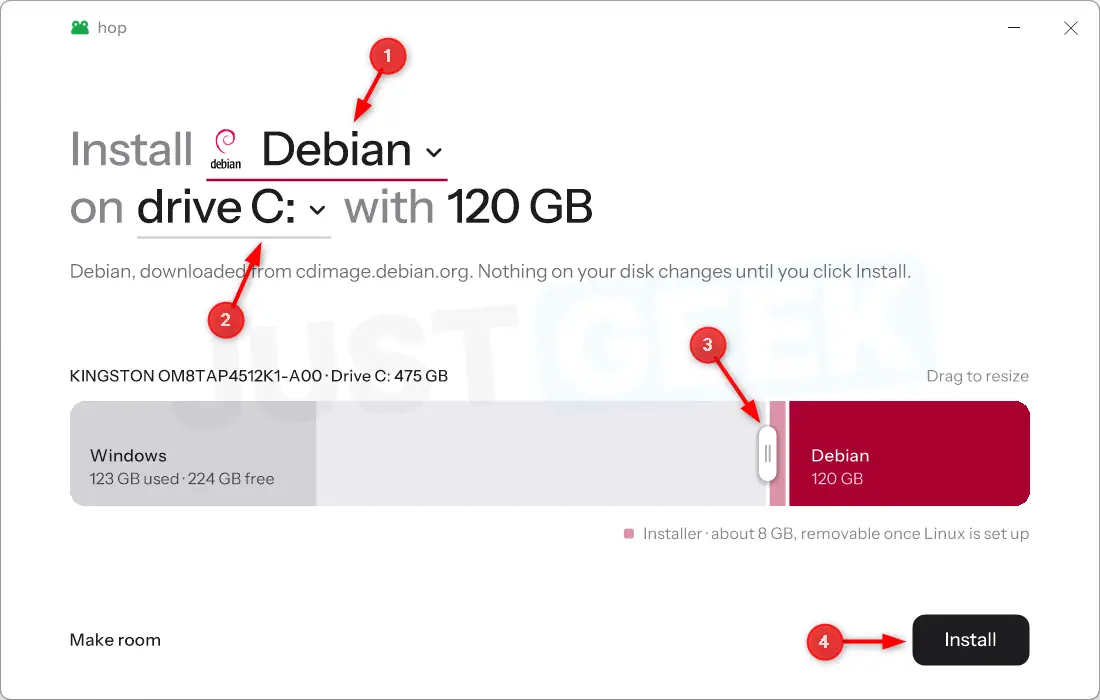
Double-check your options before continuing, including the selected disk and the space reserved for Linux. Then click “ Install “.
3. Download Linux and prepare the disk.
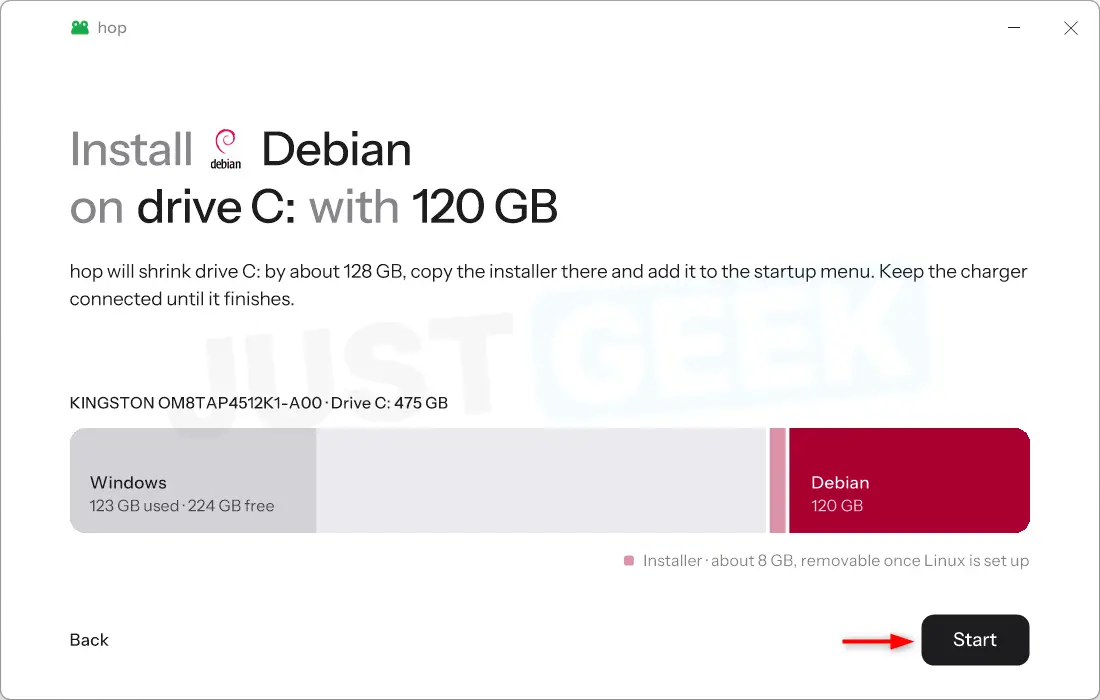
Hop then displays a summary of the installation with the chosen Linux distribution, the selected disk, and the space that will be reserved for it. In my case, the software says it will shrink the Windows partition by about 128 GB, including 120 GB for Debian and about 8 GB for installation files.
If everything suits you, click “ Begin » to continue.
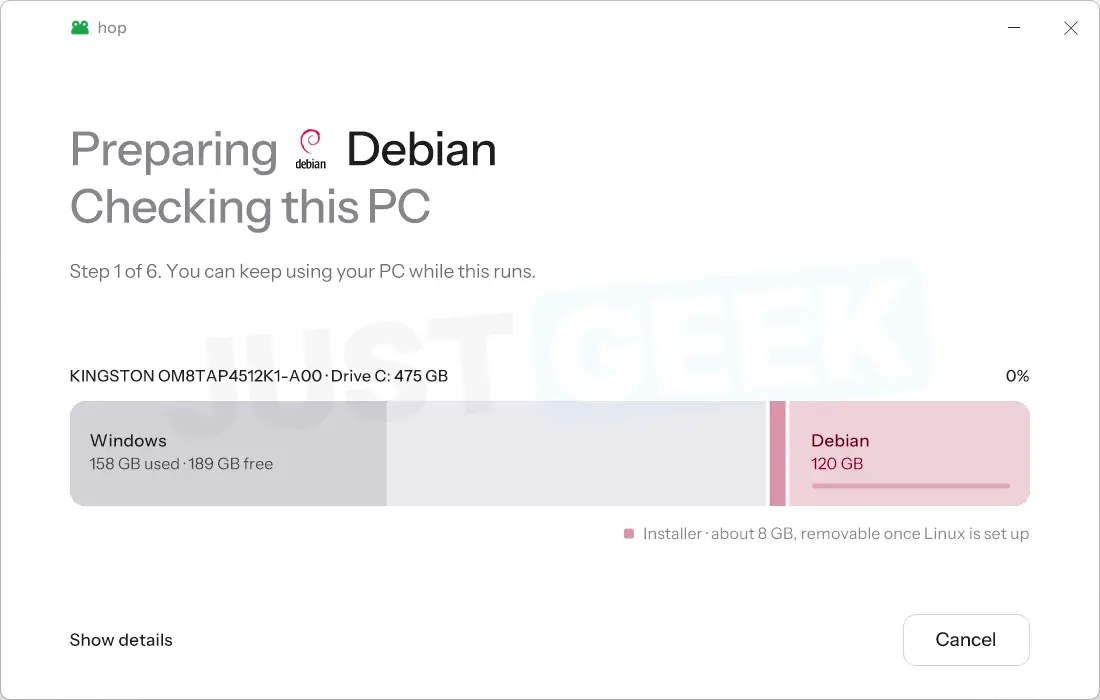
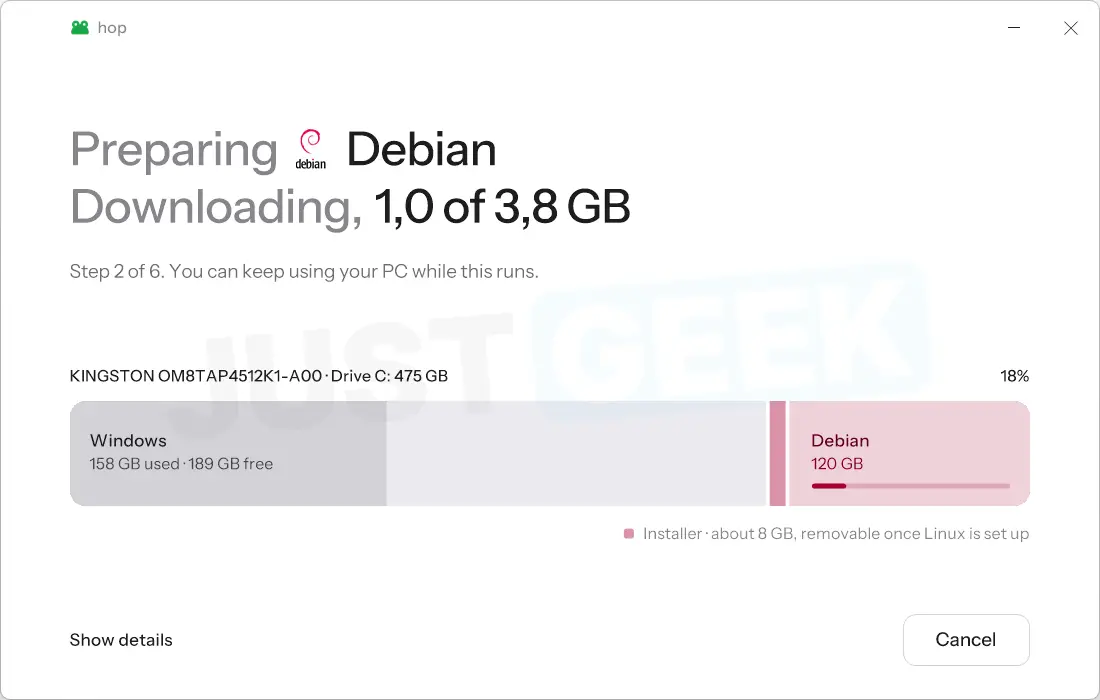
Hop then performs several checks and then downloads the ISO image of the chosen Linux distribution. It then shrinks the Windows partition to free up the requested space and creates a temporary partition containing the files needed for the installation.
The software also adds a UEFI boot entry to launch the Linux installer on the next reboot.
You have absolutely nothing to do. Let hop complete all operations without interrupting the process.
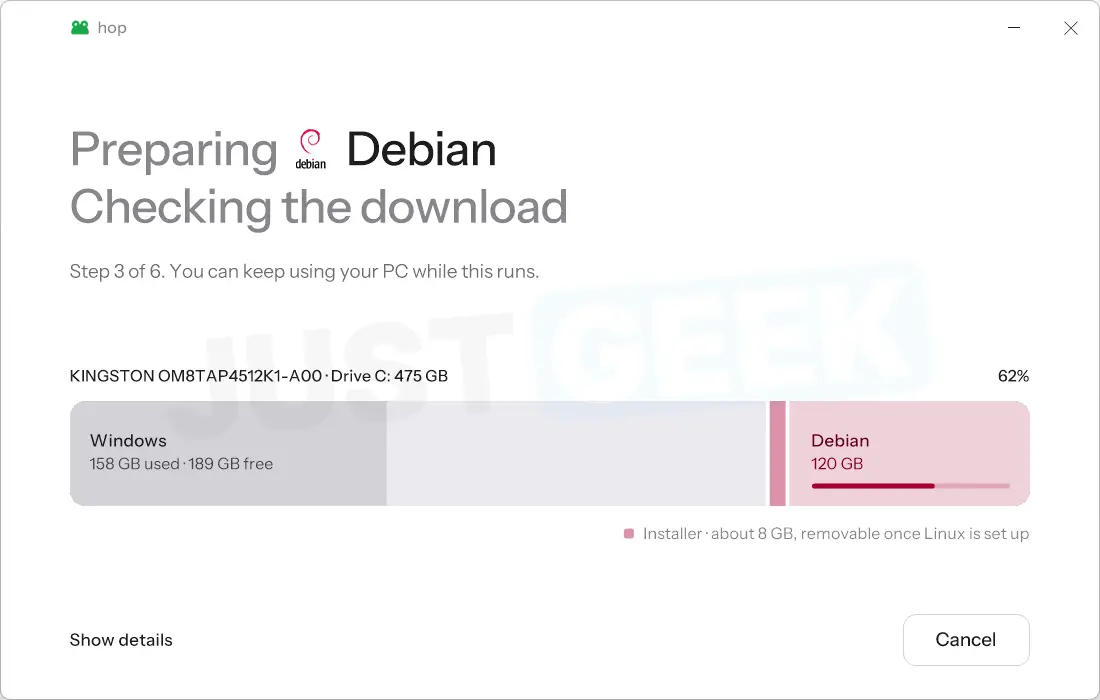
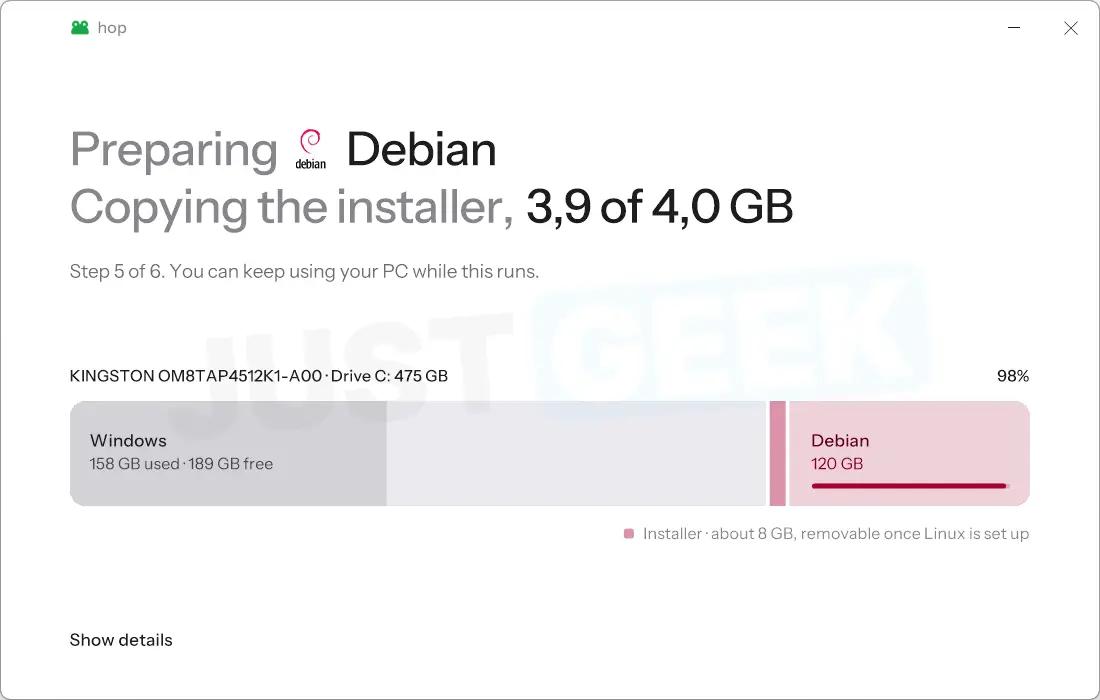
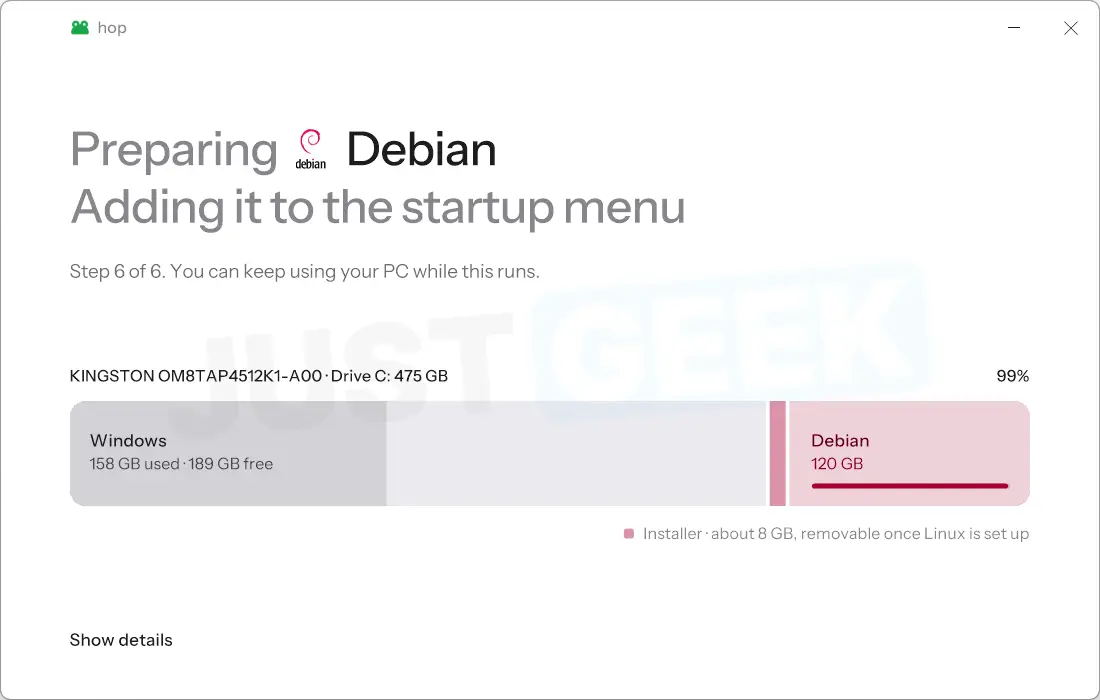
4. Restart the PC to start the Linux installation.
hop now displays a message indicating that your Linux distribution is ready to install.
The software also gives you some instructions to follow during installation, especially for choosing partitions. Please take the time to read them as they may vary depending on the Linux distribution selected.
When you’re ready, click ” Reboot now » to restart your computer and start the Linux installer.
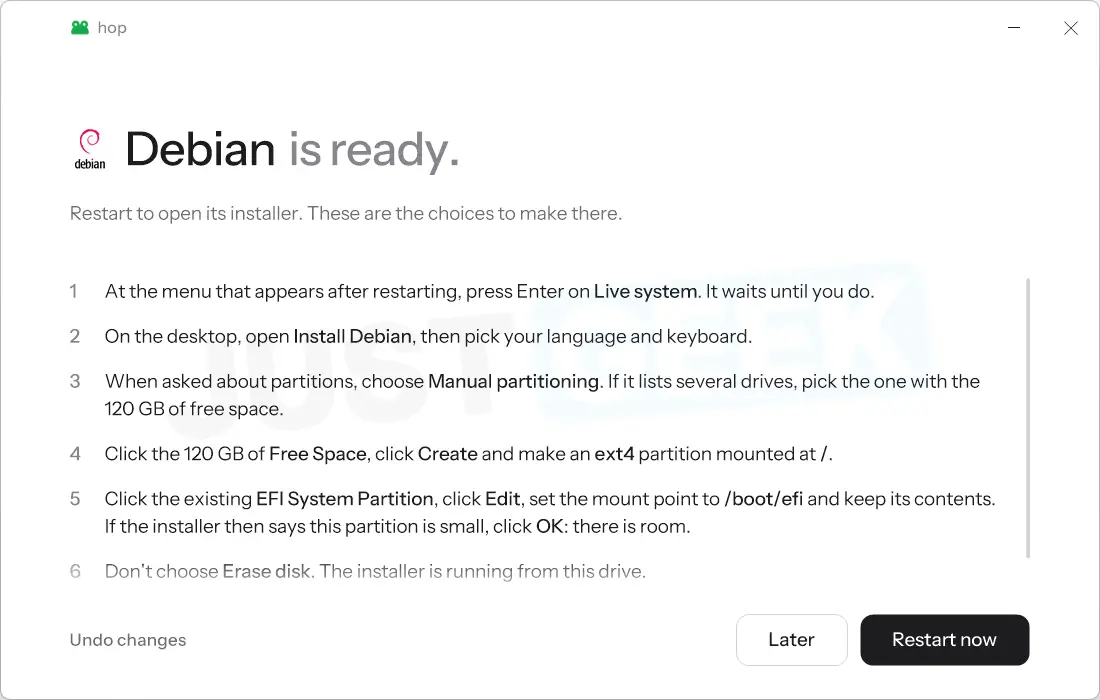
Normally, you should arrive at the start menu of your distribution. For Debian, select “ live system » to access the Linux environment and begin the installation.
5. Install Debian along with Windows 11
On the Debian desktop, double-click ” Install Debian » to start the installer. Then choose your language, region, and keyboard layout.
When you reach the partition stage, select ” manual partition “. This way you can use the space previously freed by jump, without deleting Windows 11.
Locate the 120 GB free space on your disk, then create a partition in ext4 format with the mount point /. It is on this partition where Debian will be installed.
You will also need to configure an EFI system partition with the mount point /boot/efi. You can use the existing Windows EFI partition if it is suitable, as long as you do not format it. In my case, the Debian installer requested a larger EFI partition. So I created a new 512MB one in the available space.
Please review the summary carefully before starting the installation. Windows partitions must remain intact. Then you can continue with the installer steps until the end.
6. Reboot and enjoy Windows/Linux dual boot
Once the Debian installation is complete, restart your computer. Normally you should arrive at the GRUB boot menu, which allows you to choose between Debian and Windows 11.
Select Debian to start Linux or Windows Boot Manager to find Windows 11. You can switch from one system to another by simply restarting your PC. Voila, voila!