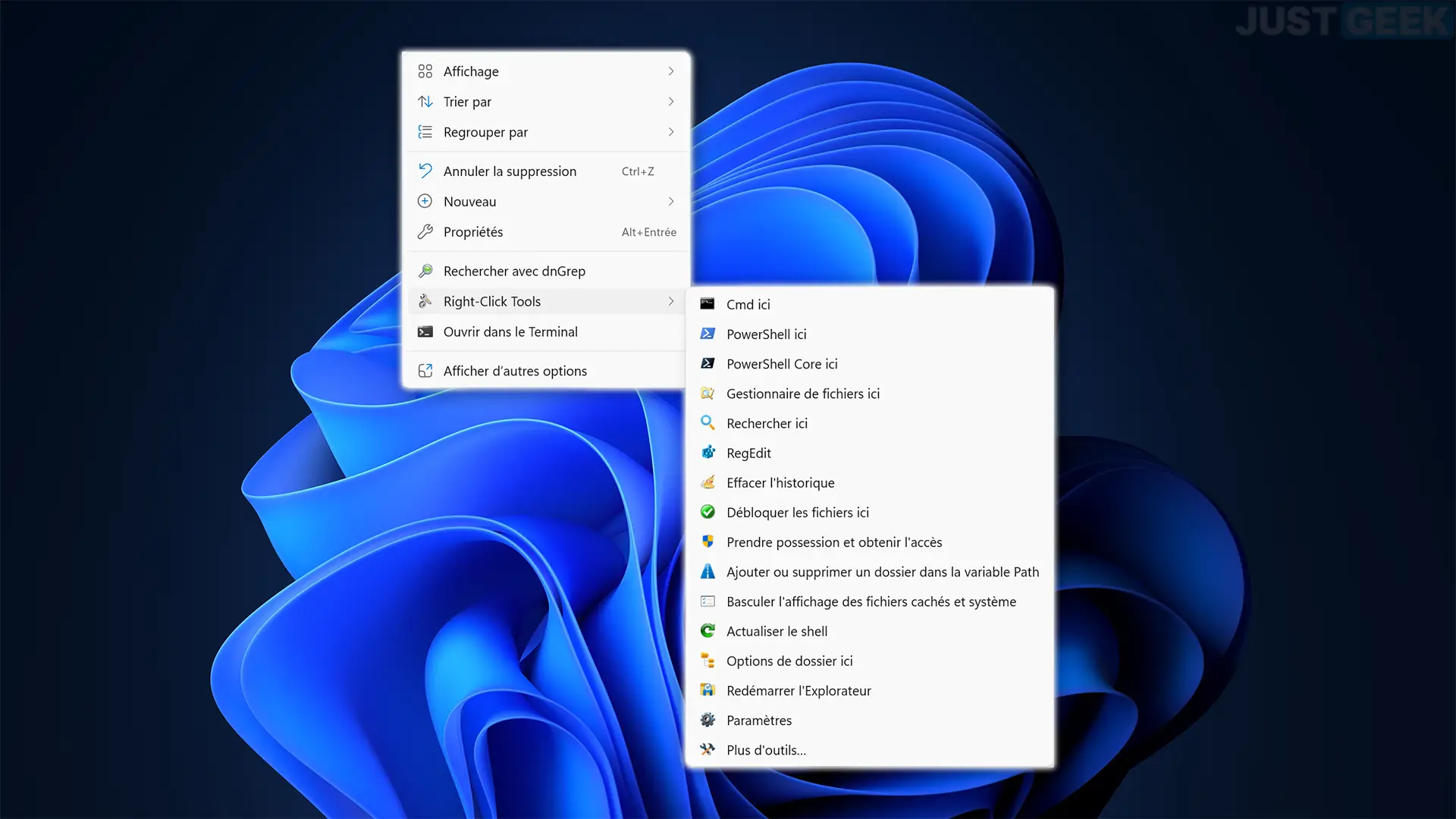
The Windows context menu already allows you to perform many operations, such as copying, moving or renaming files, creating folders or even accessing their properties. But with RightClickTools, you can do so much more! This free and open source software enriches you with a whole collection of tools to facilitate the administration, customization and maintenance of Windows. Let’s see what it offers.
Many tools accessible with a simple right click
Developed by LesFerch, to whom we also owe WinSetView and OldExplorer, Right click tools Complements the Windows context menu with a series of shortcuts and utilities.
Once installed, simply right-click on a folder, drive, or empty space in File Explorer or the Desktop to access its various features. In particular, you can open a terminal with elevated privileges, take ownership of a folder, modify environment variables or even access Windows settings.
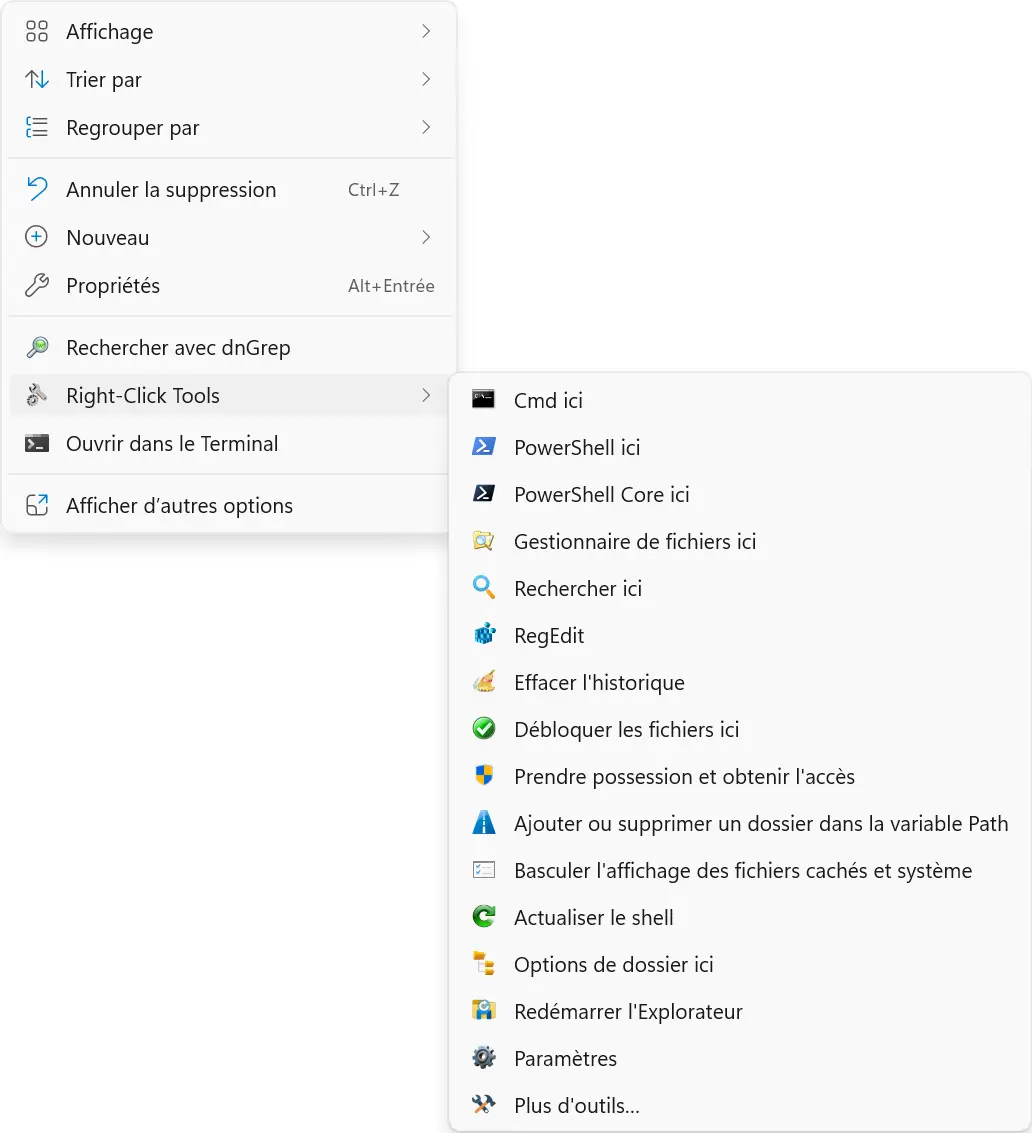
The software integrates with both the modern Windows 11 context menu and the classic menu. It also has its own launcher, which allows you to use its tools without necessarily integrating them into the context menu.
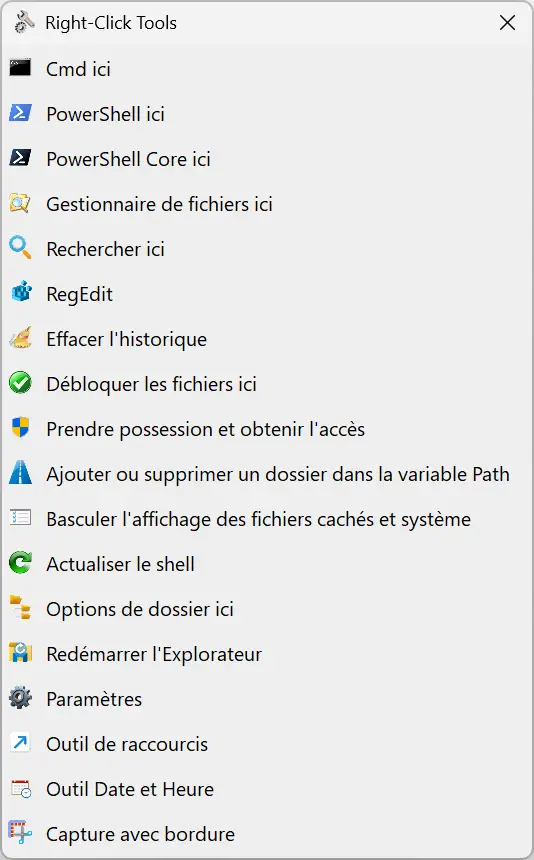
Tools to manage and customize Windows
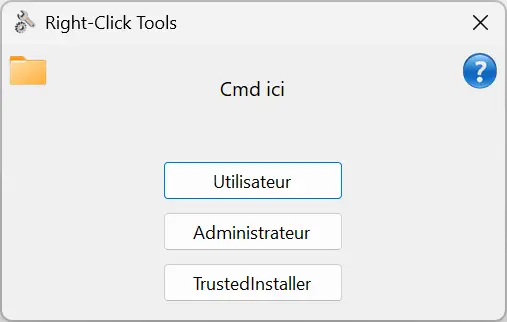
RightClickTools offers quite a few features, starting with the ability to open Command Prompt, PowerShell, or PowerShell Core directly in the folder of your choice. For each of these tools, a small window allows you to choose between the rights of your user account, those of administrator or TrustedInstaller privileges, in particular to intervene in certain protected system files. This option can also be set by default in the software configuration file to avoid having to select it each time.
The software also allows you to take ownership of a folder you don’t normally have access to, add or remove a directory from the PATH environment variable, or open Registry Editor with elevated privileges.
For more common operations, you can show or hide hidden and system files, unlock files downloaded from the Internet, clear part of Windows history, or reset the icon and thumbnail cache. There is also the option to restart File Explorer without having to go through Task Manager.
RightClickTools also offers several shortcuts to Windows settings. You can access the Control Panel, view installed applications, manage optional features, or open environment variables and performance options. It’s even possible to change the screen scale or switch between Windows’ light and dark themes, right from this window.
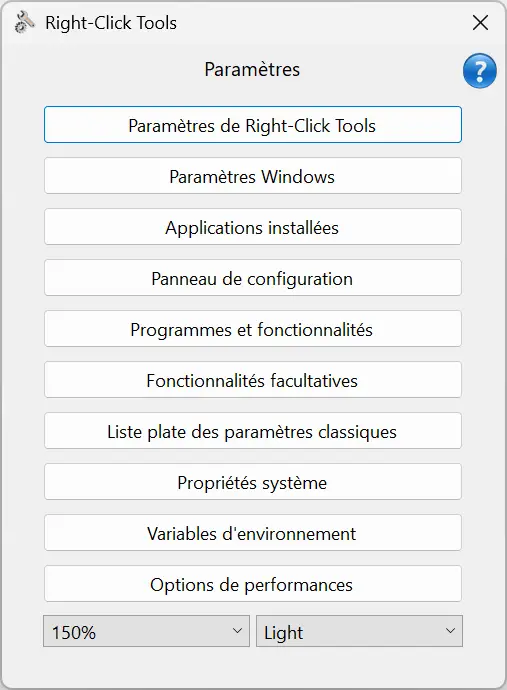
Customize your folders and find your files
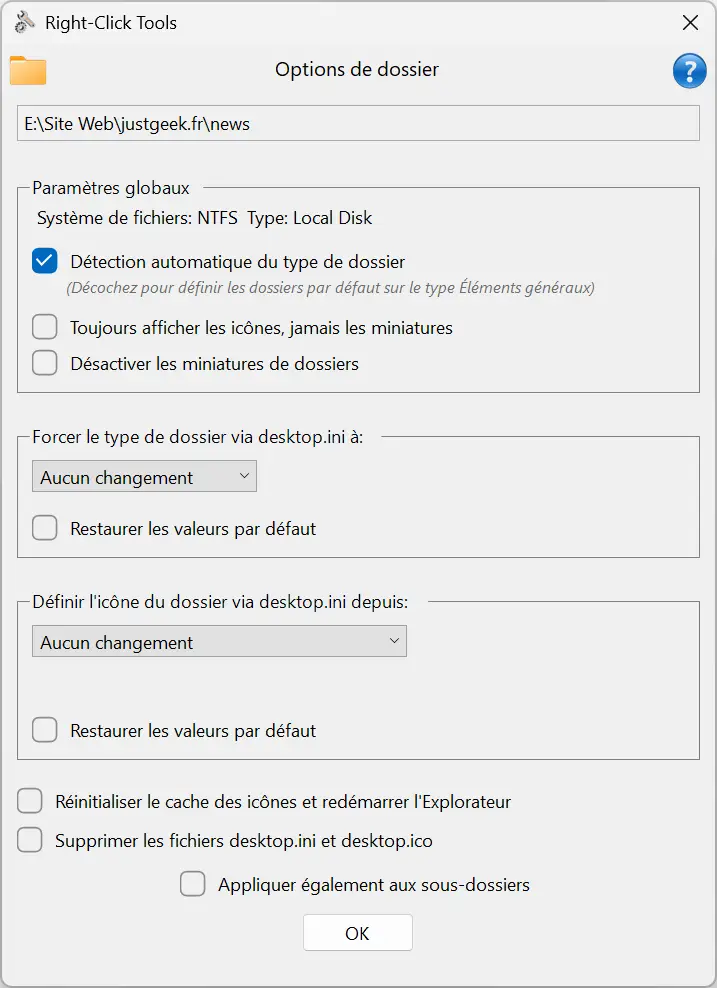
RightClickTools also offers several options to customize the display of folders in File Explorer. In particular, you can change their icon, give them a color or use an image of your choice. It is also possible to disable automatic folder type detection, hide thumbnails, or apply certain settings to all subfolders.
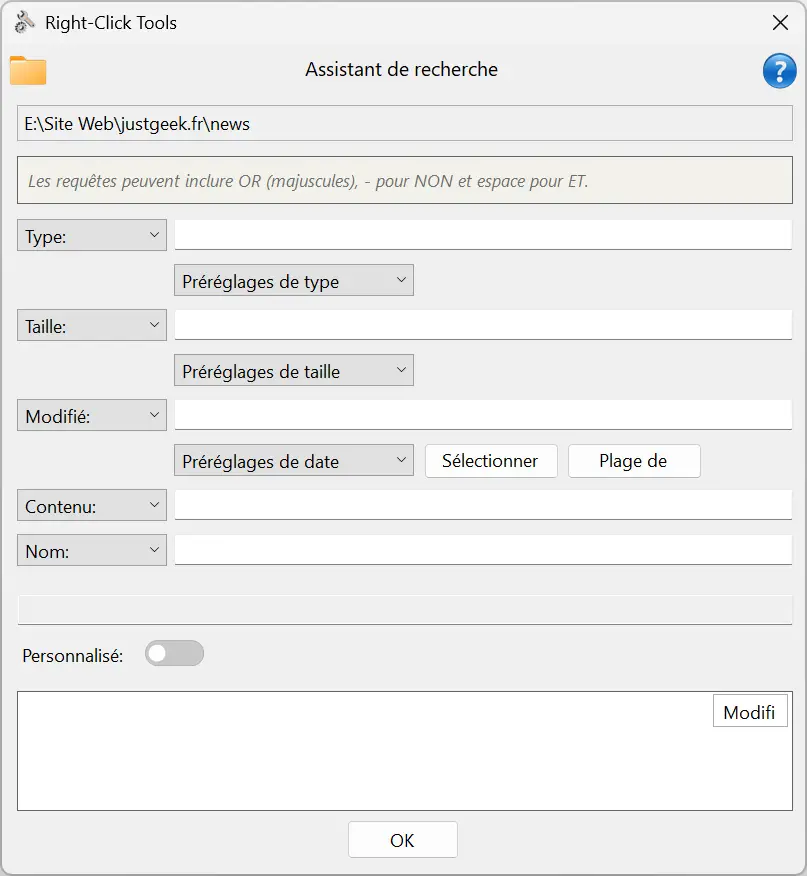
To find your files, RightClickTools includes a search wizard that allows you to combine several criteria: name, type, size, modification date or content. You don’t need to know Windows search operators to perform more precise searches.
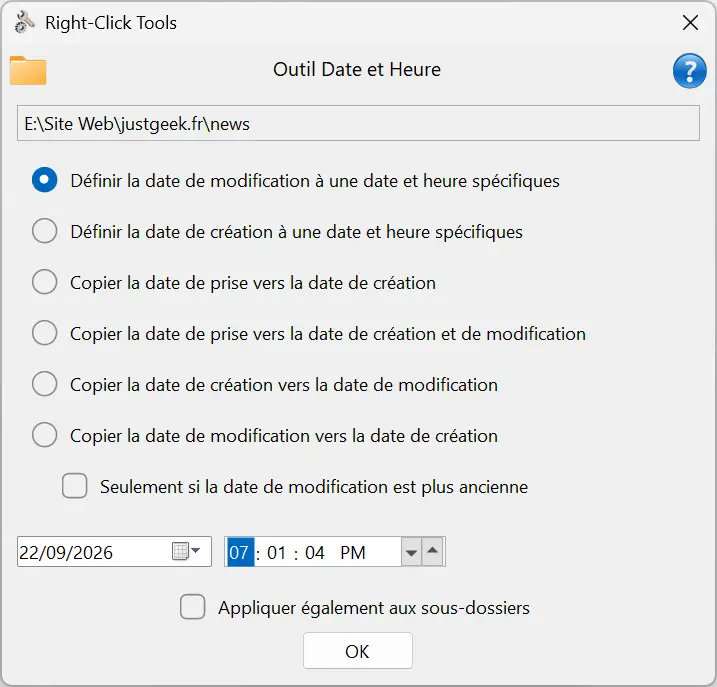
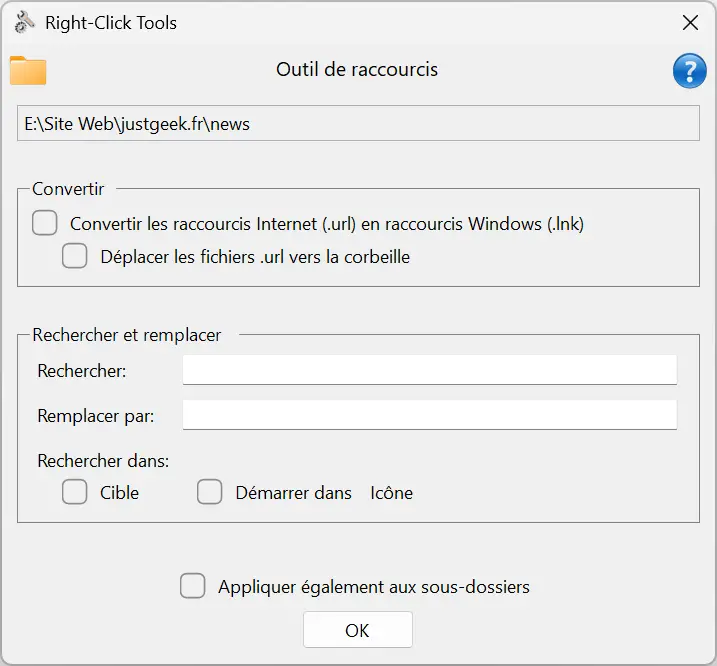
There are also two very practical small utilities. The first allows you to modify the file creation and modification dates. The second is used to convert Internet shortcuts (.url) to Windows shortcuts (.lnk), but also to search and replace certain information in them.
To install RightClickTools, go to your GitHub repository and download the RightClickTools-Setup.exe file. Then start the installer, which will offer you two possibilities: add the tools to the modern and classic context menus of Windows 11, or integrate them only into the classic menu through the Registry.
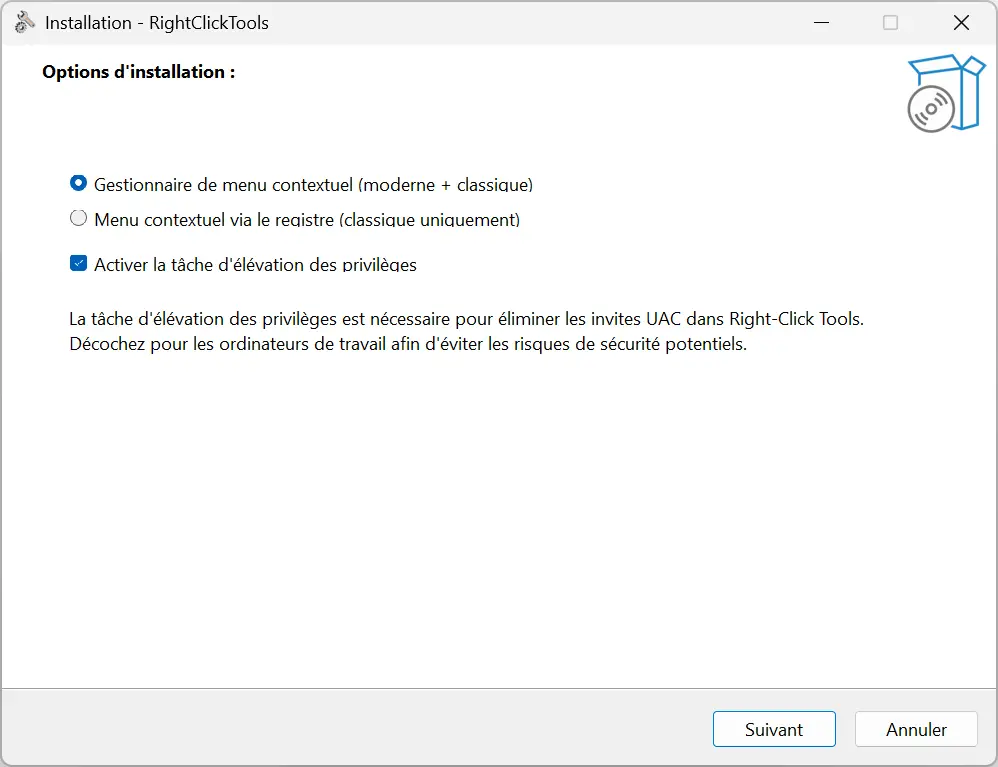
A third option, enabled by default, allows you to create a scheduled task to run the tools with elevated privileges without having to confirm each UAC request. While this feature may be convenient, it also presents a security risk: the task could be hijacked to run other programs with elevated privileges. Therefore, I advise you to disable it if you do not particularly need it.
Then choose the destination folder, click “Install” and wait a few seconds. Once the installation is complete, RightClickTools will be accessible from the Windows context menu without restarting the PC.
If you prefer to avoid installation, there is also a portable version available on GitHub. Simply extract the ZIP file and launch RightClickTools.exe to access the different tools from its built-in launcher. You can also manually add shortcuts to the classic context menu using the Setup.exe file provided in the file.