Microsoft just announced a change that could prevent some users from accessing their external drives as early as January 2027. The company plans to lock volumes using the ReFS file system on removable storage media by default.
Rest assured, not all external drives are affected by this measure. Here’s what’s changing and how to tell if your hardware is affected.
Why does Microsoft want to lock certain ReFS volumes?
ReFS (Resilient File System) is a file system developed by Microsoft to improve storage reliability and reduce the risk of data corruption. It is primarily used in professional environments and in certain storage configurations.
External drives and USB sticks typically have NTFS, exFAT, or FAT32 file systems. ReFS is much less common and Microsoft does not officially support its use on removable media.
The company believes that these configurations may present risks to Windows security, without specifying which ones or mentioning any particular vulnerability. It simply decided to block by default the mounting of the ReFS volumes in question starting in January 2027.
A blockade planned for January 2027
Microsoft has chosen to implement this change in two stages to give users and administrators time to prepare.
Starting with the security update (KB5127648) on October 13, 2026, Windows can detect affected ReFS volumes and log a warning in the system log. Currently, there is no blocking enabled by default.
The situation will change with the January 2027 security updates. Windows will then automatically prevent access to affected ReFS volumes unless an administrator changes the settings to allow their use.
The files on these disks will not be deleted. However, Windows will refuse to mount them, preventing users from accessing their data while the restriction remains active.
Most of you should not be affected by this measure. You can certainly check the file system used by your external drive or USB key.
- open itFile Explorer (windows + my).
- Click on This computer in the left panel.
- Right click on your external drive, then select ” Properties “.
- In it ” General “, locate the line ” File system “.
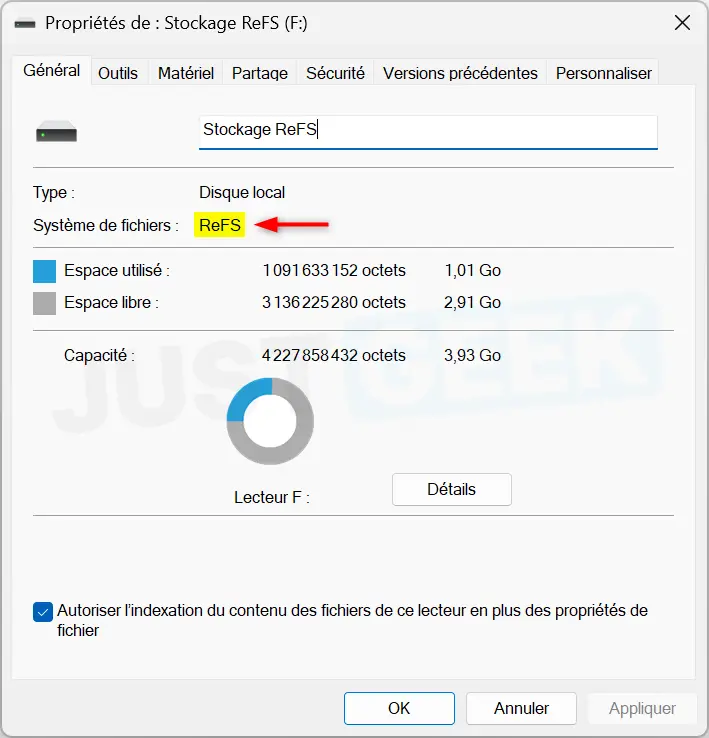
If your drive uses NTFS, exFAT, or FAT32, you don’t need to do anything. If you see ReFS, you may be affected by Microsoft’s new restrictions.
In fact, it all depends on how Windows recognizes your disk. USB-connected media may be identified as a fixed drive rather than a removable device. However, this does not guarantee that you will escape the lock, as Microsoft also mentions certain externally connected storage configurations.
If you are using a ReFS disk, you can also check to see if Windows has detected a problem with your settings. Since the October 2026 update, the system logs a warning when it detects a ReFS volume on unsupported external media.
To check it:
- Right click on the menu for a startthen open theEvent Viewer.
- In the left panel, go to Windows Logs > System.
- Look for a warning from the source ReFSwith event ID 524.
If you encounter this warning, it means that Windows has detected a ReFS volume that is likely to crash in January 2027. Please note that the absence of a warning does not guarantee that your disk will not be affected.
If you are using a ReFS drive affected by this restriction, Microsoft has provided a way to continue accessing it. It is possible to modify a setting in the Windows Registry to prevent the crash.
Here’s how to do it:
- Press windows + Rget into regeditthen validate with Entrance.
- Go to the following location:
HKEY_LOCAL_MACHINE\SYSTEM\CurrentControlSet\Control\FileSystem- In the right panel, find the value.
RefsRemovableDeviceMountPolicy. If it does not exist, create a new one DWORD value (32-bit) bearing this name. - Double click on it, then set it to 0 to deactivate the control.
- Restart your computer to apply the change.
Microsoft provides three possible values for this parameter:
- 0 – Disables monitoring and allows mounting of the affected volumes.
- 1 – Detects affected configurations and logs warnings without locking disks.
- 2 – Blocks mounting of affected ReFS volumes.
Please note that this modification disables a security protection provided by Microsoft. If you do not need to use ReFS on external media, it is best to keep the default settings.
Microsoft recommends that affected users move their data to an officially supported storage configuration, rather than permanently disabling this protection.