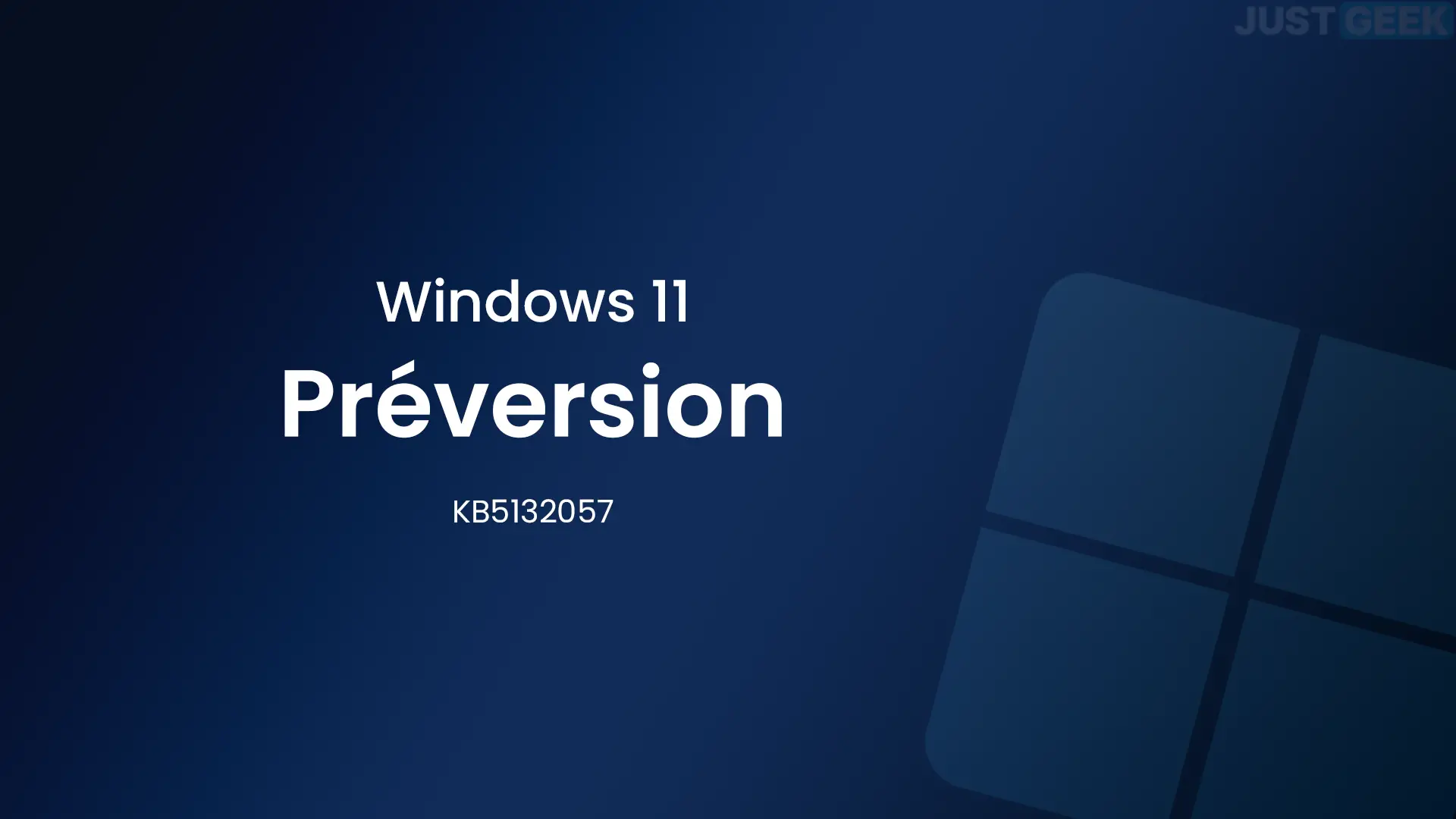
Microsoft has just released a new optional update for Windows 11, the last one for 2026. Available since November 19, 2026, KB5132057 refers to versions 25H2 and 26H2 of the system, which move to builds 26200.10075 and 26300.10075 respectively.
With this new version, Microsoft noticeably revised Windows Search, modernized the “Run” window (Win + R), and introduced some improvements to Windows Hello and File Explorer. Several bugs have also been fixed.
Here you will find everything new about this new Windows 11 update and how to install it.
Windows 11 KB5132057: what’s new in this update?
Windows Search becomes faster and more convenient
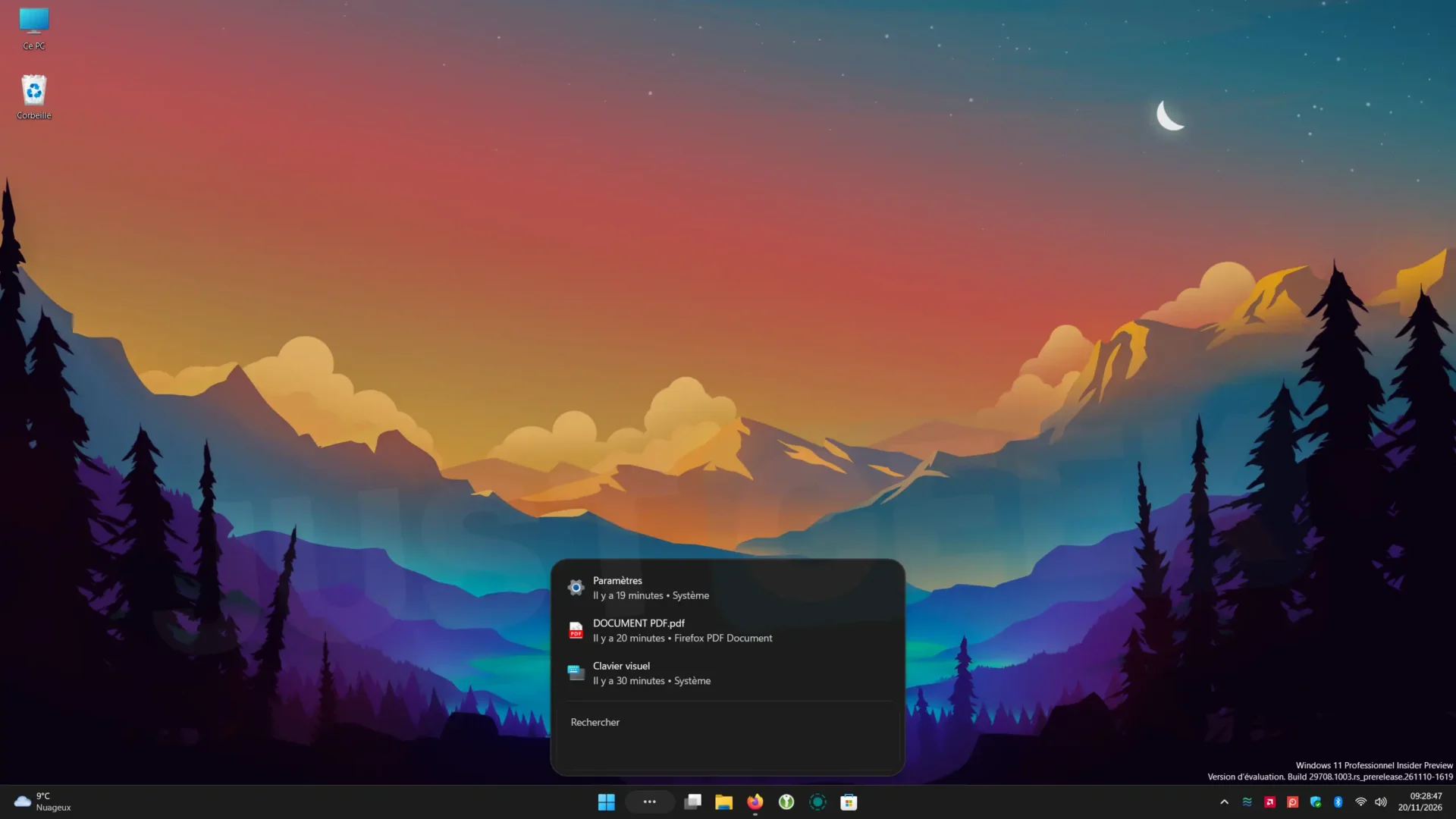
Microsoft has completely overhauled Windows Search with a new interface Based on WinUI, which replaces WebView2. The results are now grouped into a single list that is much easier to navigate. The search should also be faster and consume less RAM.
Additionally, you can perform certain actions directly from search, without having to open Settings. For example, you can activate Bluetooth or dark mode, adjust the screen brightness or mute the sound.
You can also preview your files, see their location or modification date. The search also better recognizes typos. And if you have an Android smartphone connected through Connected Mobile, you can call a contact, send a text message, or find your phone without leaving Windows Search.
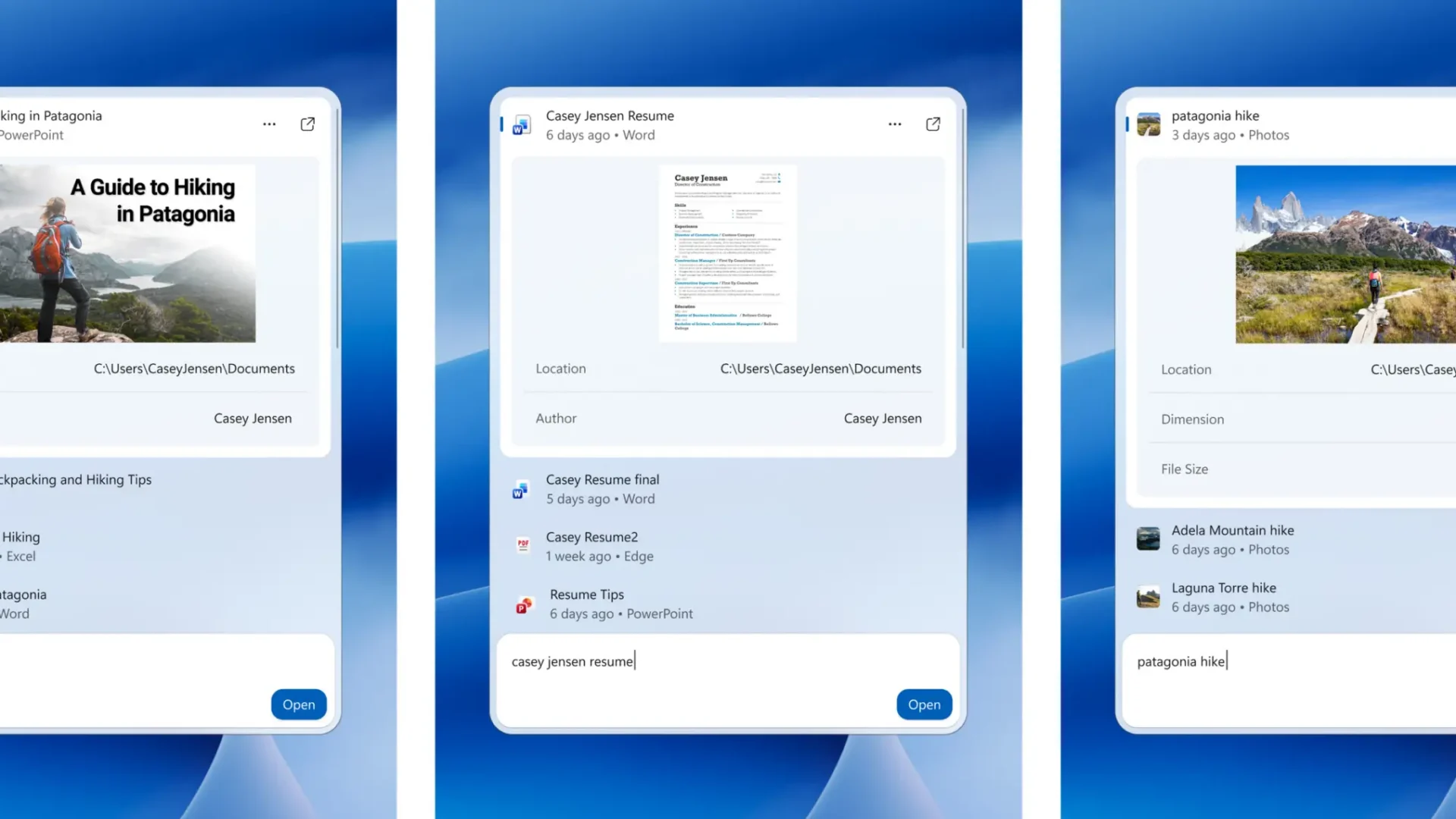
Well, on the other hand, don’t expect to be able to try all this right away. Microsoft is rolling out these new features gradually, and for now, most of the new search features are only available in English.
The “Run” window (Win + R) is modernized
The “Run” window, which you can open with the keyboard shortcut gain + RIt also changes your look. Microsoft has given it a more modern interface, compatible with dark mode and which should be faster to open.
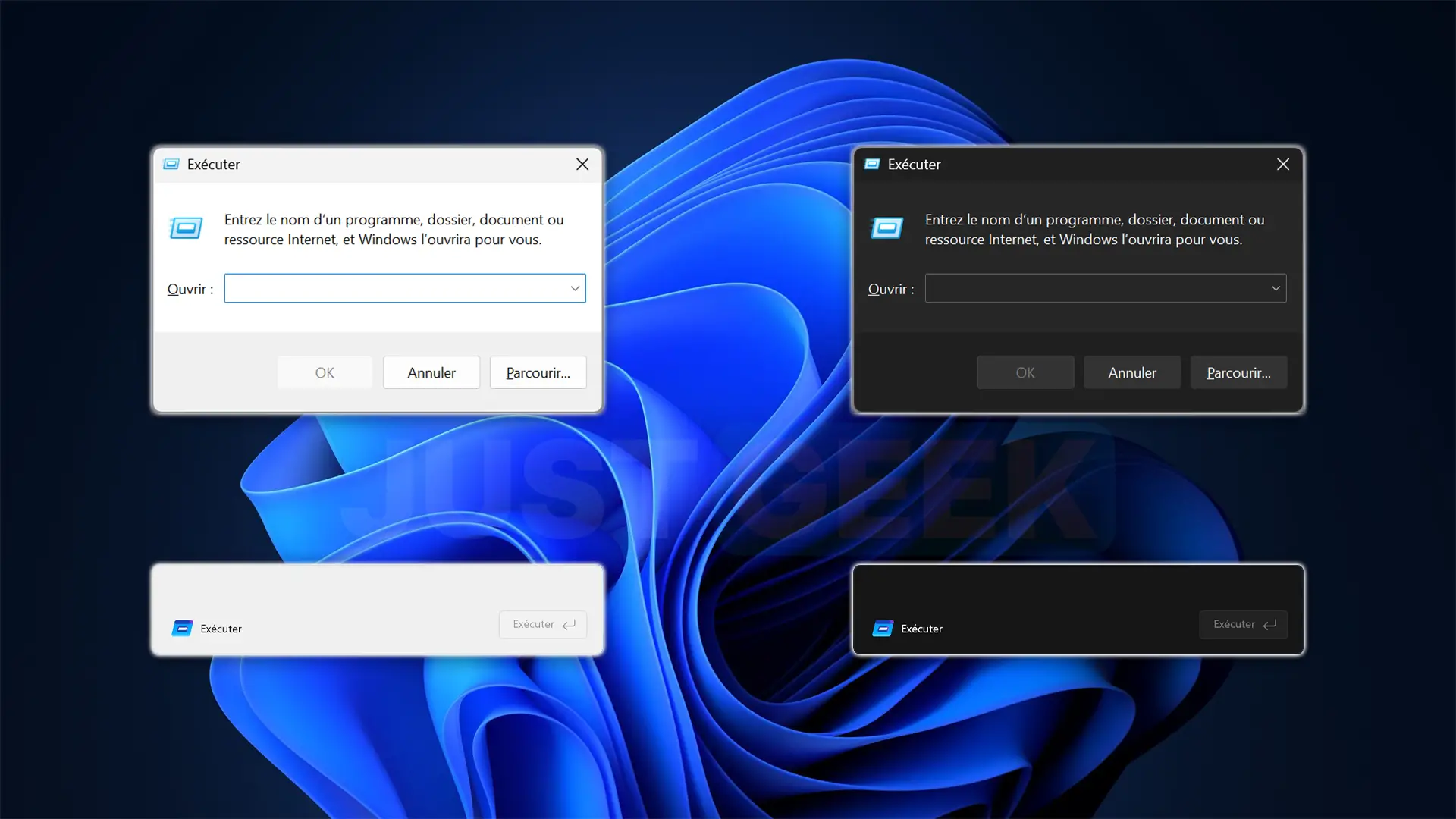
However, this new interface is not activated by default. To take advantage of it, go to Settings > System > Advanced. You can also follow our tutorial to activate it. And if you prefer the old version, you can always go back.
Windows Hello improves facial recognition
Microsoft has also thought about those who use Windows Hello to unlock their PC with their face. A new option now lets you automatically increase the screen brightness when you’re in a dark room, so the camera can recognize you better.
To enable this feature, go to Settings > Accounts > Sign-in options > Facial recognition (Windows Hello), then enable the “Automatically adjust screen brightness during facial recognition” option.
File Explorer improves your search
Microsoft has also improved search in File Explorer. When you search for a file from “This PC,” Windows now uses its indexing system to speed up searches.
Until now, this type of search could take a long time, especially if you had multiple disks. Therefore, with indexing, it should take less time for Windows to find your files.
Windows 11 makes it easier to disable sticky keys
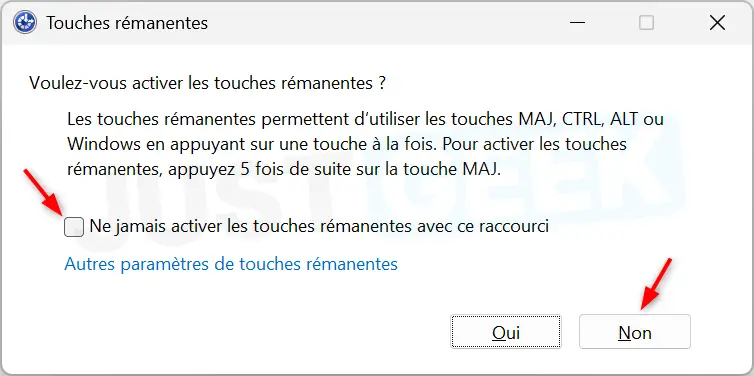
You’ve probably already gotten that damn sticky key window when you press the key five times in a row. Changeespecially in the middle of the game if you’re playing on PC!
Well, with this update you will finally be able to disable this shortcut directly from the window that appears. Simply check the new “Never activate sticky keys with this shortcut” box and then click “No.” Nothing revolutionary, we agree, but we’ll accept it.
Other news of Windows 11 KB5132057
KB5132057 also includes some more subtle changes, but they may be useful. Here’s what you should remember:
- widgets – Windows 11 can now notify you when an app you just installed offers a new widget. You can then add it directly to your Widgets table.
- Xbox mode : Quick settings can now be accessed from the Xbox mode navigation bar, without having to exit the latter.
- Screenshots – The border that appears during a screenshot changes from yellow to red, to better indicate that a capture is in progress.
- Live subtitles – You can choose to transcribe only the PC sound, the microphone sound, or both.
- mouse pointer – A new indicator makes it easier to find the cursor on the screen. It is activated in the accessibility settings and can be shown or hidden with the shortcut gain + Control + Change + unknown (yes, it’s not easy…).
- Magnifying glass – You can now disable the shortcut gain + + who throws the Magnifying Glass. A new help menu also appears.
- Narrator : Reading mathematical expressions supports eight additional languages, including Polish, Russian and Swedish.
- Settings : The benefits and services associated with your Microsoft account are easier to find.
- voice dictation – Microsoft has fixed reliability issues related to your configuration.
Bugs fixed by KB5132057
Microsoft also fixed several bugs with this update. Here are the main ones:
- miracast : Fixed an issue that could reduce screen resolution when projecting wirelessly.
- Connecting with Android : Fixed the “Something went wrong” error that could appear when using a saved key on an Android smartphone.
- Shut down and restart – Windows might incorrectly display the message “Someone else is using this PC” when you wanted to shut down or restart your computer.
- File history – Fixed a bug that sometimes prevented Windows from correctly detecting backups during a restore.
- Wise 50 – Fixed an issue that could cause accounting software to crash.
- PC ARM – Fixed a bug related to TPM 2.0 that could prevent certain devices from booting.
- Remote Desktop : Fixed an issue where additional characters were displayed in some Japanese RemoteApp applications.
The update also fixes some more specific issues related to Windows Fax and Scan and Windows 11 IoT Enterprise activation.
KB5132057 is an optional update. Therefore, it will not be installed automatically on your PC. If you want to take advantage of the new features and fixes now, here’s how to do it:
- open them Settings from Windows 11 using the shortcut windows + Yo.
- See you at Windows Updatethen click ” Check for updates “.
- If the “Receive the latest updates as soon as they are available” option is enabled, KB5132057 should appear. Otherwise, go to Advanced Options > Optional Updates to find her.
- Click ” Download and install » to start the installation.
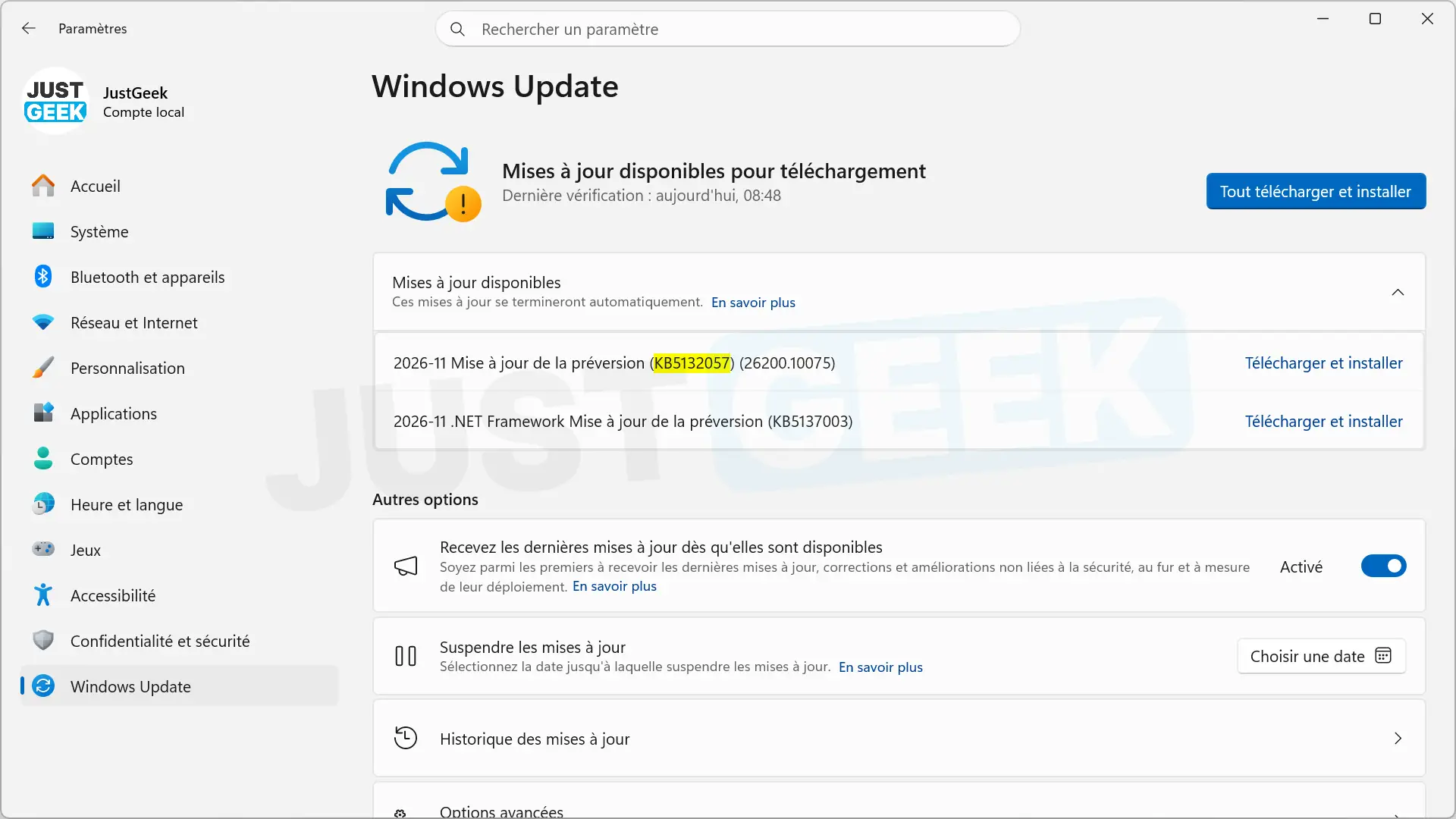
Once the installation is complete, restart your computer if Windows prompts you to do so.
It is also possible to retrieve the update manually from the Microsoft Update catalog:
| Version | Build | Architecture | Size |
|---|---|---|---|
| Windows 11 25H2 | 26200.10075 | x64 | 5,044.1MB |
| Windows 11 25H2 | 26200.10075 | ARM64 | 4,958.1MB |
| Windows 11 26H2 | 26300.10075 | x64 | 5,044.1MB |
| Windows 11 26H2 | 26300.10075 | ARM64 | 4,958.1MB |
If you’d rather wait, the fixes in this preview should be integrated into the next Patch Tuesday, scheduled for Tuesday, December 8, 2026.
Please note that Microsoft rolls out certain features gradually. Therefore, even after installation, not all new features may be immediately available on your PC.
Fountain : microsoft