Microsoft has just released a new optional update for Windows 11. With the reference number KB5120998, it updates the system to builds 26100.9278 for version 24H2 and 26200.9278 for version 25H2.
Once again, Microsoft has planned many new and interesting features. The most important, without a doubt, is the taskbar, which can finally be moved to the top, left or right of the screen. A possibility that already existed in Windows 10, but that Microsoft eliminated with the arrival of Windows 11.
The update also reduces the size of the taskbar, adds new options to the Start menu, and improves Windows Search and File Explorer. Here’s everything you need to know about Windows 11 update KB5120998.
The taskbar can finally be moved
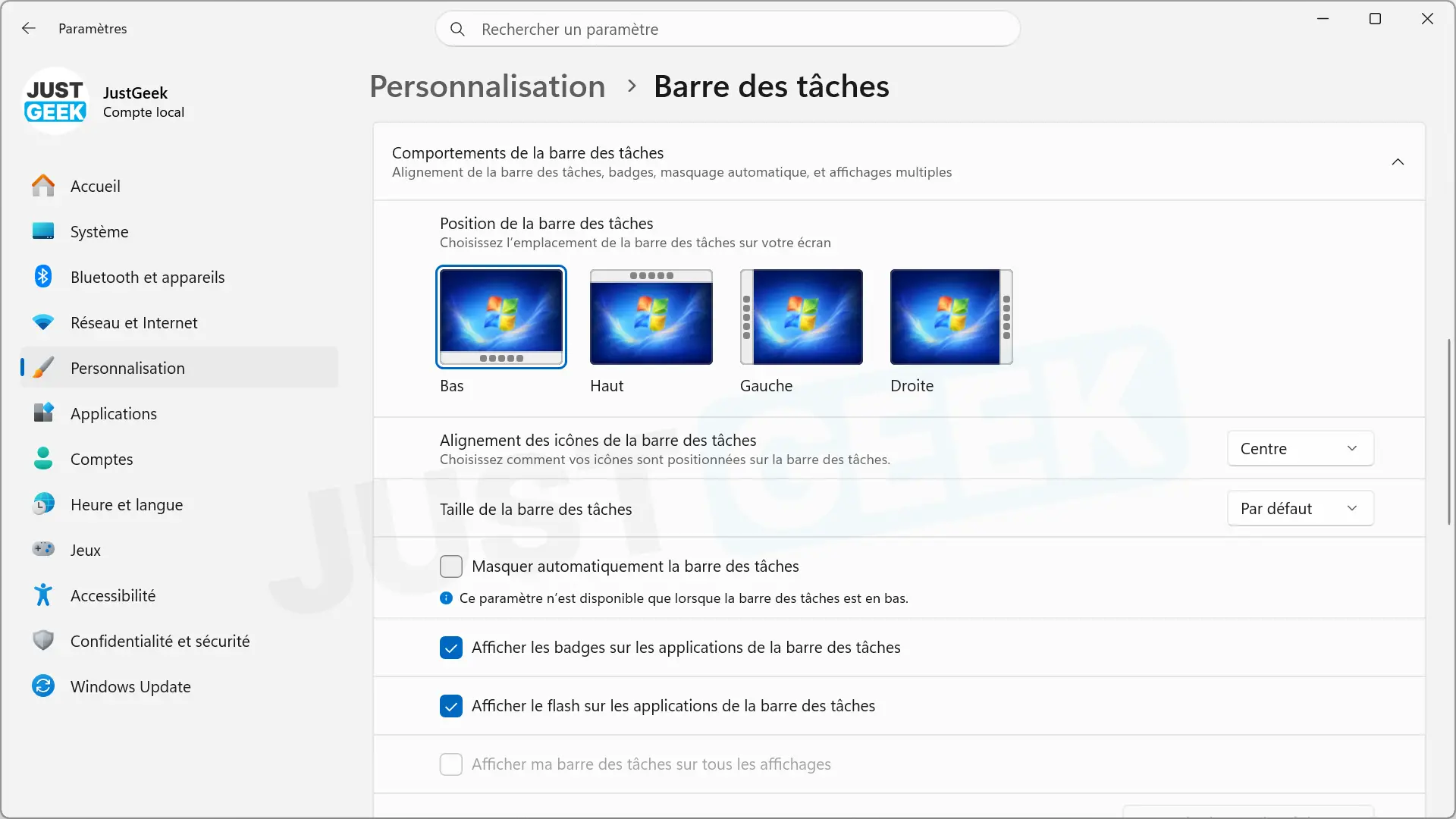
This is undoubtedly the most anticipated novelty of this update. Microsoft finally allows you to move the Windows 11 taskbar to place it at the top, left or right of the screen, and no longer just at the bottom as was the case until now.
Let us remember that this possibility already existed in Windows 10, but it disappeared with the arrival of Windows 11 in 2021. Therefore, we had to wait almost five years for it to return.
Microsoft specifies that most taskbar functions remain available regardless of its position. Tooltips, menus, and animations adjust automatically, while options like never combining buttons still work.
Microsoft specifies, however, that the search box and the small taskbar are, for the moment, only officially supported when placed at the top or bottom of the screen.
To change your position, go to Settings > Personalization > Taskbar > Taskbar Behaviors > Taskbar Position.
A new option to reduce the size of the taskbar
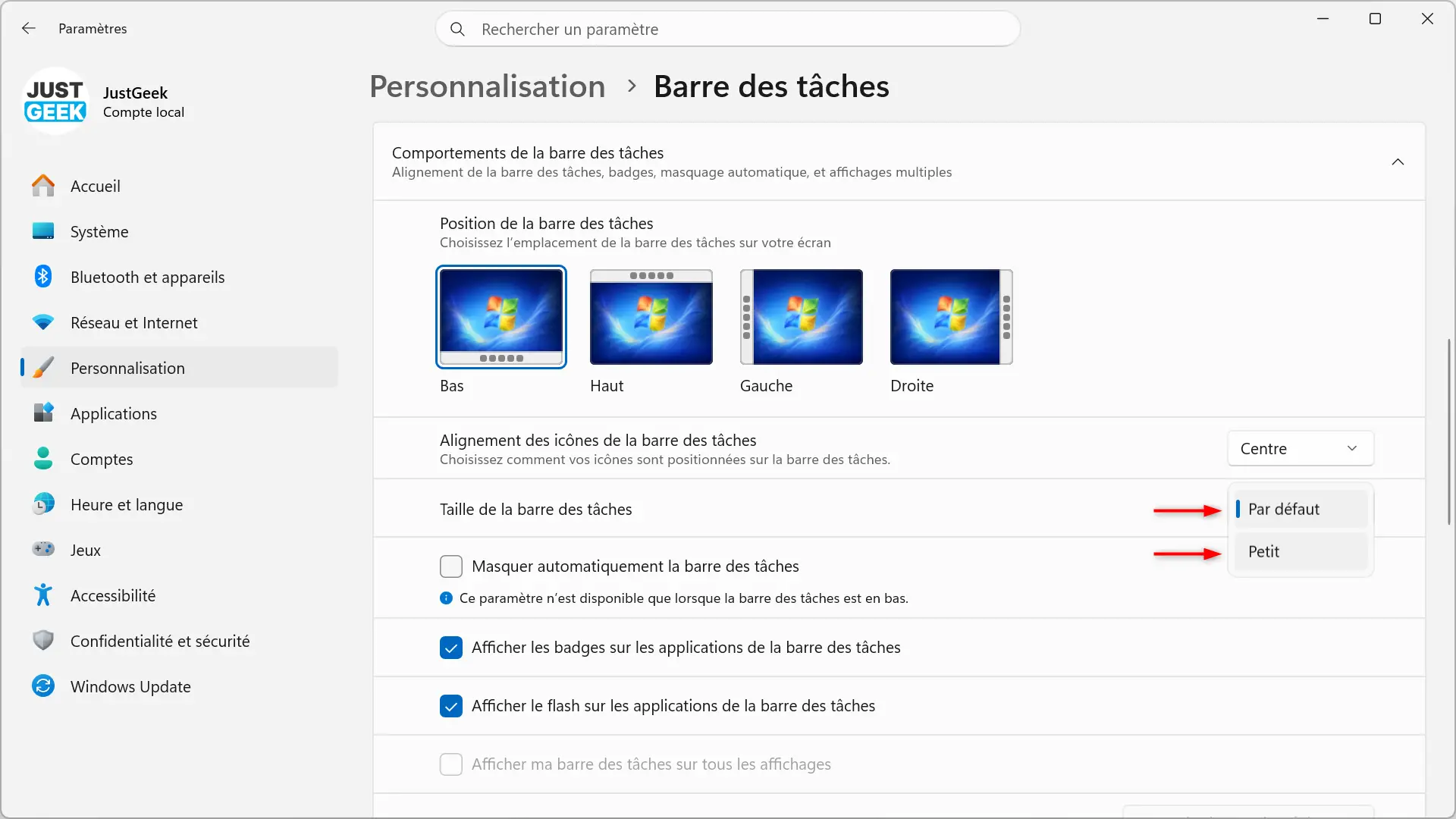
KB5120998 also adds another long-requested option: the ability to reduce the size of the taskbar. When enabled, the icons become smaller and the height of the bar is also reduced.
In particular, it should save some space on computers equipped with a small screen, while retaining access to the Start menu, search, and notifications area.
To activate it, go to Settings > Personalization > Taskbar > Taskbar Behaviors > Taskbar Sizeand then select “ Little “.
The Start menu becomes more customizable
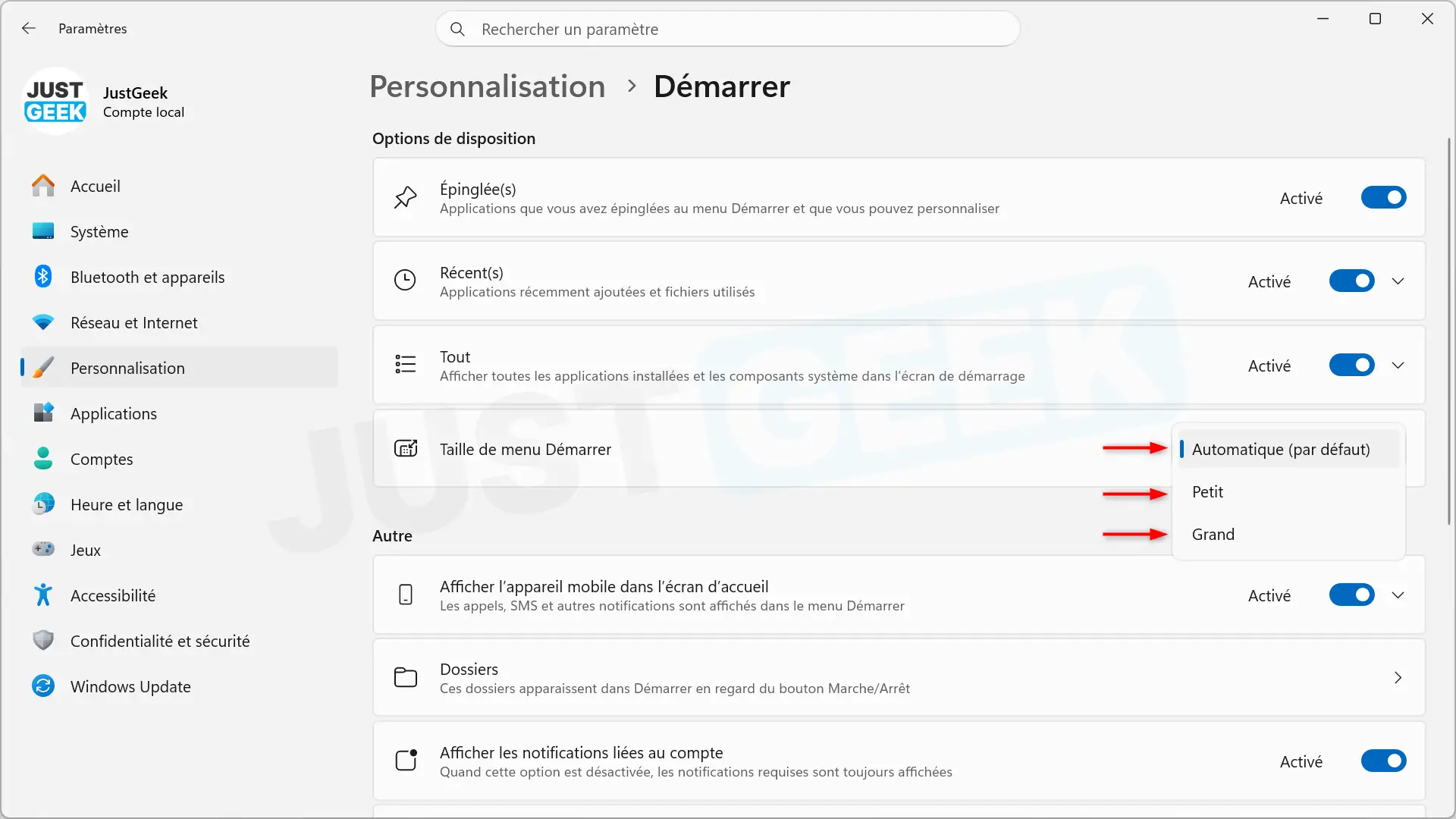
KB5120998 also brings several new customization options to the Start menu. Now it is possible to choose between three sizes: small, large or automatic, with the latter selected by default.
Microsoft also allows you to hide your name and profile photo in the Start menu. For this, a new option appears in Settings > Personalization > Home.
The “Recommended” section is now called “Recent(s).” Microsoft has also revamped the Start menu settings page, with separate options to show or hide pinned items, recommendations, and the full list of apps.
To change the size of the Start menu, go to Settings > Personalization > Start > Start menu sizethen choose between “ Little “, ” Big ” EITHER ” Automatic “.
Windows Search becomes more convenient
Microsoft is also taking advantage of this update to make several improvements to Windows Search. The search home page has been significantly simplified to be less busy and easier to find recent searches.
The results now indicate more clearly its origin. Windows specifies whether it is an app, a setting, a file, a result from the web, or even a suggestion from the Microsoft Store.
But perhaps the most interesting new feature is the arrival of an option to choose whether suggestions from the Web (Bing) and Microsoft Store should appear alongside local results. she is located in Settings > Privacy and security > Search.
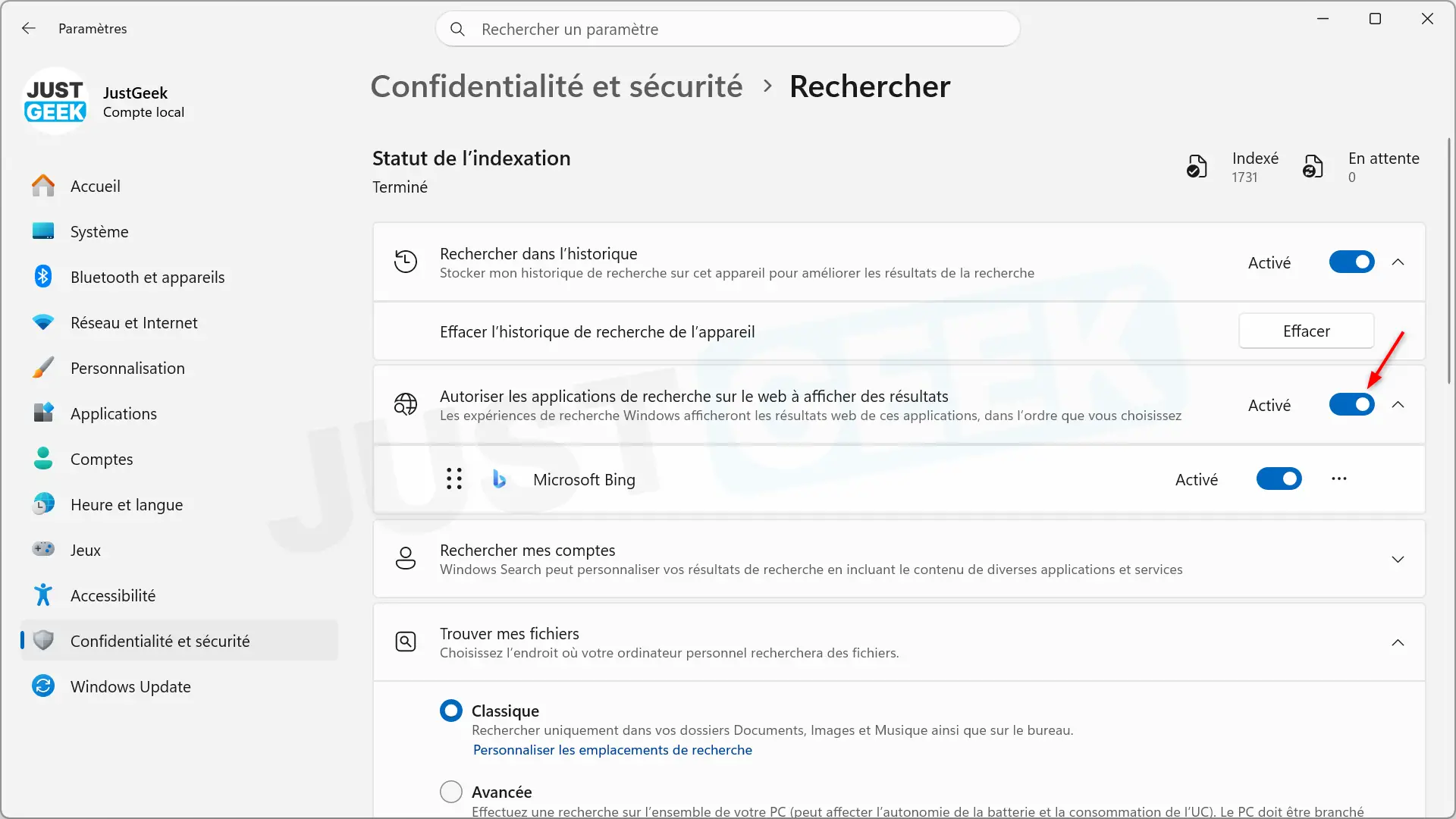
Windows 11 can also automatically index the folders you use most frequently so that the files they contain appear more easily in search results. This feature can be activated or deactivated from Settings > Privacy & security > Search > Automatically search for additional relevant locations.
File Explorer becomes more responsive
File Explorer also benefits from some improvements. Microsoft notably advertises faster and more responsive loading of its home page. The “Recommended” section now supports touch scrolling to more easily navigate files displayed in the carousel.
KB5120998 also introduces new progress indicators in various parts of Windows 11. They appear at startup, when connecting to a session, during restart or shutdown, and during the installation of updates. Its appearance has been revised to be more consistent with the rest of the system.
Administrator protection begins to roll out
Microsoft begins to implement Administrator protection (Administrator Protection), a security feature first introduced in October 2025 (KB5067036). Its goal is to limit the permanent use of administrator rights in Windows 11.
In other words, even if you use an administrator account, Windows avoids permanently granting you all associated privileges. When an action requires superior rights, these are granted only for the time necessary to perform it. Microsoft talks about a “ just in time access “.
The goal is to reduce the risk of a malicious program taking advantage of the user’s administrator rights to modify the system or perform certain sensitive actions.
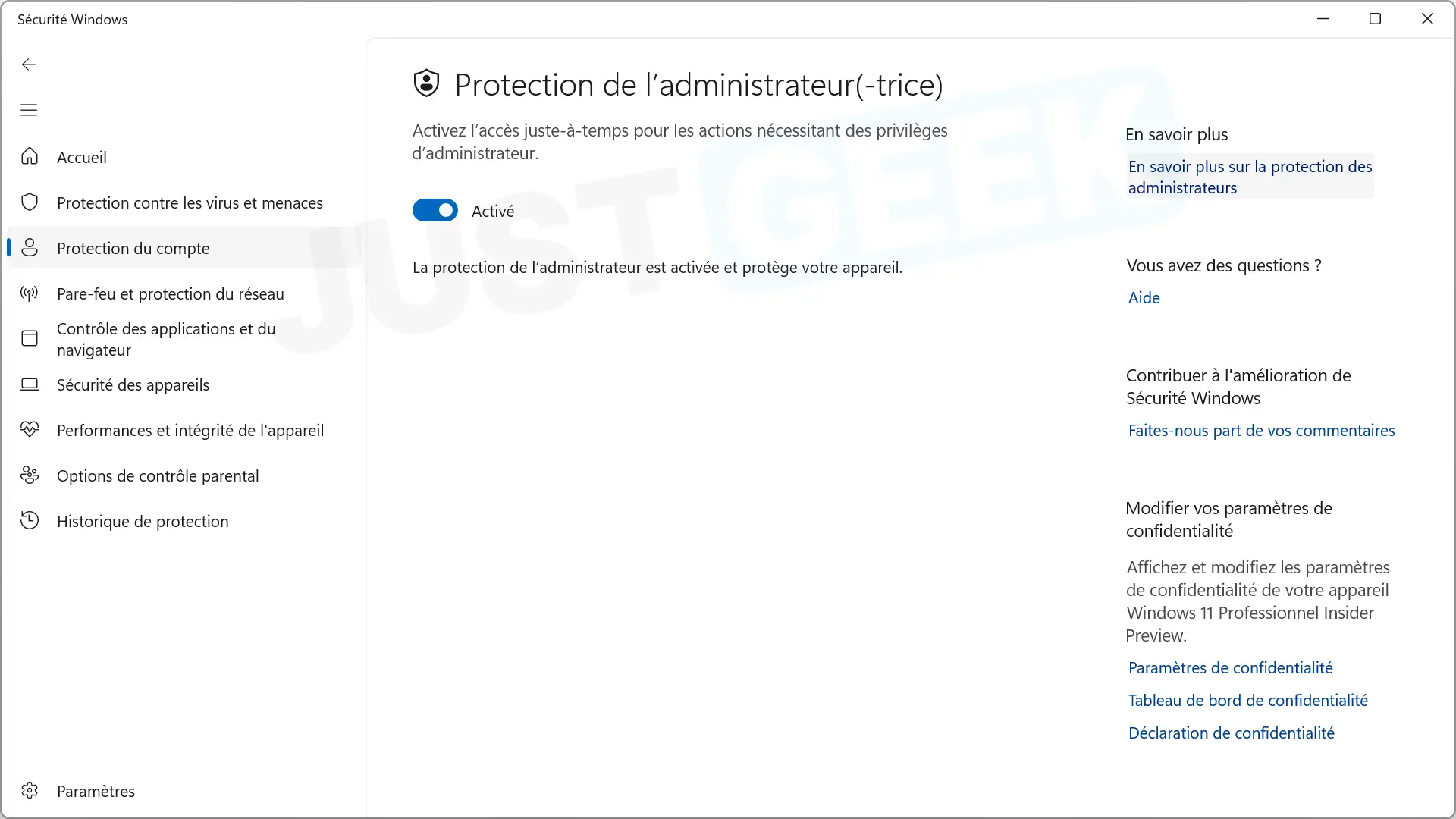
Administrator Protection remains disabled by default at this time. When available, it can be activated directly from Windows Security (Windows Defender). Administrators can also manage it using Group Policy or Microsoft Intune.
Microsoft prepares Windows 11 for AI agents
Microsoft is working on how Windows 11 runs AI agents and the code they can generate. KB5120998 introduces a new feature called Process Isolation for Microsoft Execution Containers (MXC).
Allows you to run an AI agent in a space separate from the rest of the system. Therefore, your access to files, the network, the Windows interface, and certain other resources may be limited. For example, an agent responsible for writing code does not necessarily need to have access to all the files on your PC.
Microsoft is also adding a way for Windows 11 to recognize processes linked to an AI agent. In this way, the system can know that a program or task was started by an agent and not directly by the user. This feature is still in preview and may evolve in future versions of Windows 11.
Various other improvements for Windows 11
KB5120998 fixes and improves several other elements of Windows 11. Among those to remember:
- Virtual Offices : Switching from one desktop to another is now smoother and more responsive.
- Show : Microsoft improves page reliability Settings > System > Display and fixes an issue that could prevent Windows from maintaining the previous brightness level after turning off power saving mode.
- Task Manager – Showing app usage history becomes more reliable.
- Windows installation – The step dedicated to choosing a secondary keyboard has been revised to make it easier to skip when not needed.
- Windows Update : A PC that is manually put to sleep before an update now goes back to sleep once the update completes, even when auto-sleep is set to “Never.”
- Application updates – Supported apps can now coordinate their updates with Windows Update to better plan their installation.
- vpn : Microsoft fixes an issue that could block some VPN-related processes in the background.
- Touch panel : Fixed several issues that could break mouse drag-and-drop actions and gestures.
- Narrator : Microsoft is improving the installation and configuration of natural voices.
- Cryptography – Windows 11 now supports using only the post-quantum ML-KEM algorithm for TLS key exchanges. This development aims to prepare encryption systems for future threats linked to quantum computers.
- WMIC : the old command line utility disappears permanently of Windows 11 24H2 and 25H2. However, WMI, the technology on which it is based, is still well supported.
KB5120998 is an optional update (preview). Therefore, it is not installed automatically.
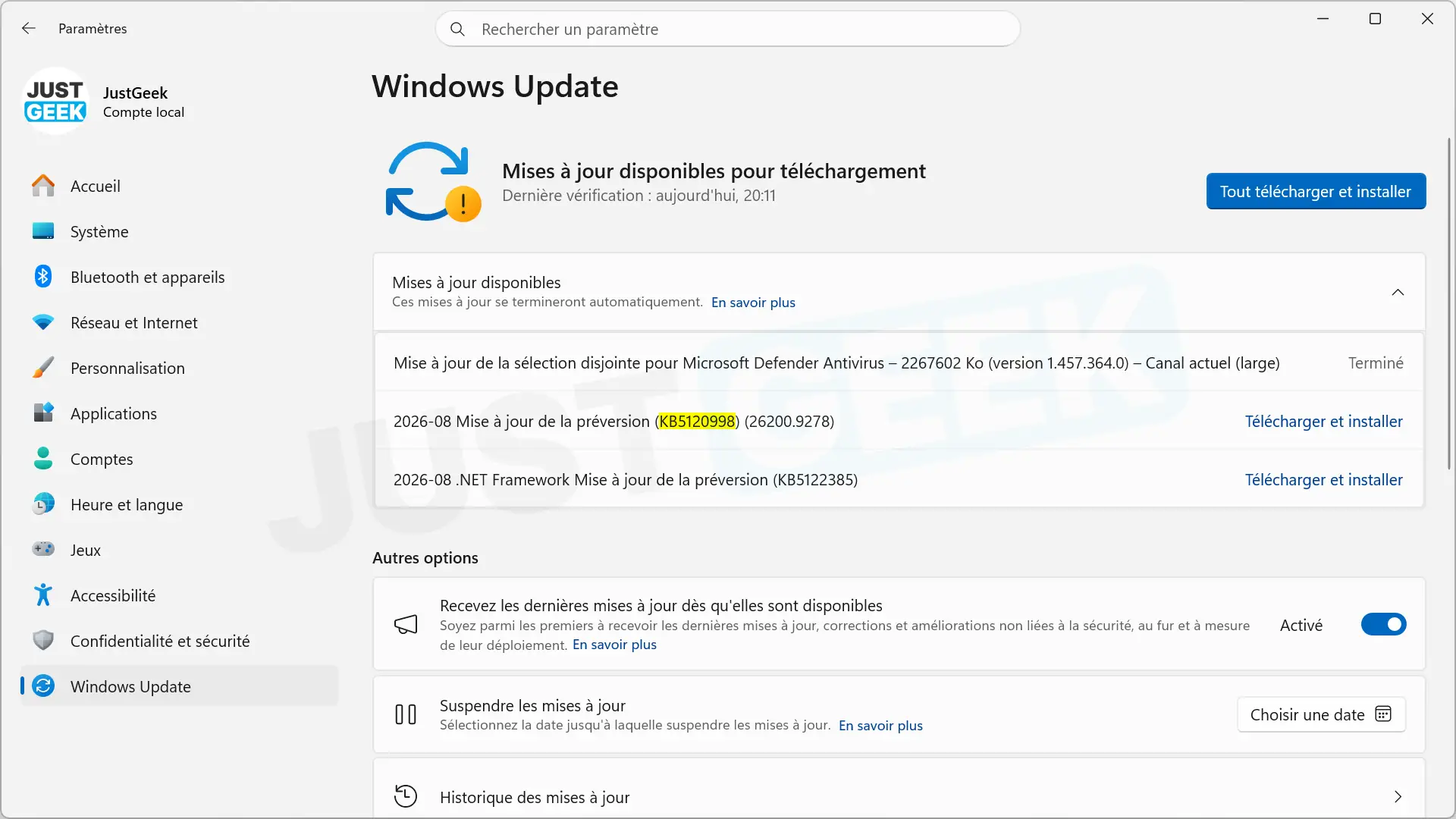
To get it now, go to Settings > Windows Updatethen click “Check for updates.” If the “Receive the latest updates as soon as they are available” option is enabled, it should appear directly. Otherwise, go to Advanced Options > Optional Updates to find her. All that remains is to click on “Download and install” to start the procedure.
It is also possible to recover it manually from the Microsoft Update catalog:
| Version | Build | Architecture | Size |
|---|---|---|---|
| Windows 11 25H2 | 26200.9278 | x64 | 4,960.7 MB |
| Windows 11 25H2 | 26200.9278 | ARM64 | 4,796.9MB |
| Windows 11 24H2 | 26100.9278 | x64 | 4,960.7 MB |
| Windows 11 24H2 | 26100.9278 | ARM64 | 4,796.9MB |
If you prefer to wait, it will be automatically integrated into Patch Tuesday on September 8, 2026.
Please note that Microsoft rolls out certain features gradually. Even after installation, not all new features may be immediately available on your device.