On macOS, each file type is associated with an application. For example, PDF files and images are typically opened with Preview, while videos are played with QuickTime Player.
If you prefer to use another app, macOS makes it easy to change which one will be used by default. Once the change is made, the affected files will automatically open with the software of your choice.
In this tutorial, we will see how to change the default application to open a file on Mac.
To modify the application used by default to open a type of file on macOS, you must access the information window for the file in question. This method works with most file formats, whether they are PDF documents, images, videos, or even audio files.
Step 1: Open the file information
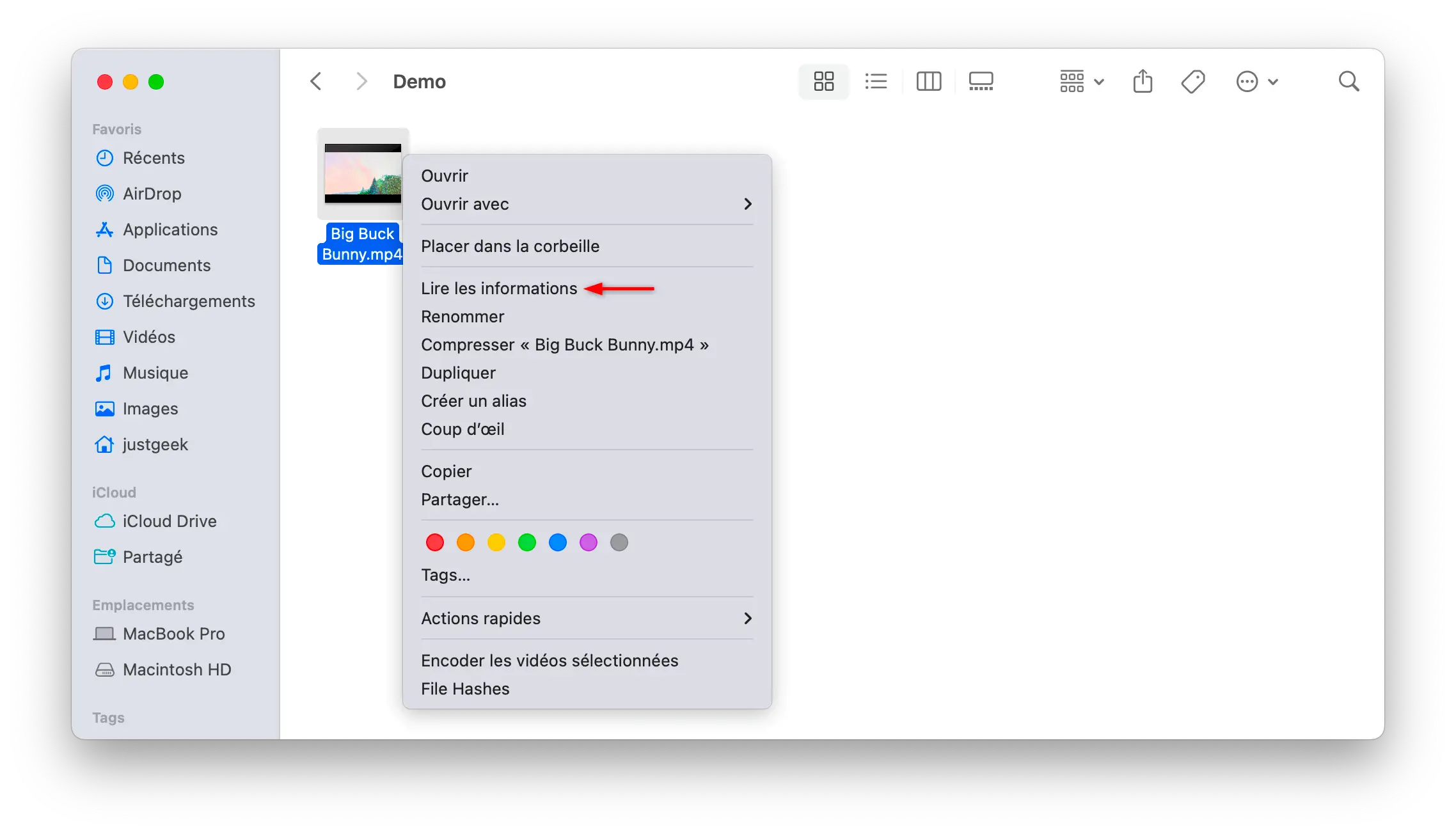
Start by opening the Discovererand then find a file that matches the type you want to edit. For example, if you want all your video files to open with VLC instead of QuickTime Player, select a video file.
Then right click on this file, then click ” Read the information “.
You can also select the file and then use the keyboard shortcut. ⌘ + Yo to directly display your information window.
Step 2: Choose another app
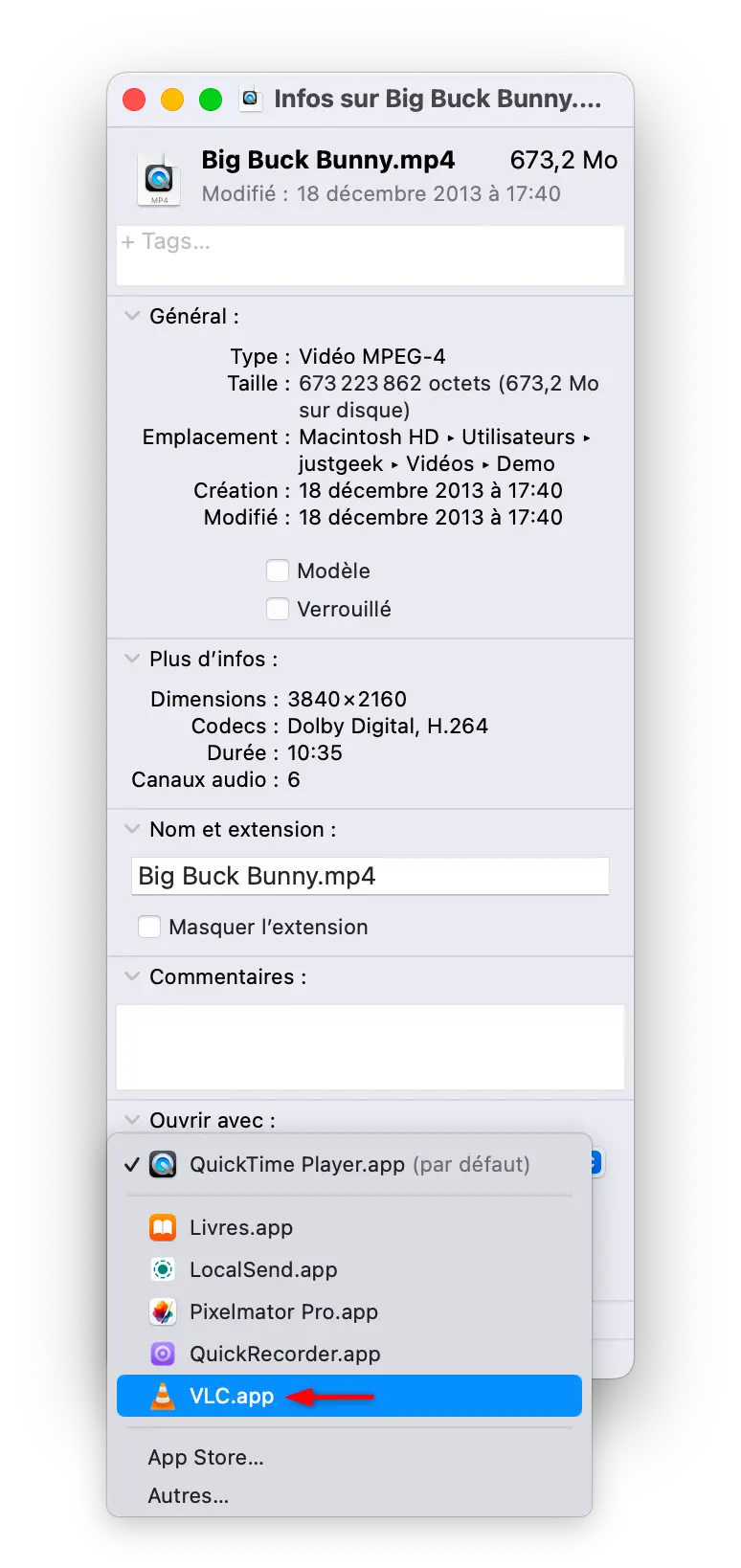
In the window that appears, locate the section open with. If it is folded, click the small arrow on the left to reveal it.
Then, a drop-down list allows you to choose the application that will be used to open this type of file. Click on it and then select the software of your choice.
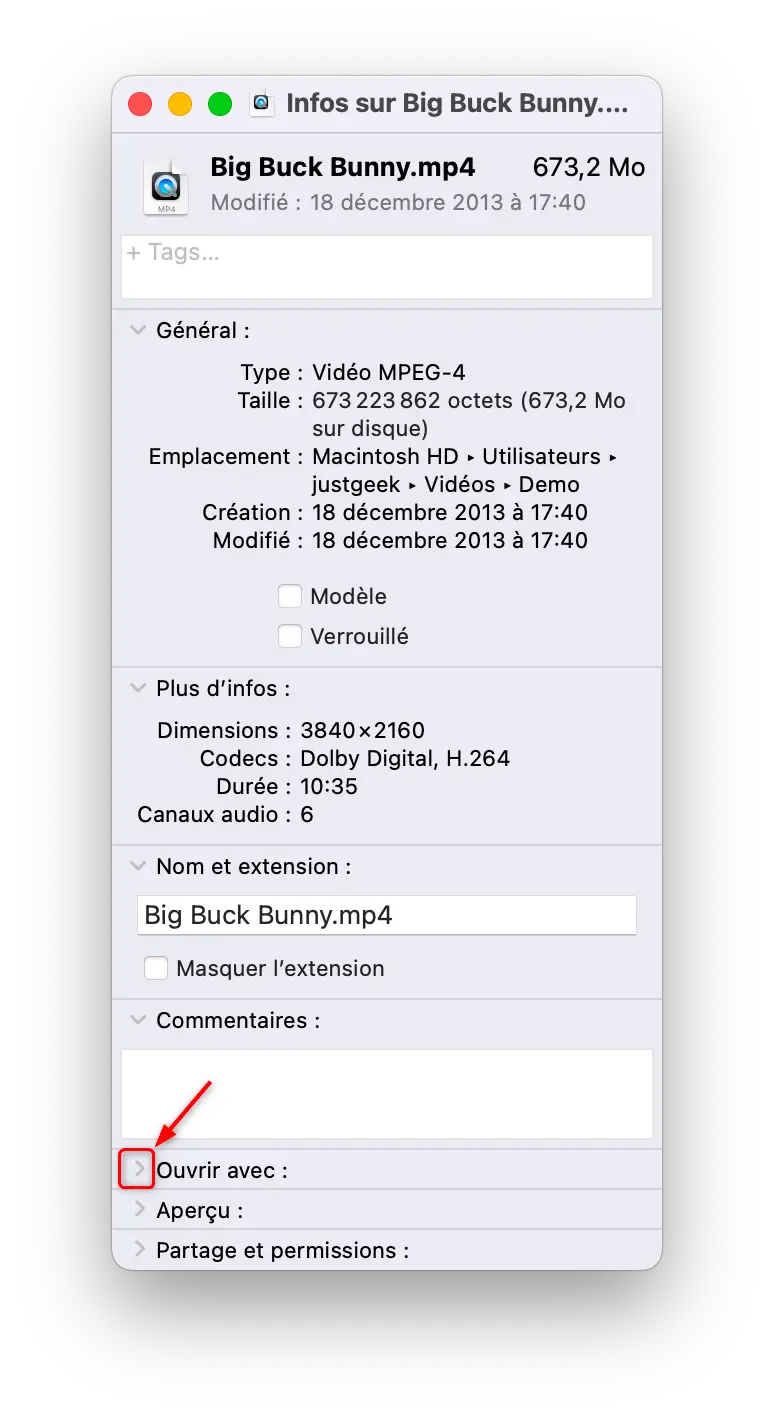
If the app you are looking for is not listed, click “ Others… » to browse the applications installed on your Mac. Once the application is selected, confirm your choice.
Step 3 – Apply the change to all files of the same type
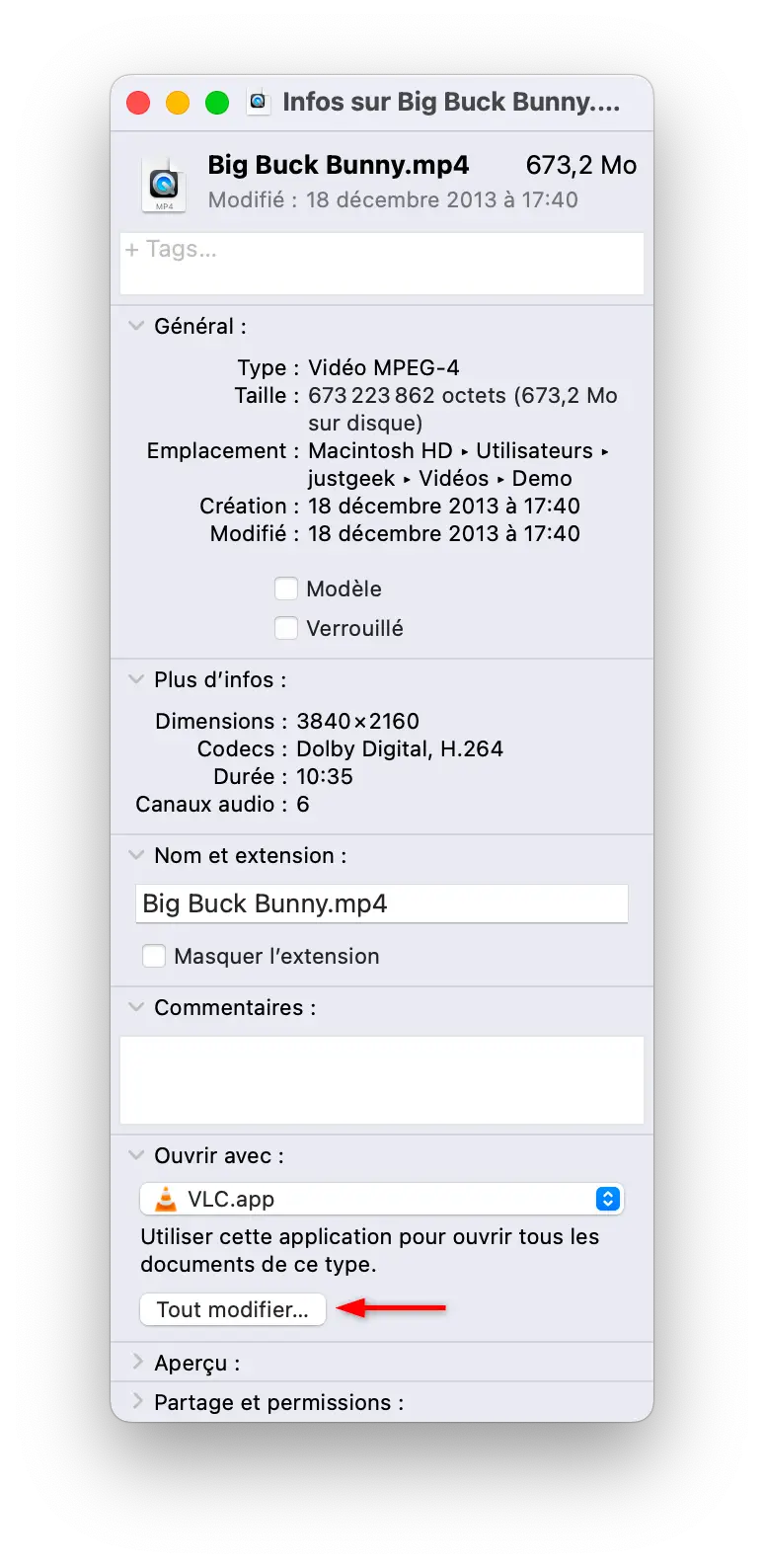
Once the application is selected, click on the “ Edit all… » located below the drop-down list.
A confirmation window will then appear to tell you that this application will now be used to open all files with the same extension. Click ” Continue » to validate.
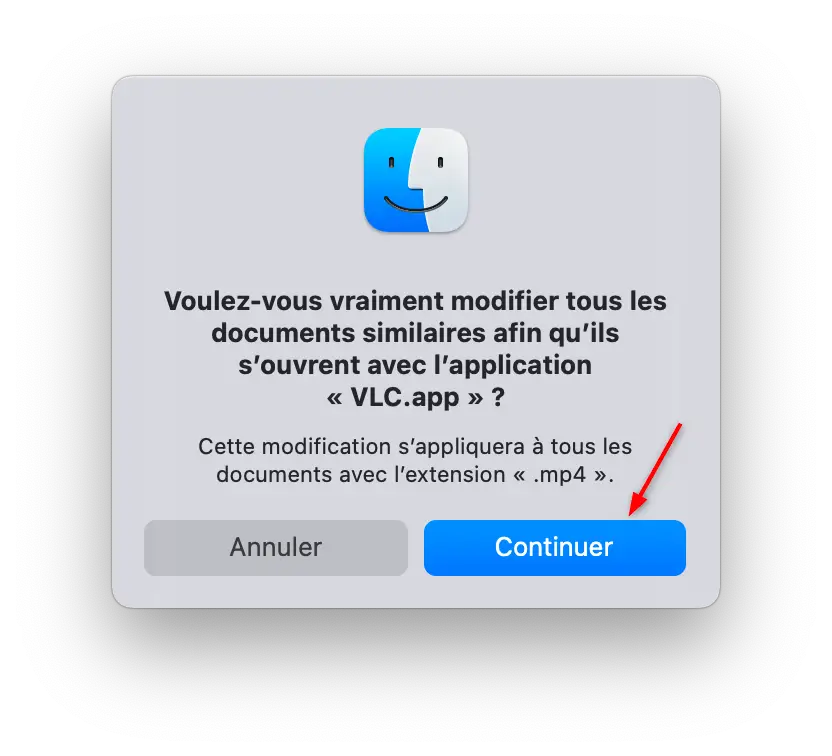
For example, if you do this on an MP4 file and choose VLC, all MP4 files on your Mac will automatically open with VLC when you double-click them.
After a few seconds, the change is applied and you don’t have to do anything else.
If you want to return to the application that macOS uses by default, the procedure is exactly the same.
Right click on a file of the relevant type, click ” Read the information ”, then expand the “ open with “. Then select the desired application, for example “ Advance ” for images or PDF files, then click ” Edit all… “.
The change will then be applied to all files that use this extension.
There you have it, now you know how to change the default app on Mac. You can also set your default web browser on macOS by following our dedicated tutorial.