Keyboard shortcuts are very useful. They save time to perform certain tasks. However, you should be careful with any of them as they could embarrass you.
In fact, if you feel like you no longer have control of your keyboard and all your “As” become “Qs” and all your “Zs” become “Ws,” you probably switched your keyboard to QWERTY mode (the English speaking mode) by mistake.
In this article we will see together how switch from a QWERTY to AZERTY keyboard on Windows, macOS, Android and iOS. Follow the leader !
Why does the keyboard change from AZERTY to QWERTY?
The main cause of this change is the accidental use of keyboard shortcuts. For example, on Windows, the combination HIGH + Change (Change) or windows + Space allows you to switch from one language to another. If multiple languages are configured on your computer (French, English, Spanish, etc.), Windows automatically changes the keyboard from AZERTY to QWERTY.
It could also be a system update, a syncing issue, or a change in language settings. In any case, we will immediately provide you with solutions to replace your AZERTY keyboard.
1. Return to AZERTY using keyboard shortcuts
The simplest and fastest method:
- HIGH + Change : This keyboard shortcut allows you to quickly switch from QWERTY to AZERTY keyboard.
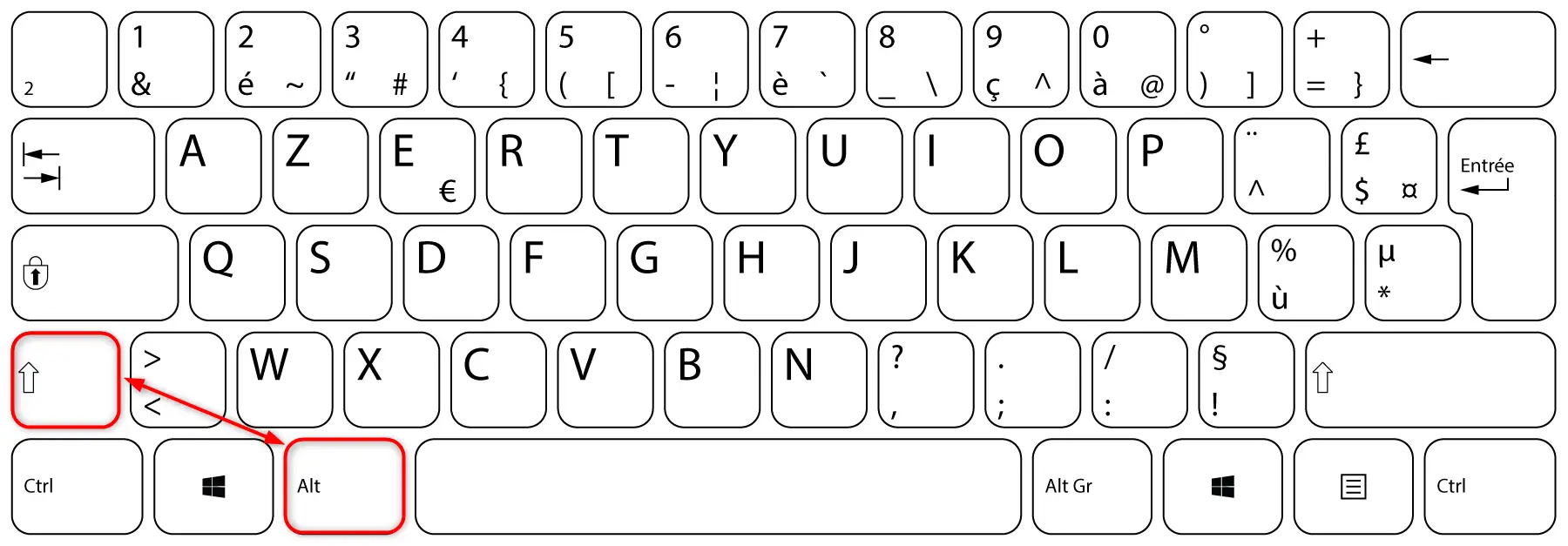
- CONTROL + Change : Alternatively, you can also use this keyboard shortcut to change the keyboard layout.
- windows + Space : This keyboard shortcut allows you to switch between the languages installed on your system.
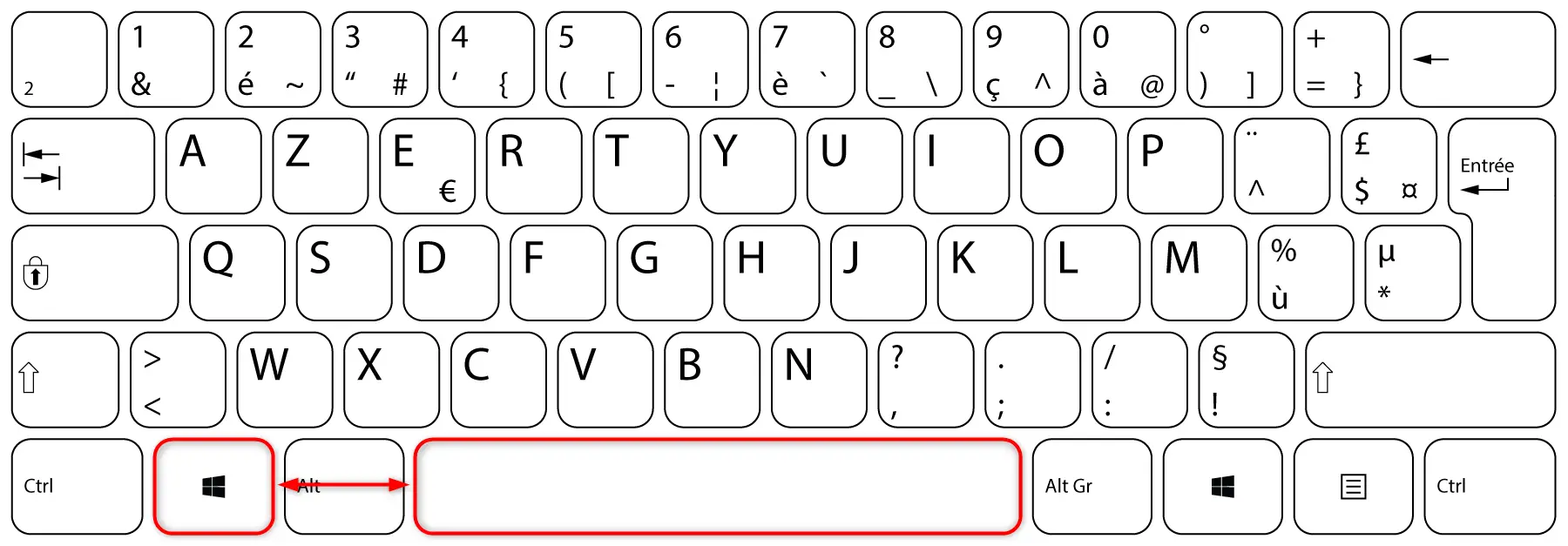
These shortcuts allow you to switch between the languages installed on your system. If you see “ENG” (English) at the bottom right of the screen, press one of these shortcuts until you see “FRA” (French).
2. Change keyboard layout through Windows settings
For Windows 11:
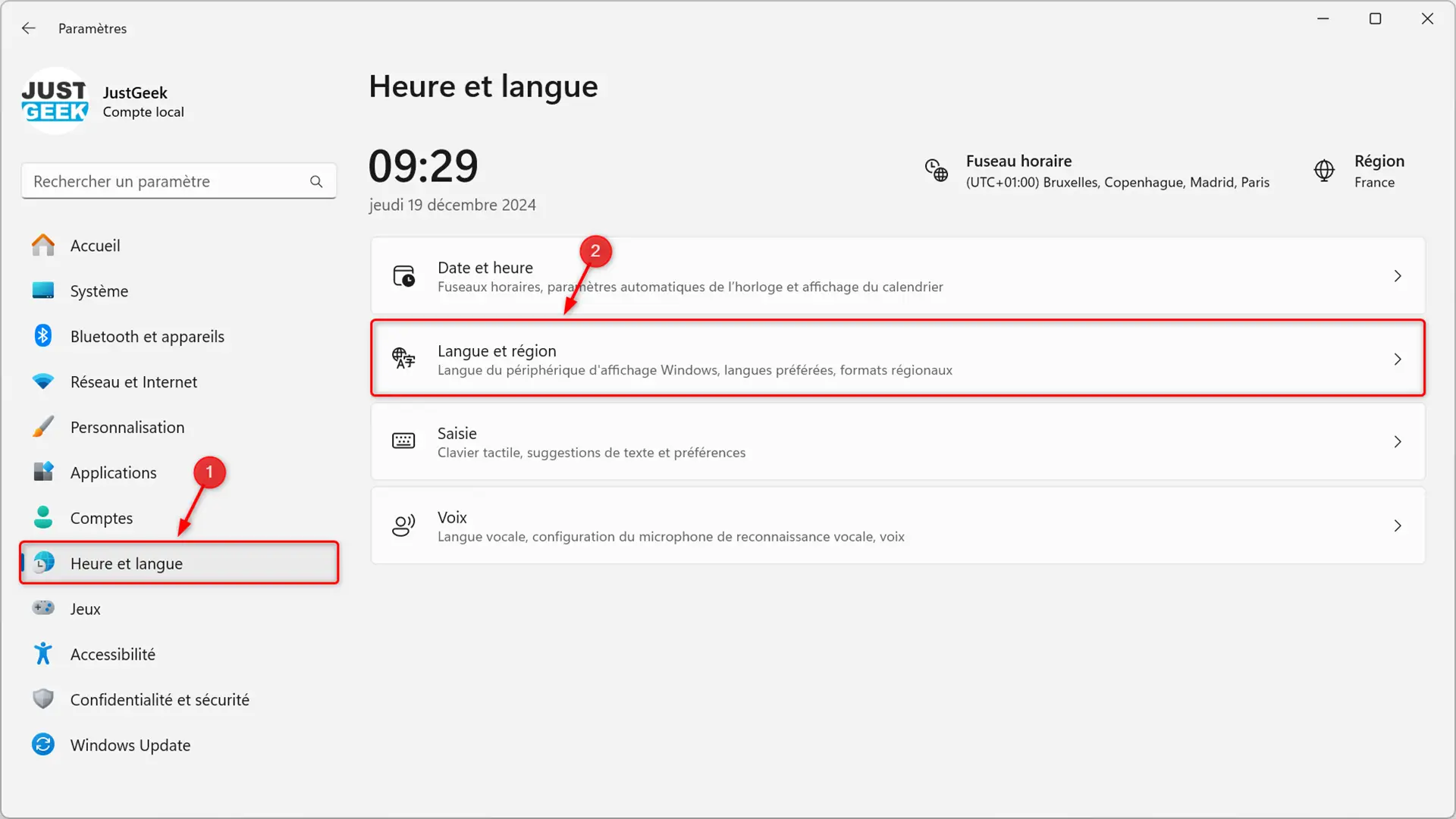
- Go to Windows settings (gain + Yo).
- Gonna ” Time and language ”, then click “ Language and region “.
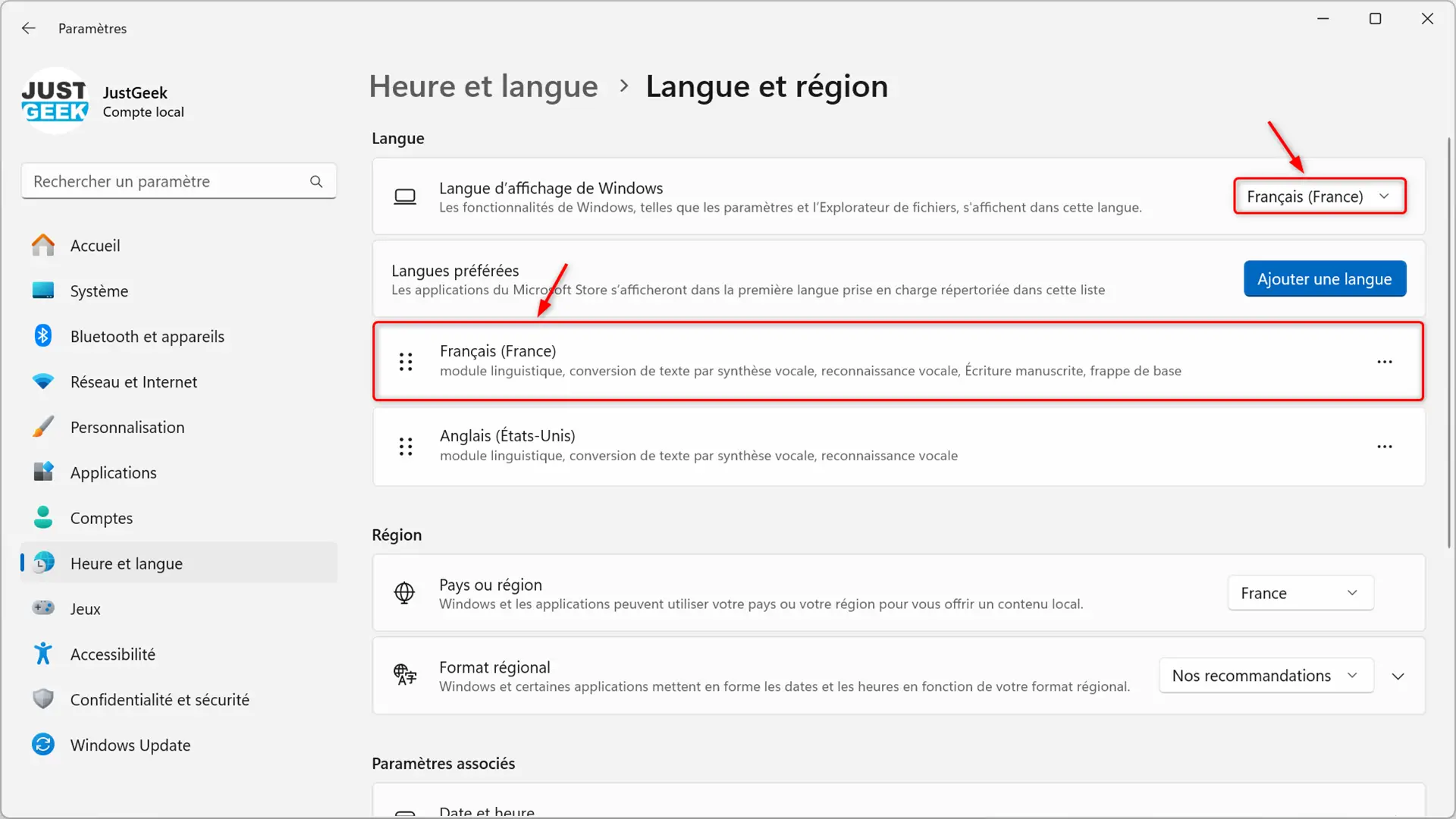
- Next to ” Windows display language “, select ” French (France) “.
- In the section “ Preferred languages ”, make sure that “ French (France) » is present and in first position (above the rest of the languages).
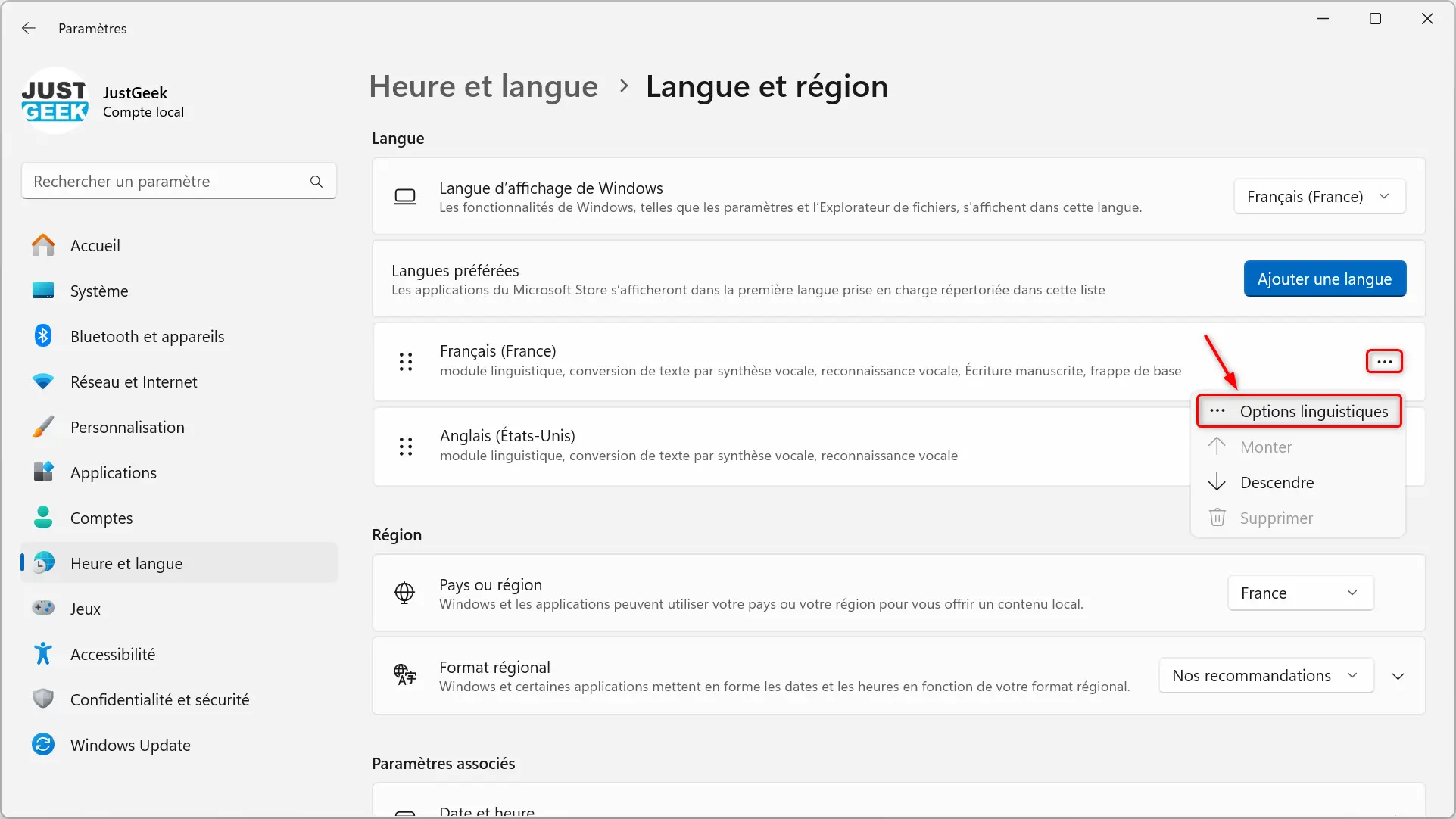
- Then click on the three horizontal dots next to the language “ French (France) » and choose “ Language options “.
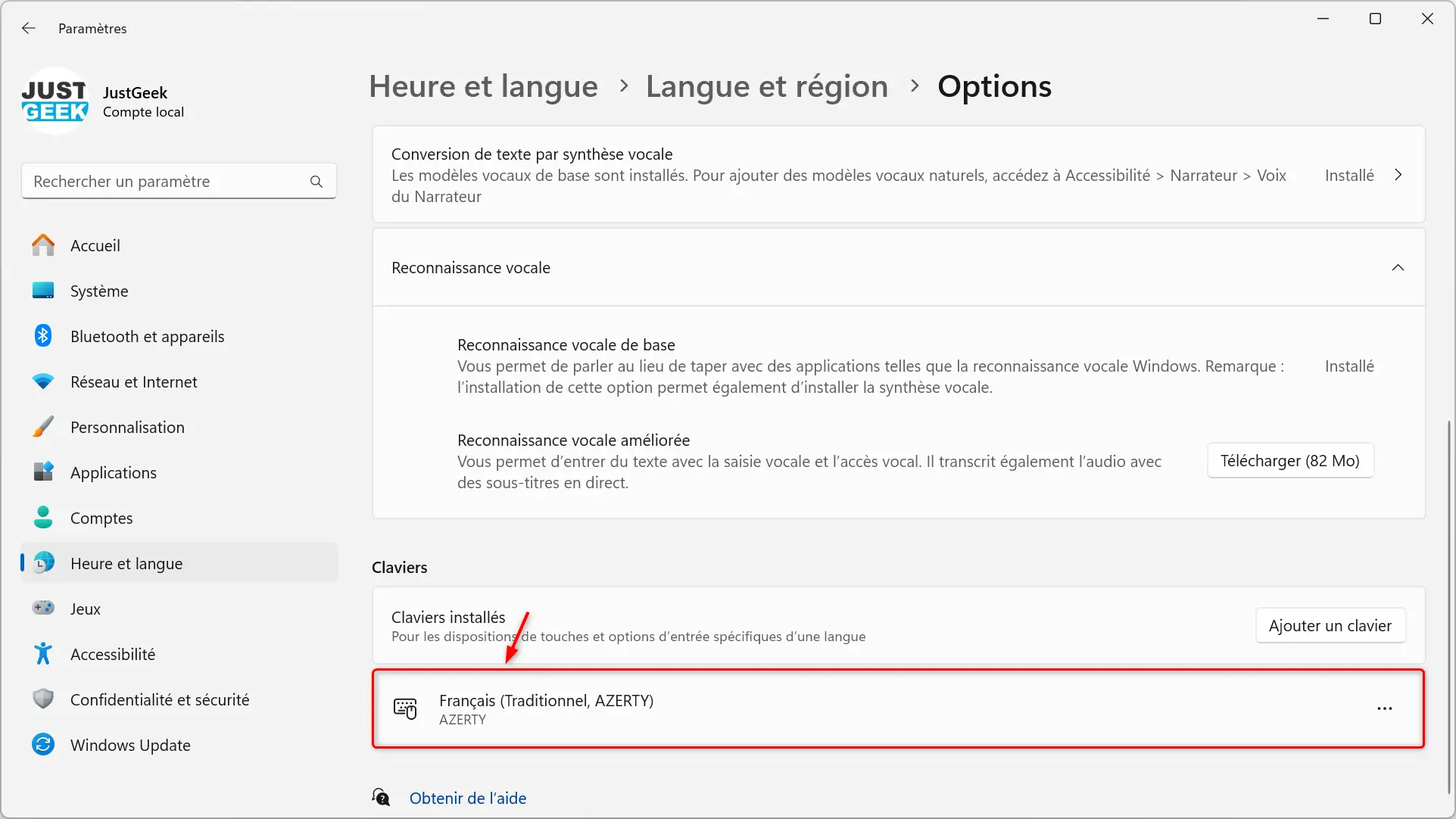
- Check that the keyboard AZERTY (traditional French keyboard) is well selected.
For Windows 10 and Windows 8.1:
- Meet at the settings Windows (keyboard shortcut gain + Yo).
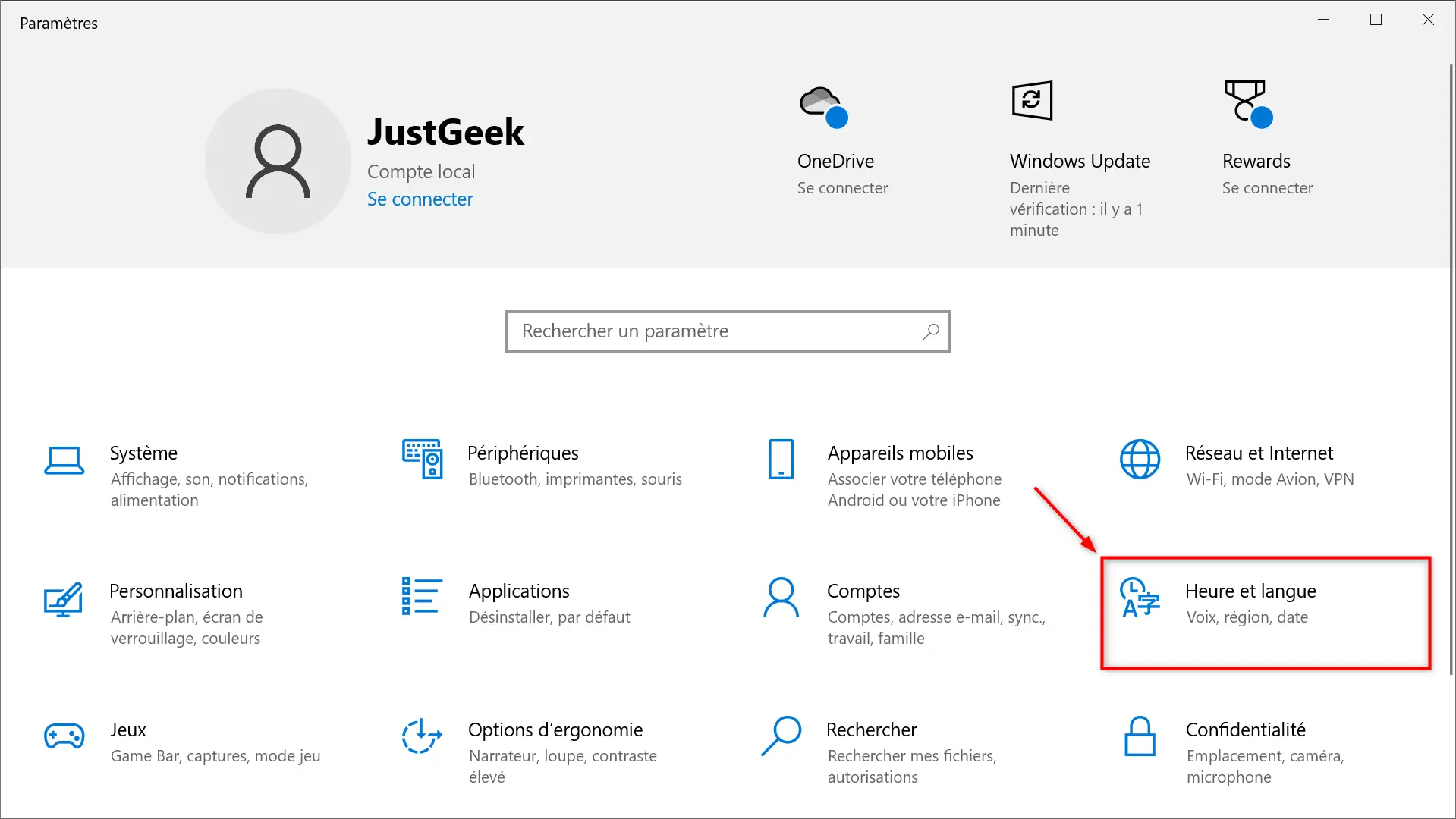
- Click ” Time and language “.
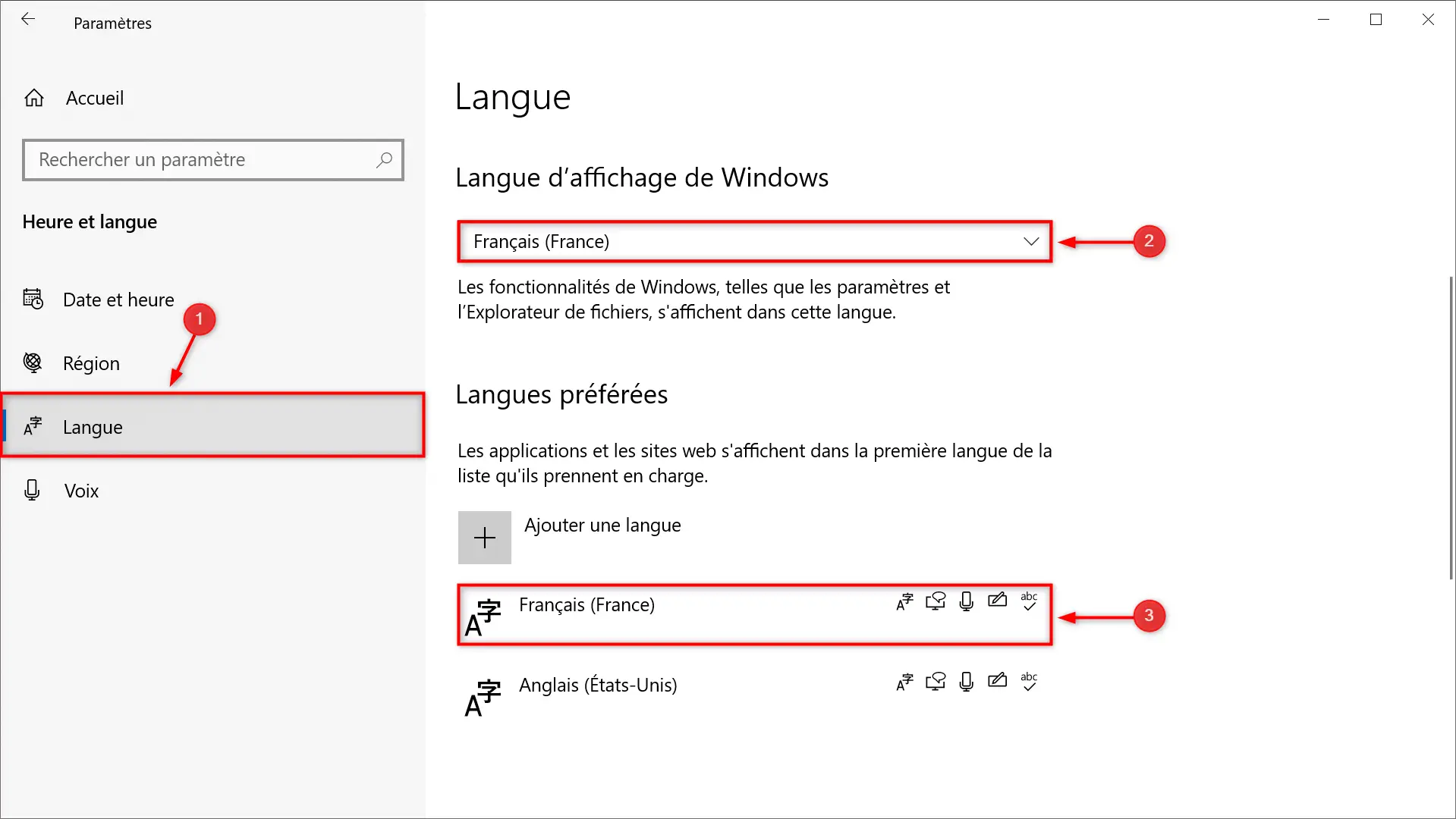
- In the left panel, click ” Language “.
- Below ” Windows display language “, select ” French (France) “.
- In the section “ Preferred languages ”, make sure that “ French (France) » is present and in first position (above the rest of the languages).
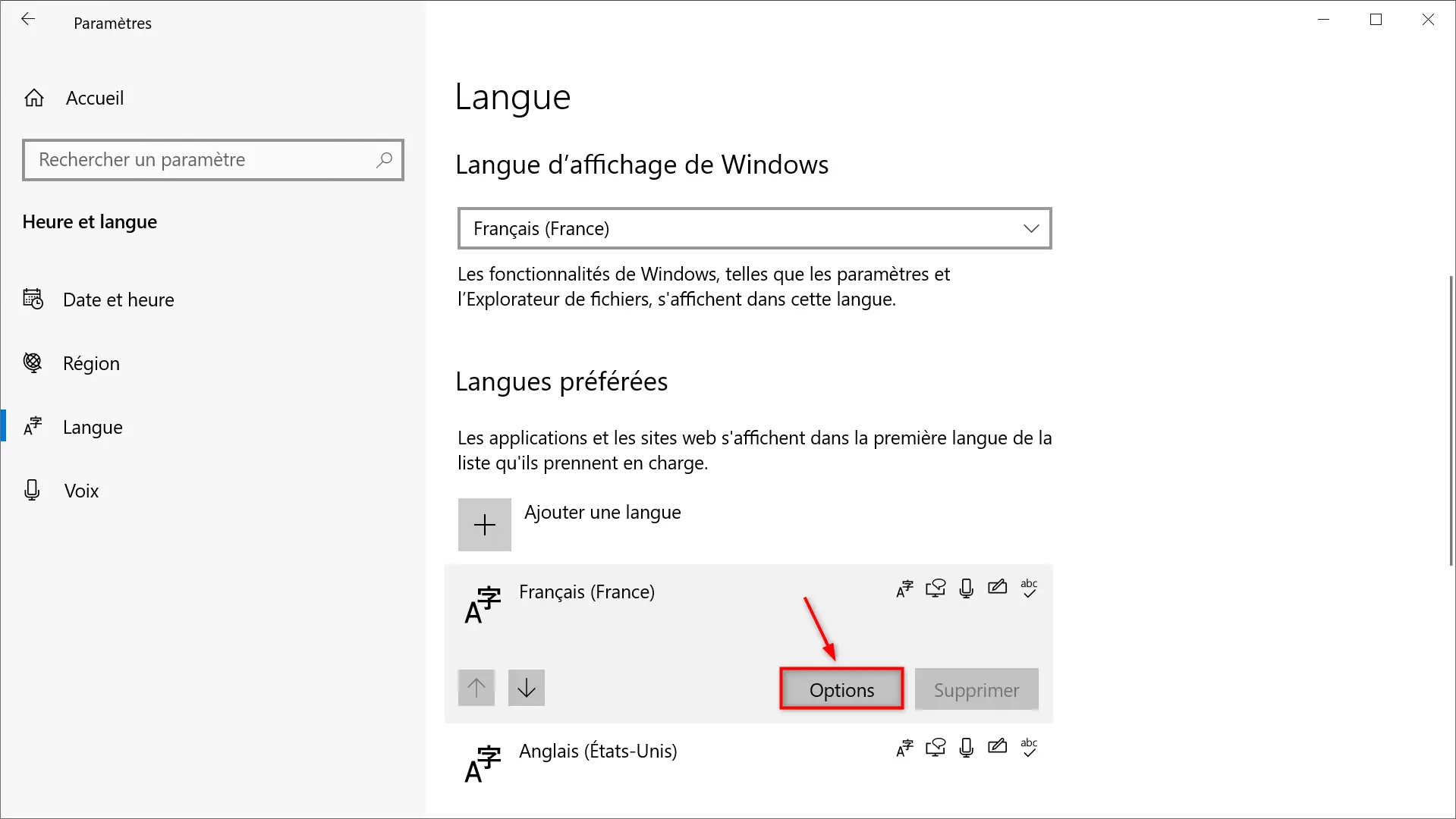
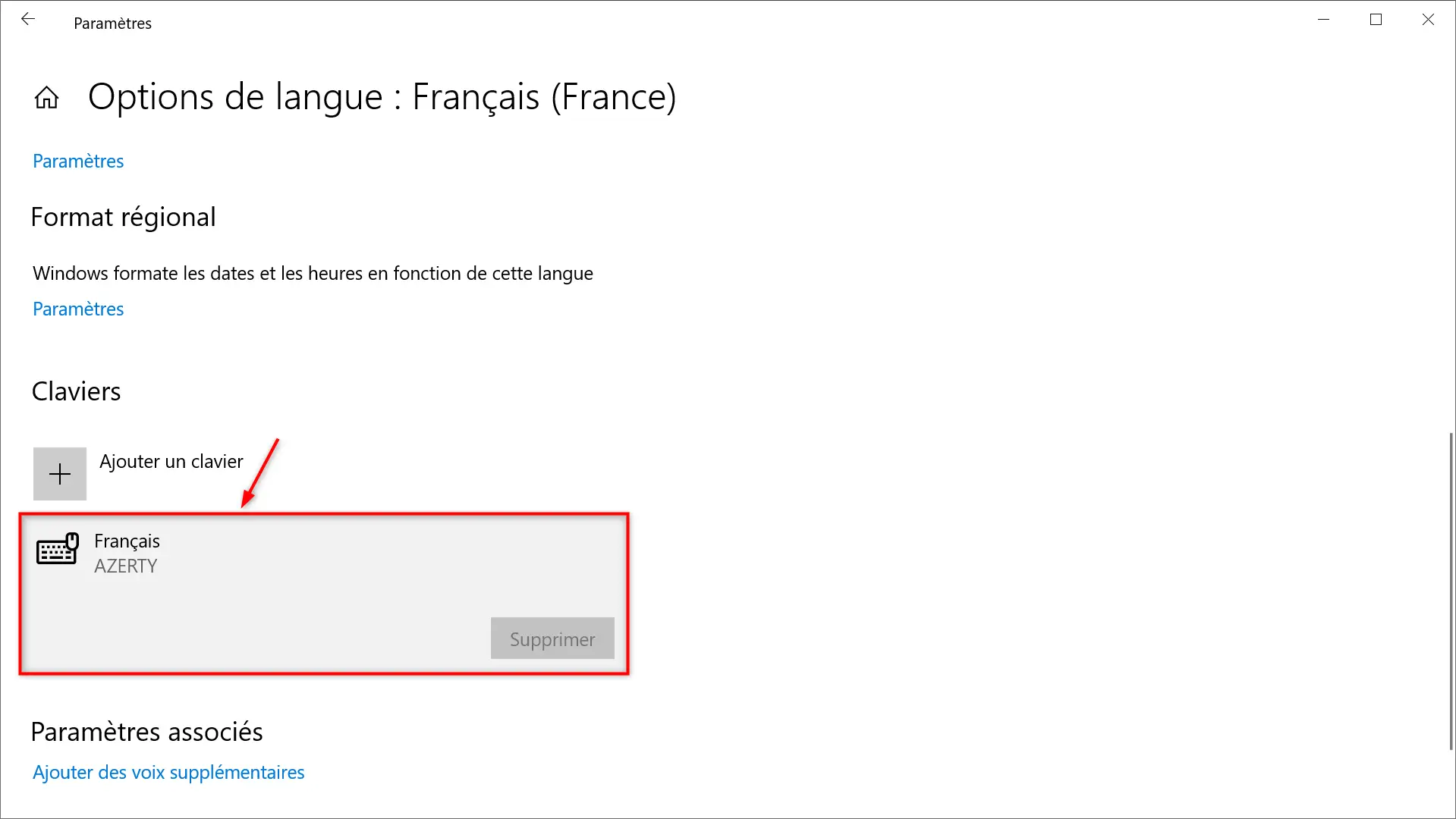
- Select the French language and verify that the keyboard AZERTY is activated.
3. Change keyboard layout from the taskbar
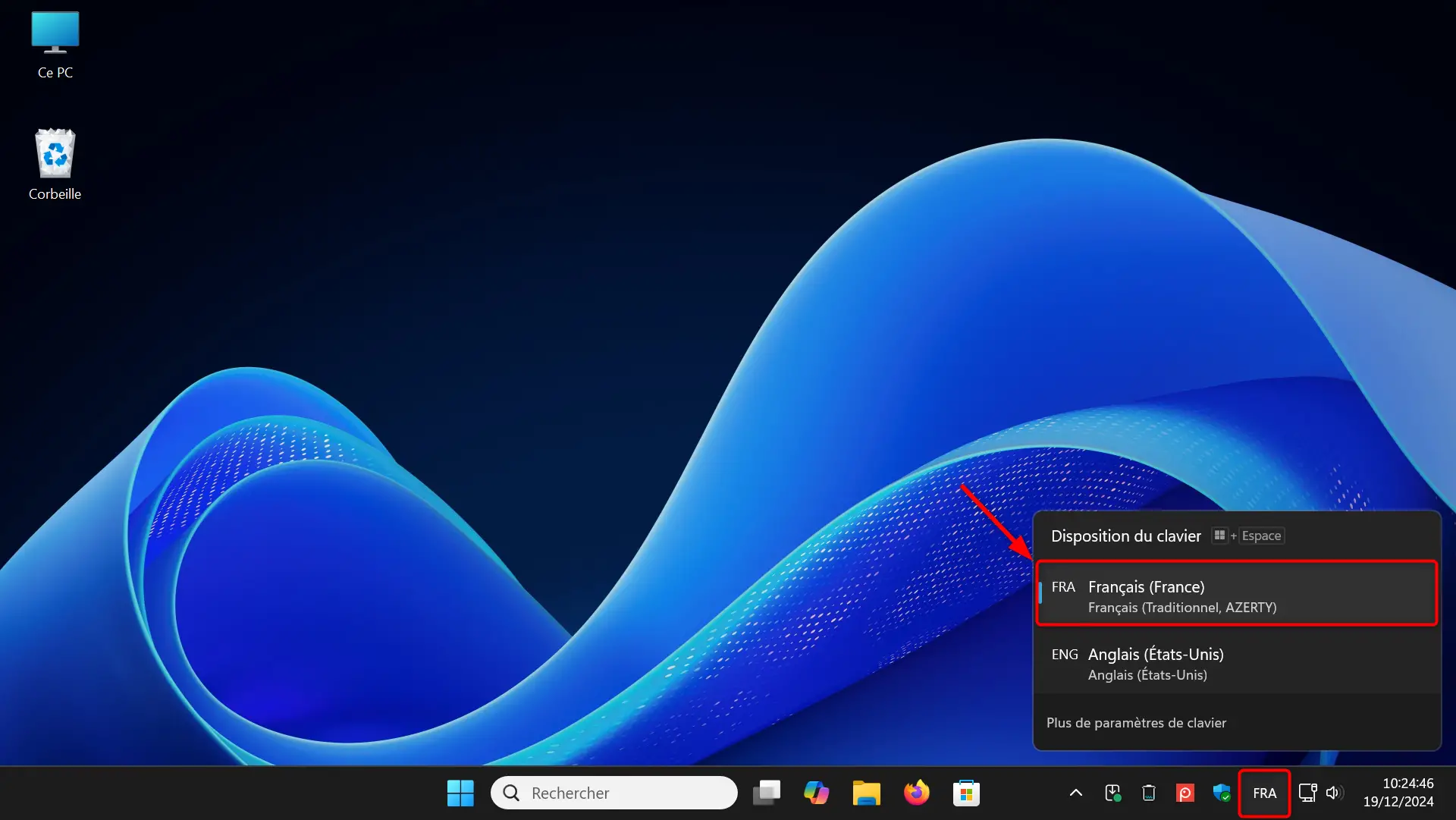
- At the bottom right, near the time, you will see a language indication (“ ESP ” EITHER ” ESP “).
- Click on it and select ” FRA (French) » return to AZERTY.
4. Disable the shortcut that changes the keyboard language.
To prevent the problem from occurring again, it is possible to disable the ALT + Shift shortcut. Here’s how to do it:
- open them Settings of Windows (gain + Yo).
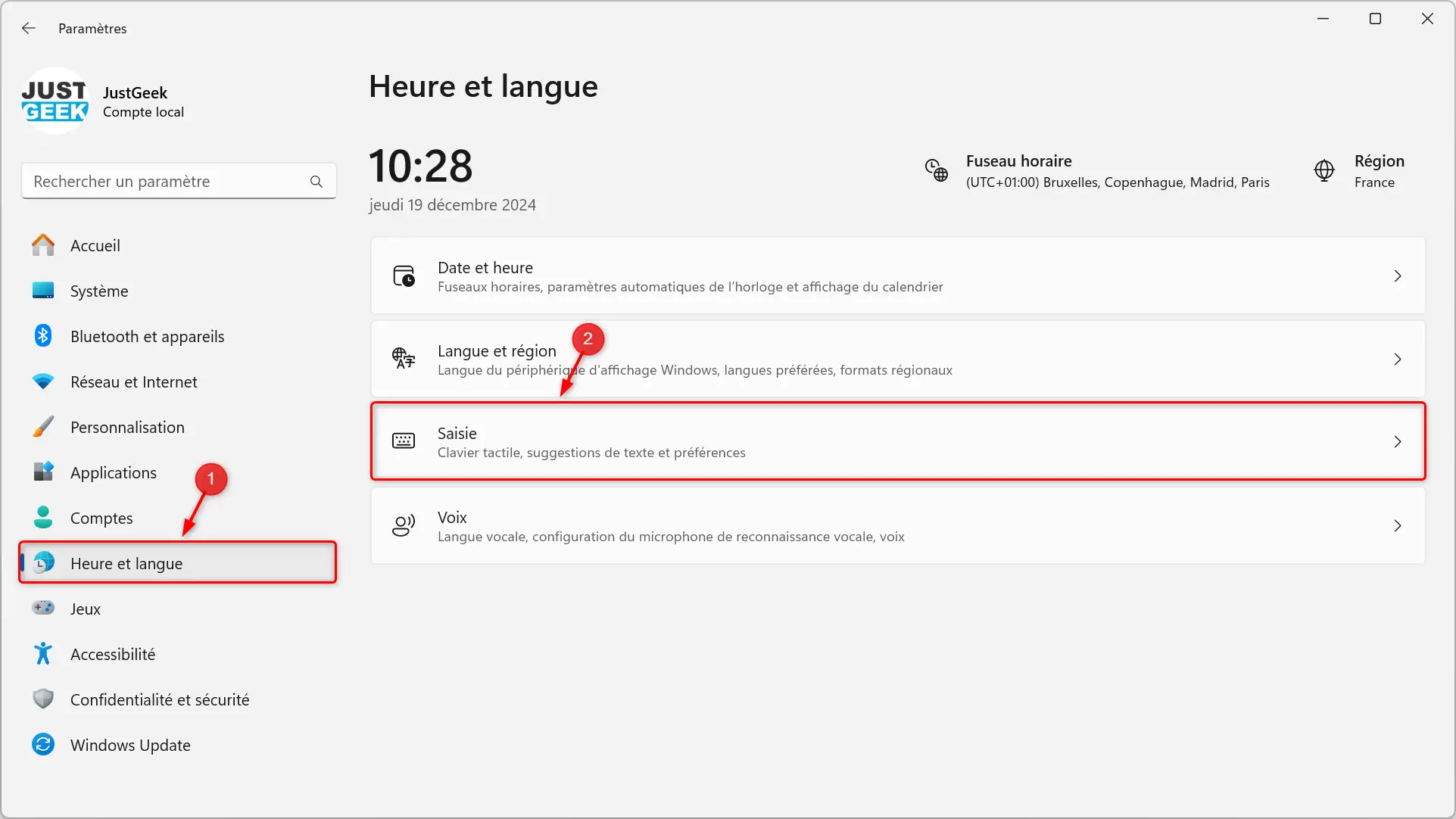
- Gonna ” Time and language “.
- Click ” Seizure “.
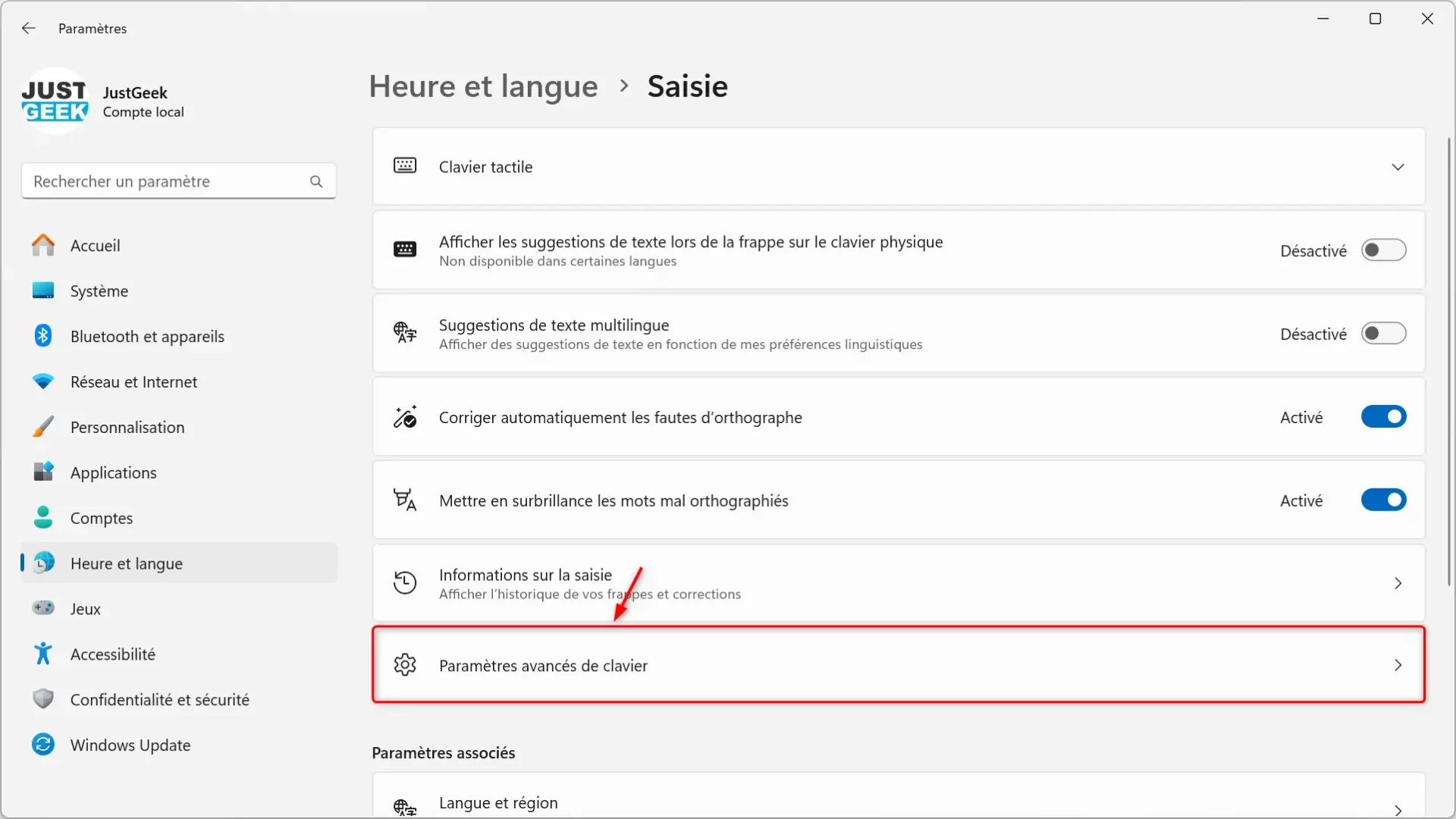
- Click ” Advanced keyboard settings “.
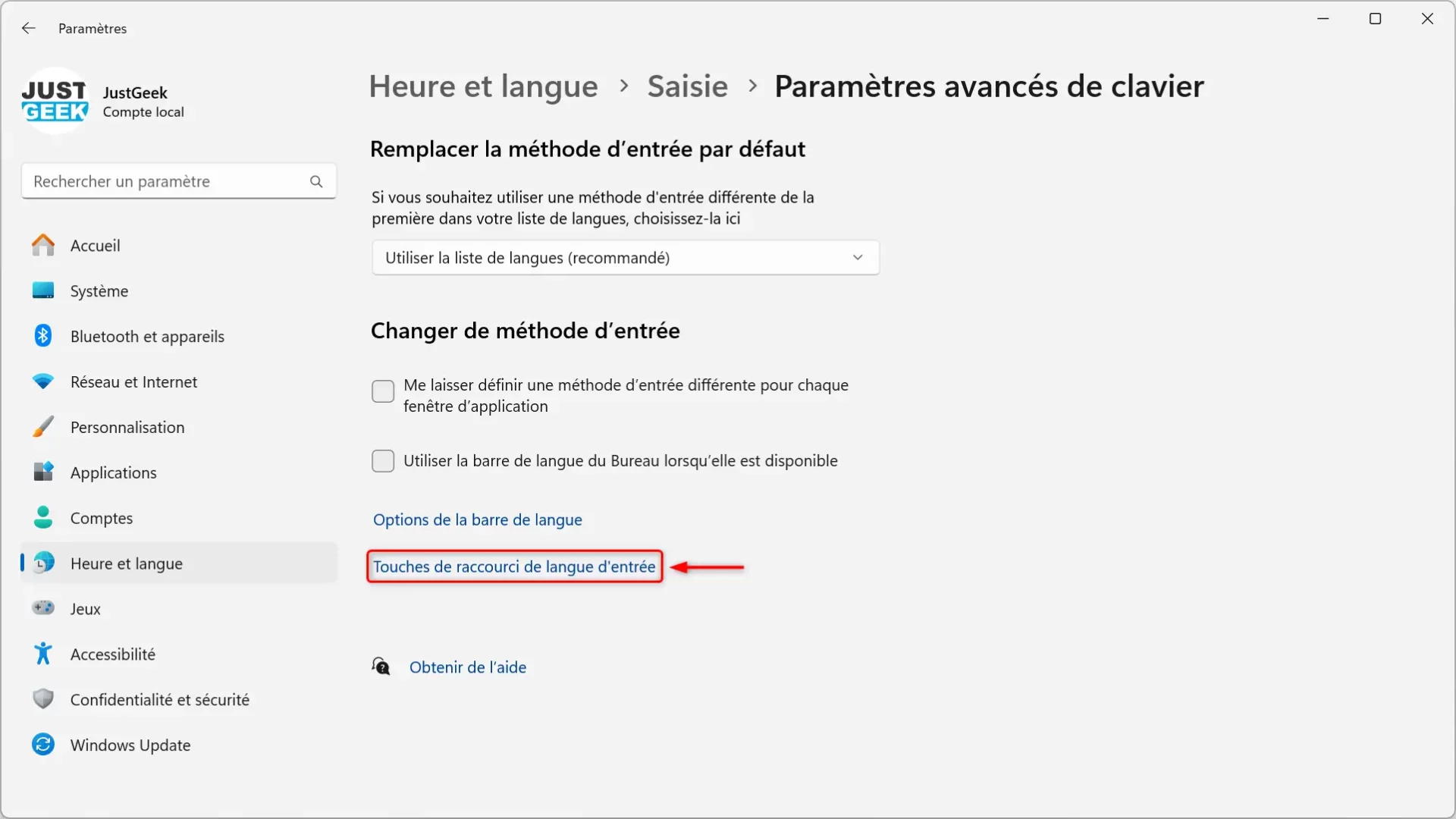
- Click ” Input language hotkeys “.
- In the list of shortcuts, find ” Between input languages » and click “ to modify “.
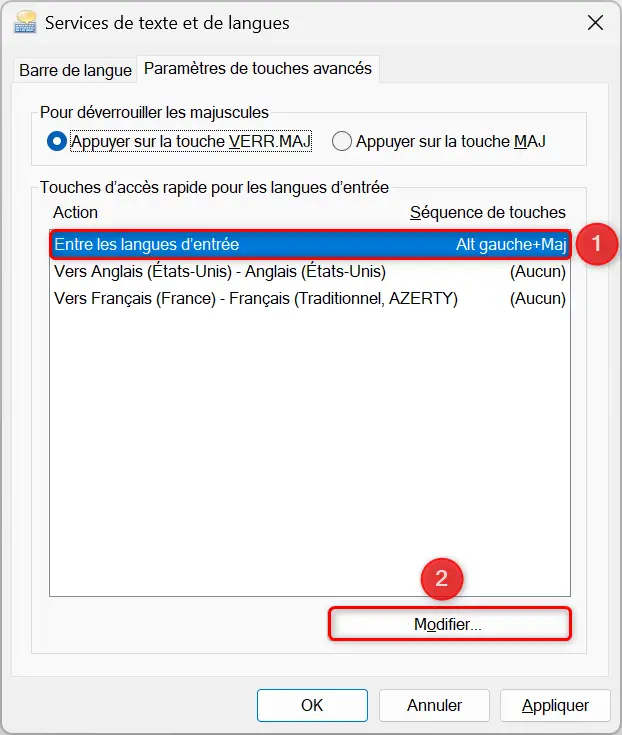
- Select ” Not assigned » to deactivate the shortcut and validate with “ Well “.
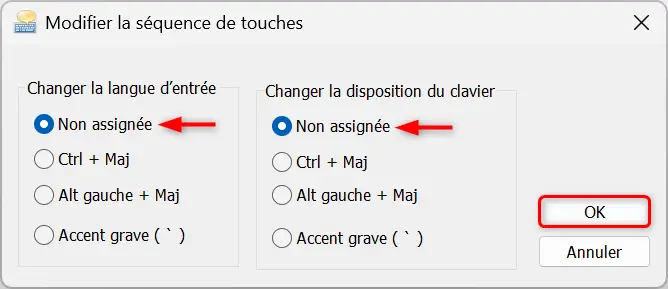
This option prevents accidental changes and avoids surprises.
1. Through system preferences
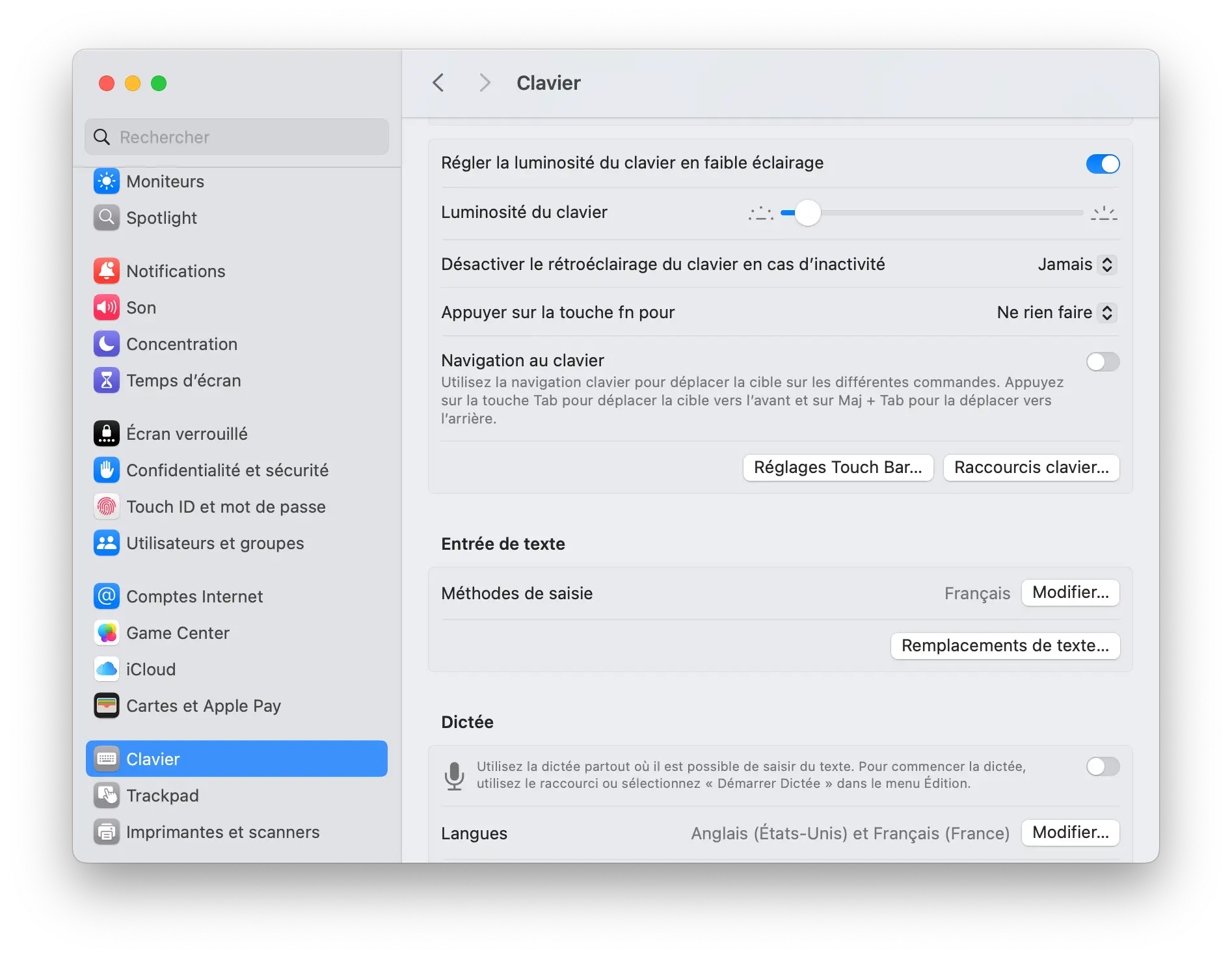
- Click on the menu Apple (top left) and select “ System configuration “.
- Choose ” Keyboard ”, then go to “ Input methods “.
- Make sure the keyboard French (AZERTY) is present. If not, add it by clicking the “ button + “.
- Select ” French (AZERTY) » and remove other unnecessary keyboards by selecting them and then clicking ” – “.
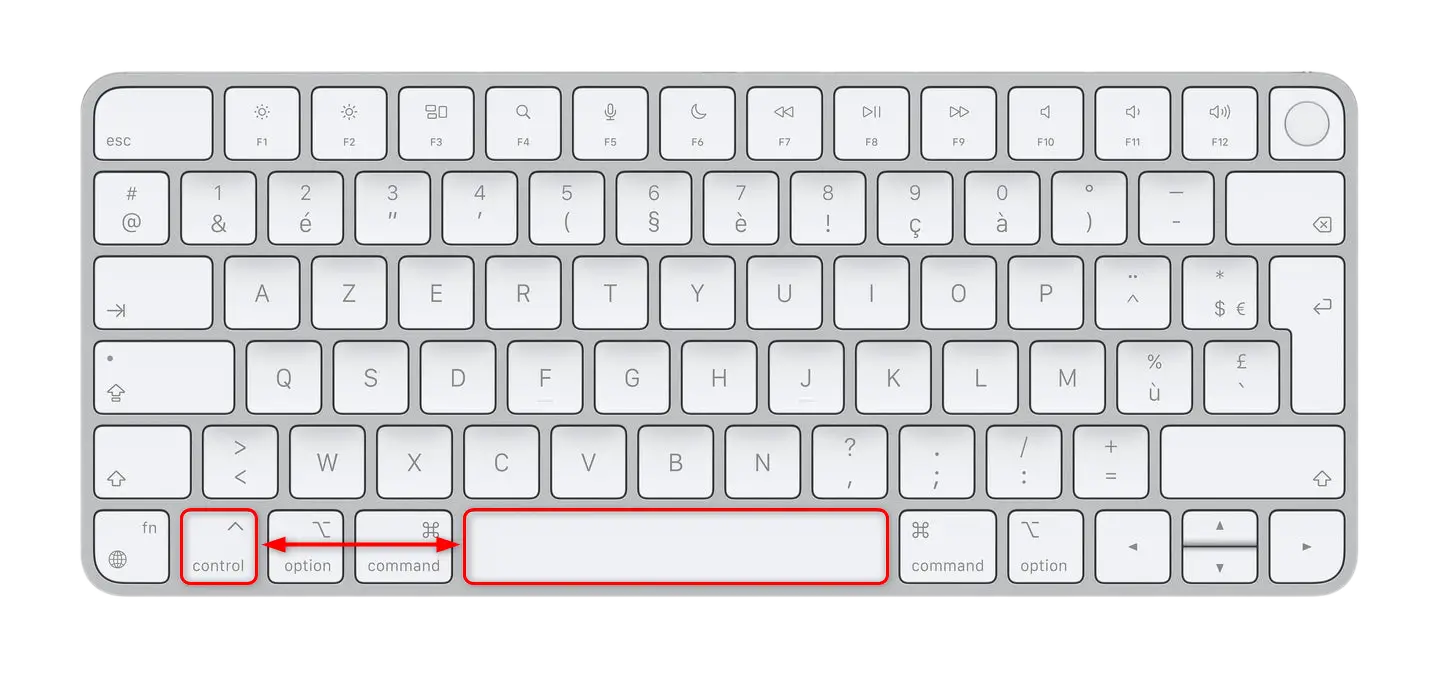
2. Use the keyboard shortcut
On macOS, you can switch between input languages with Control + Space. This action allows you to switch from one keyboard to another, for example from QWERTY to AZERTY.
- Open the keyboard in any text entry application.
- Press and hold the space bar until the language menu appears.
- Choose ” French (France) AZERTY “.
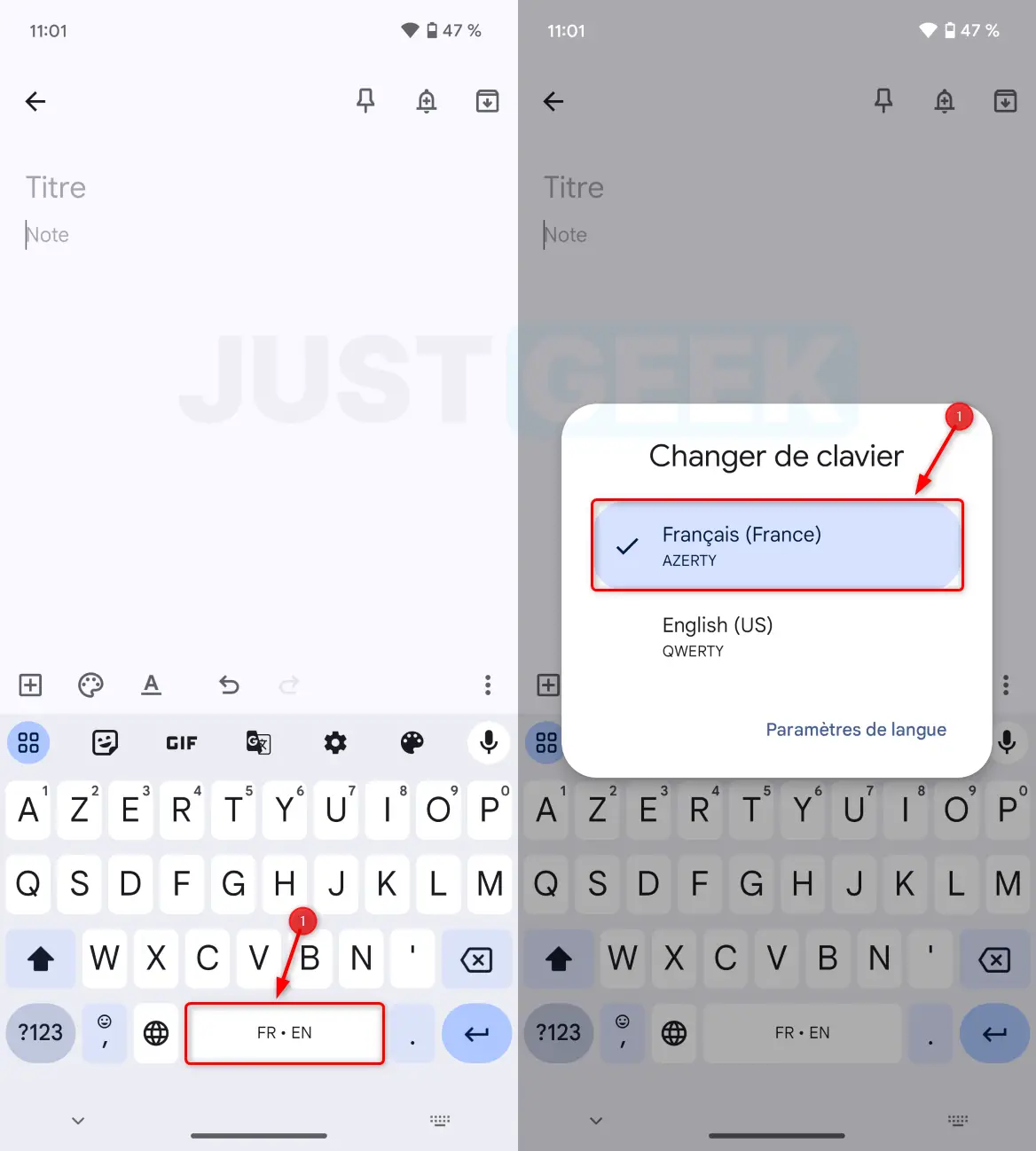
Alternatively, you can also tap the globe icon to instantly switch the keyboard to AZERTY or QWERTY.
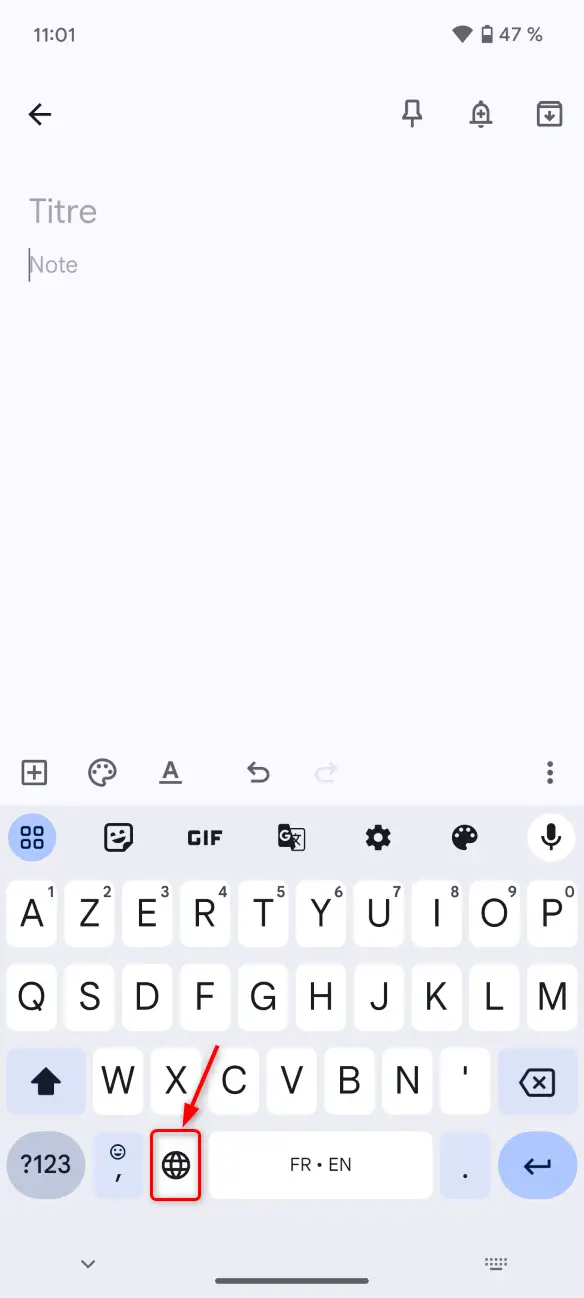
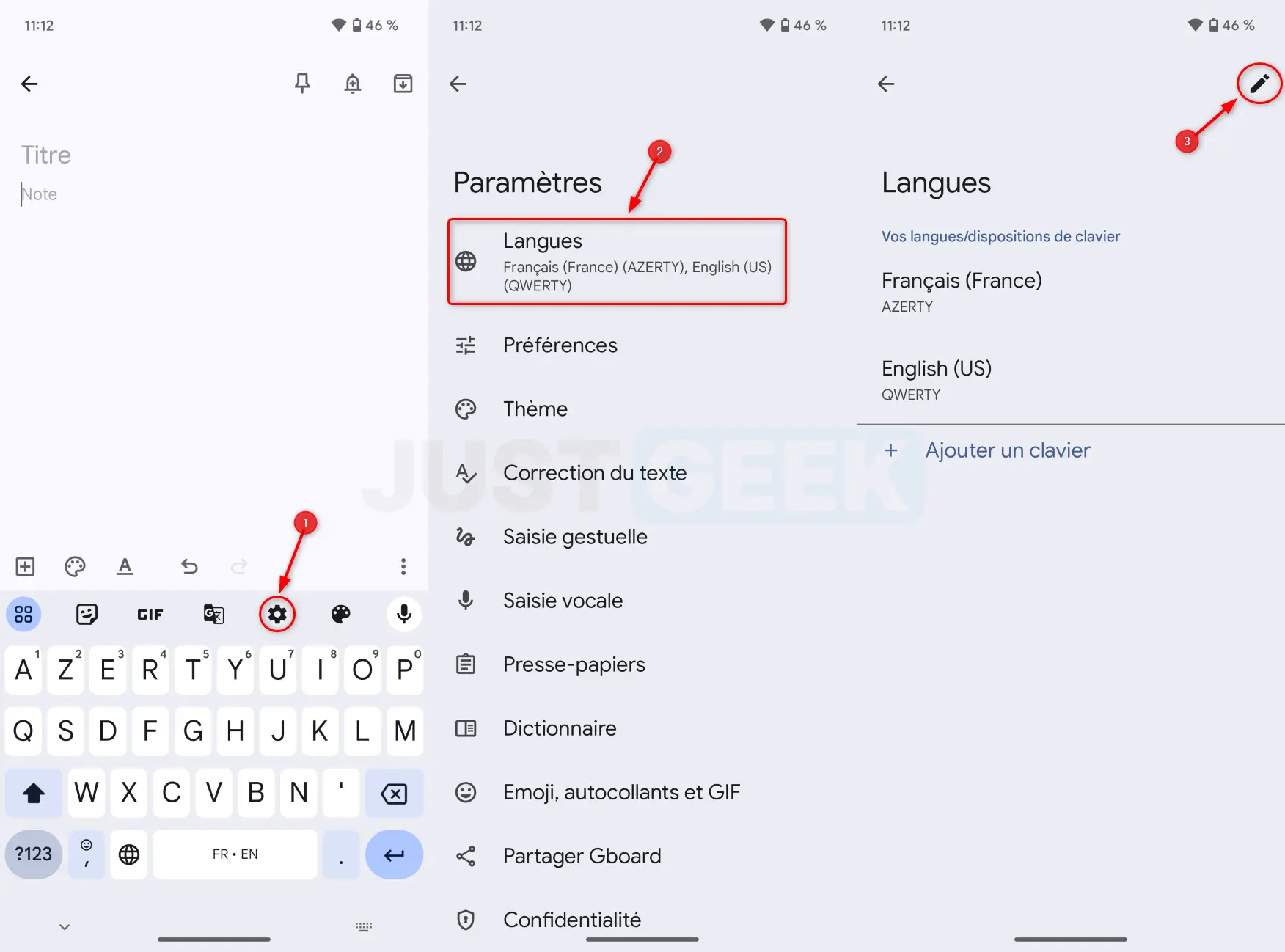
Additionally, you can change or remove keyboard languages on your Android device. Here’s how to do it.
- Meet at the keyboard settings (gear icon).
- Open the section “ LANGUAGES “.
- Select the pencil icon to change or delete a keyboard language.
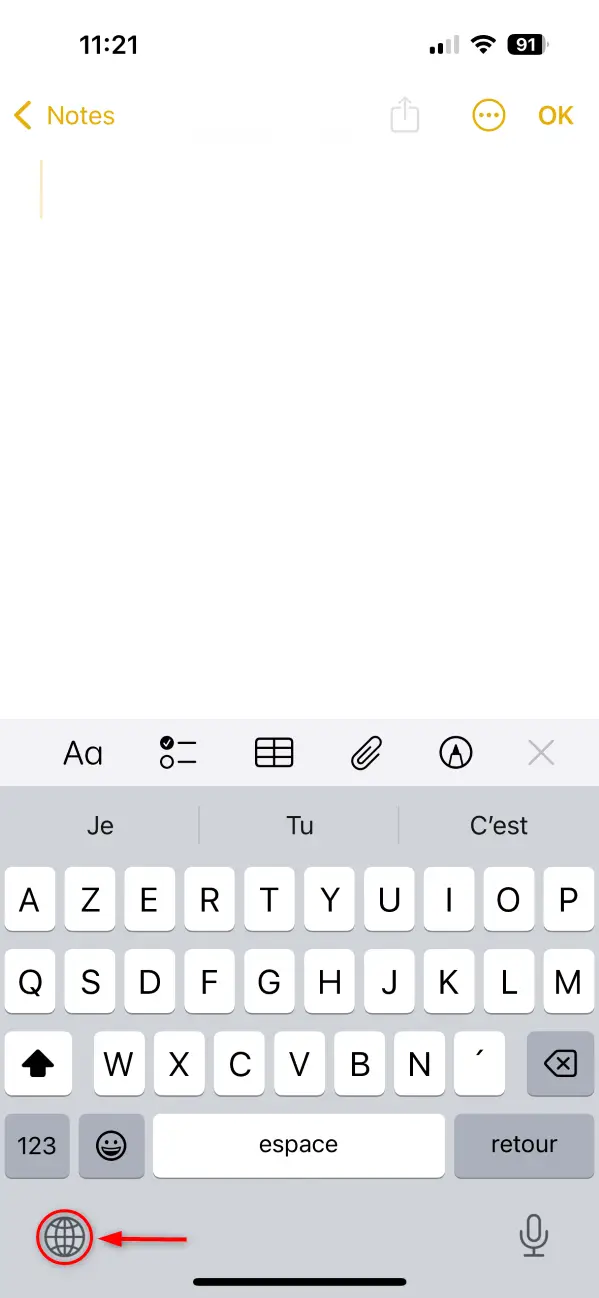
- Open the keyboard in any application.
- Tap the icon Globe at the bottom left to quickly switch from the French keyboard (AZERTY) to the American keyboard (QWERTY).
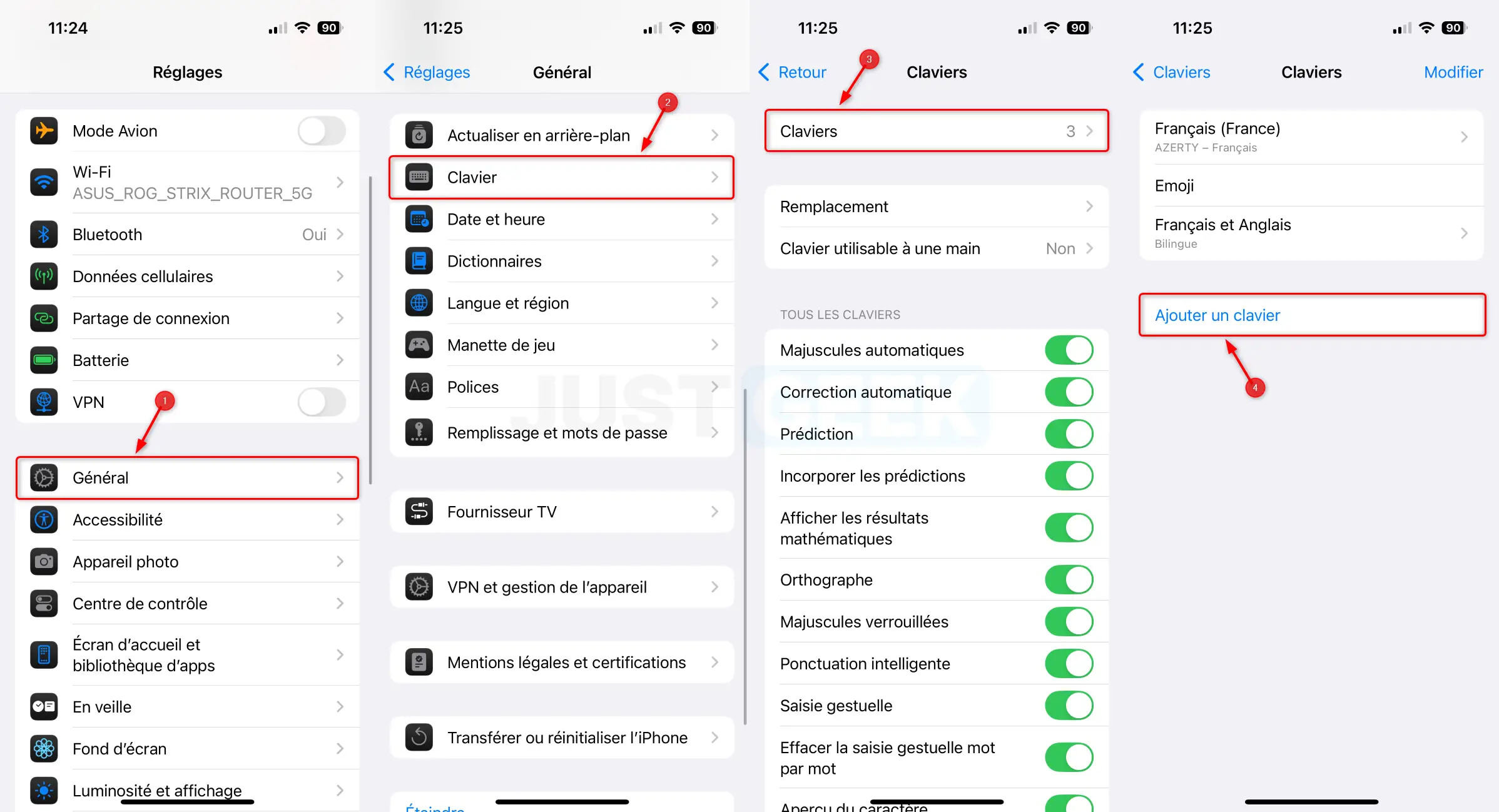
If you don’t find the option:
- Gonna Settings > “ General » > « Keyboard “.
- Tap ” Keyboards “, So ” Add a keyboard “.
- Choose ” French (AZERTY) “.
In conclusion
Switching from a QWERTY keyboard to an AZERTY keyboard is easy on Windows, macOS, Android, and iOS. Keyboard shortcuts are often the source of the problem, but it only takes a few manipulations to fix everything. With the tips presented here, you will be ready to find the correct layout of your keys and, above all, save time by avoiding searching for the correct letter every time you press a key.