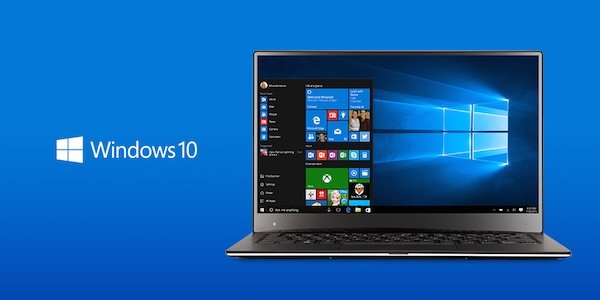
windows 10 It can be used very easily with touch or a mouse (or a stylus for those using a Surface tablet), but those who really want to increase productivity and not drag themselves down the road would do well to know some shortcuts (we’ve never done better to actually go faster).

By categories, and without being exhaustive, here you have a panel of shortcuts that will undoubtedly be very useful to you:
– Window management
Windows + up arrow: optimize the window to the screen dimensions
Windows + down arrow: places the tabbed window on the taskbar
Windows + D: Place all windows on the taskbar (Windows + D place windows a second time)
Windows + left/right arrow: window occupies the left or right half of the screen (ideal for multi-window mode)

–Cortana
Windows + S: Call Cortana to enter text
Windows + Q: Call Cortana in listening mode (by voice)
– Various accesses
Windows + A: open the notification center
Windows + I: open Settings Center
Windows + E: open Explorer
Windows + R: open a command session
– Virtual offices
Windows + Ctrl + D: create a new virtual desktop
Windows + Ctrl + left/right arrow: allows you to switch from one virtual desktop to another
Windows + Ctrl + F4: close the current virtual desktop

– Others
Windows + Print Screen: Saves a screenshot of the screen to the Screenshots folder in the Pictures directory (no, this does not start a print).
Windows + Tab: View current tasks (Task View) and virtual desktop management interface
– Touch functions
Three fingers on the touchpad: call Cortana
Three fingers up: Open Task View
Three fingers down: Place all windows on the taskbar
Three fingers up: replace the windows