I don’t know about you, but I personally like to have my Windows desktop perfectly clean. It’s very simple, at home there are only two icons, This PC and the Recycle Bin. That’s all. And if a software has the misfortune of adding a shortcut to the desktop after installation, I remove it immediately.
So when I discovered DeskBox, a free and open source software that allows you to organize your desktop using customizable widgets, I wasn’t very excited. However, after trying it, I quickly changed my mind. And you’ll quickly understand why.
DeskBox, a Windows Desktop organized as you want
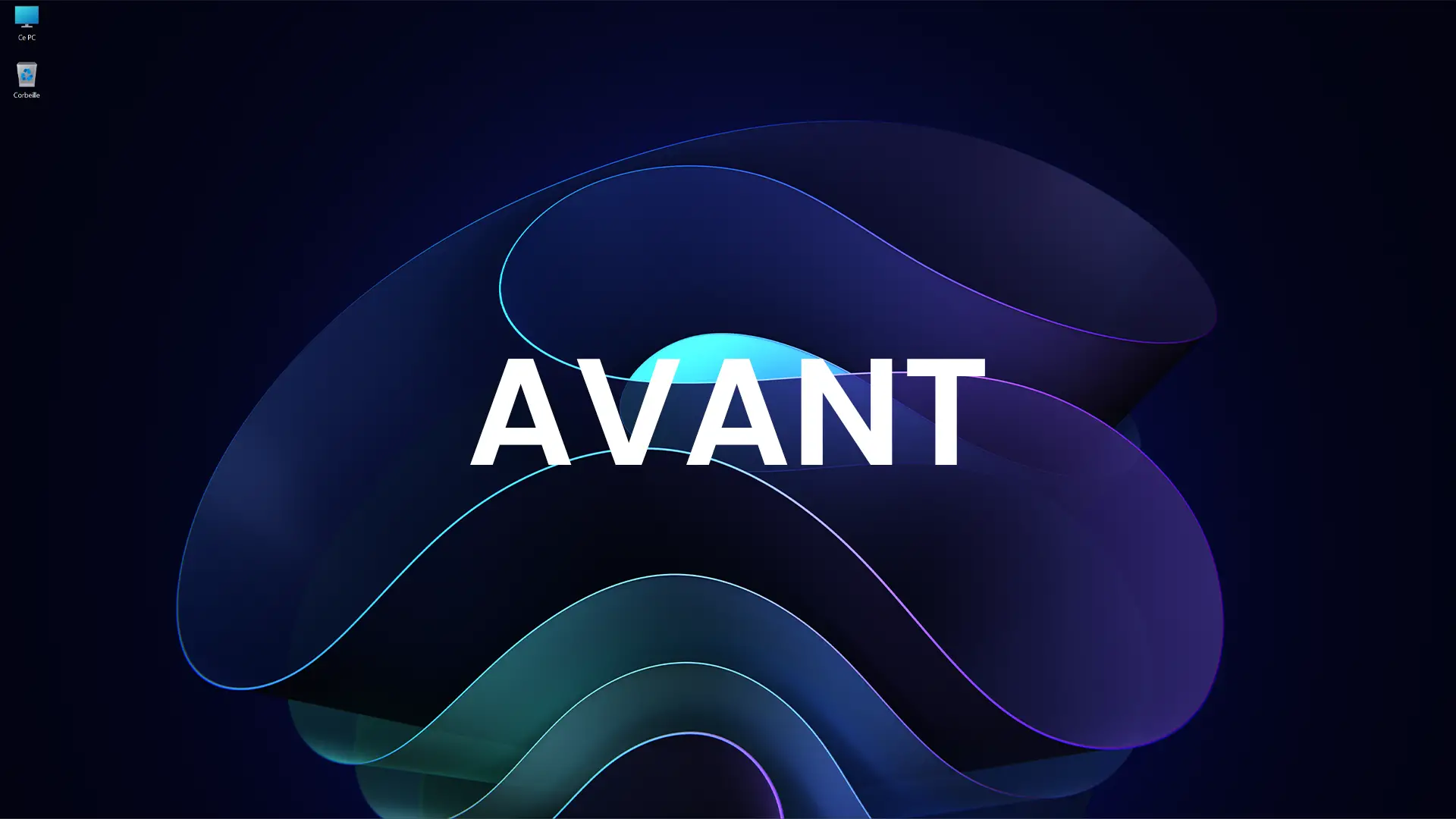
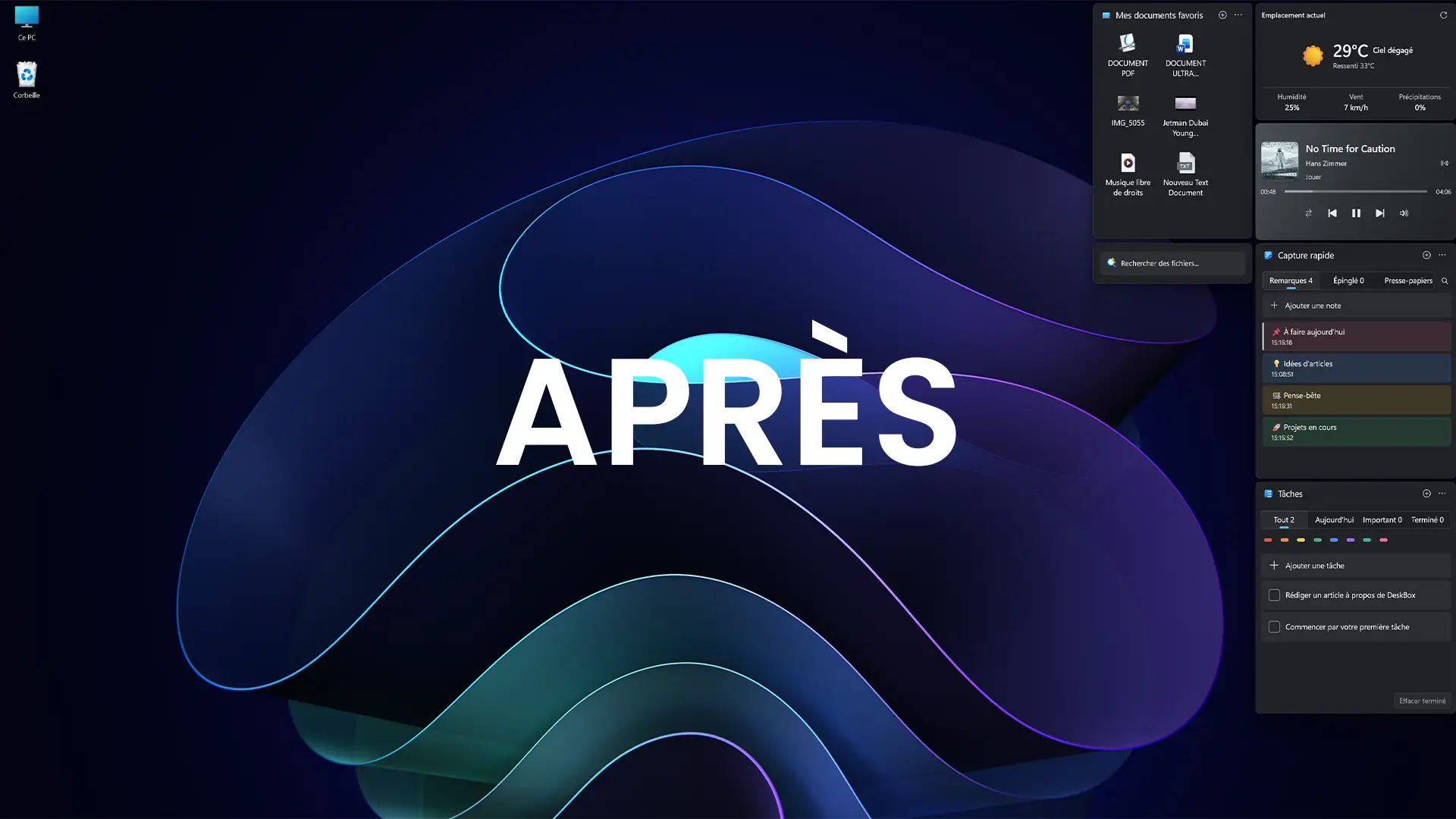
desk box is a software that is a bit reminiscent of Stardock Fences, except that it is completely free and open source. It allows you to create spaces on the Desktop to store your files, folders and shortcuts, instead of leaving them scattered everywhere.
Each space can be renamed, resized, and moved wherever you want. For example, you can reserve one for your software, another for your documents, and keep your current files within reach.
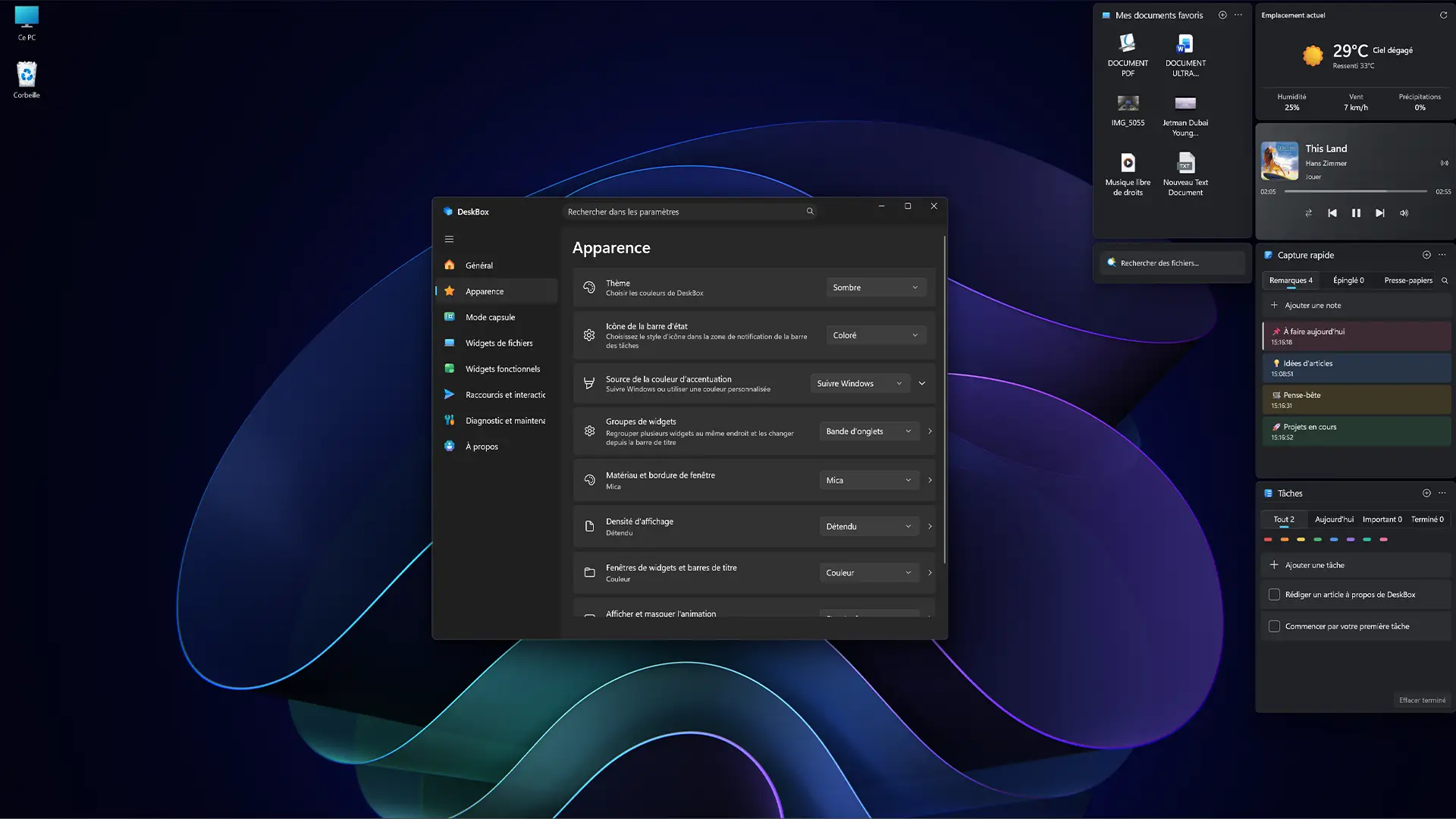
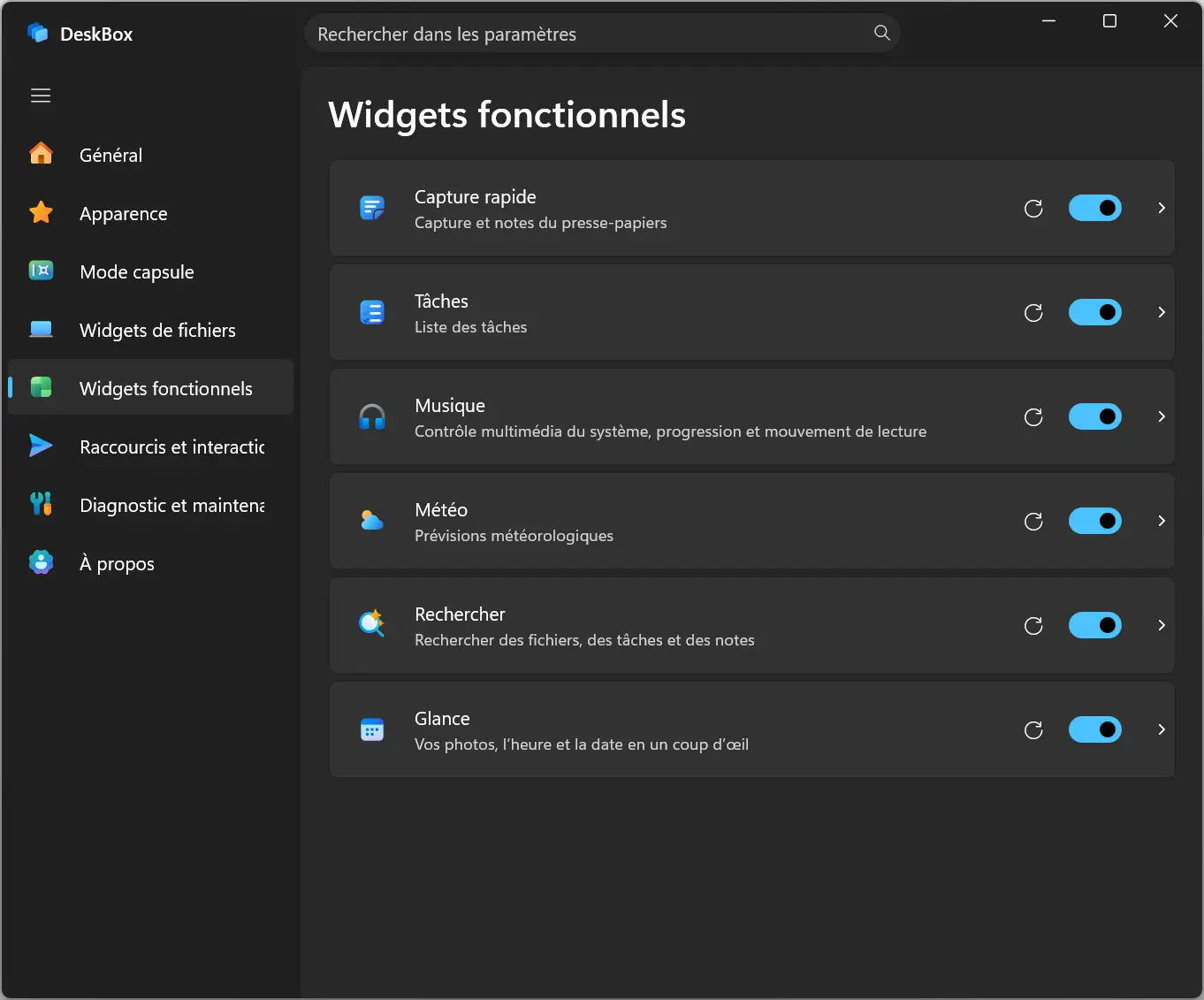
And it’s not just about storage space. DeskBox also offers widgets for taking notes, managing a to-do list, checking the weather, or controlling the music currently playing. You are free to show only those that interest you.
A tidy desk, but only when you need it
This is probably the feature I liked the most about DeskBox. All spaces and widgets can be hidden with the press of a key. F7the default keyboard shortcut, which you can customize in Settings. And what’s even more practical is that this shortcut also allows you to display them in any open window, without having to return to the Desktop.
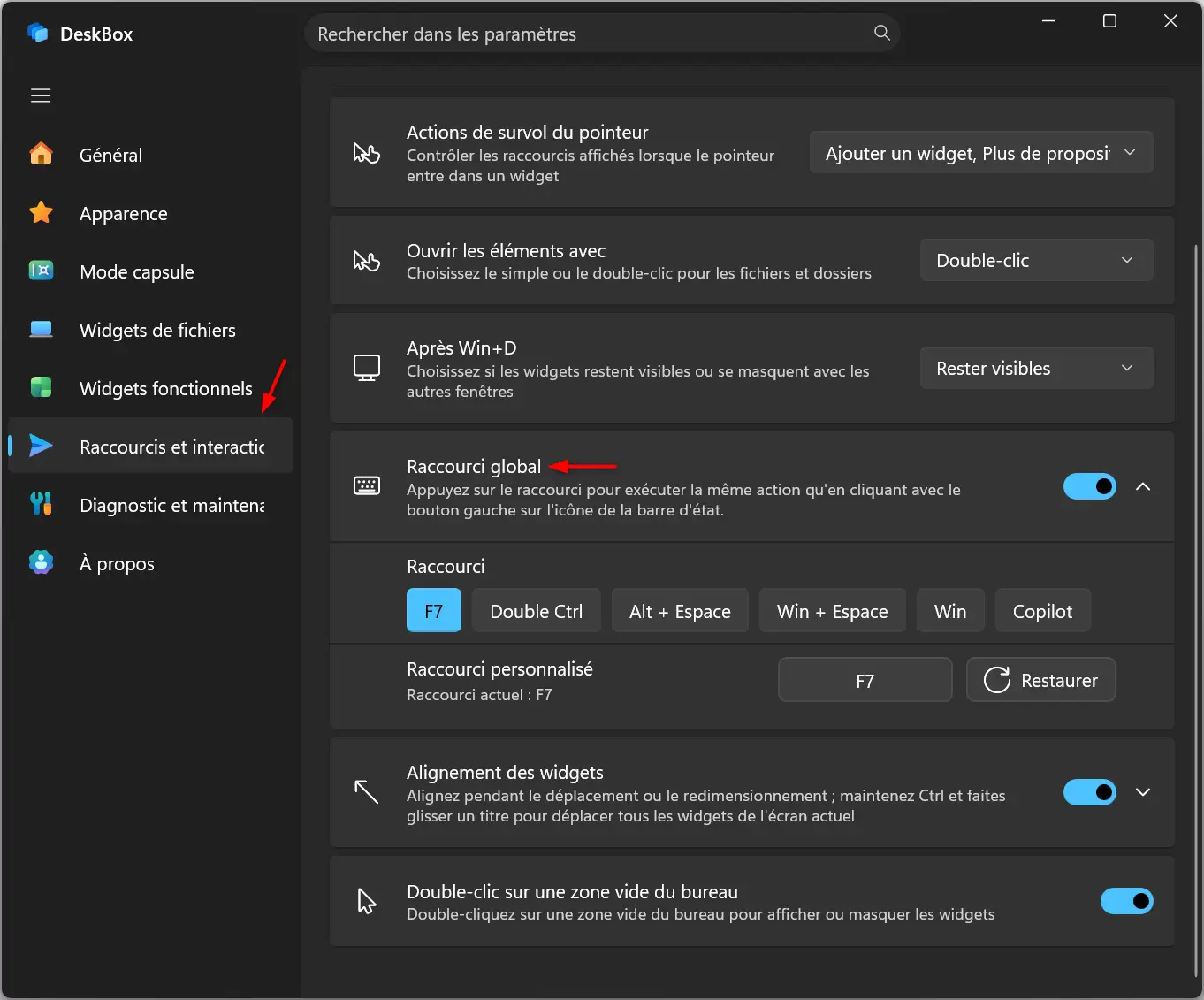
It is also possible to show or hide them by double-clicking on an empty area of the Desktop, as long as you activate this option in the DeskBox settings, under “Shortcuts and interactions”.
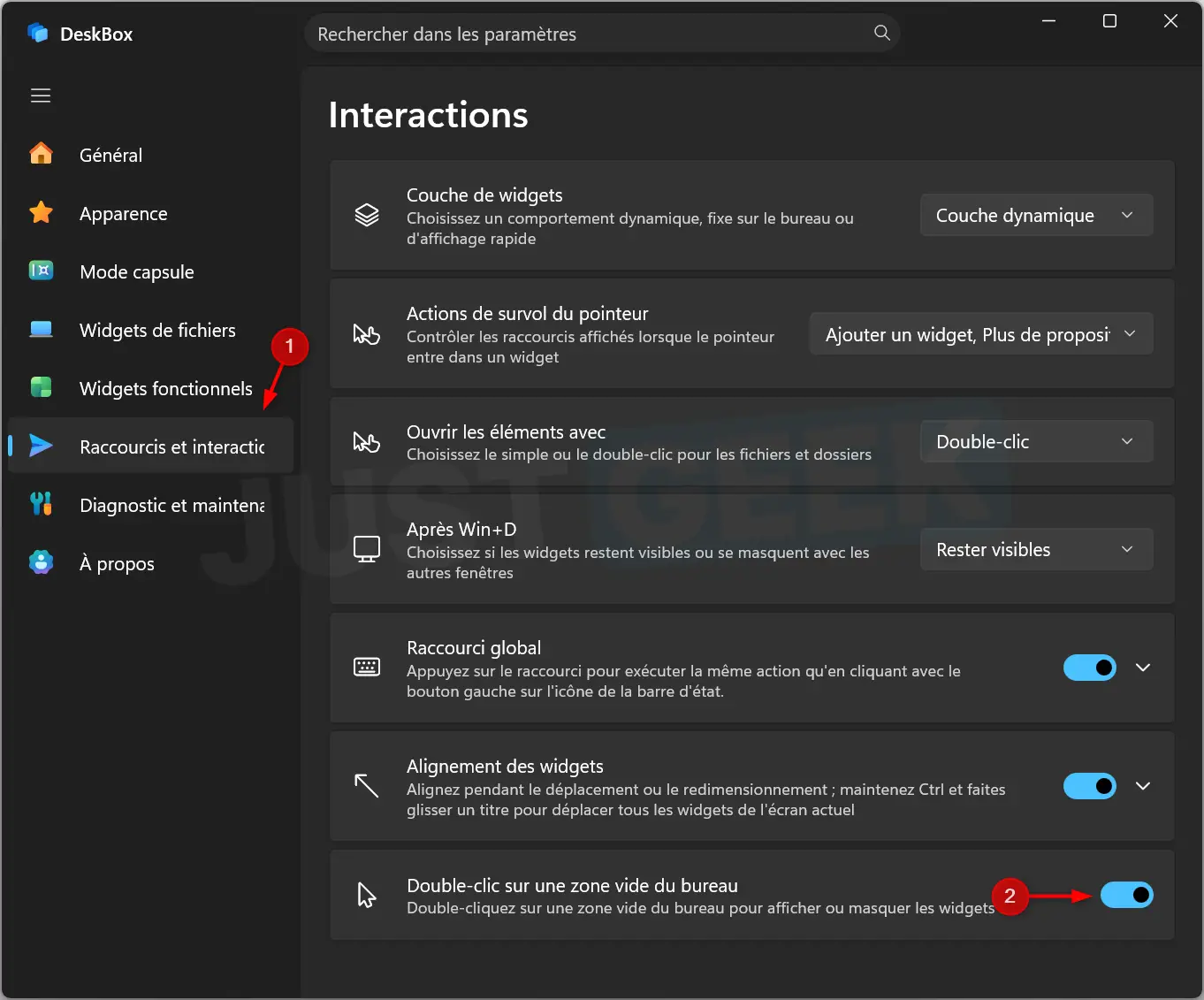
In my case, this is exactly what I needed. I can find my files, notes, and other widgets in seconds and then hide them when I no longer need them. My desktop then retains its usual appearance, with my only two icons and my wallpaper.
Once you’ve added your widgets, you’ll be able to move them freely around the desktop, resize them, and change their appearance. It is also possible to adjust the animations by showing or hiding them.
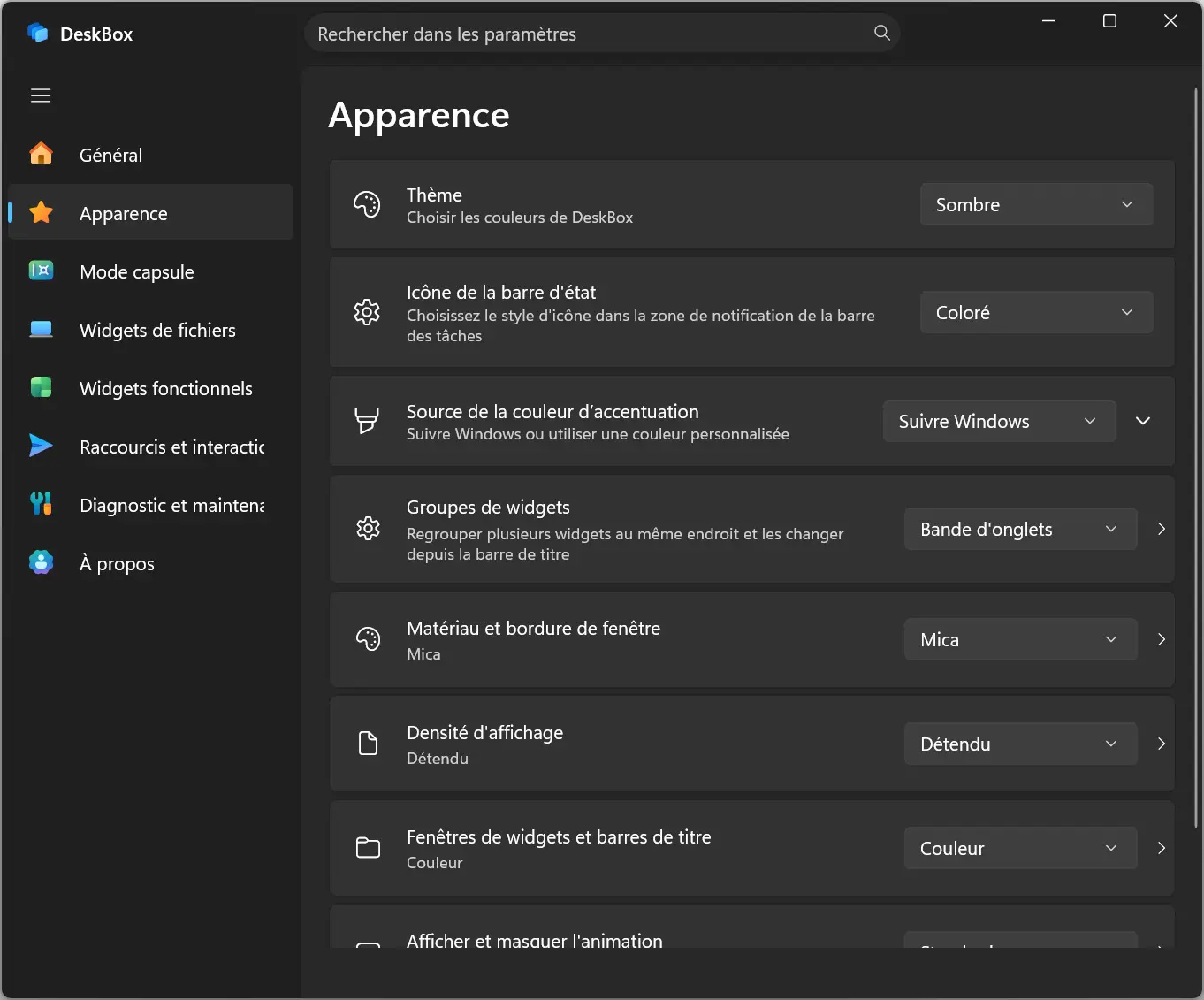
Personally, I preferred to group mine on the right side of the screen to keep the rest of the desktop clear.
The software even offers an alignment system to avoid wasting ten minutes placing each widget with pixel precision.
Do you want to try DeskBox on your PC? The software is available for free on GitHub and works on Windows 10 and Windows 11.
To download it, go to DeskBox latest versions pagethen get the installer for your computer. For most PCs, this is the x64 version. An ARM64 version is also offered for compatible machines.
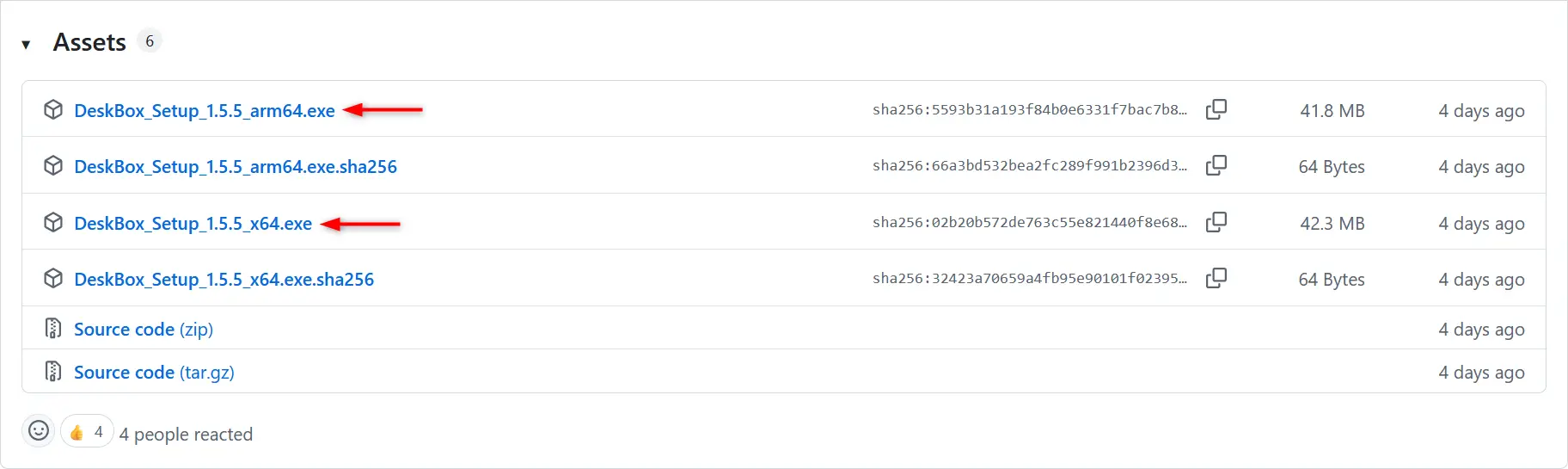
Then launch the downloaded file and follow the on-screen instructions. Once DeskBox is installed, you can start adding your first widgets and organize your desktop however you want 😉.