Sure macosThere is a little-known trick that allows you convert an image without installing any software. Everything is done directly from the Discovererin a few clicks. Practical, fast and above all effective, this integrated functionality avoids the need for an online editor or converter.
In this article we will show you how to convert an image to the format of your choice without leaving Finder on your Mac.
Convert an image from the macOS Finder
For those who don’t know yet, macOS offers a quick action that allows you to convert an image to another format. Here’s how to do it:
- Open search enginethen navigate to the folder containing the image to convert.
- right click in the image in question.
- From the context menu, select “Quick actions”then click “Convert image”.

- Then a small window opens. You can choose:
- The destination format : JPEG, PNG or HEIF
- the size : small, medium, large or full size
- And if necessary, check or uncheck the option “Preserve metadata”
- Finally click “Convert to [format] ».
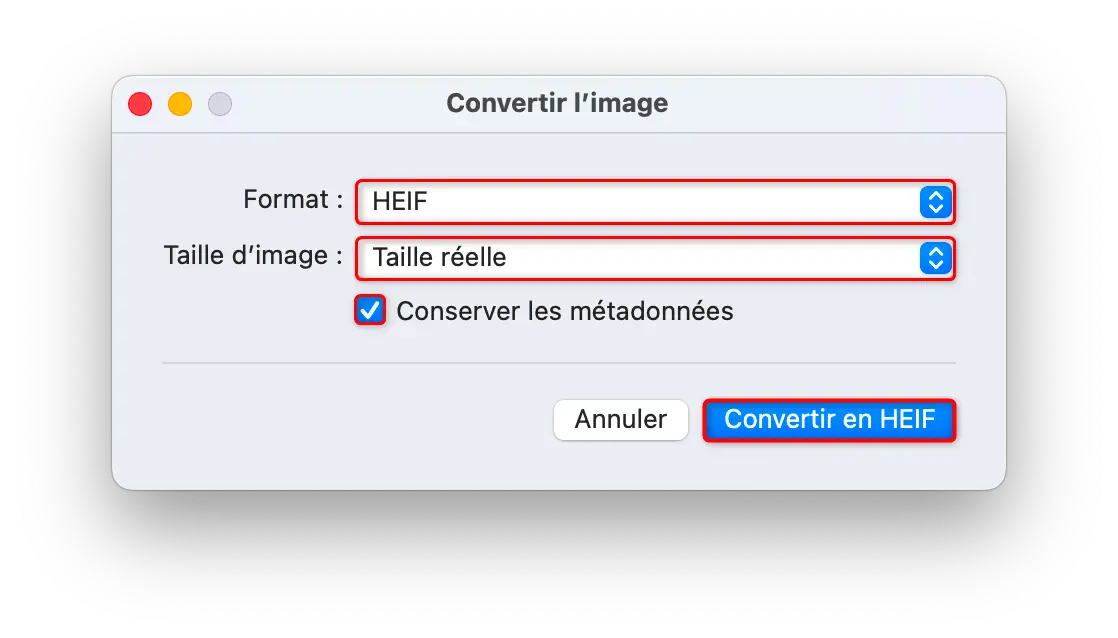
macOS then creates a converted copy of the image, in the same location as the original. There is no need to use Preview or other software, everything is done directly from the Finder.
What formats are available?
By default, macOS allows you to convert your images to three formats:
- JPEG : ideal for a good compromise between quality and file size
- PNG : ideal if you need to maintain transparency
- HEIF – A newer format that offers better compression without sacrificing too much quality
That said, if you want to convert your images to other less common formats, there are more complete solutions. We have also written a selection of free software to convert your images on Windows, macOS and Linux. These tools offer more options and support a wide variety of formats.
Conclusion: Simple but very practical advice.
Honestly, we often miss these kinds of small built-in features. Still, they can really save time, especially if you work with images regularly. This can allow you to brighten a photo, change the format of a site or share a file more clearly, in short, this option built into macOS does its job very well. With just a few clicks, you will get your image in the desired format, ready to use or share.