Your Mac offers a lot of super convenient features, but chances are you don’t know about some of them yet. Among them, “Hot Corners” (or Active Corners in French) allow you to save time by assigning specific actions to the four corners of your screen. Let’s see together what these active corners are, how to configure them and, above all, how to best use them.
What are hot corners in macOS?
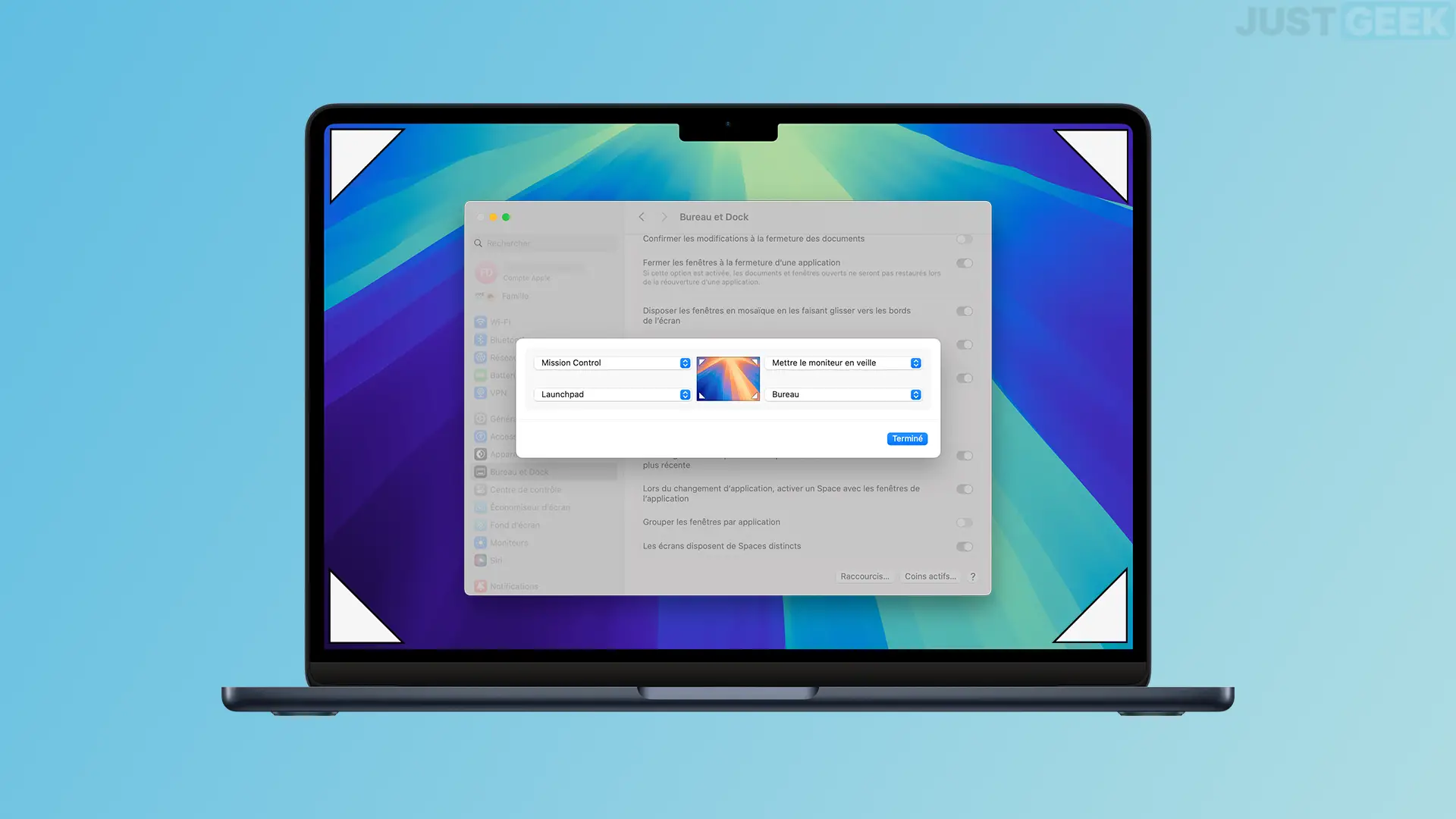
Hot Corners are shortcuts that you can assign to each corner of your screen. By simply moving the cursor to one of the four corners, you can trigger predefined actions, whether that’s opening Launchpad, putting the screen to sleep, accessing your desktop, or even opening Mission Control. The idea is simple: each corner of the screen can act as a quick shortcut, allowing you to perform an action without having to click on menus or icons.
Of course, hot corners won’t radically change the way you work, but they can help you save precious seconds every time you use your Mac. I personally find it very practical.
To set up hot corner on macOS, follow these steps:
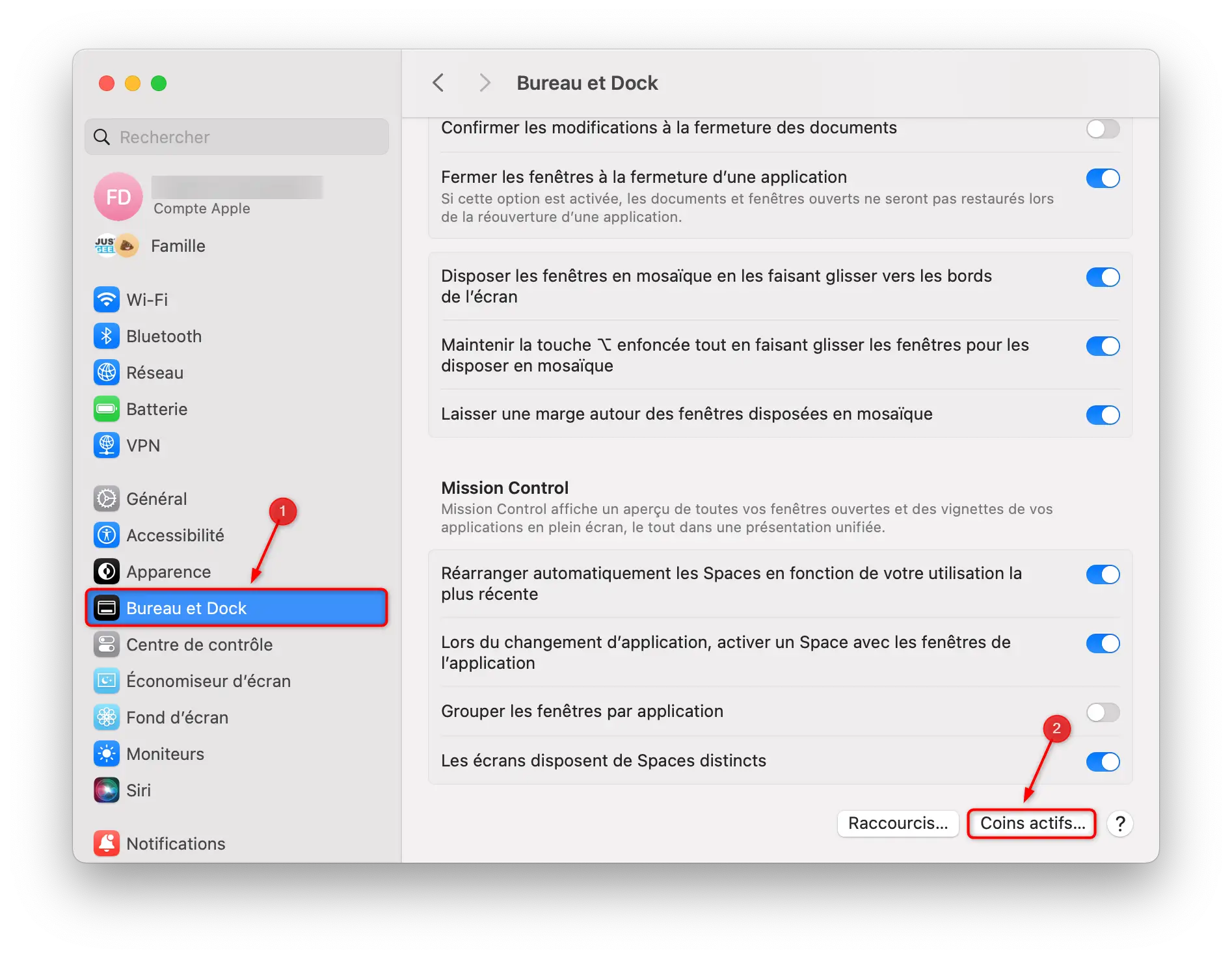
- Click the Apple logo at the top left of the screen, then go to ” System configuration “.
- Go down to “ Desk and base “.
- At the bottom of the window you will find the option “ Active corners… “.
- Click on it and you’ll see four boxes appear, one for each corner of your screen. Click on a box and choose an action from the proposed list.
- Once you have made your choices, click ” Finalized » to save your preferences.
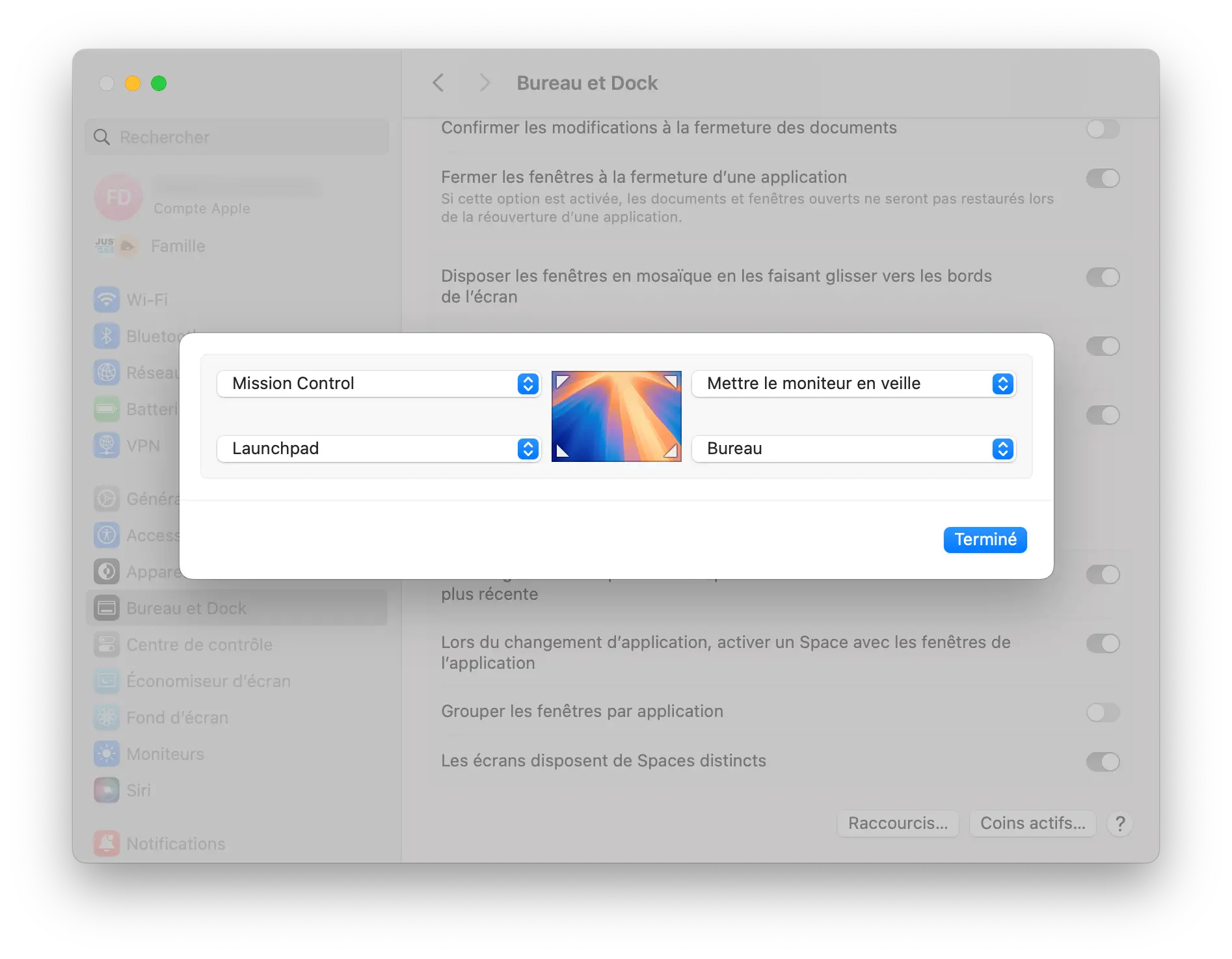
✅ And there you have it, you have set up your active corners! Now each corner of the screen can perform a specific command, whether it’s opening Launchpad, locking the screen, or putting it to sleep.
Reduce involuntary activation
One of the disadvantages of hot corners is that they can sometimes be activated accidentally, especially if you tend to move the cursor too freely. Fortunately, there is a simple trick to avoid this: modifier keys.
Modifier keys (such as Domain, Option, Control EITHER Change) allow you to make active corner activation more intentional. This means that you will have to press one of these keys in addition to moving the pointer to the corner of the screen to activate the shortcut.
To configure this:
- Return to “ Active corners “.
- When you choose an action for a corner, hold down the modifier key you want to associate with that action.
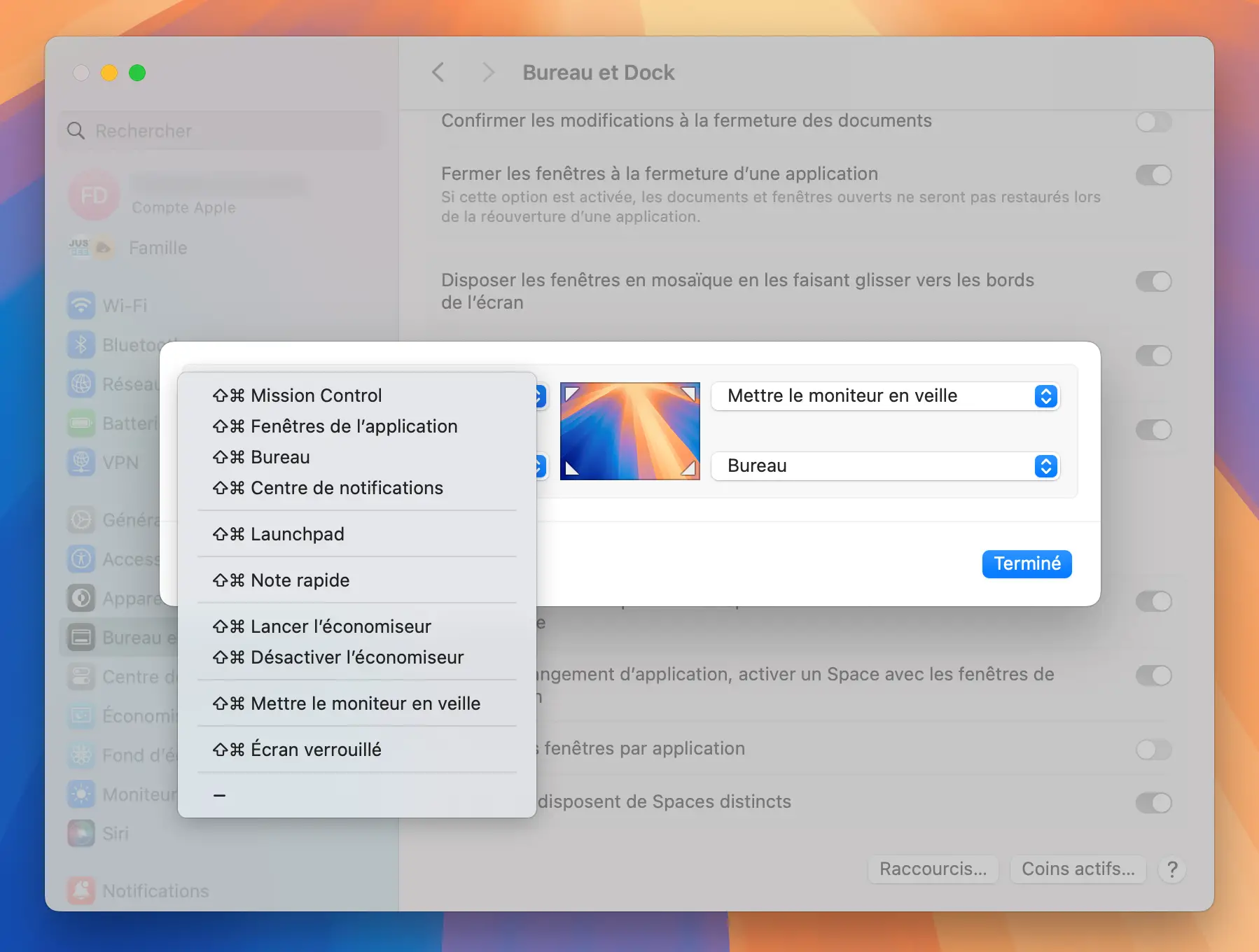
This way you will avoid the risk of false manipulations while maintaining the practical aspect of the active corners.
Go further with third-party apps
The Hot Corners integrated into macOS are already very practical, but if you want to go even further, there are third-party applications such as BetterTouchTool or Slidepad that allow you to expand the possibilities of Hot Corners.
- Best touch tool : This app allows you to create custom shortcuts for each corner of the screen, far beyond the standard macOS options. You can, for example, assign a keyboard shortcut, activate dark mode or even launch Siri directly from a corner of the screen.
- Sliding panel : Inspired by the Slide Over feature on the iPad, Slidepad allows you to access your favorite apps with a single click, simply by dragging the cursor on the right side of the screen. Perfect for keeping Slack, Notion, or YouTube just a click away.
These tools cost money after a free trial period, but if you spend a lot of time on your Mac, they can be a worthwhile investment. Up to you.
In conclusion
Hot Corners is a simple but effective feature to improve your productivity on macOS. By configuring them based on your habits, you can transform the four corners of your screen into personalized shortcuts that make your Mac experience more intuitive.