When you upgrade your phone, you want to keep as much data as possible. To do this, you’ll probably make backups of your smartphone or simply connect your account to the app. However, with WhatsApp it does not work in the same way. You must first make a backup, which can be periodic and automatic, to then be able to restore the WhatsApp backup.
Classic way to restore WhatsApp backup
WhatsApp includes an official method to restore a backup. First of all, you must make a backup of WhatsApp. The reasoning is the same for Android or iPhone.
On an iPhone you must first have activated iCloud Drive :
- enter dglasses > your name > iCloud
- activate iCloud Drive

- open the app WhatsApp on your smartphone
- go to tab Settings
- press Discussions > Back > Back up now
- wait

On Android, the method is similar:
- open the app WhatsApp
- press the 3 dots ⋮ that represent More options
- enter Settings > Discussions > Back and discussions > TO SAFEGUARD
- wait
Once the backup is made, on another smartphone:
- download and open for 1d times the application WhatsAppif you have already used it, delete it;
- press Accept and continue ;
- On the next screen, set your choice regarding notifications;
- enter your phone number (and confirm it) then press Finalized ;
Note – This must be the same number as the backup made previously.
- press Restore EITHER Restore chat history.
Note : If you pass, you will have to start over, there are no other opportunities to restore.
- wait then do it Following before continuing to use WhatsApp normally.

If you have an iPhone, the backup is done using iCloud and on an Android smartphone, Google Drive is used.
It is simple, practical and effective, but it has some problems. The fact that the phone number must be the same may be one, but that is how WhatsApp works. Nothing is saved on WhatsApp servers, everything is stored on your phone and iCloud/Google Drive for backup.
The biggest problem is that you cannot recover iPhone backup from WhatsApp on Android and vice versa. Also, your old smartphone must be in good condition so you can enable backups if you haven’t already.
How to restore WhatsApp backup between iPhone and Android using iCareFone WhatsApp Transfer
iCareFone – WhatsApp Transfer from Tenorshare is available on Mac and Windows. It allows you to backup, restore and export your contacts, as well as your chats and media files. Works with WhatsApp and WhatsApp Business.
With iCareFone For whatsapp transferyou can transfer WhatsApp from Android to iPhone and vice versa. Everything you want to do is done easily and quickly from iCareFone – whatsapp transfer.
And if you have an iPhone, it also works with LINE, Kik, Viber and WeChat.
1. Restore WhatsApp backup from Android to iPhone
Let’s leave aside the transfer for the moment and see together how to backup and then restore an Android backup on an iPhone:
- download, install and open iCareFone WhatsApp Transfer
- click on WhatsApp

– go to menu to safeguardconnect your Android to computer, select your Android and click Back up now

- follow the instructions to save to your smartphone and click Continue

- enter your number and click Check

- Once the backup is complete, click Restore

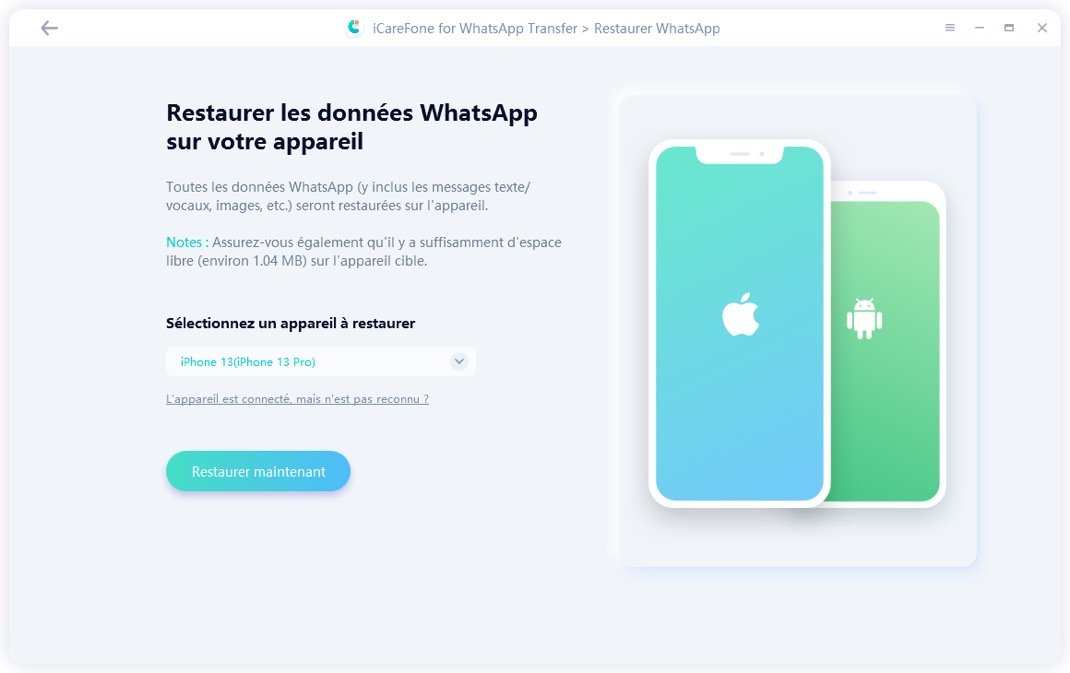
- Connect your iPhone to computer, click Restore now and validate with Continue ;

– connect WhatsApp to iPhone with the same phone number, then click Connectedwait for the restoration process to complete;

– WhatsApp Android backup restore on iPhone completed

2. Restore Wha BackuptsiPhone to Android app
The process of restore WhatsApp backup iPhone to Android is the same as restoring WhatsApp backup from Android to iPhone, you just need to backup WhatsApp from iPhone and then restore WhatsApp backup from iPhone to Android via iCareFone WhatsApp Transfer.

iCareFone WhatsApp Transfer It also allows you to make a direct transfer from one smartphone to another, even from an iPhone to Android. Both must be connected to the same computer, the one where the tool is installed. After choosing the transfer, you will be guided to save and the restore will be done on its own.
With iCareFone WhatsApp Transferthe backup is stored locally, but on the computer, not on the phone, iCloud Drive, or Google Drive. Furthermore, you can easily transfer your WhatsApp chats from Android to iPhone and vice versa.
How to recover a WhatsApp conversation without backup on iPhone
Tenorshare UltData – iOS Data Recovery allows you to recover data from your iPhone, including iTunes backups. This tool can recover more than 35 types of files as well as WhatsApp, LINE, Kik, Viber and Wechat. Even in case of loss (deleted by mistake, jailbreak, virus, etc.).
In addition to not cluttering up your iPhone, you can recover data, files, discussions or even notes that you have deleted. You also choose what needs to be restored, it doesn’t have to be the entirety of a conversation. Everything, locally, on your computer.
Here’s how to recover WhatsApp conversations without backup:
- download, install and open Tenorshare UltData for iOS

- click on Recover from iOS devices and connect your iPhone to the computer;

- mark what you want to recover, mark here WhatsApp and coins and click Analyze ;

- After scanning, preview your WhatsApp conversations, select what you want to recover, click Recover to PC.
Restore a WhatsApp backup
WhatsApp plans to be able to restore a backup between iPhone or between Android using iCloud or Google Drive. With iCareFone WhatsApp Transfer You can switch from Android to iPhone (and vice versa) without problem.
[Sponso]