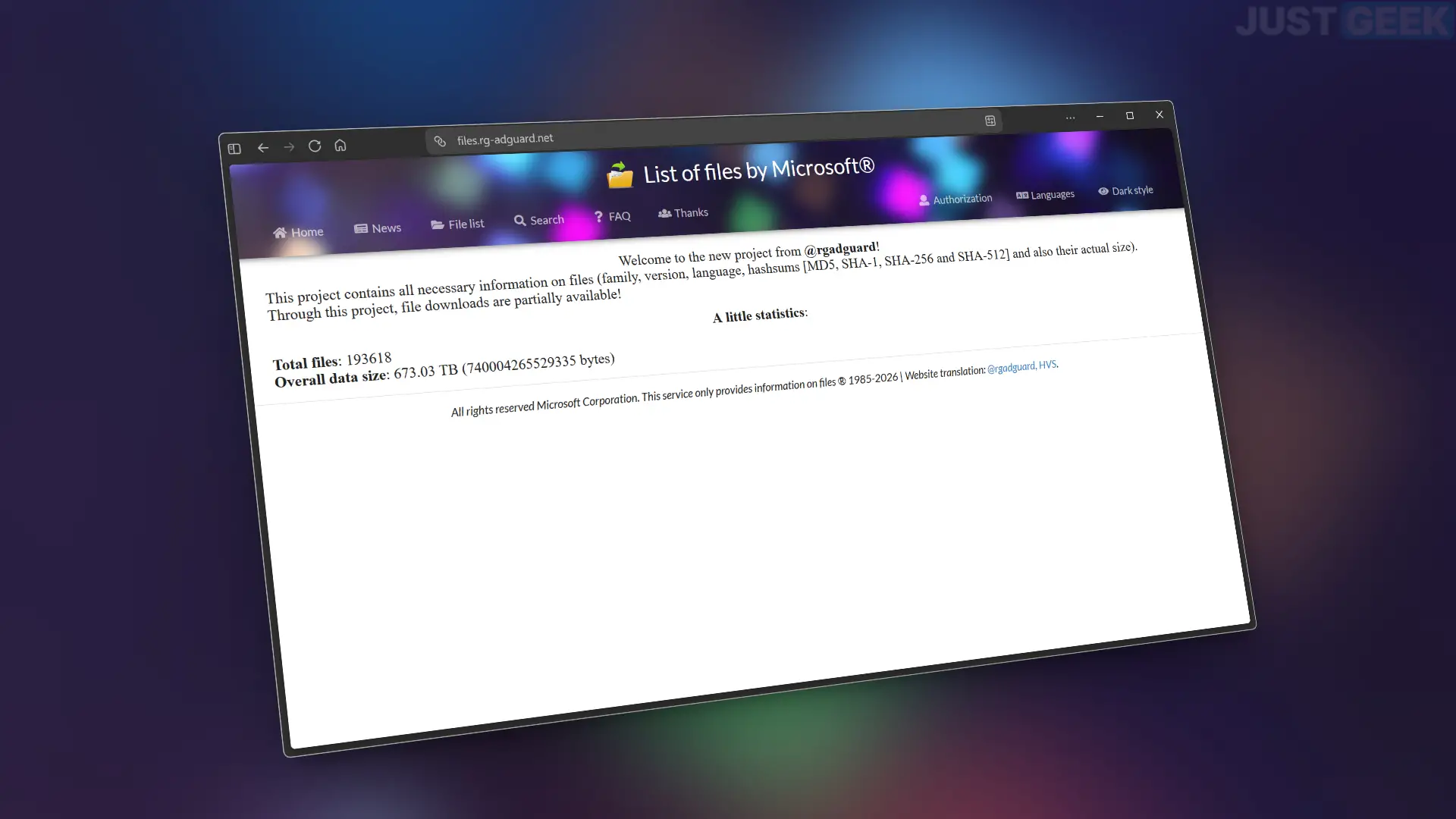
Are you looking to download a Windows ISO image in a specific version? The rg-adguard site allows you to find numerous ISO files, both recent and old versions. In its catalog there are Windows 11, Windows 10, Windows 7, Windows XP and even MS-DOS.
In particular, you can search for a specific version or build of Windows and choose the language and edition that interests you. I introduce you to rg-adguard and explain how to use it to download the Windows ISO of your choice.
rg-adguard: find ISOs of different versions of Windows
the site rg-adguard lists many ISO images of Microsoft operating systems. There are recent versions of Windows 11 and Windows 10, but also older systems such as Windows 7, Vista, XP and even Windows 3.1. The catalog also includes various versions of Windows Server and other Microsoft products.
With rg-adguard, you can find a very accurate version of Windows. The site references different versions of the system, with several builds for each of them. Therefore, you can search for an ISO image corresponding to a particular version or update, even if Microsoft no longer offers it on its site.
For each ISO file, rg-adguard displays various information, including its full name, version, language, size, and fingerprints (MD5, SHA-1, SHA-256, etc.). These can be used to verify the integrity of the downloaded file. Please note that not all files referenced are necessarily available for download.
To show you how rg-adguard works, I will take the example of Windows 11 25H2, in its French 64-bit version, updated in September 2026. The procedure remains the same if you want to recover another version of Windows.
Choose the Windows version to download
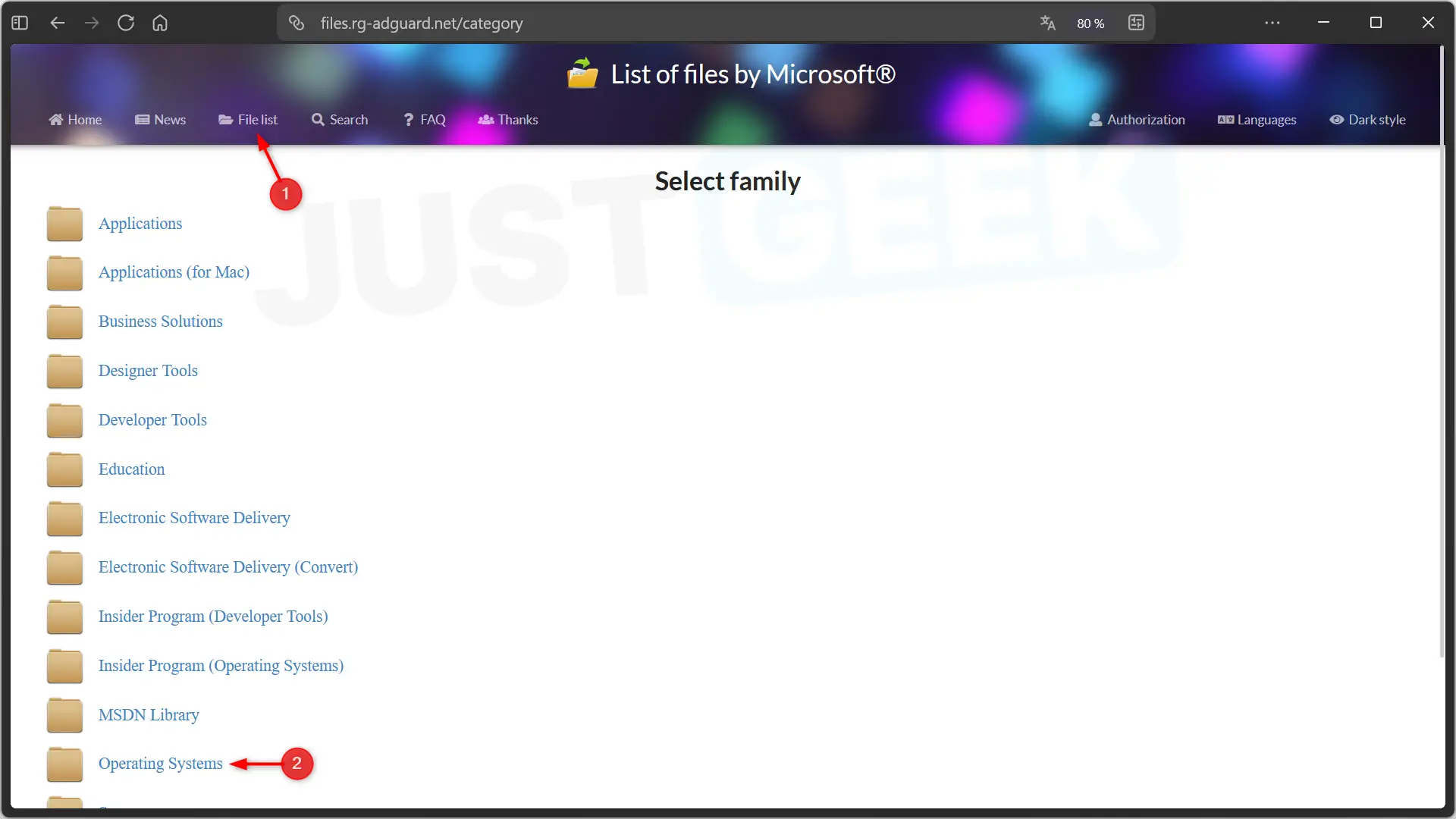
- go to site rg-adguardthen click ” File List » in the menu at the top of the page.
- Select the category “ Operating systems » to access the different versions of Windows.
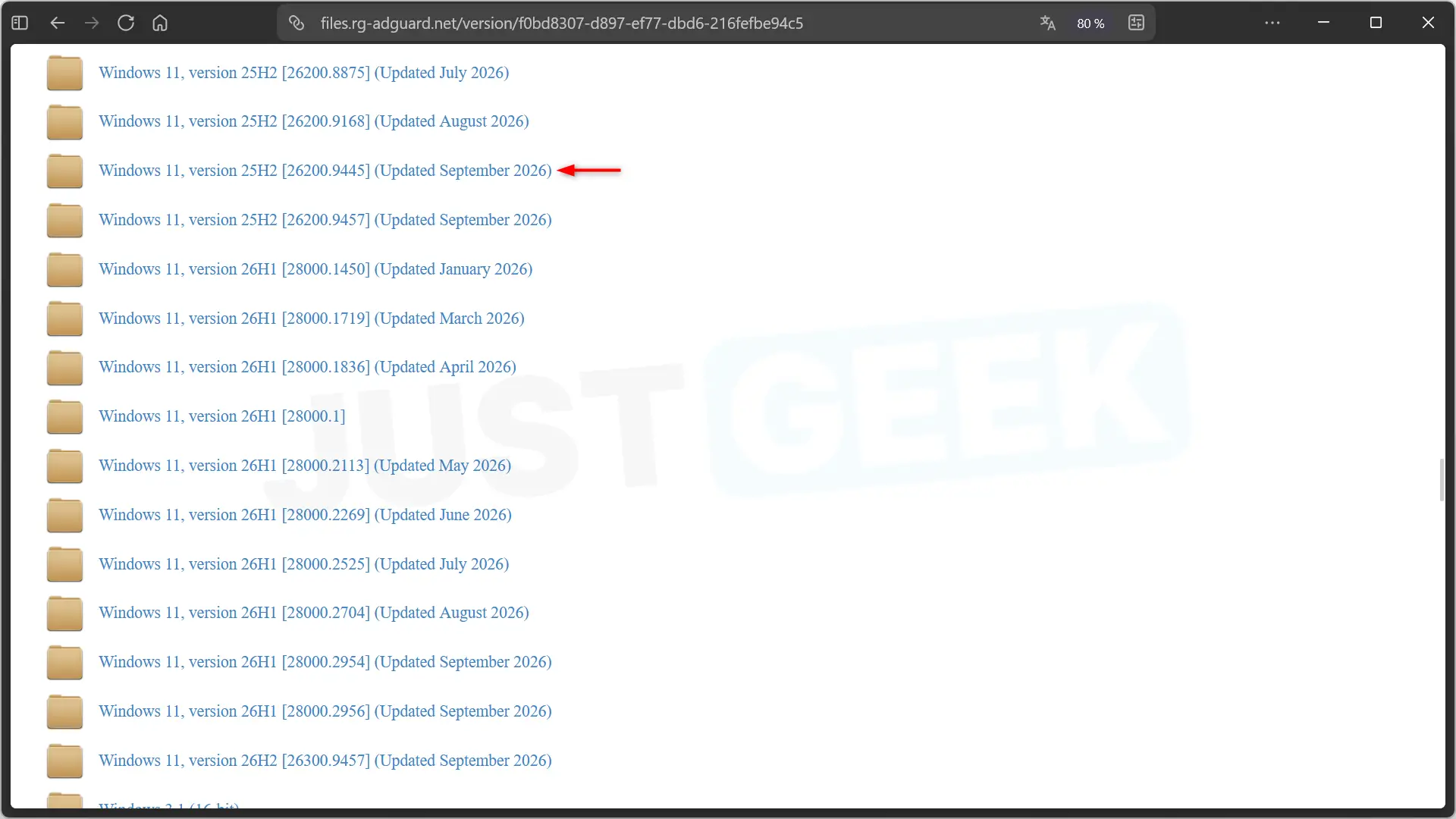
- Find the version you are interested in in the list. For my example, I select Windows 11, version 25H2 [26200.9445] (Updated September 2026).
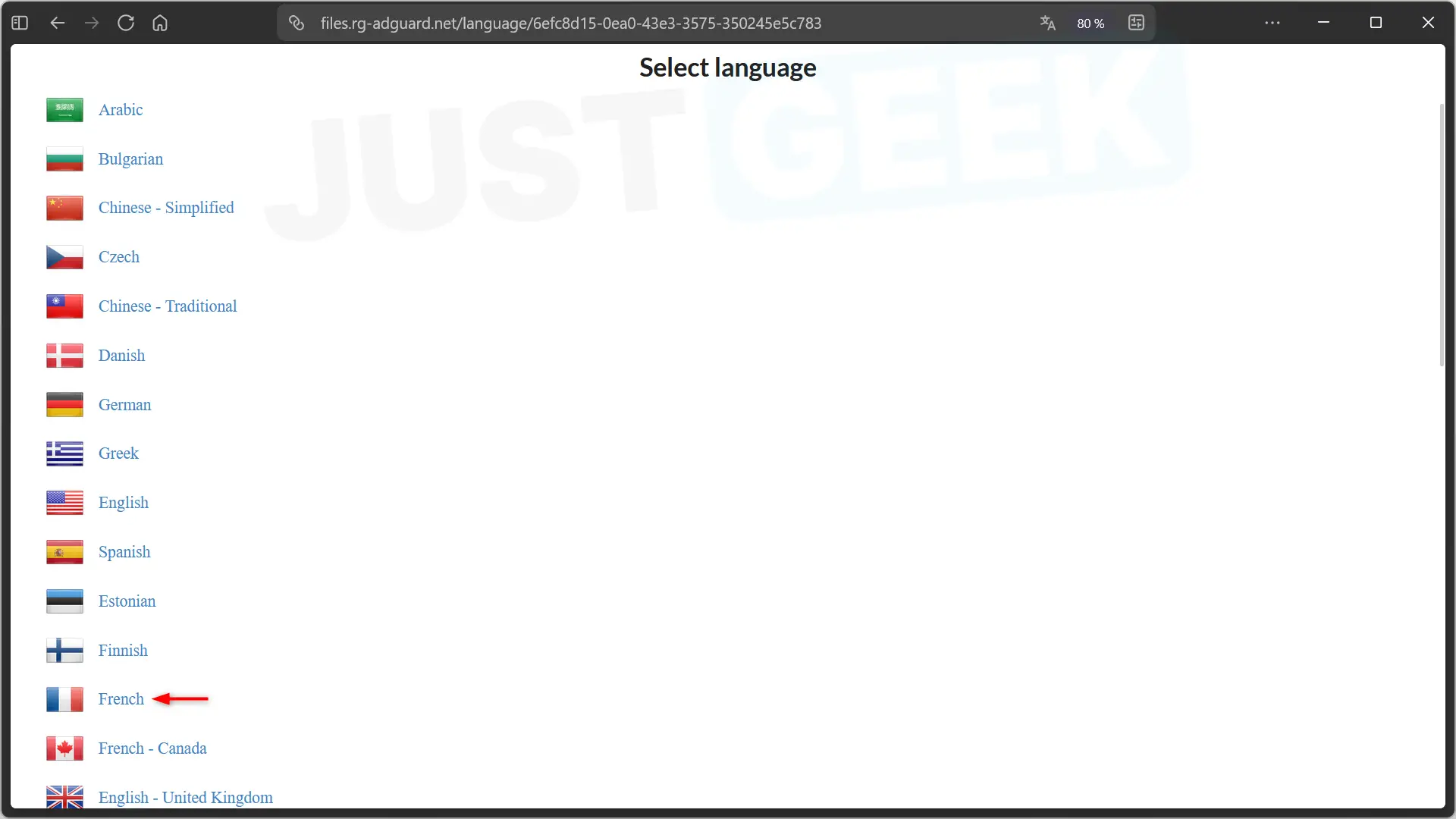
- Then choose the language “ English “.
- You arrive at a page containing several ISO files. Select the one that suits your needs.
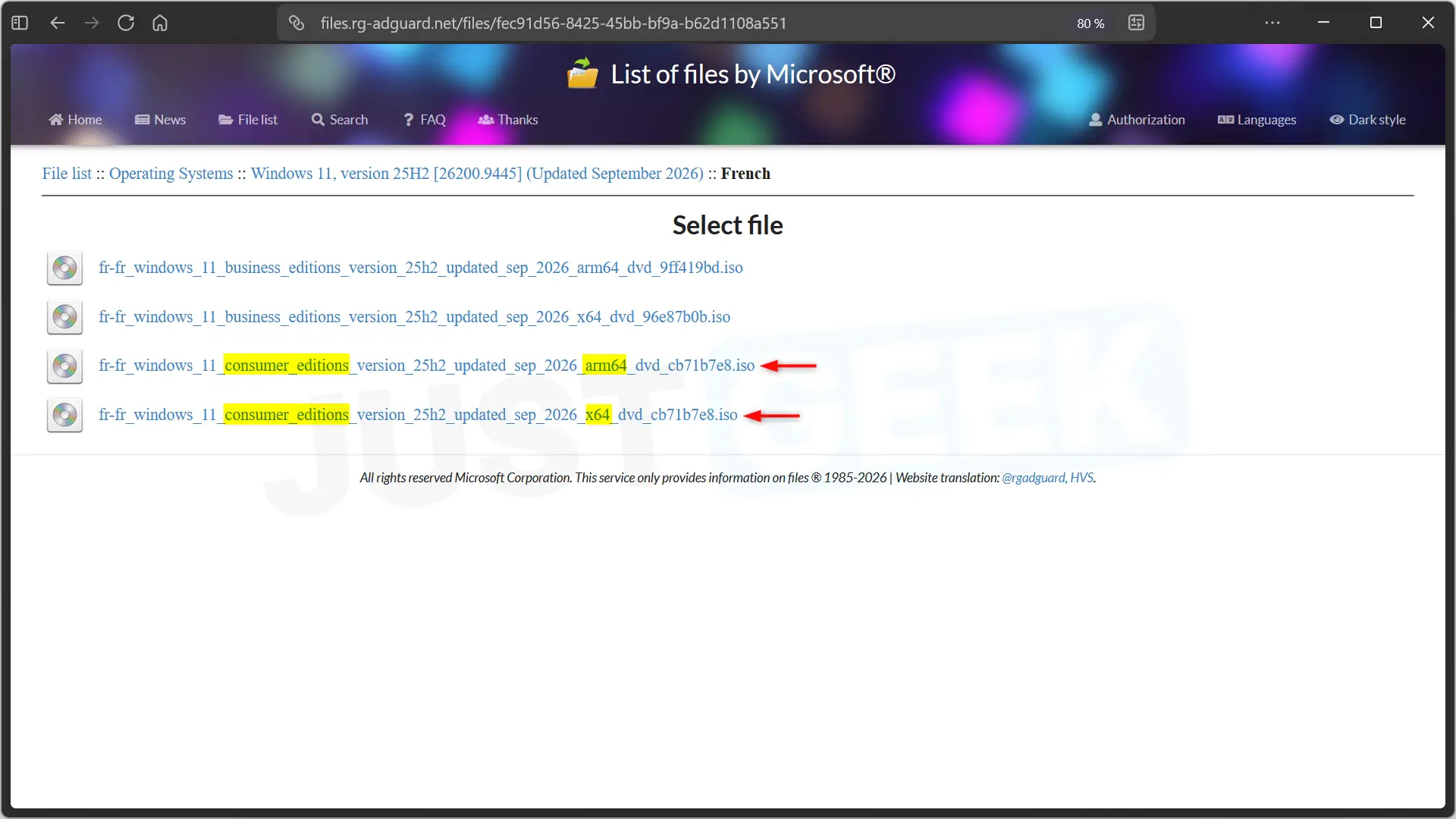
You will notice that some files are marked Consumer Editionswhile others show Commercial editions. The former include editions intended for the general public, in particular Windows 11 Home and Pro. The latter are intended for professional environments and include the Pro and Enterprise editions.
You also have to pay attention to the architecture. x64 corresponds to PCs equipped with a 64-bit Intel or AMD processor, while ARM64 refers to devices that use an ARM processor.
In my case, therefore, I select the file x64 Consumer Editions.
Download the ISO with the script
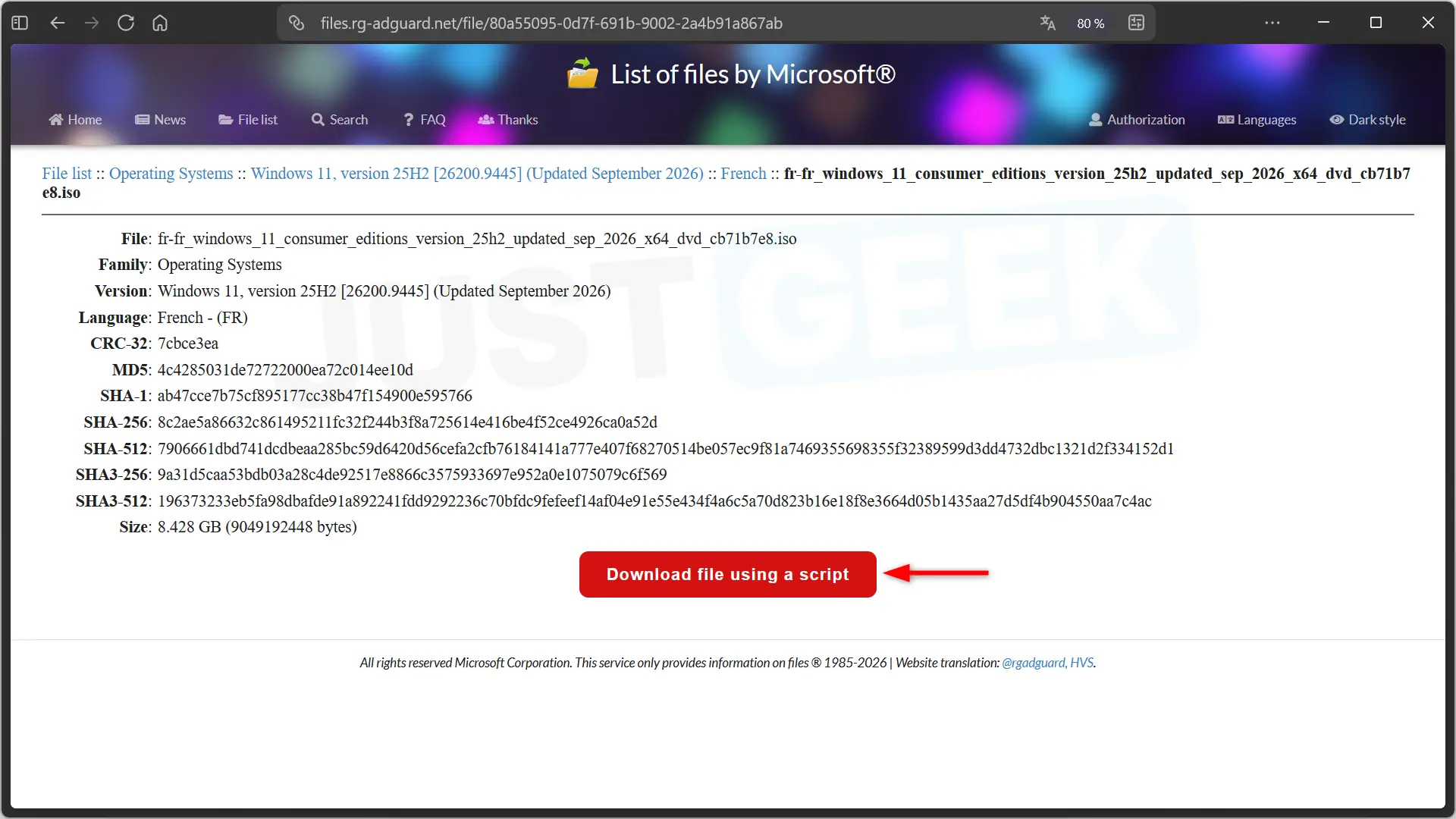
Once the file is selected, rg-adguard displays various information, including its name, size, and fingerprints (MD5, SHA-256, etc.).
To start the download, click on the red button “ Download file using a script “. The site then offers you a small file with the extension .cmd.
- Save this file to a folder of your choice. I advise you to create a dedicated folder to easily find the ISO once the download is complete.
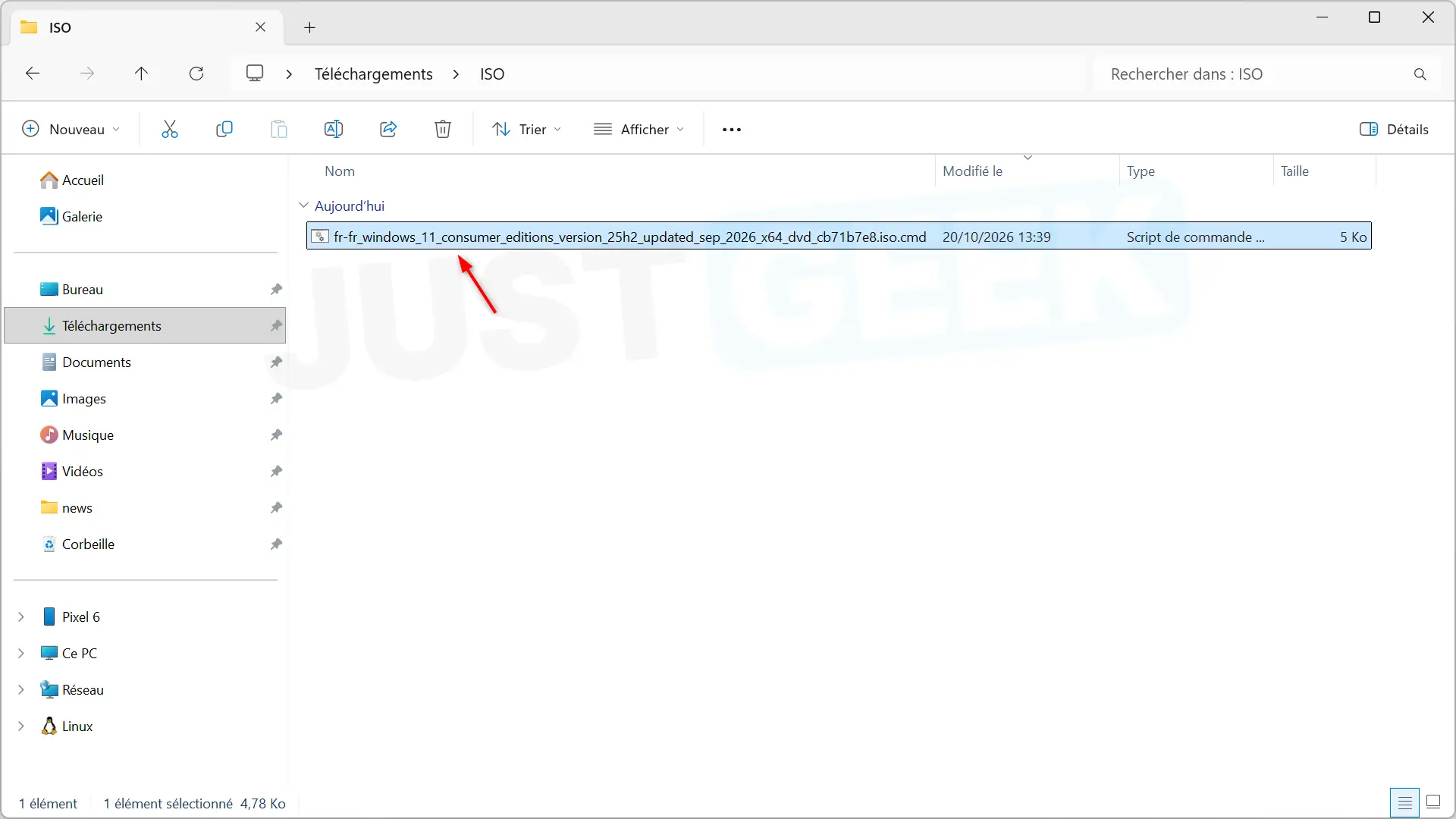
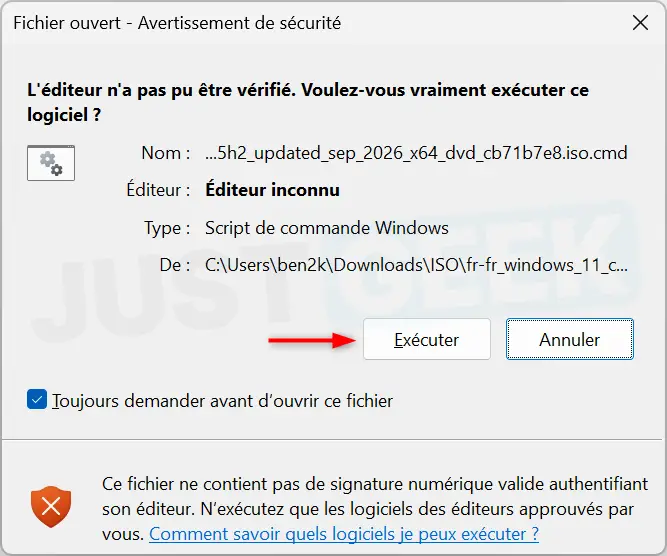
- Open this folder, then double click the file
.cmd. Because this is an unsigned script, Windows may display a security warning. After verifying the content of the script, click ” Execute » to continue.
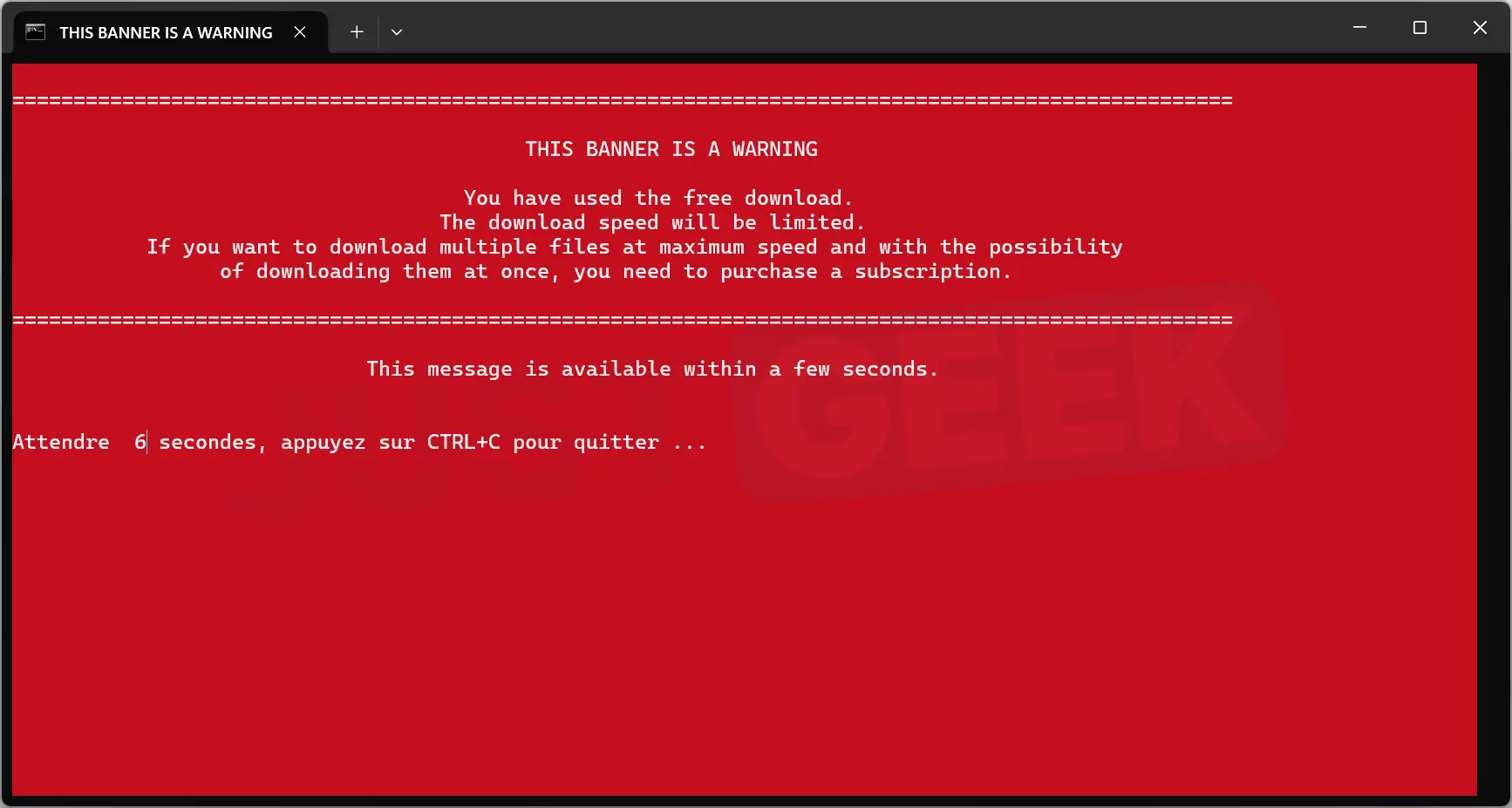
- A terminal window opens with a message on a red background. This informs you that the free version of rg-adguard limits the download speed. Wait a few seconds.
- The script then asks you which files you want to recover. In my example, it offers the French ISO and its English version. Press F to download only the requested file, then validate with Entrance. the touch Yes allows you to download all offered files.
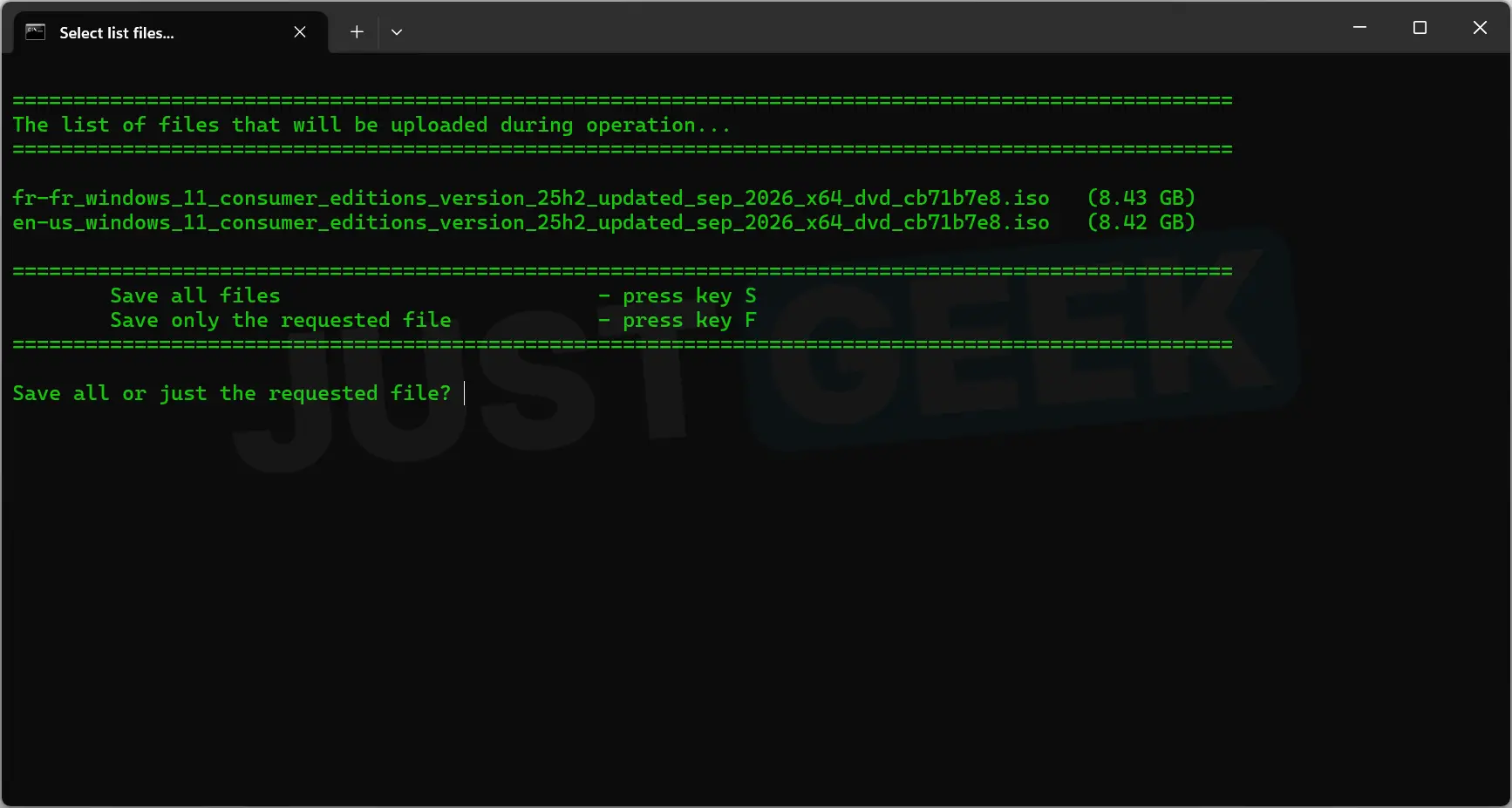
The download then starts automatically. You can track its progress directly in the terminal.
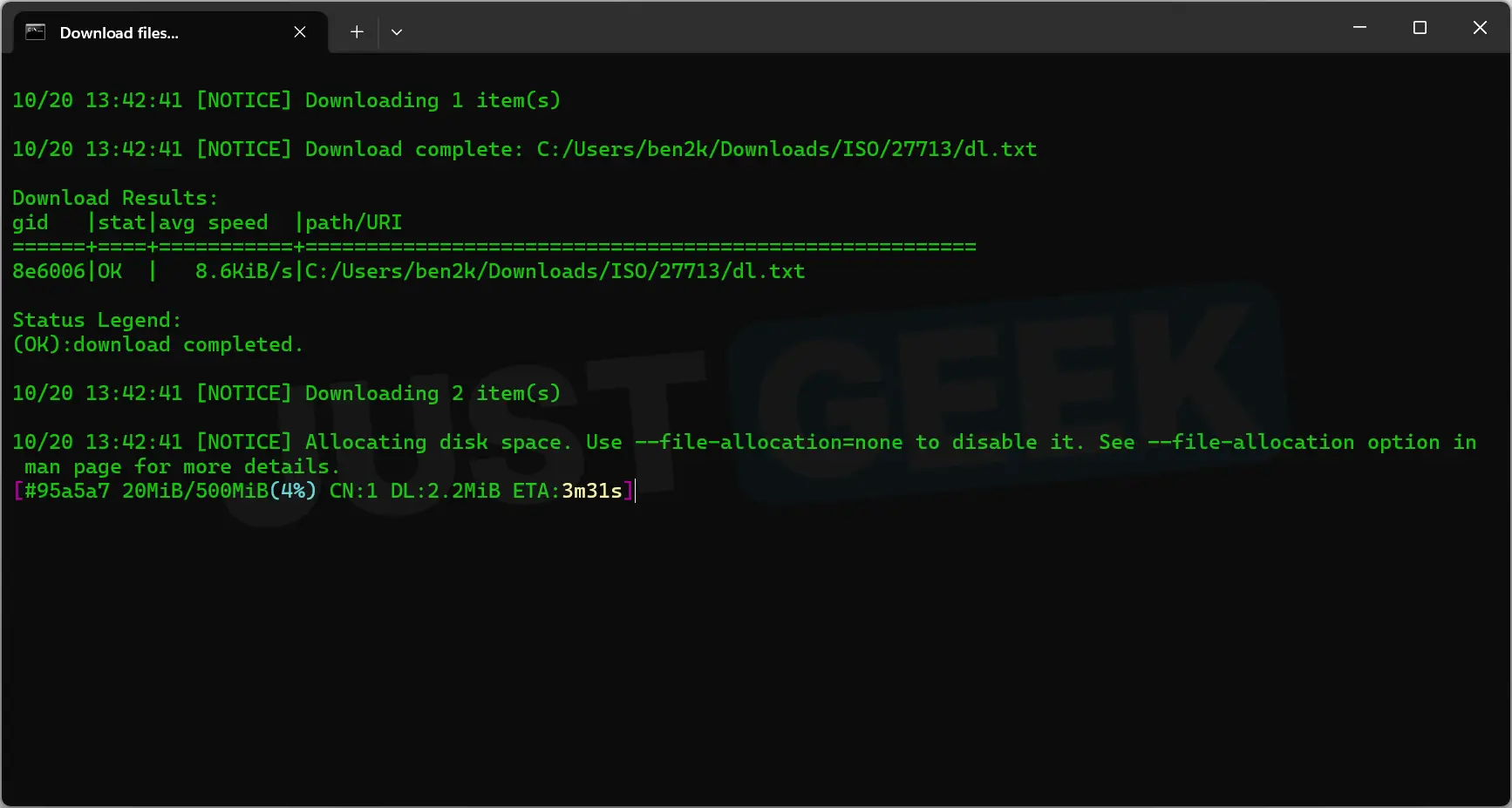
In my case the script downloaded two files, one of about 500 MB and another of 7.4 GiB. Once the files are recovered, verify their integrity and rebuild the ISO image.
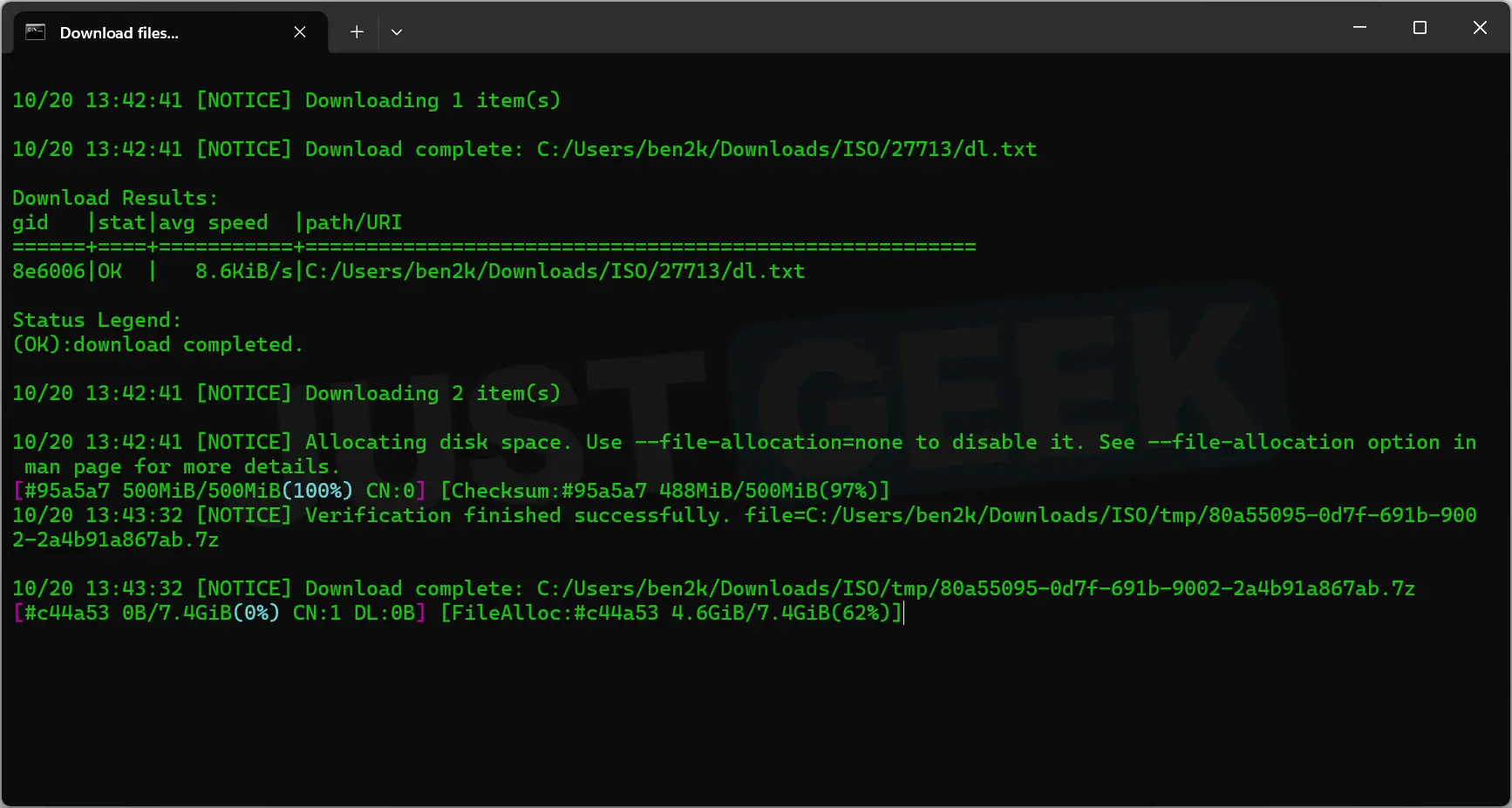
You don’t have to do anything else except wait until the operation is completed. The time required depends in particular on your Internet connection and the download speed authorized by the service.
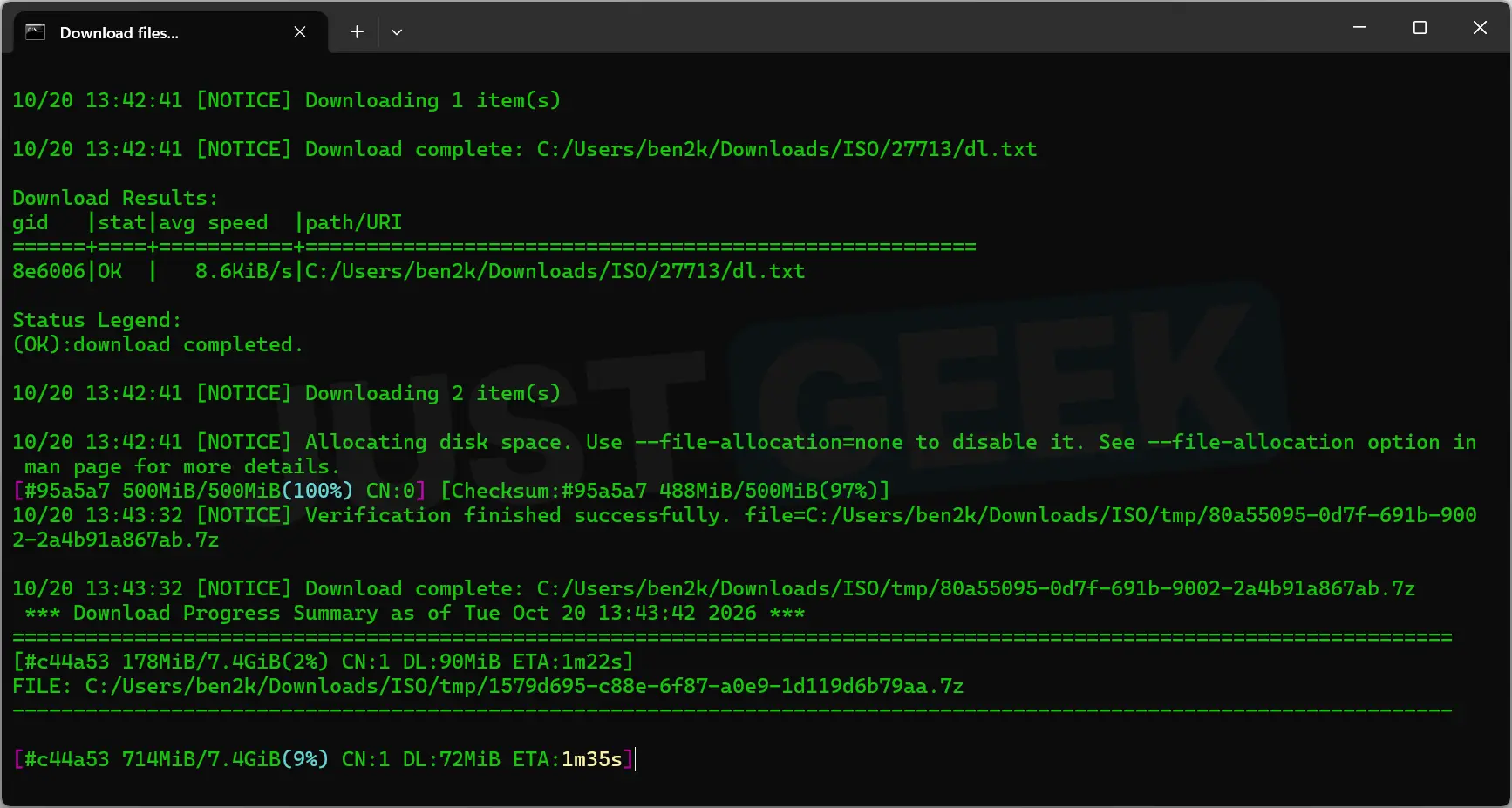
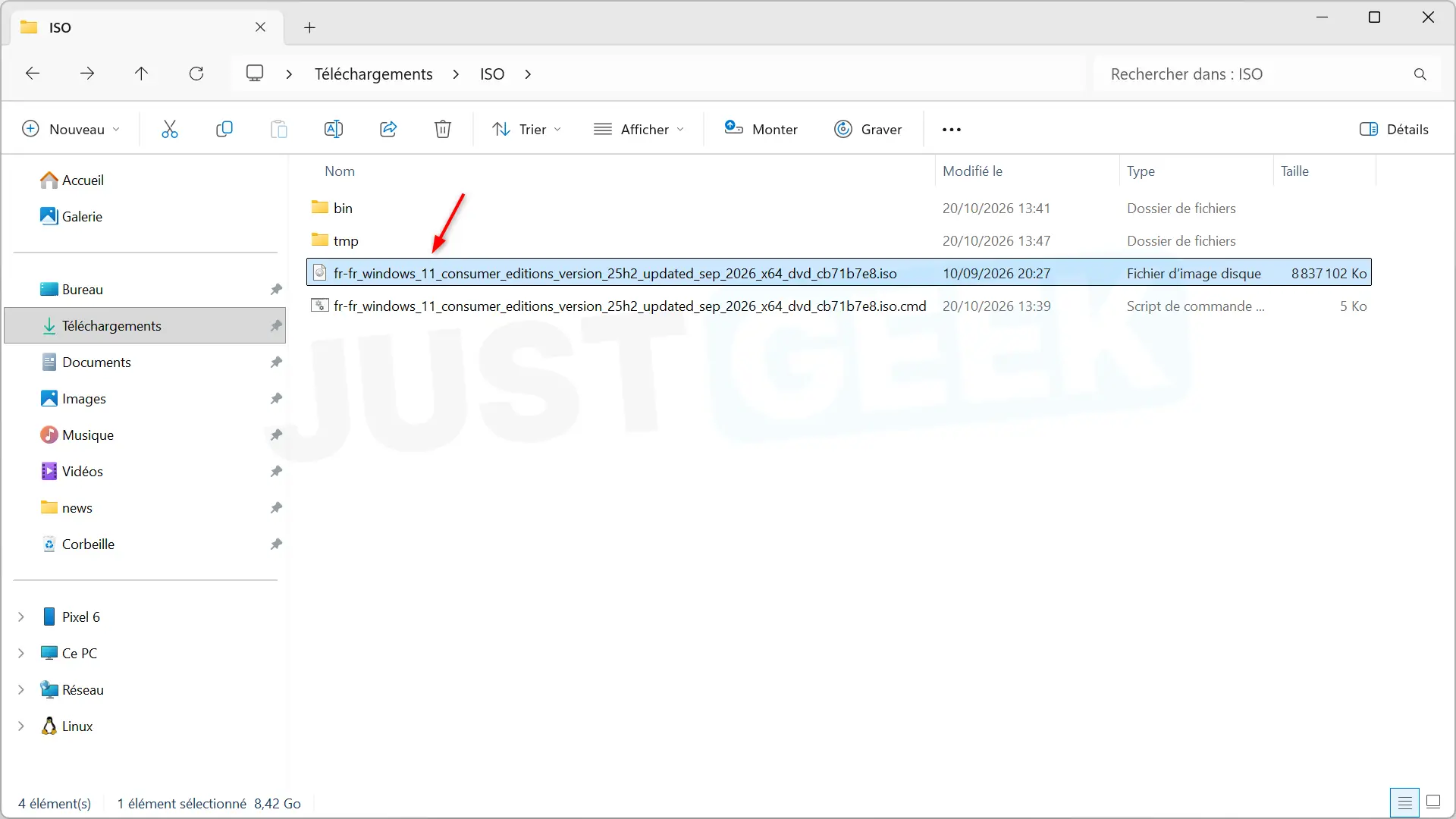
Once the operation is complete, you will find your ISO file in the folder where you saved the script. For my example, I got a French Windows 11 25H2 ISO image, about 8.42 GB.
Check the integrity of the ISO file
Before using your ISO image, you can verify that your SHA-256 fingerprint matches the one shown in rg-adguard.
To do this, open the folder containing your ISO, then launch a PowerShell terminal there. Then enter the following command replacing the file name with that of your ISO.
Get-FileHash -Algorithm SHA256 ".\nom-du-fichier.iso"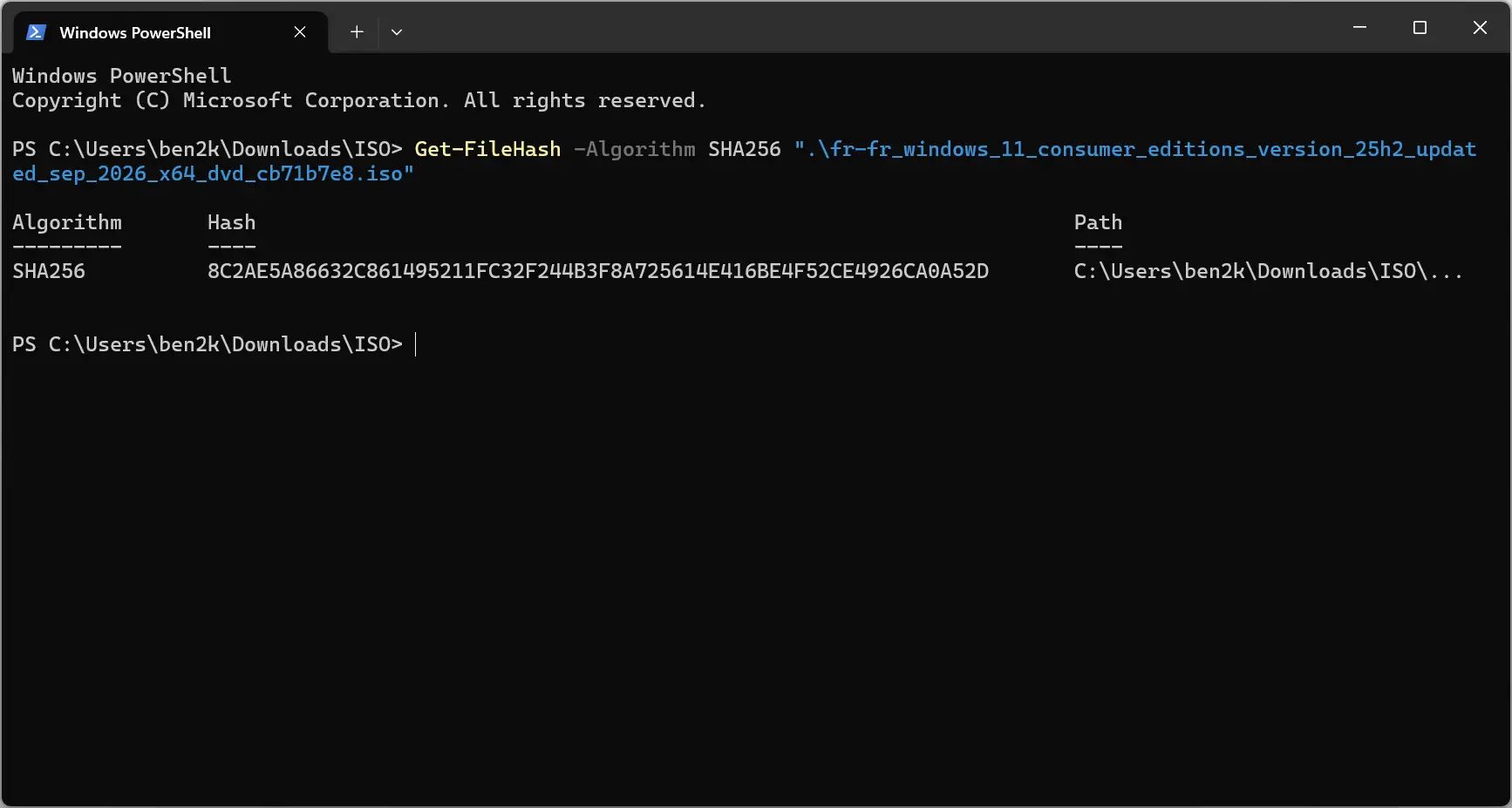
PowerShell then displays a long sequence of characters. Compare it to the value. SHA-256 present in the file sheet in rg-adguard.
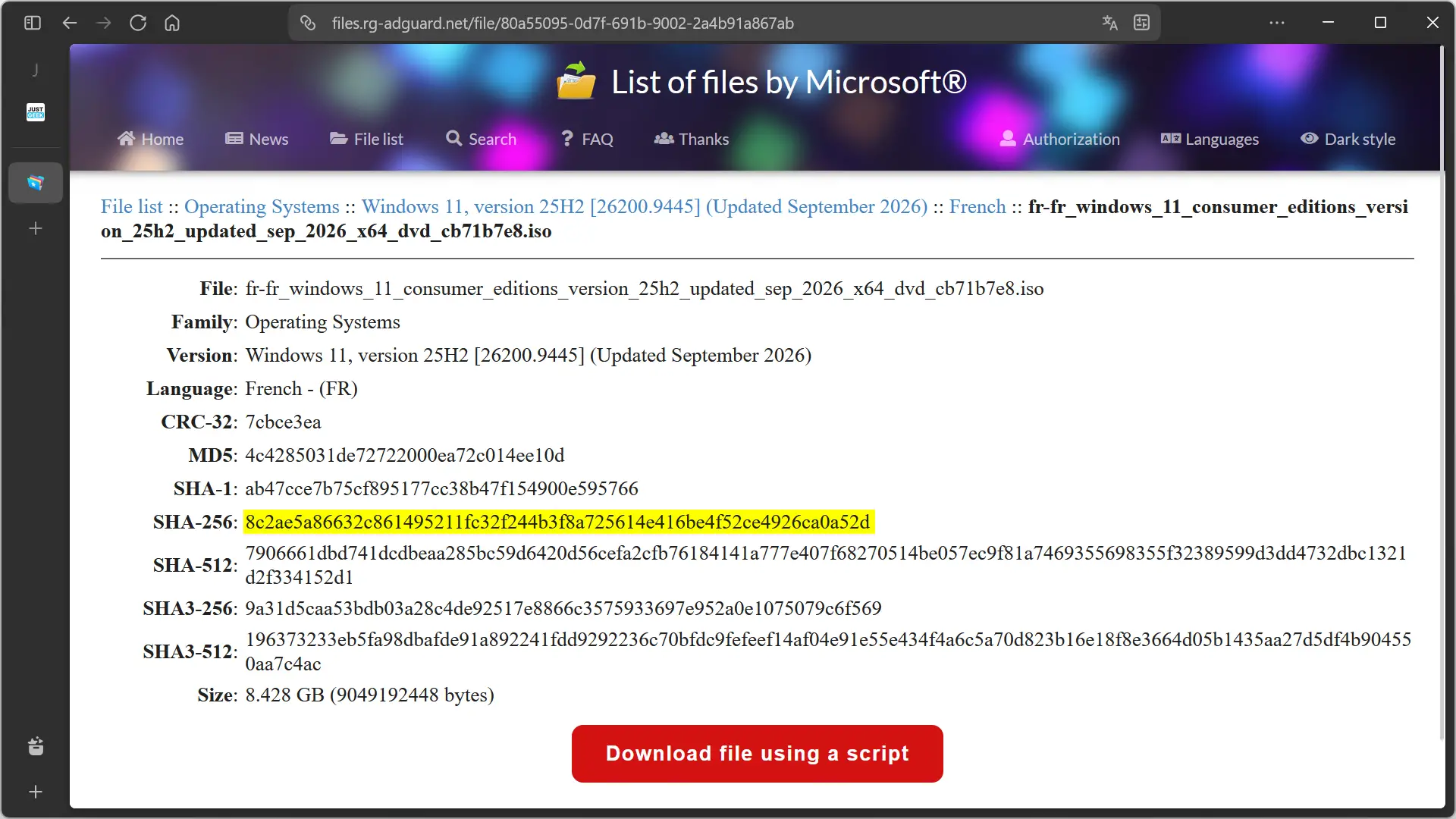
If the two fingerprints are identical, this means that your ISO corresponds to the file referenced on the site.
You can now use your ISO image to create a bootable Windows installation USB, perform an installation, or initiate a system repair.