To watch YouTube videos without ads, while limiting Google’s tracking of your activity, you probably already know FreeTube. We introduced it several years ago and, personally, I already thought it was very good. The only small criticism I can make is that it has been kept somewhat in its original state, especially in terms of its interface.
And I recently came across OpenTubeX, a free and open source alternative based on FreeTube, which takes much of its functionality, while adding some pretty interesting new features.
OpenTubeX, a FreeTube fork with some differences
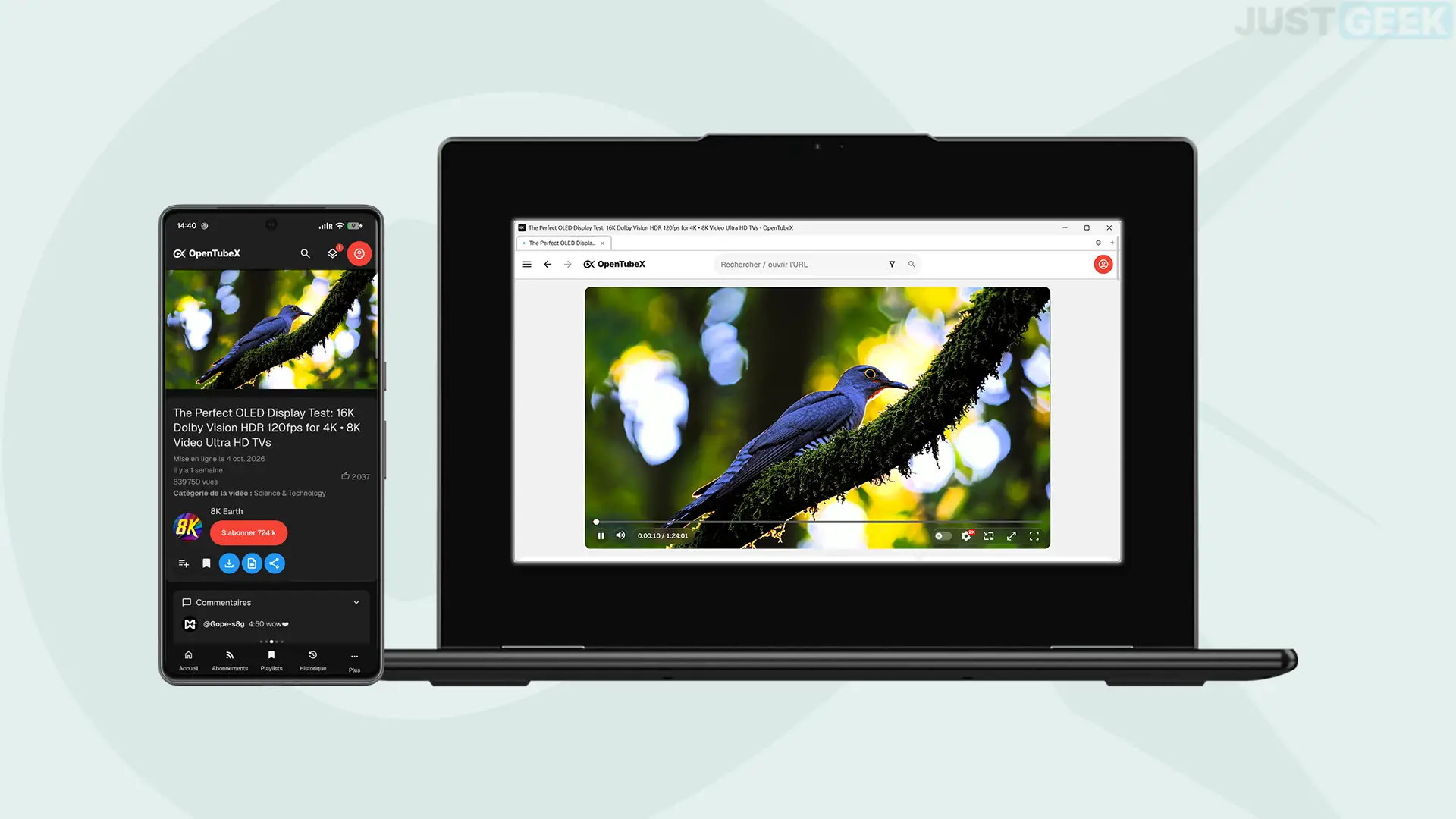
OpenTubeX It is a fork of FreeTube. That is, its developers took the software’s source code to create a version in their own style. The result, therefore, remains quite similar in its operation, but with a slightly different interface and several functions that do not exist in FreeTube.
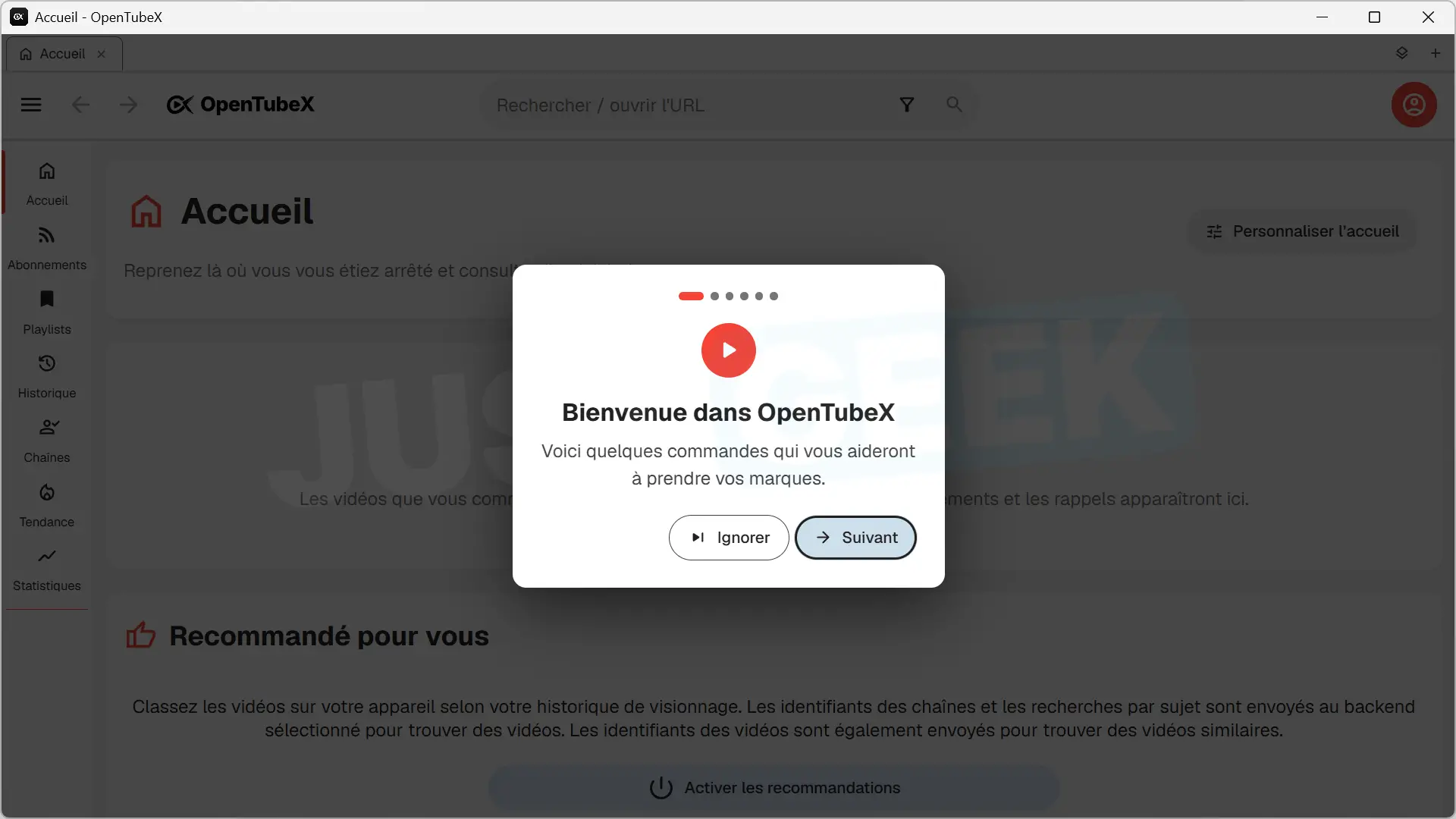
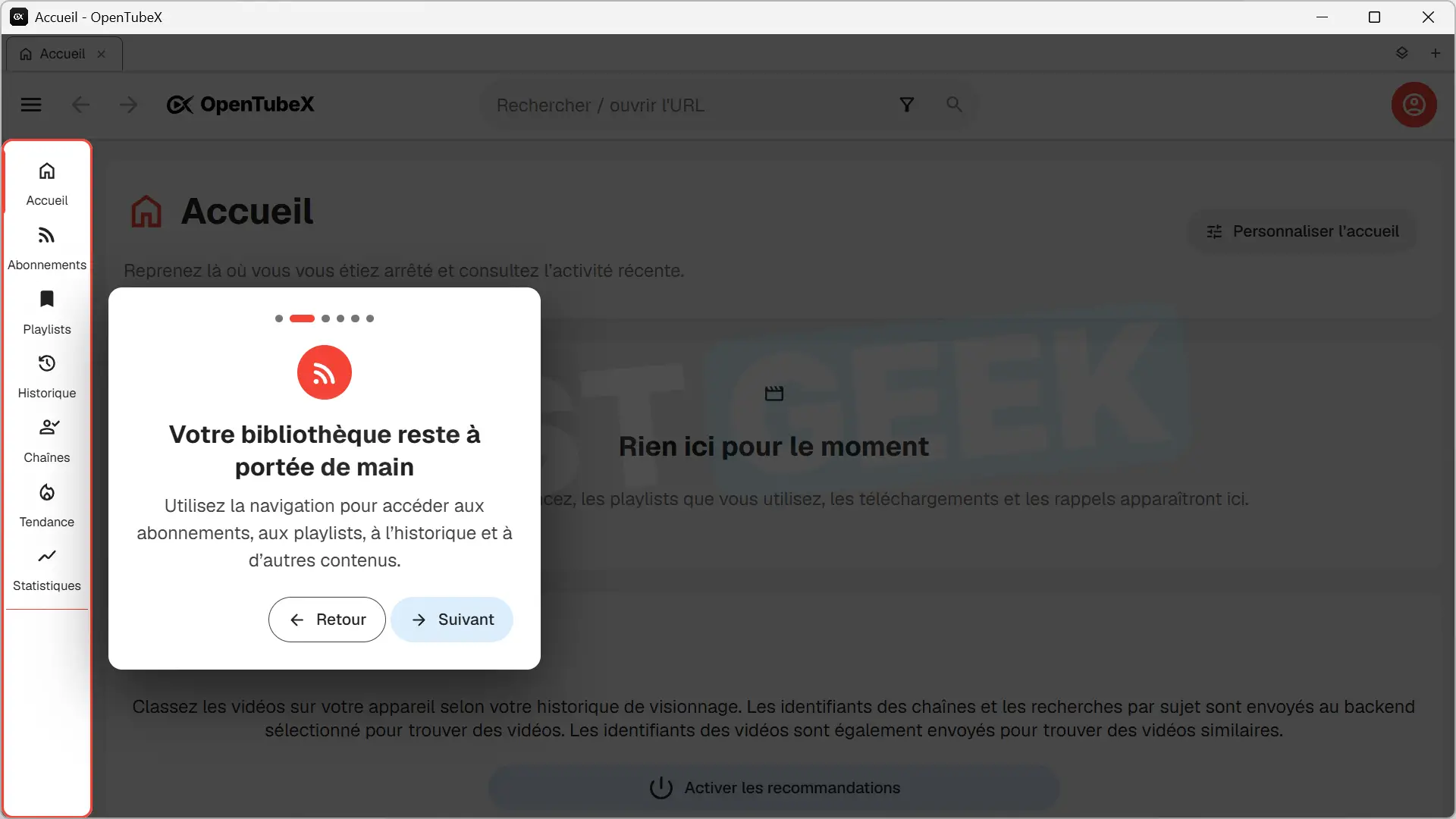
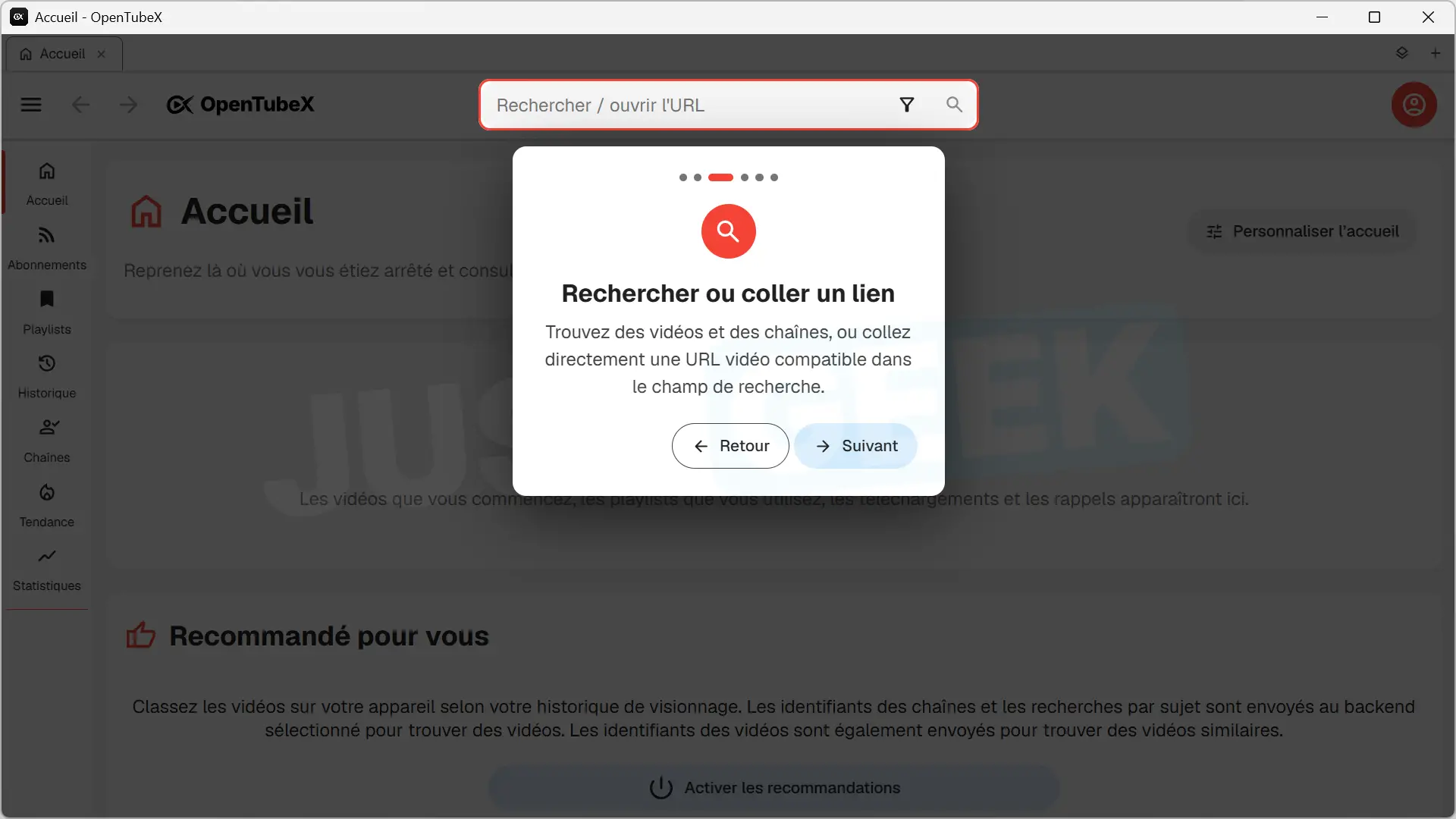
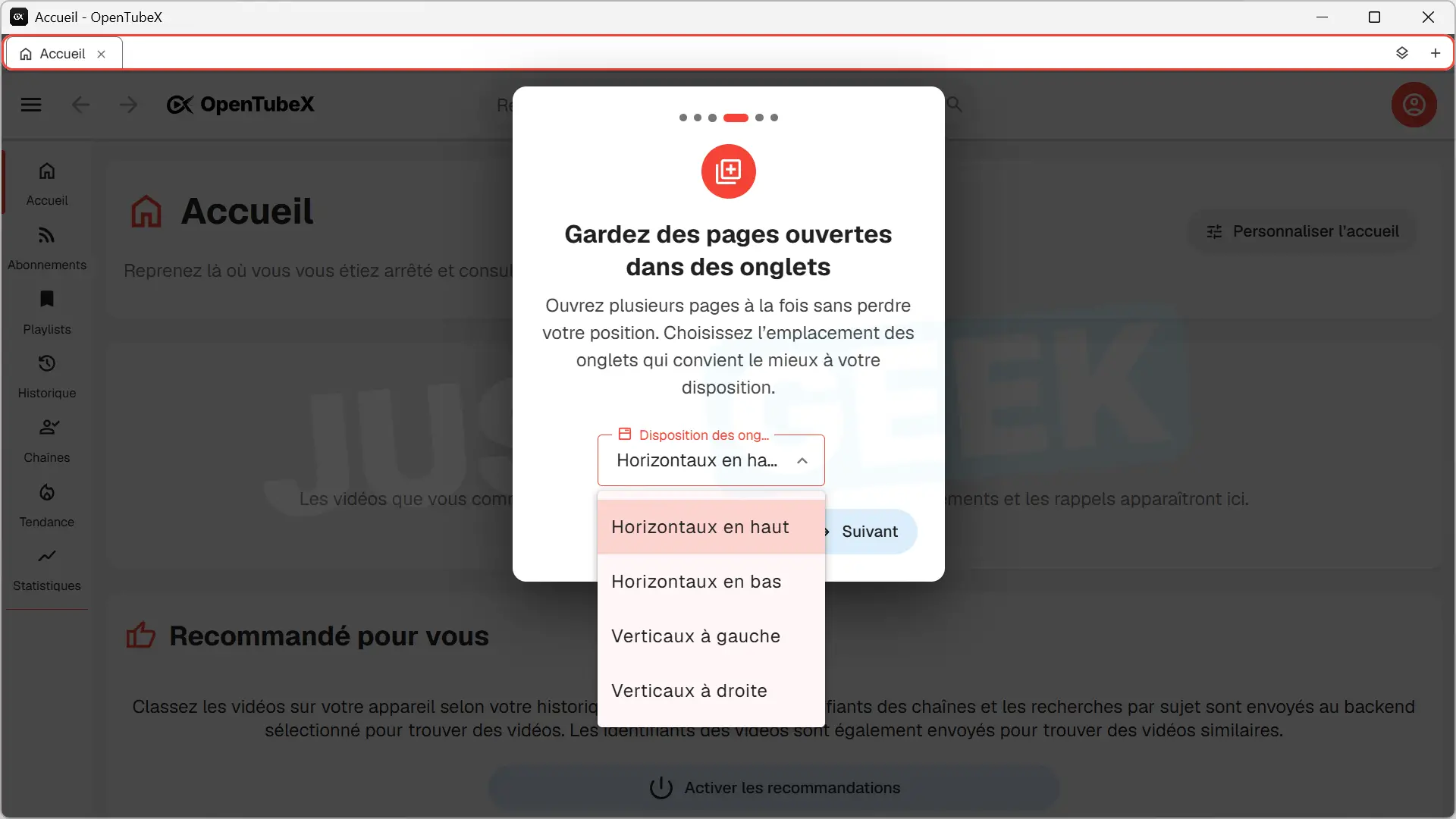
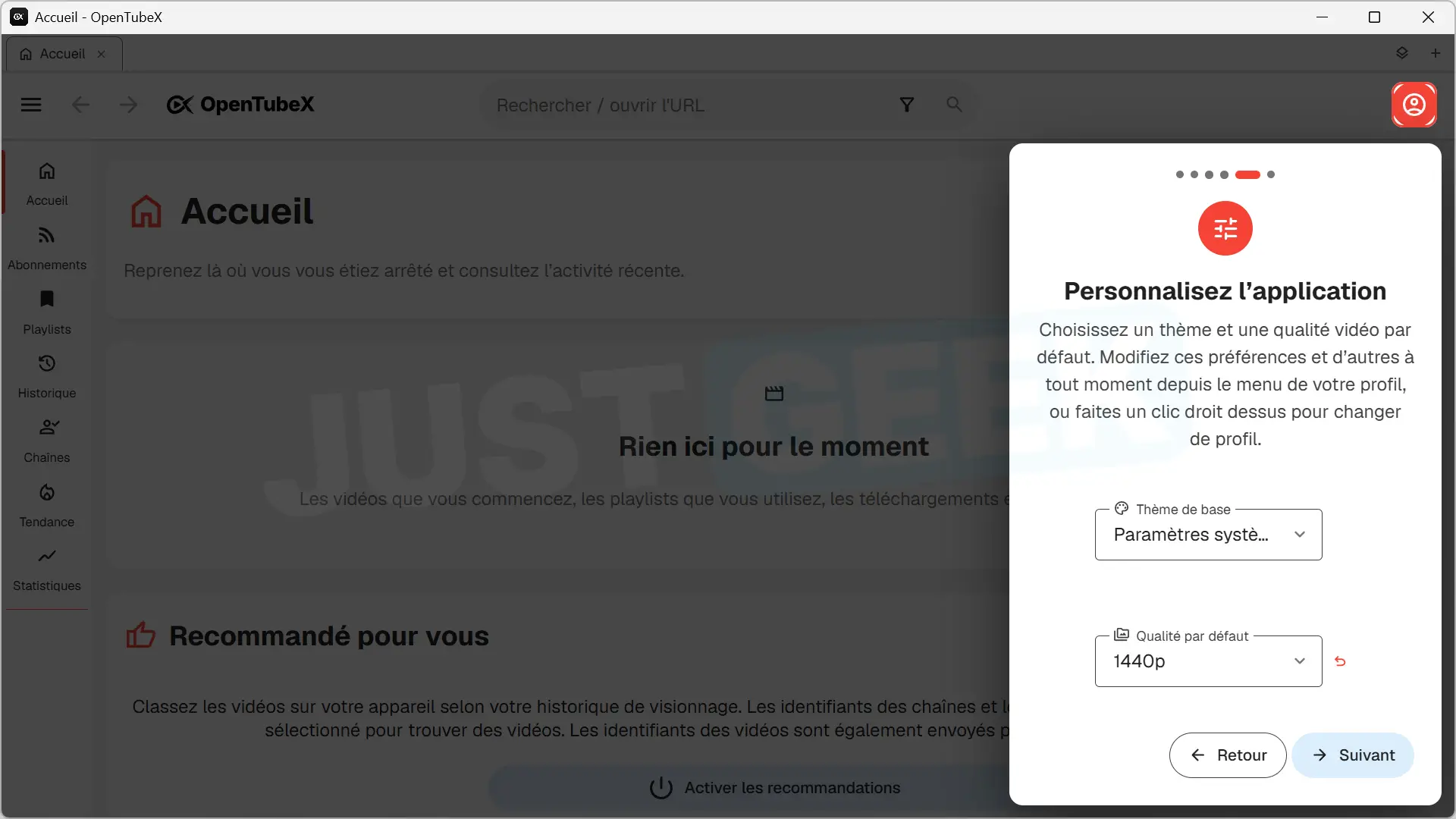
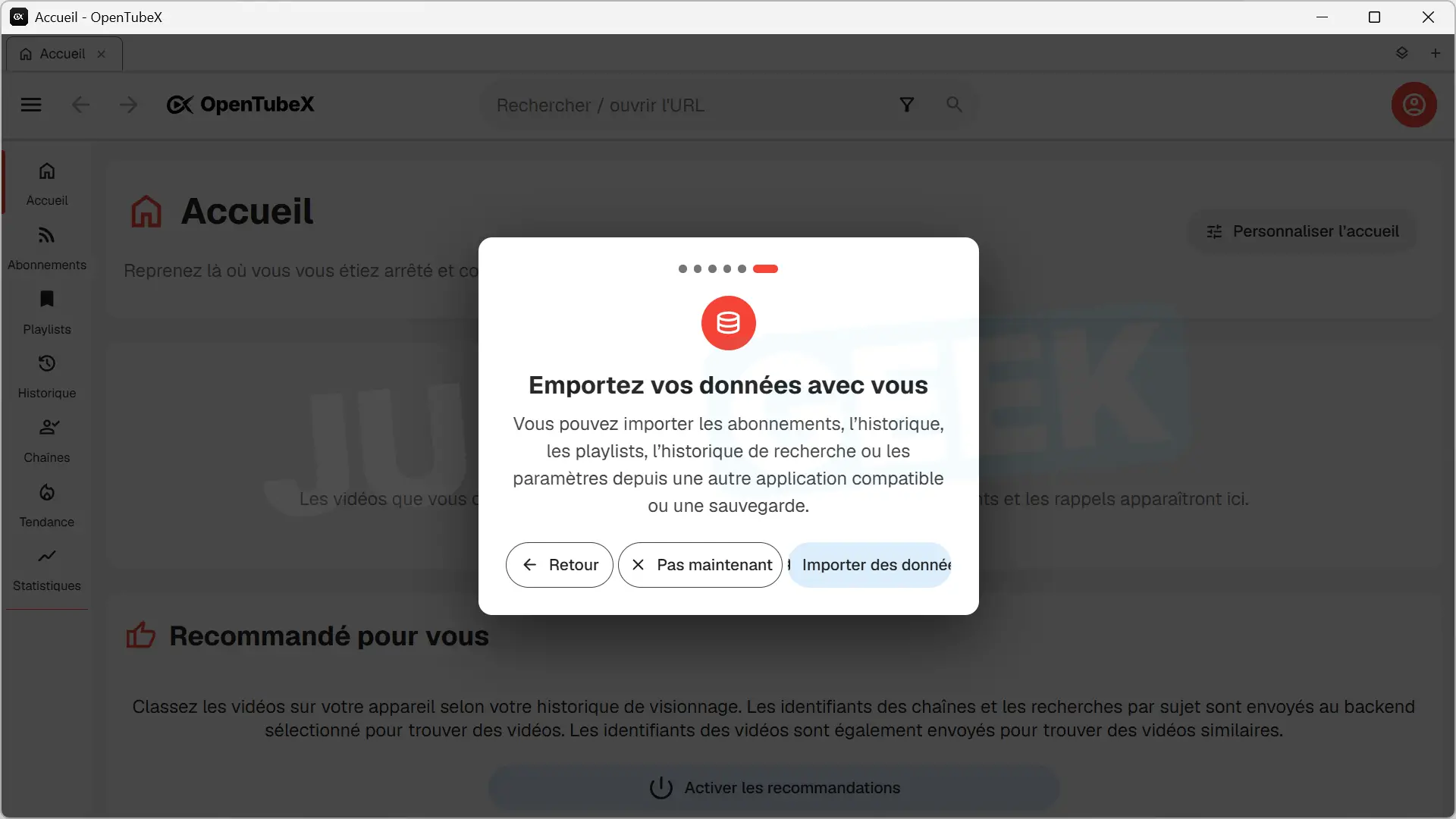
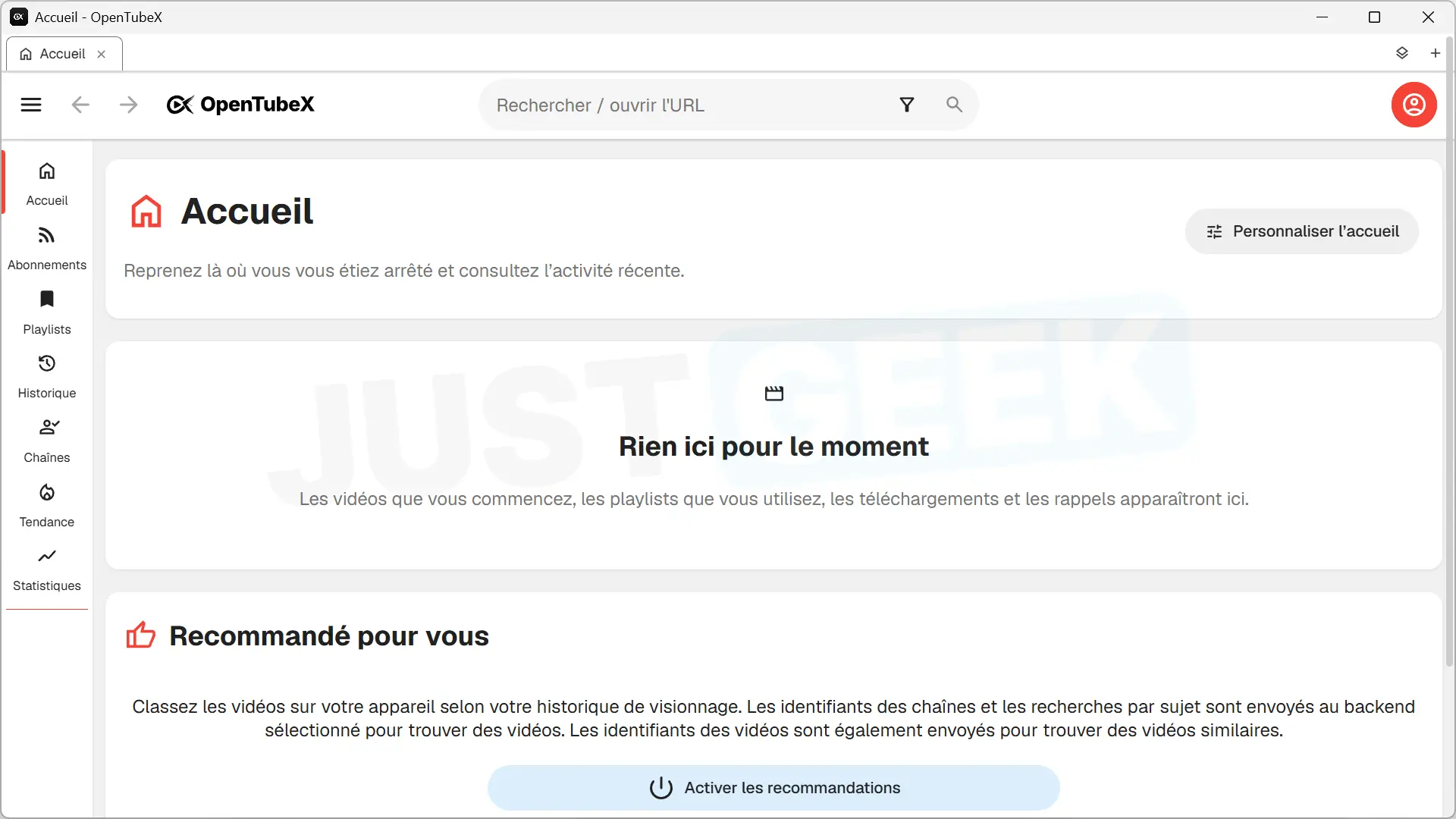
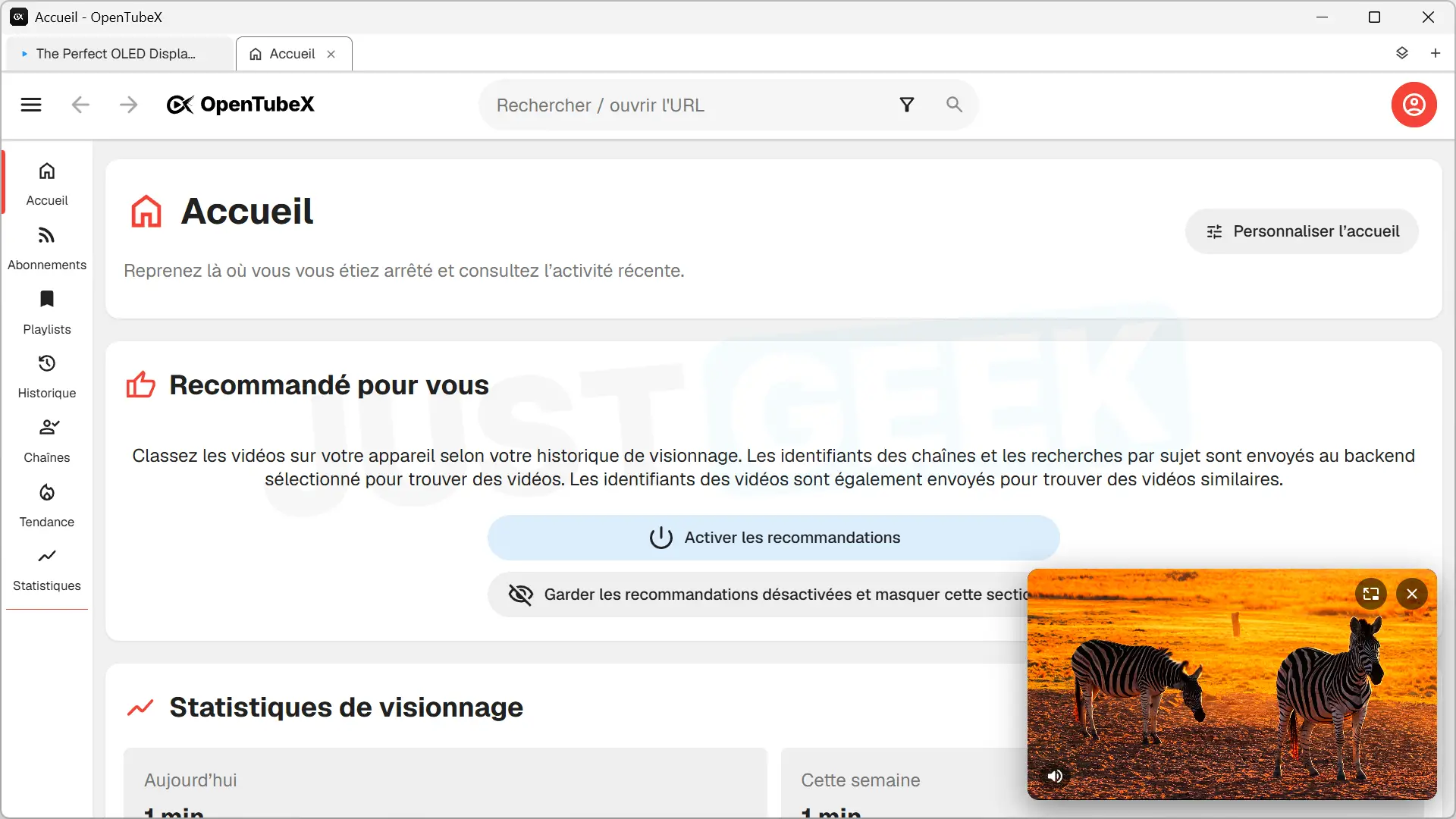
For my part, I tried the Windows version. At launch, OpenTubeX offers a small setup wizard to choose some preferences before getting to the main interface. This is a bit reminiscent of YouTube, with a menu on the left to find subscriptions, playlists, history or followed channels. The difference is that all this data can be managed without using a Google account.
Tabbed browsing and two picture-in-picture modes
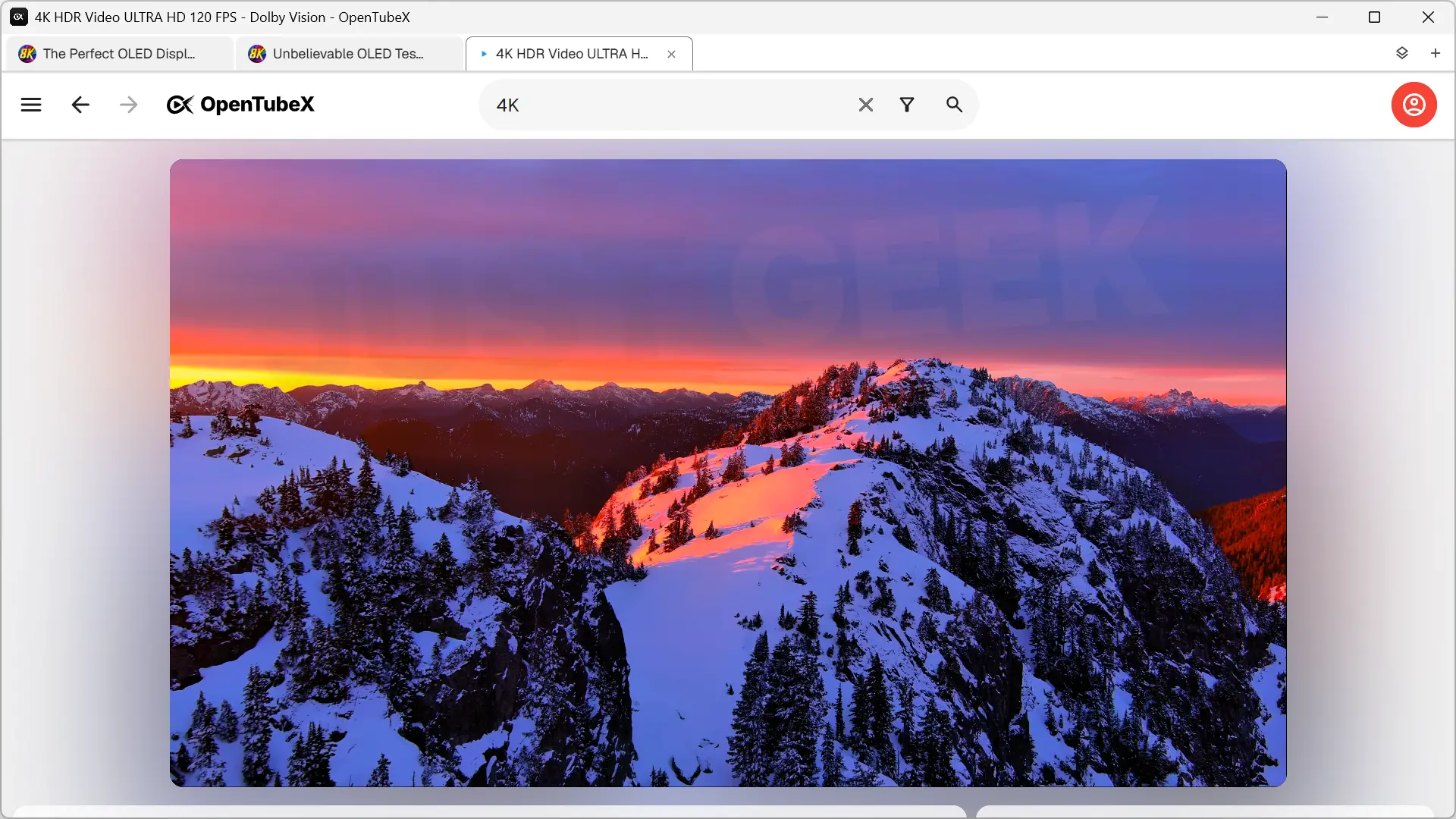
One of the first things you’ll notice about OpenTubeX is its tab system. Just like in a web browser, you can keep multiple videos or channels open in separate tabs while you browse. You will be able to go from one to another without losing the pages you had open. And that’s great.
OpenTubeX also offers two picture-in-picture modes. The first, which is already on FreeTube, allows you to display a video in a small window independent of the application. The second works directly in OpenTubeX. The video then remains visible in a corner of the interface while you watch something else in the app.
A video player with many options
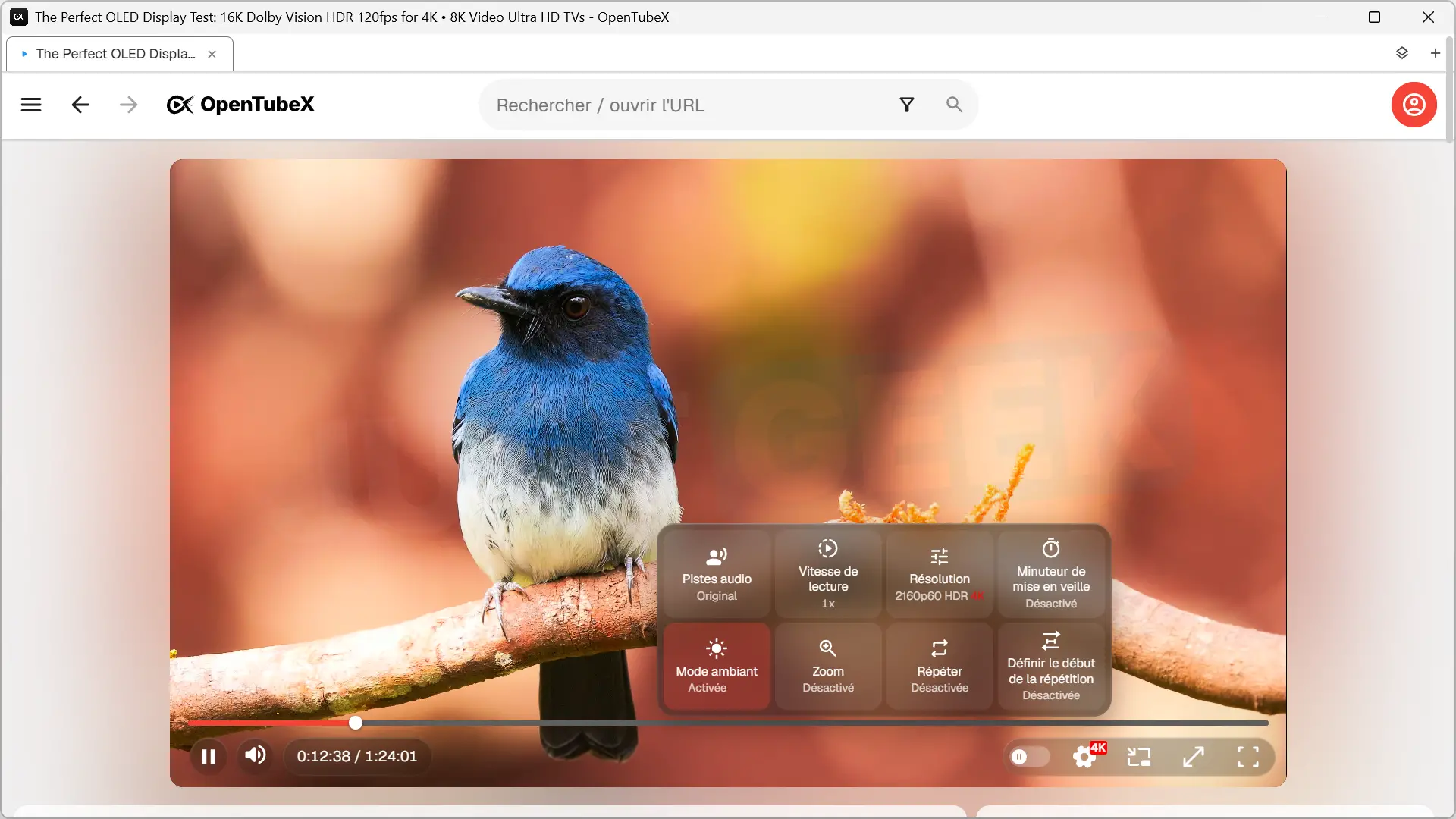
OpenTubeX has several settings for playing videos. You can choose the image quality, change the playback speed or activate subtitles when available. So far, nothing new.
But digging a little deeper into the player options also reveals some interesting features. For example, there’s an ambient mode that diffuses the colors of the video around the player, a bit like Philips Ambilight technology. You can also zoom in, repeat a specific passage in a loop using the AB function, or schedule playback to stop with a sleep timer.
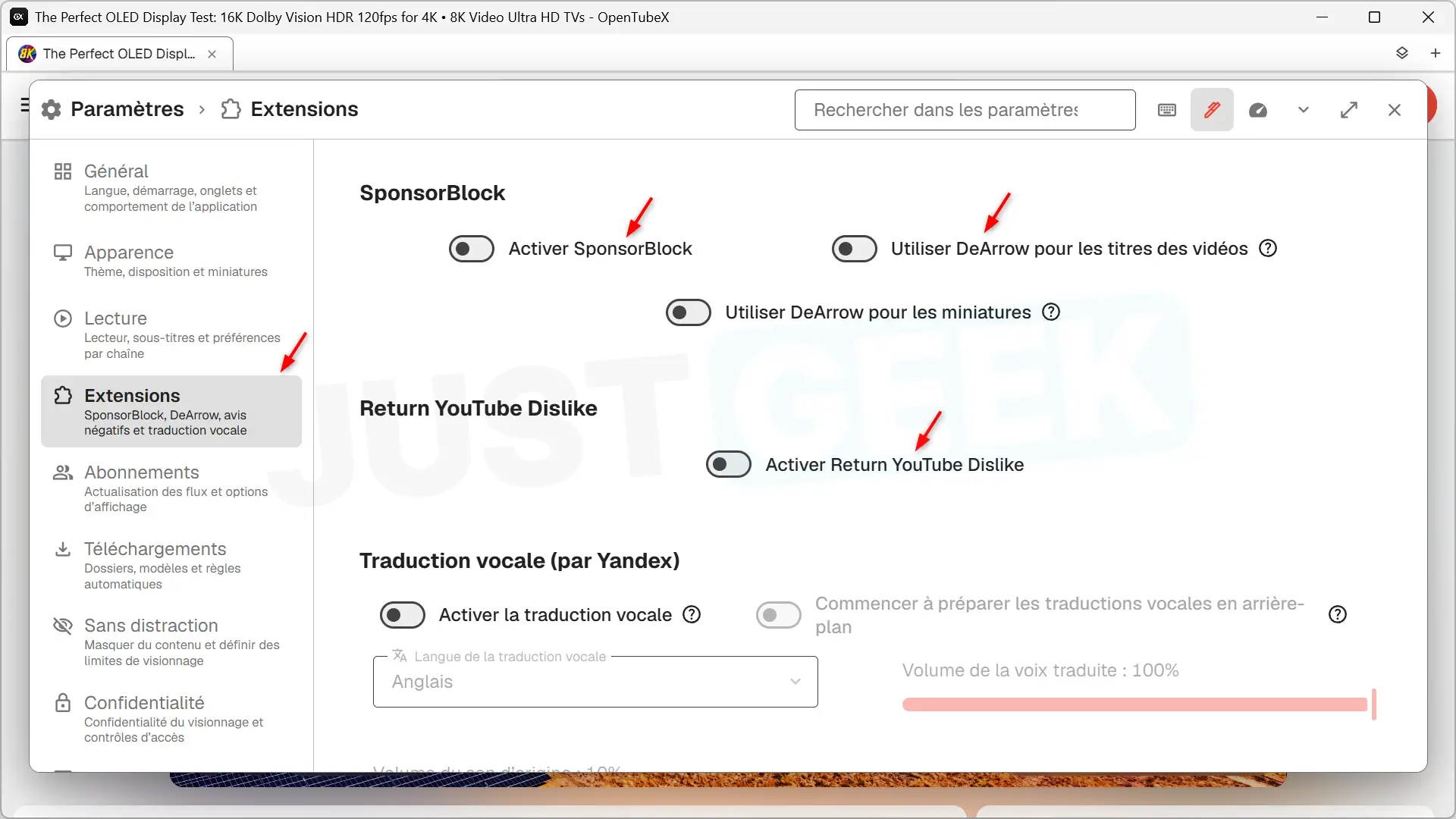
OpenTubeX also integrates SponsorBlock to automatically skip sponsored passages of videos, but also introductions or reminders to subscribe to a channel. Also offers Return I don’t like it on YouTube to find an estimate of the number of red thumbs, as well as DeArrow to replace overly catchy titles and thumbnails of certain videos.
OpenTubeX can be customized down to the smallest detail
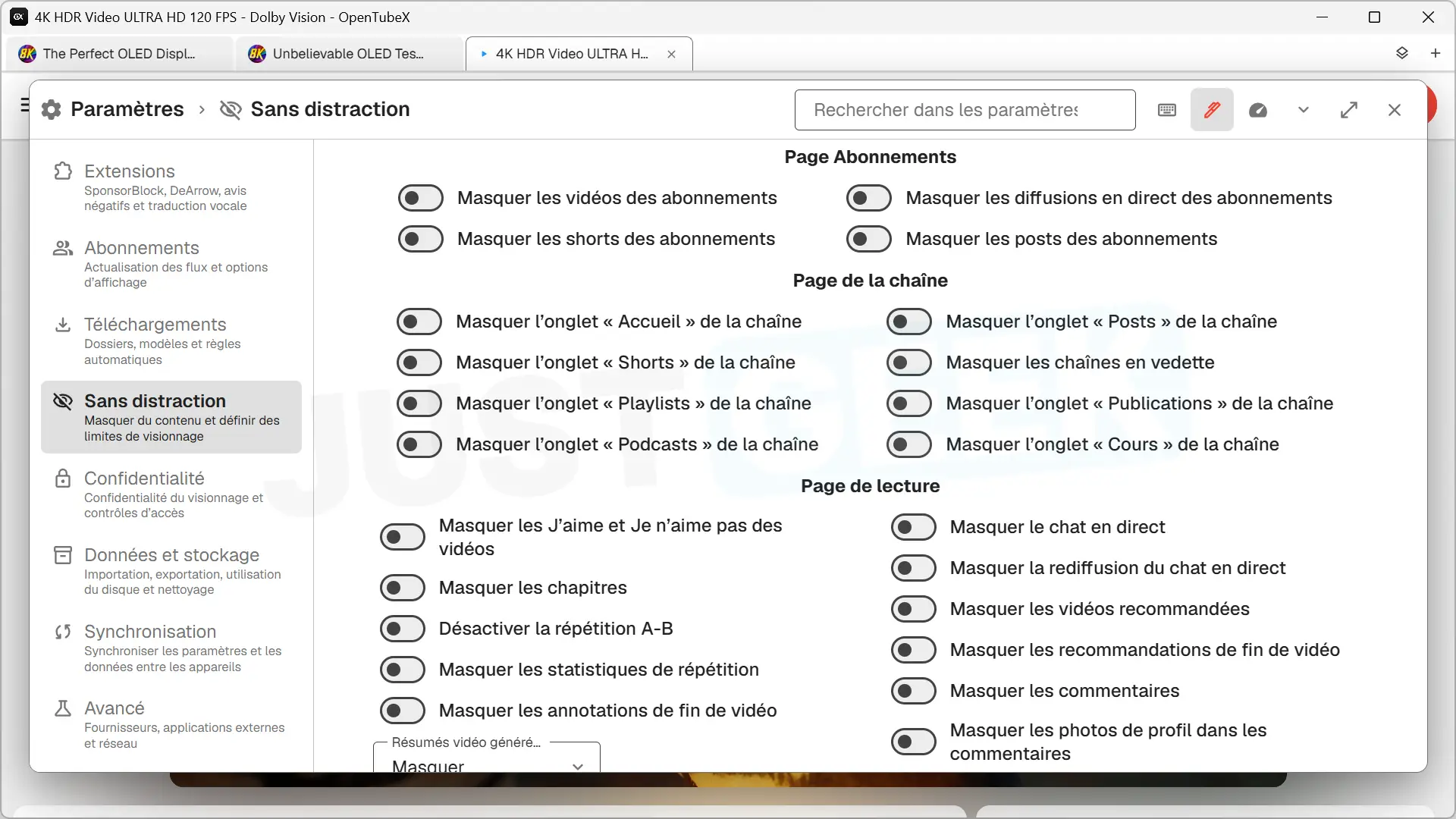
Taking a look at the OpenTubeX settings, you’ll notice that there are quite a few things to customize. For example, if you are tired of shorts, you can simply hide them. This is also possible for comments, recommendations or videos from certain channels. You can also filter videos that contain certain words in their title.
The software also allows you to hide the number of views, likes, or even the number of subscribers of the channel. For parents, some options are offered, particularly to show only family content.
I also found the ability to import data from FreeTube or other compatible apps handy. You can recover your subscriptions, playlists and history. On the contrary, OpenTubeX allows you to export this information to keep a backup copy or transfer it to another computer.
And if you use OpenTubeX on multiple devices, know that a synchronization function is provided to find your subscriptions, your playlists and certain settings.
Download videos to watch offline
This is a feature that is normally reserved for YouTube Premium subscribers on the official platform, but is free on OpenTubeX. In fact, you can download videos to watch offline. To do this, simply open a video and click the download button.
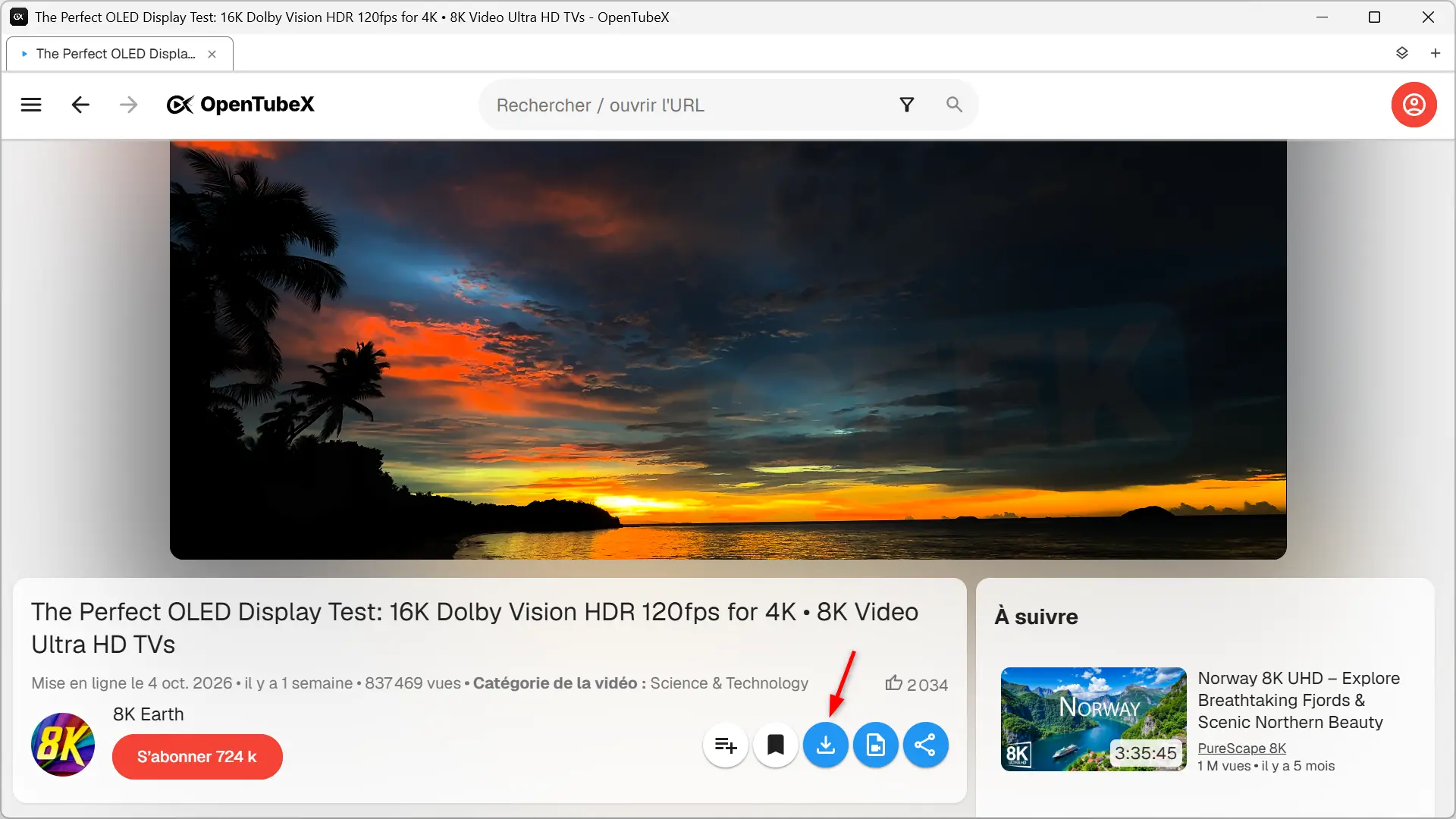
Then a window opens with several options. You can select the download folder, customize the file name, choose the video quality, file format (MP4, MKV or WebM), and even download just a specific passage. If you’re only interested in the audio track, OpenTubeX offers several formats, including MP3, M4A, Opus, and FLAC.
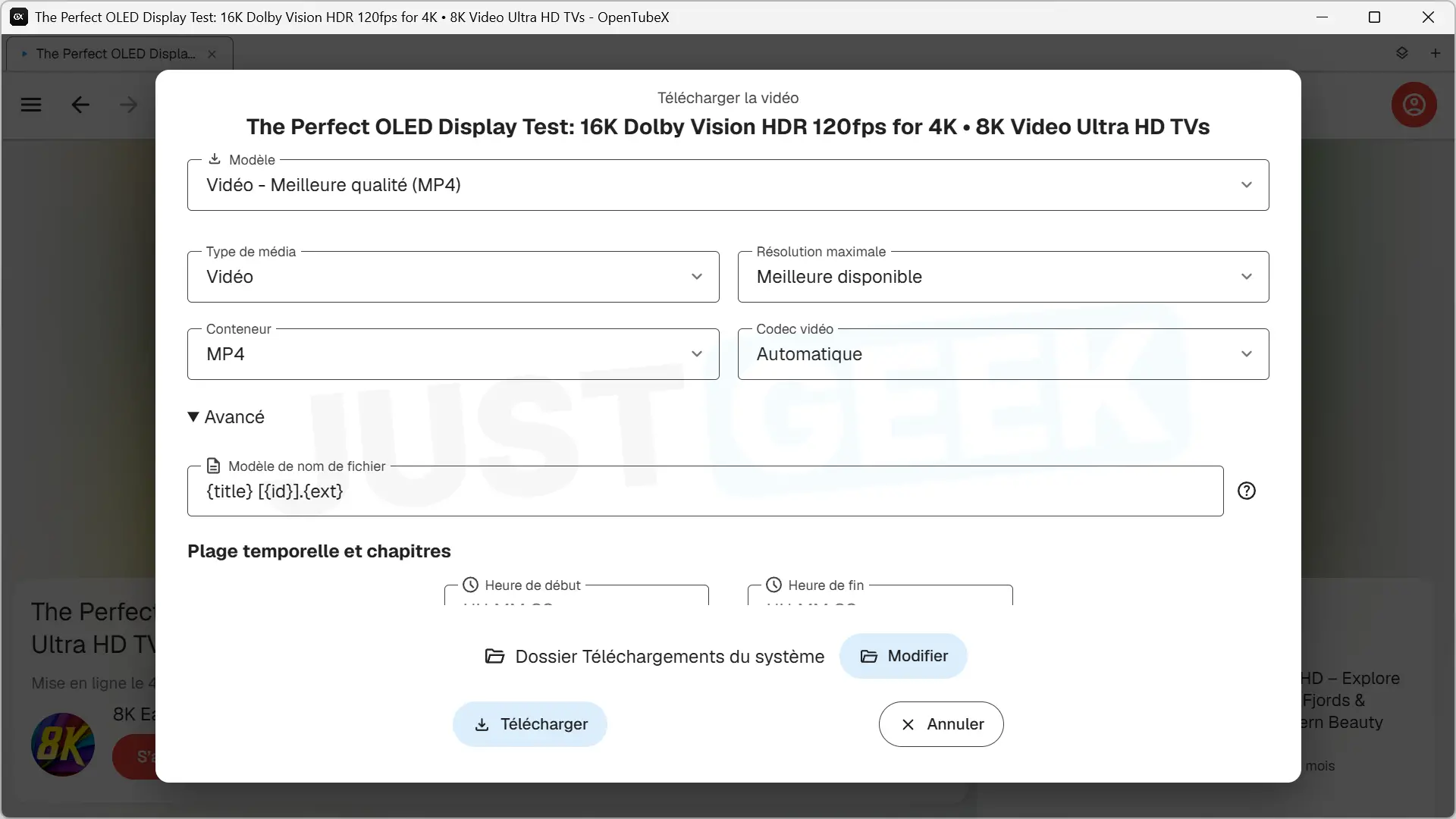
There are also advanced options available to split a video into multiple files based on its chapters, remove sponsored passages using SponsorBlock, or even integrate subtitles into the downloaded file. You can also add thumbnails, titles, descriptions, and other information to your files.
Where to download OpenTubeX and what systems does it work on?
OpenTubeX is free and open source software, available on Windows, macOS, Linux and Android. There is also an experimental version for iPhones and iPads with iOS 17.4 or newer, but installing it requires going through SideStore, an alternative app store to Apple’s App Store.
As I write this, OpenTubeX is available in beta. Therefore, it may still have some bugs, although during my testing on Windows I did not encounter any particular problems.
To download it, go to OpenTubeX official website or in your GitHub repository. There you will find the different versions offered, including an installer and a portable version for Windows.