Photoshop is one of the software programs that I have used almost daily for years to illustrate my articles. Obviously, when I came across PhotoSuite, a free image editor that makes great use of its interface and even promises excellent support for PSD files, I wanted to give it a try.
After a few hours dedicated to it, I must say that I was pleasantly surprised. PhotoSuite is obviously not as complete as Photoshop, but for such a young project it already offers quite a few possibilities, and that is precisely what made me want to present it to you.
PhotoSuite, a free and open source mini Photoshop
PhotoSuite is developed by eolix with the ambition of offering a free image editor that largely reproduces the operation of Photoshop, while remaining usable without a subscription or account to create.
The developer also does not hide that it was largely inspired by Photopea, another well-known image editor that works directly from a browser. PhotoSuite comes in the form of an application to install on your computer, available on Windows, macOS and Linux. Everything works locally, without cloud or telemetry.
The software is still very young and has not even reached version 1.0 at the time of this writing. It is also open source and its code is available on GitHub under the GPL-3.0 license. However, the developer specifies that an internal audit of the code is currently being carried out.
Under the hood, PhotoSuite is primarily based on Tauri v2, WebAssembly, WebGL, and Rust. But what interests us most here is what the software offers once launched. And if you already use Photoshop, you’ll quickly understand why I felt at ease from the first minutes.
An interface that should not disorient those familiar with Photoshop
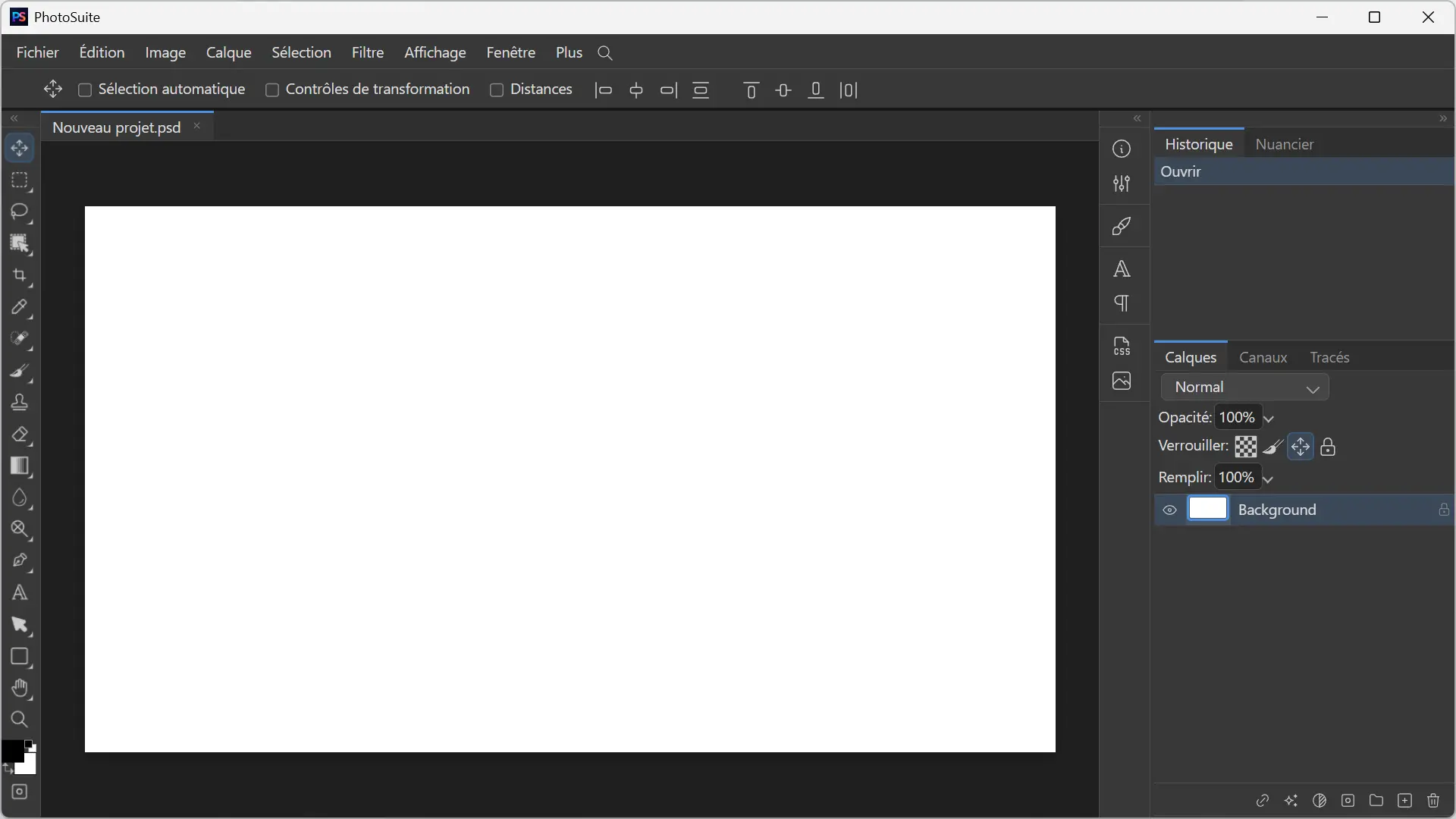
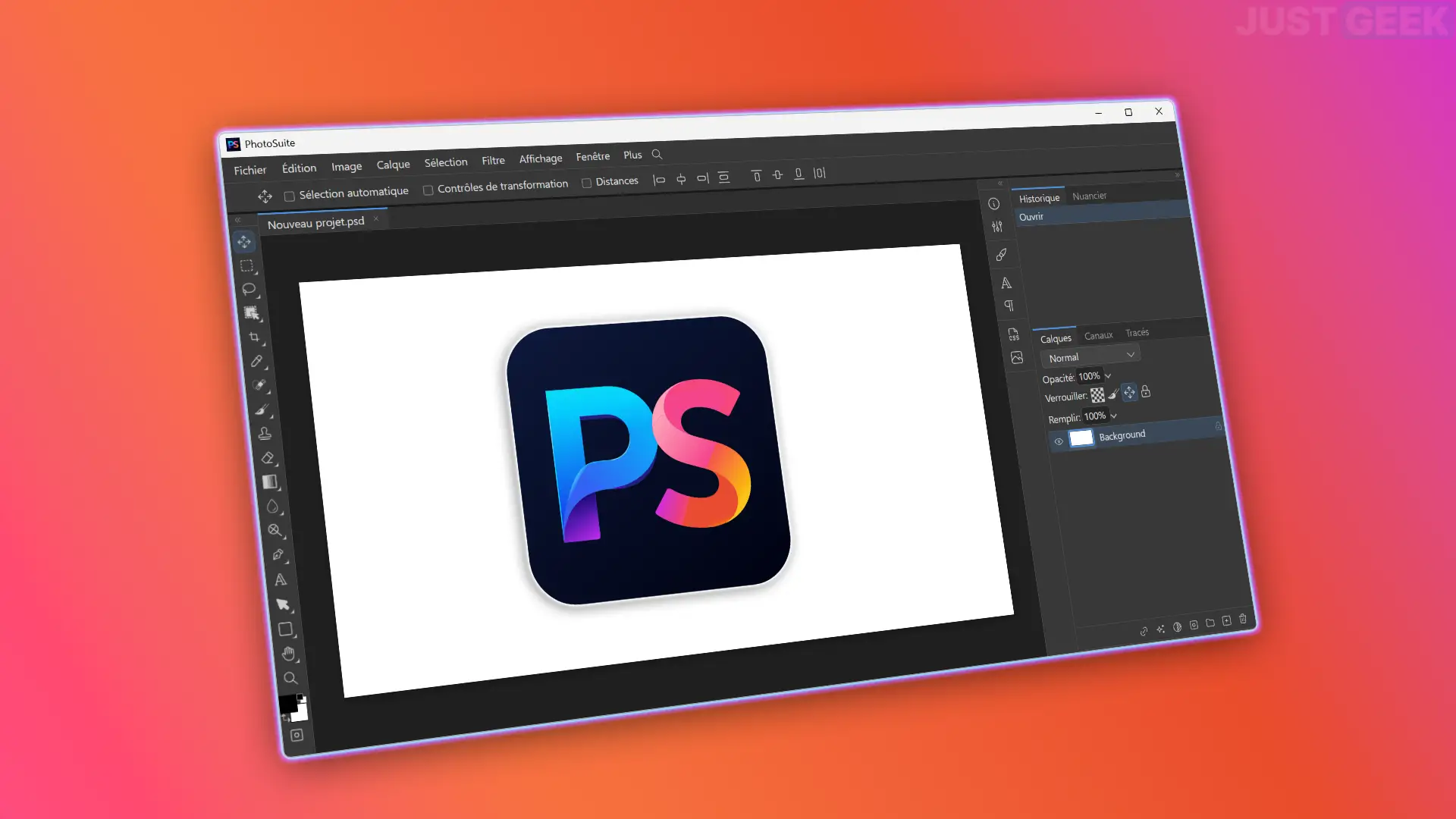
The resemblance to Photoshop is obvious from the first launch. PhotoSuite has a very similar organization to Adobe software, with the toolbar on the left, the different panels on the right, and the options for the selected tool at the top of the window.
There are also many well-known tools, such as selection, lasso, magic wand, crop, brush, duplicate stamp, eraser, gradient, pencil, and even text and shape tools. The layers are of course there, with groups, masks, blending modes and different options that Photoshop users already know.
And that’s probably what I liked the most during my test. Since I’ve been using Photoshop for a long time, I barely had to look for where the tools I needed were. I quickly got my habits back on track and was able to get up and running with PhotoSuite without having to completely relearn how the software works.
PhotoSuite even goes so far as to take over many of Photoshop’s keyboard shortcuts. If you’re coming from Adobe software, getting started should be pretty quick.
There are already numerous tools to work on your images.
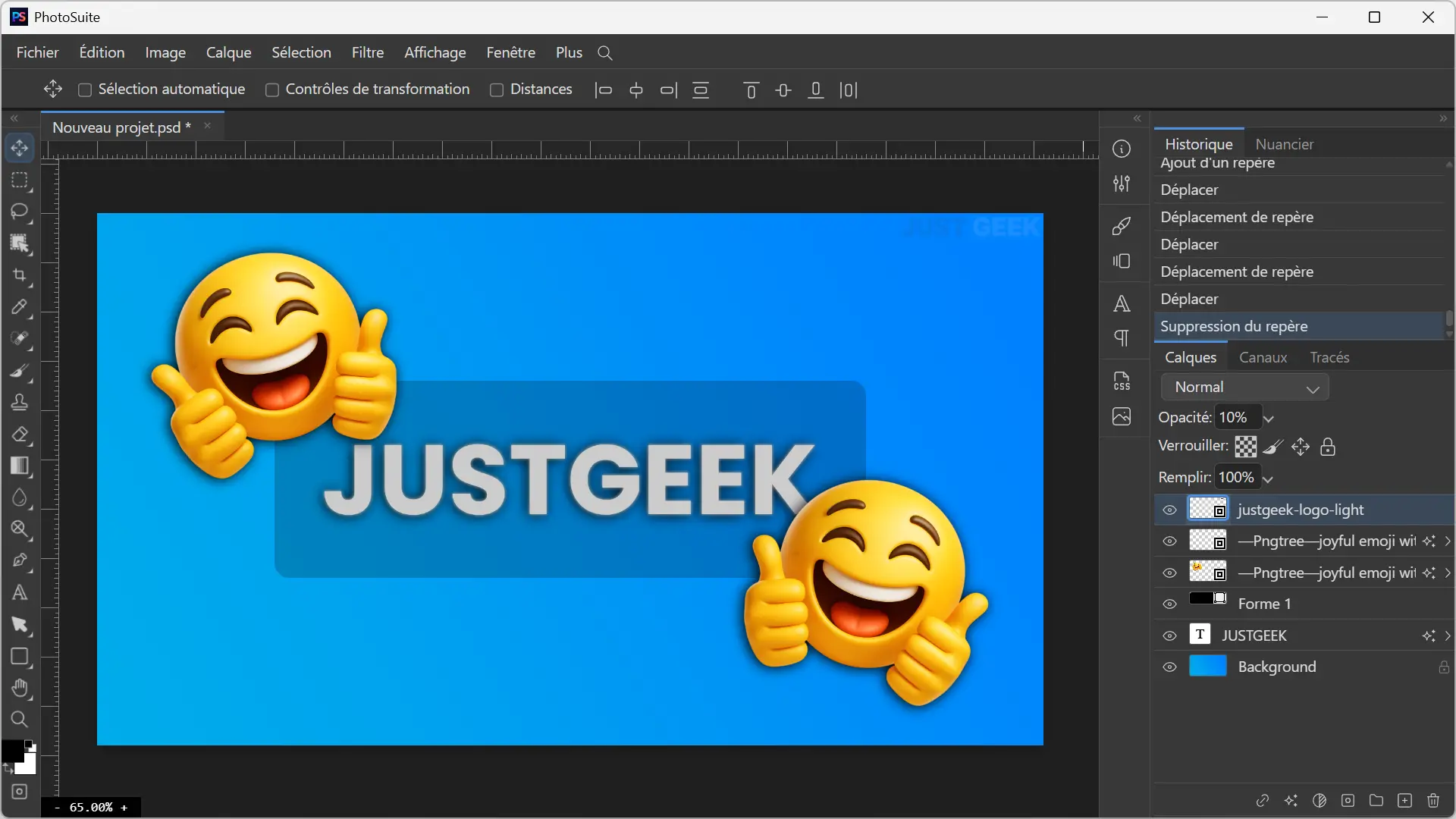
Although PhotoSuite does not yet have the functional richness of Photoshop, it already allows you to do many things. Of course you can work with several layers, organize them in groups, use masks or even play with their opacity and the different blending options.
The software also offers several photo editing tools, including duplicate stamp, corrector, blur, sharpen and density tools. We also find selections, vector shapes, the pencil, gradients and everything necessary to add and format text.
Browsing through the different menus, I even found some features that I didn’t necessarily think I’d see in such a young project. PhotoSuite offers dynamic objects and filters, the Liquity tool, a filter gallery, and even different settings to work on the colors and appearance of an image.
Obviously, not everything is as advanced as in Photoshop and many features are still missing. But during my testing I didn’t get the impression that I was using a small image editor limited to a few basic functions. For fairly standard needs, there is already a lot to do.
Support for PSD files that pleasantly surprised me
One of the things I definitely wanted to try with PhotoSuite was support for PSD files. The developer claims to have excellent support for the Photoshop format, so I simply tried opening several of my own files to see how the software would fare.
My PSDs are still pretty simple, but still contain multiple layers, text with different fonts, and some blending options. And for my part, RAS All the ones I tried opened correctly in PhotoSuite and I found my different elements just like in Photoshop.
Obviously, my little test does not confirm that PhotoSuite opens any PSD file without problems, especially with much more complex projects. But with the few files I had on hand I didn’t encounter any problems.
Multiple formats supported
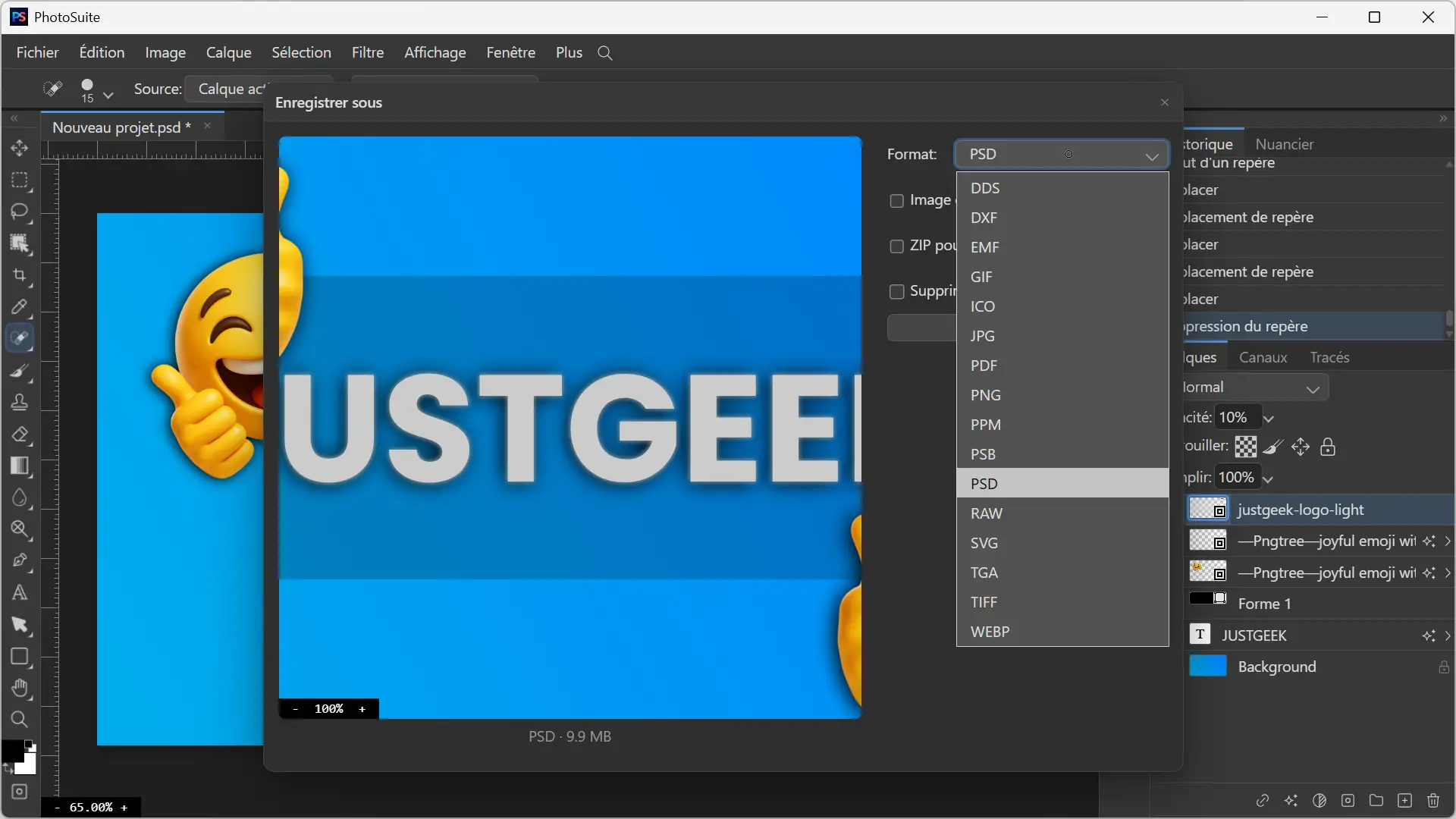
Obviously, PhotoSuite is not limited to PSD files. The software supports many other formats and in particular allows you to export your images to JPG, PNG, WebP, GIF, TIFF, SVG or even PDF. There are also some less common formats such as DDS, DXF, EMF, PPM or TGA.
For my part, I mainly tested the export in WebP, since this is the format I use for images published on JustGeek. Here again, RAS The image has been exported successfully and PhotoSuite even allows you to adjust its quality before saving it.
I also looked at what the “Save As” menu offered. There we find the same formats, with the addition of PSD and PSB. Therefore, it is possible to save your project directly in Photoshop format to resume later or share it with someone using Adobe software.
PhotoSuite is available for free on Windows, macOS, and Linux. To download it, simply go to project GitHub pagewhere you will find the latest version of the software in the “Versions” section.
On Windows, a classic installer is offered in EXE format. For macOS, you’ll find a DMG file compatible with Intel and Apple Silicon Macs, while Linux users can choose from several formats, including DEB, RPM, AppImage, Flatpak, or even a package for Arch Linux.