Microsoft has just released a new optional update for Windows 11. Labeled KB5124010, it is available for versions 24H2 and 25H2, which go to builds 26100.9550 and 26200.9550 respectively.
This update brings several changes to File Explorer, new emojis, additional touchpad gestures, and the ability to remap the Copilot key on the keyboard. Microsoft also fixes several issues, especially with Bluetooth, the webcam, and file storage.
As usual with preview updates, installation remains optional. You can choose to install it now or wait for the next Patch Tuesday, scheduled for October 13, 2026. Here’s everything you need to know about the Windows 11 KB5124010 update.
Several new features for File Explorer
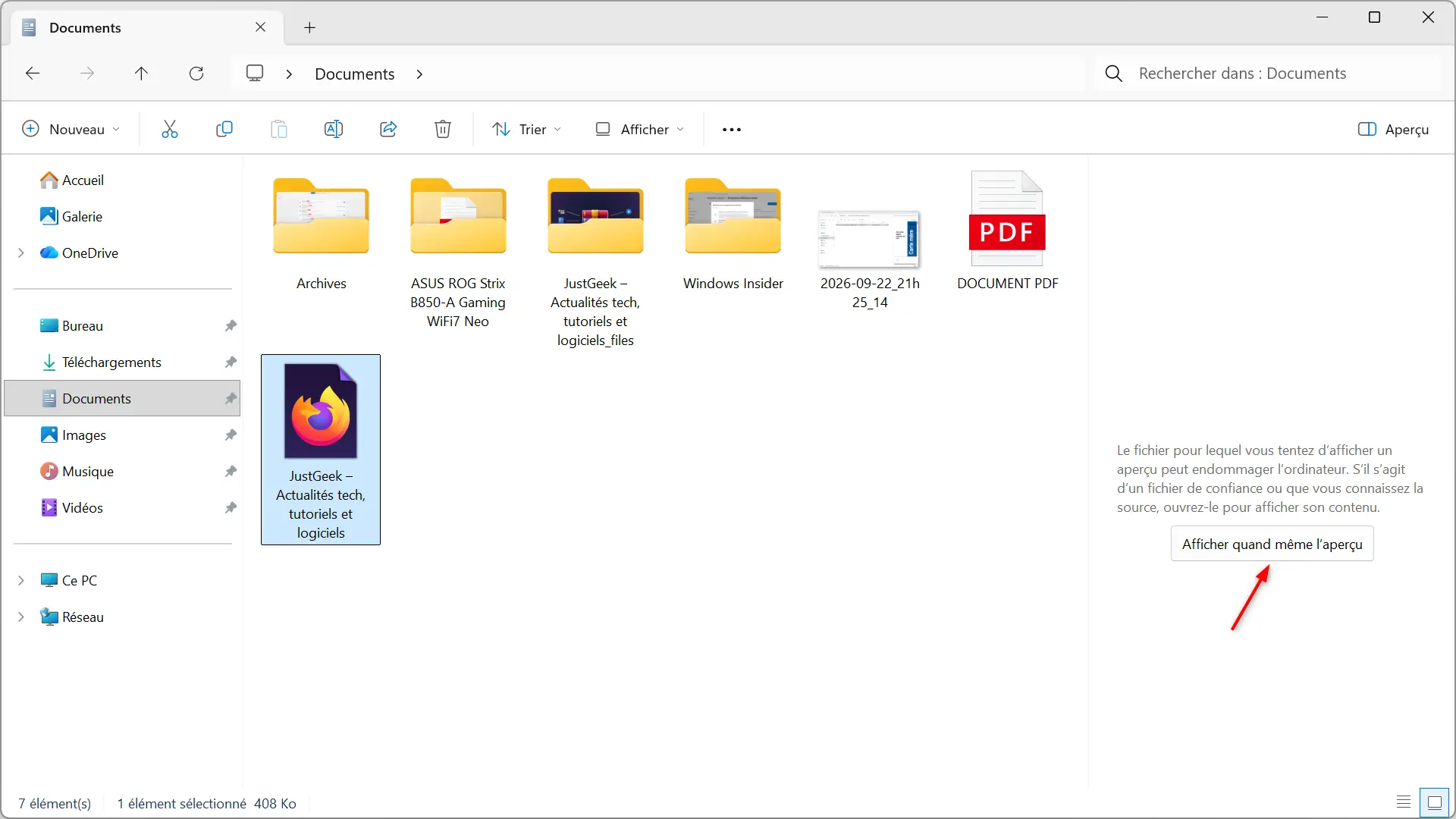
Remember, in October 2025, with the update. KB5066835Microsoft had disabled the preview of files downloaded from the Internet to prevent certain NTLM identifier leaks. A security measure that quickly annoyed many users, since it was necessary to manually unlock the files to be able to preview them.
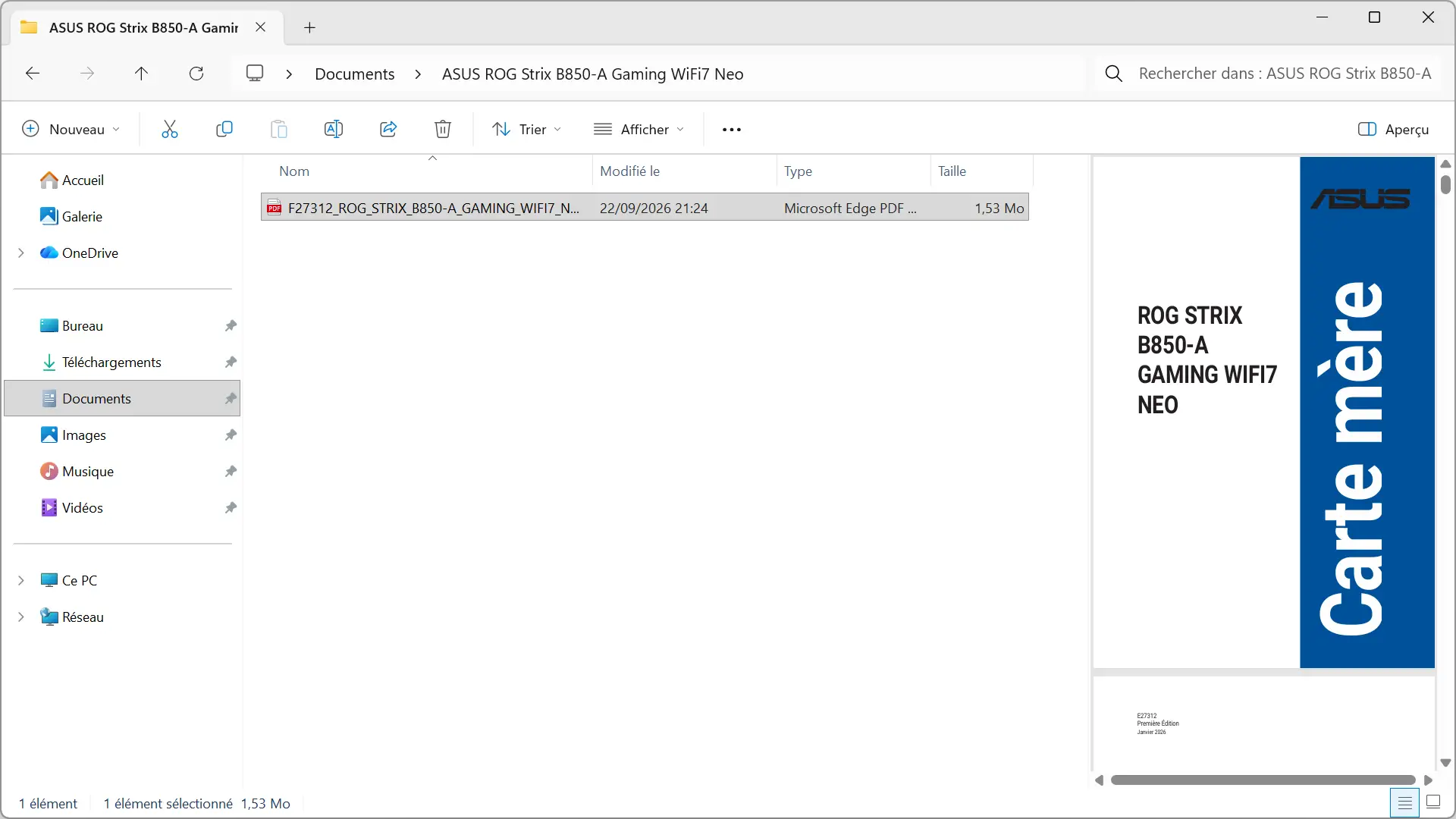
Almost a year later, KB5124010 relaxes this restriction. PDF files can be previewed directly in File Explorer. For HTML files, a new “Show preview anyway” button now allows you to display its contents after accepting the security warning.
The File Explorer home page now retains your display preferences. For example, if you collapse the “Favorites” or “Recents” sections by clicking the small arrow next to their name, they will remain collapsed the next time you open Explorer. You will no longer have to start over every time you open.
Thumbnails of files stored in the cloud should now display more correctly in the “Details” panel. Microsoft has also reorganized the latter to make file properties easier to find, including their size, type, or modification date.
The update also fixes a bug that could clear the contents of the address bar when you click near its right end to modify it.
New emojis and additional touchpad gestures
KB5124010 adds support foremojis 17.0 on Windows 11, with seven new emojis. Among them we find in particular a deformed face, a Bigfoot, an orca or even a treasure chest. To use them, simply open the emoji panel with the shortcut windows + ..

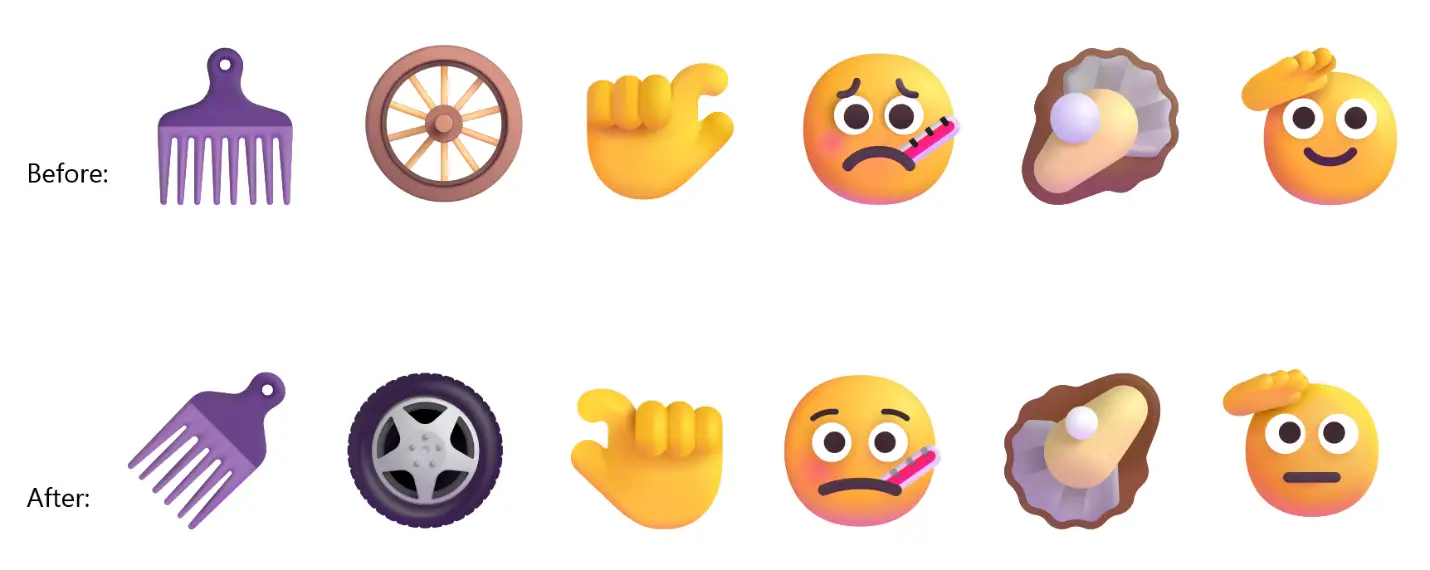
And that’s not all. Microsoft took advantage of this update to revise the appearance of several emojis already present in Windows 11. The comb, the wheel, the face with a thermometer or even the greeting face benefit from a new design, as you can see in the image below.
The update also brings two new gestures for precision touch panels. The first allows you to scroll a page vertically with a single finger, starting from the left or right edge of the touchpad. The second activates auto-scrolling when you bring your fingers closer to the edge while scrolling.
These options can be accessed in Windows 11 Settings, under “Bluetooth & devices,” then “Touchpad.” »
Copilot key can now replace Ctrl key
On PCs equipped with a Copilot key, particularly Copilot+ PCs, this sometimes replaces the right Ctrl key or the Menu key. A change that can be annoying if you are used to using them for your keyboard shortcuts.
With KB5124010, you can now remap this key to function as a right Ctrl key or to open the context menu, such as when right-clicking the mouse.
To change its behavior, go to Windows 11 Settings, then “Bluetooth and devices” > “Keyboard” > “Customize the Copilot key on the keyboard.” This option only affects PCs equipped with a Copilot key and may appear gradually after installing the update.
A new option to automatically maximize windows
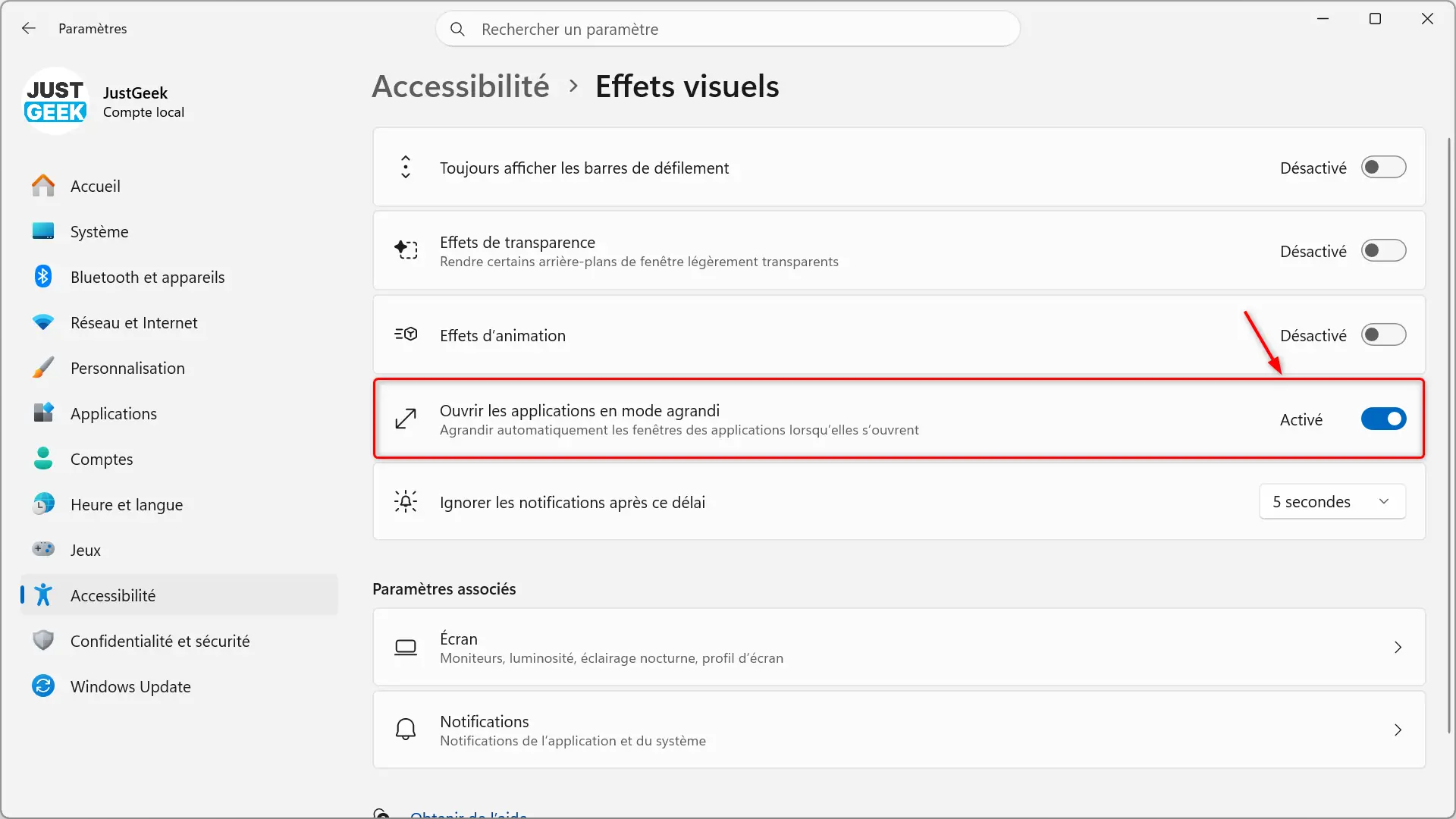
With KB5124010, Windows 11 offers a new setting to automatically open apps in a maximized window. Useful if you have a habit of systematically enlarging your windows after opening them.
To activate it, go to Settings, then “Accessibility” > “Visual Effects” and activate the “Open apps in maximized mode” option.
Windows 11 improves its recovery environment (WinRE)
Windows Recovery Environment (WinRE), which allows you to fix a PC that refuses to boot, benefits from two new features with KB5124010.
WinRE can now automatically reuse Wi-Fi networks already registered in Windows, including some professional networks that use certificates. When a recovery operation requires the Internet, such as a quick system repair or reinstall from the cloud, you can connect without needing to re-enter your Wi-Fi password. This feature is enabled by default, but IT administrators can disable it.
For businesses, Microsoft is adding a remote management module that will allow MDM solution providers to expand their intervention capabilities in WinRE, particularly when a PC no longer boots normally.
Other news of KB5124010
You’ll now be able to set up backing up your smartphone photos to OneDrive directly from Windows 11 Settings. Simply scan a QR code with your phone to associate it with your PC and activate backup.
A new “Tips” widget appears in the widget table and on the lock screen. Shows tips for discovering certain features of Windows 11. To add it to your lock screen, go to “Settings” > “Personalization” > “Lock screen.”
Microsoft has revamped the Magnifying Glass toolbar, with new icons and slightly modified spacing between the buttons. Keyboard shortcuts and zoom controls remain unchanged.

In Settings, the version number of some installed apps is now visible directly in the list, without having to open their detailed information. The time selector also takes more into account the chosen 12 or 24 hour format, in particular for scheduling night lighting or Windows Update activity times.
Microsoft is also ending the direct transfer of files and settings between two PCs during the initial setup of a new computer. To find your data on your new PC, you will now need to use the Windows Backup app.
Some of these new features are being rolled out gradually. Therefore, they may not appear immediately after installing KB5124010.
Various bugs fixed
Microsoft fixed several bugs with this update, including some that could be particularly annoying:
- Bluetooth: Fixed a bug that could cause a blue screen when streaming audio. Microsoft has also improved the stability of connections with certain accessories, the display of their status in Settings, and the operation of the microphones of certain Bluetooth headphones.
- Webcam: Fixed an issue that could prevent the built-in camera from working on some PCs, particularly in the Camera app and video conferencing software.
- File History: Windows might display the message “Please reconnect your drive” even if the backup disk was connected correctly. This error could prevent files from being backed up or restored, even to a network location.
KB5124010 is an optional update (preview). Therefore, it is not installed automatically.
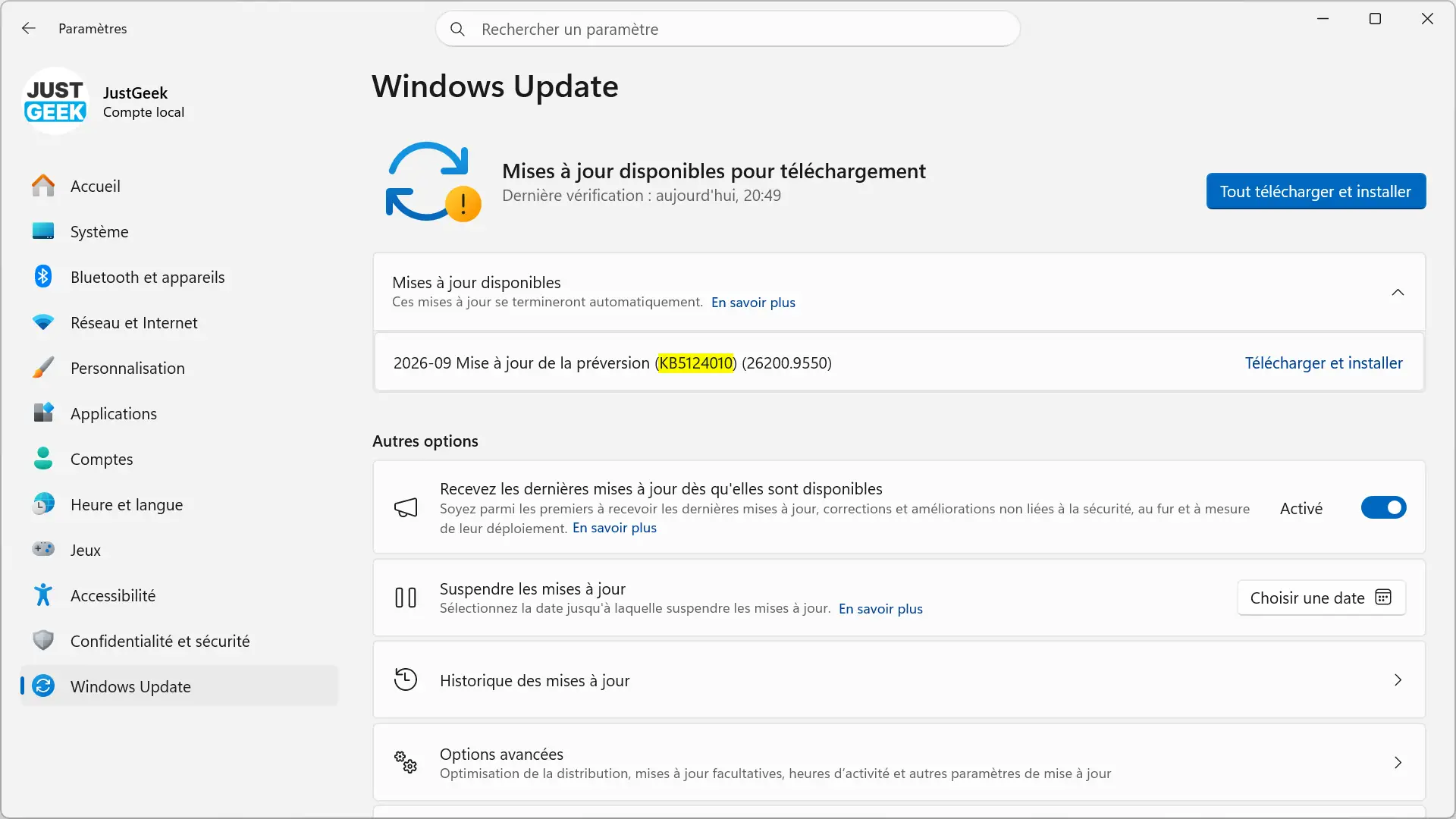
To get it now, go to Settings > Windows Updatethen click ” Check for updates “. If the option “ Receive the latest updates as soon as they are available » is activated, it should appear directly. Otherwise, go to Advanced options > Optional upgrades to find her. All you have to do is click on “ Download and install » to start the procedure.
It is also possible to recover it manually from the Microsoft Update catalog:
| Version | Build | Architecture | Size |
|---|---|---|---|
| Windows 11 25H2 | 26200.9550 | x64 | 4,981.5MB |
| Windows 11 25H2 | 26200.9550 | ARM64 | 4,825.6 MB |
| Windows 11 24H2 | 26100.9550 | x64 | 4,981.5MB |
| Windows 11 24H2 | 26100.9550 | ARM64 | 4,825.6MB |
If you’d rather wait, the fixes in this preview should be included in the next Patch Tuesday, scheduled for October 13, 2026.
Please note if you are using Windows 11 24H2: Home and Professional editions will end support on October 13, 2026. After this date, they will no longer receive security updates. Enterprise and Education editions will continue to be supported until October 12, 2027.
Please note that Microsoft rolls out certain features gradually. Even after installation, not all new features may be immediately available on your device.
Fountain : microsoft