In Windows 11, Microsoft offers the Connected Mobile app, which allows you to communicate with your Android smartphone or iPhone with your PC. Very practical for transferring files, checking notifications or accessing certain functions of your phone directly from your computer. But in Linux, can we enjoy the same?
Well yes! You may already be familiar with KDE Connect, which offers similar features. But today I wanted to introduce you to Linksy, an alternative just as interesting, if not more so. This software also allows you to connect your Android smartphone to your Linux PC, but with some additional possibilities. Let’s look at this together.
Your Android smartphone and your Linux PC become one
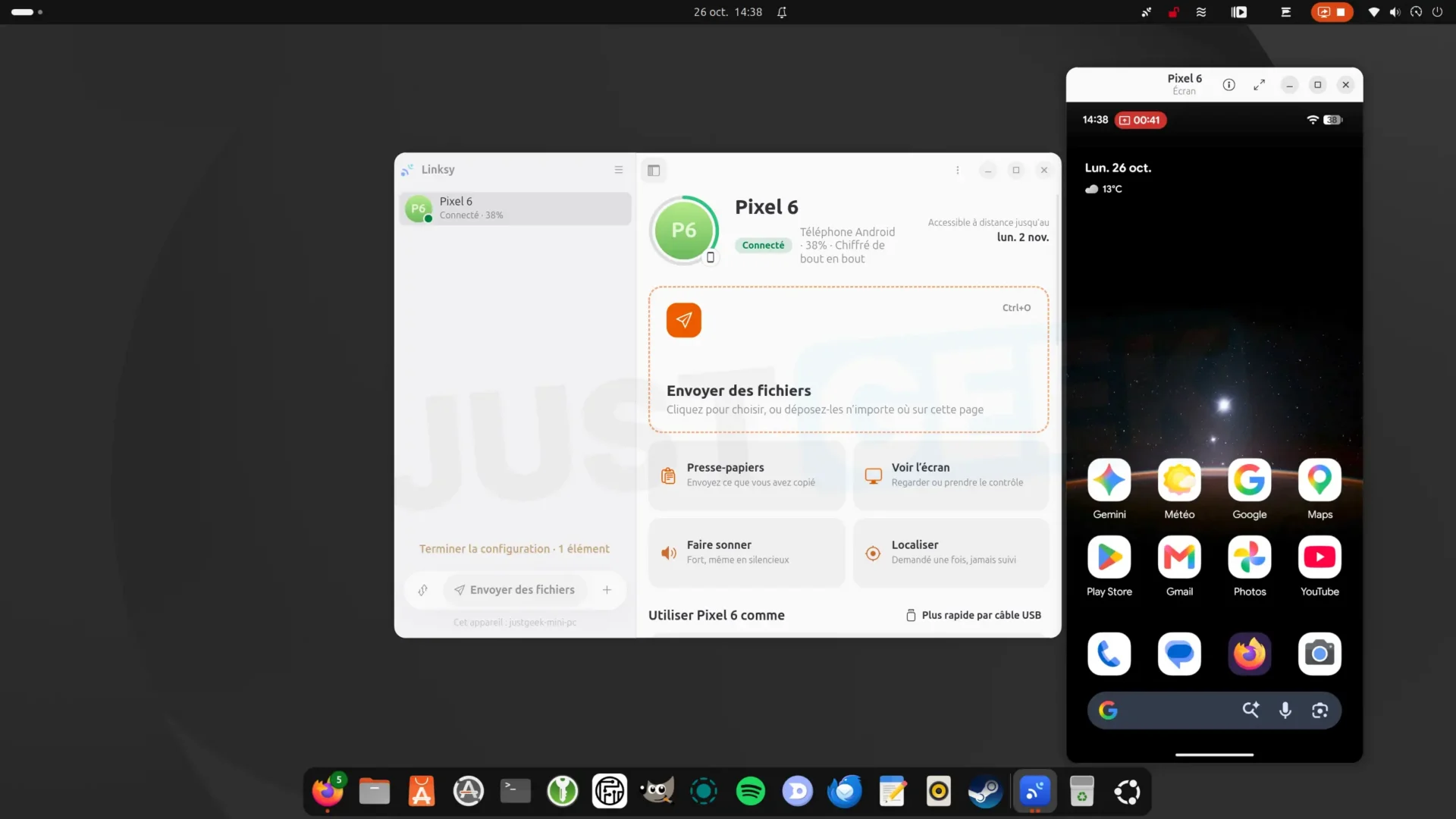
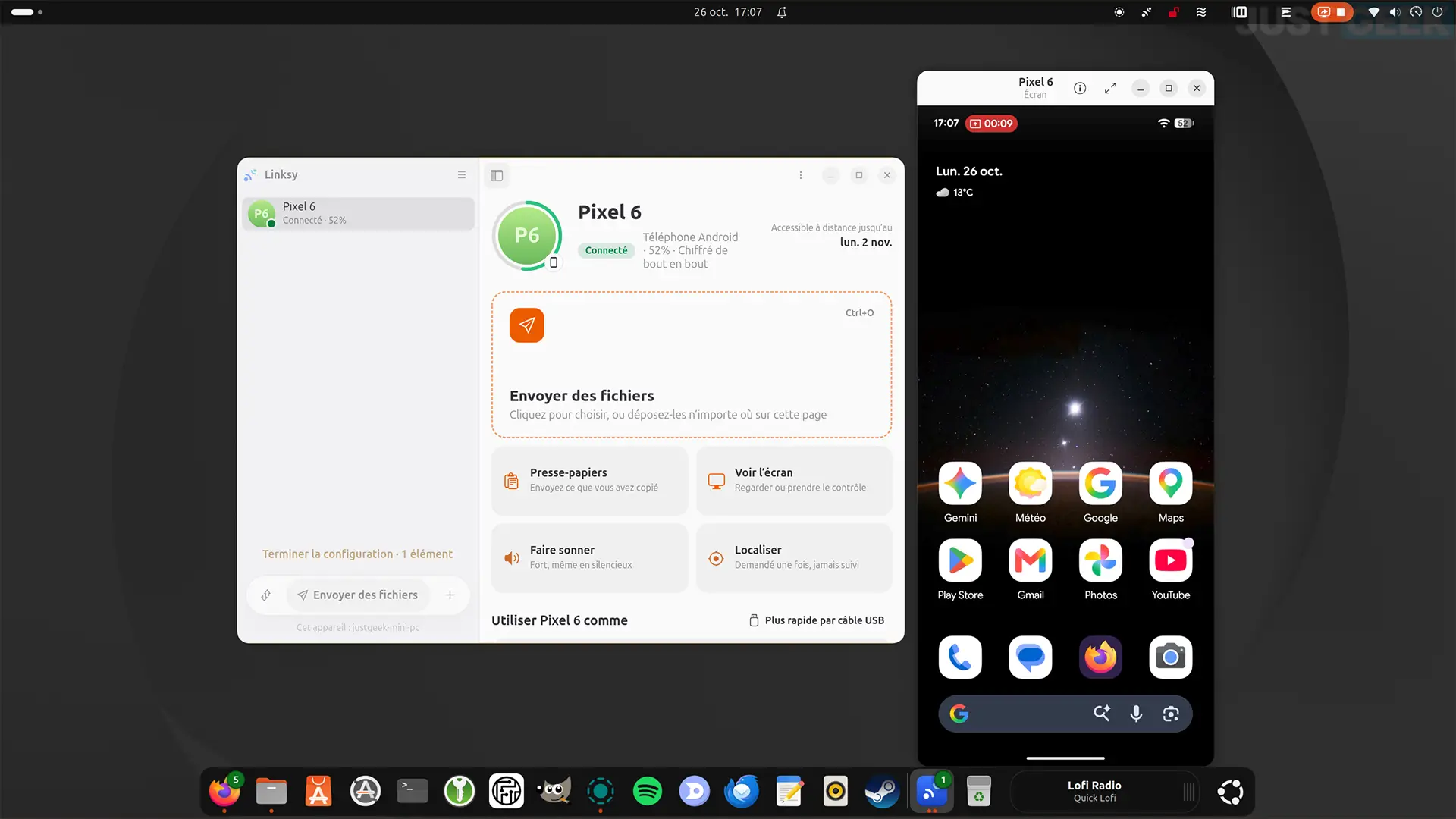
Linksy is free and open source software that allows your Android smartphone and Linux computer to communicate with each other. It was created by Axel Rakotoarivao, an independent developer. Once the two devices are associated, you can transfer files, share your clipboard or even control your computer from your phone, without having to connect them via a cable.
To do this, Linksy primarily uses your local Wi-Fi network (even without an Internet connection), but the two devices can also communicate remotely over the Internet. This allows you to continue using certain features even when you are no longer at home. And if you prefer a wired connection, it is possible to connect your smartphone to your computer with a USB cable, without using Wi-Fi.
The application works with several Linux desktop environments, including GNOME, KDE, Xfce, and Cinnamon. It does not require account creation and communications between devices are end-to-end encrypted.
What can you do with Linksy?
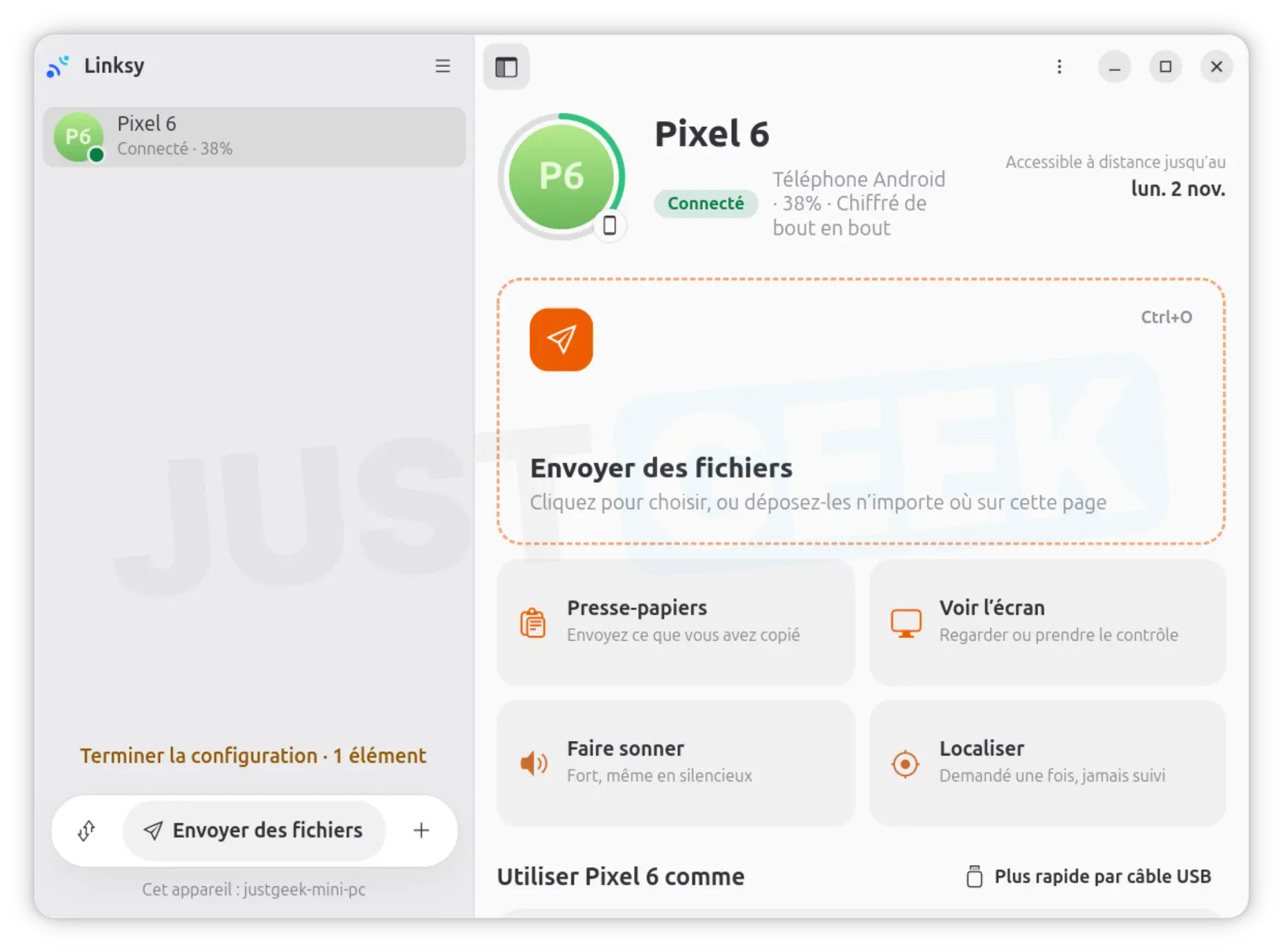
With Linksy, you can do a lot of cool things between your Android smartphone and your Linux computer.
To start, you can send files, but also entire folders, from your phone to your PC and vice versa. For example, this can allow you to transfer photos from your smartphone to your computer to keep a copy or send a document from your PC to your phone. And if the connection drops during a transfer, Linksy can pick up where it left off.
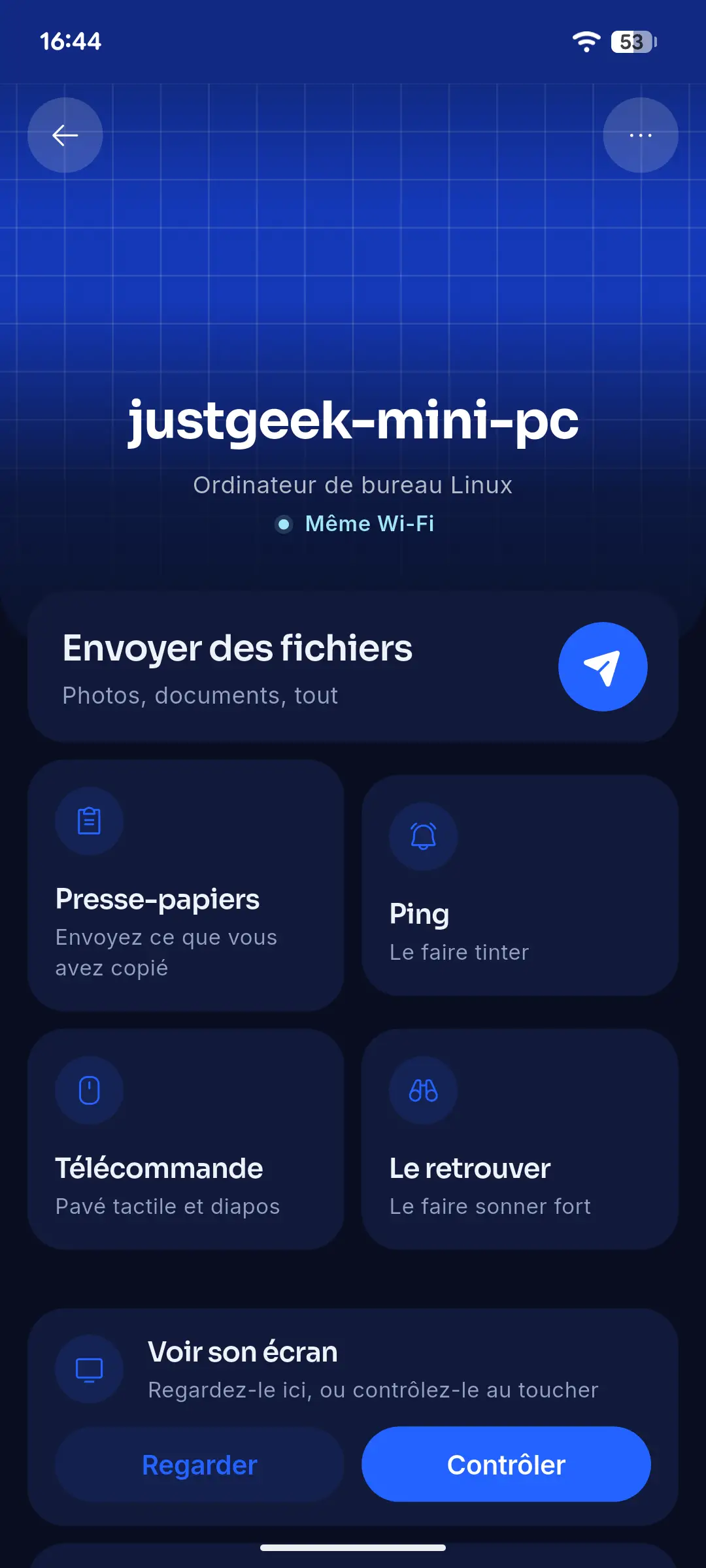
Next, the software has a feature that allows you to share the clipboard between the two devices. You can copy text to your smartphone and paste it directly to your computer, or do the opposite. And it’s not just text, Linksy also supports images and files.
You can also control your computer from your smartphone. Your phone’s screen can be used as a touchpad to move the mouse cursor, while its keyboard allows you to enter text on your PC. It is even possible to use it as a remote control to scroll through the slides of a presentation, for example.
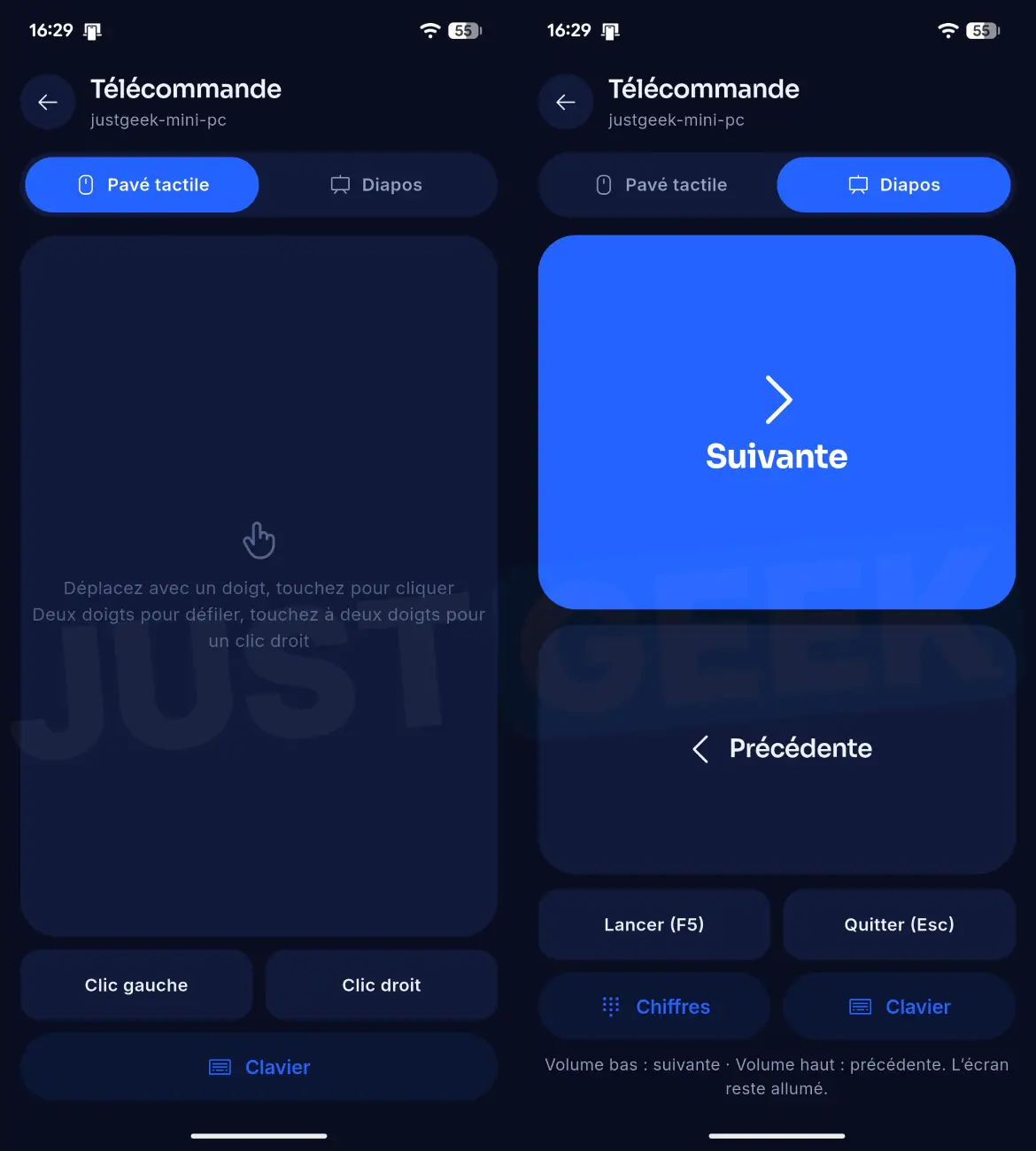
Linksy also lets you control your music playback remotely. You can pause a song, resume playing, or skip to the next song from your phone. The software can even automatically pause music when a call comes to your smartphone.
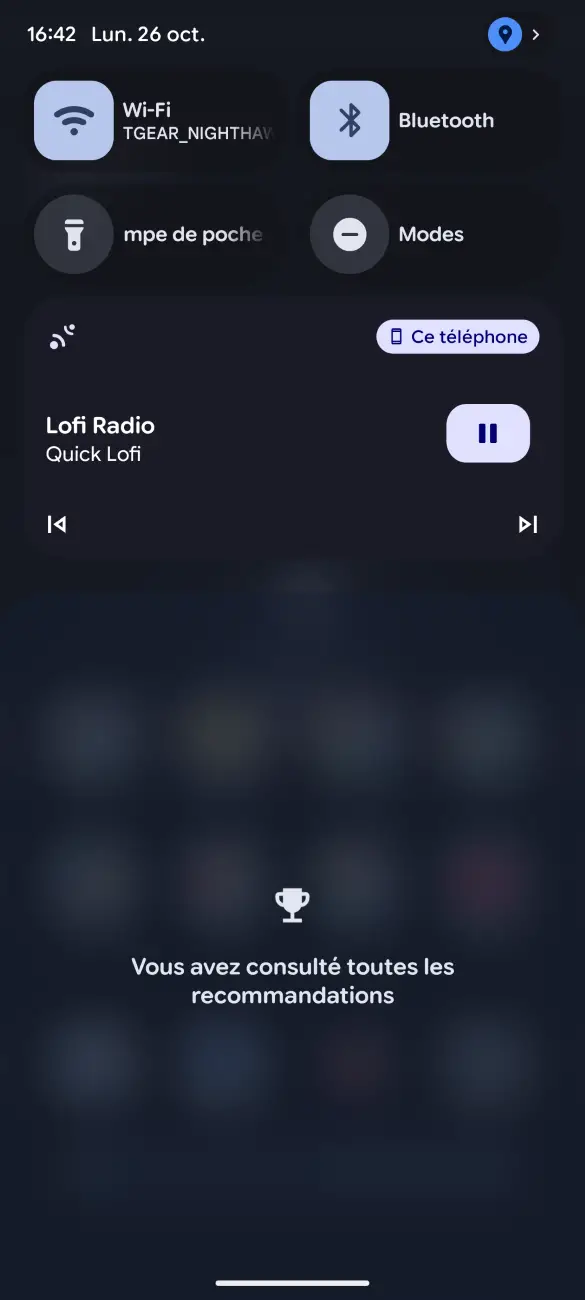
Now let’s move on to screen sharing. With Linksy, you can display your Android smartphone screen directly on your Linux PC, in a separate window. Handy for checking what’s happening on your phone without having to pick it up. However, at the moment you cannot control your smartphone from your computer, as is possible with Scrcpy.
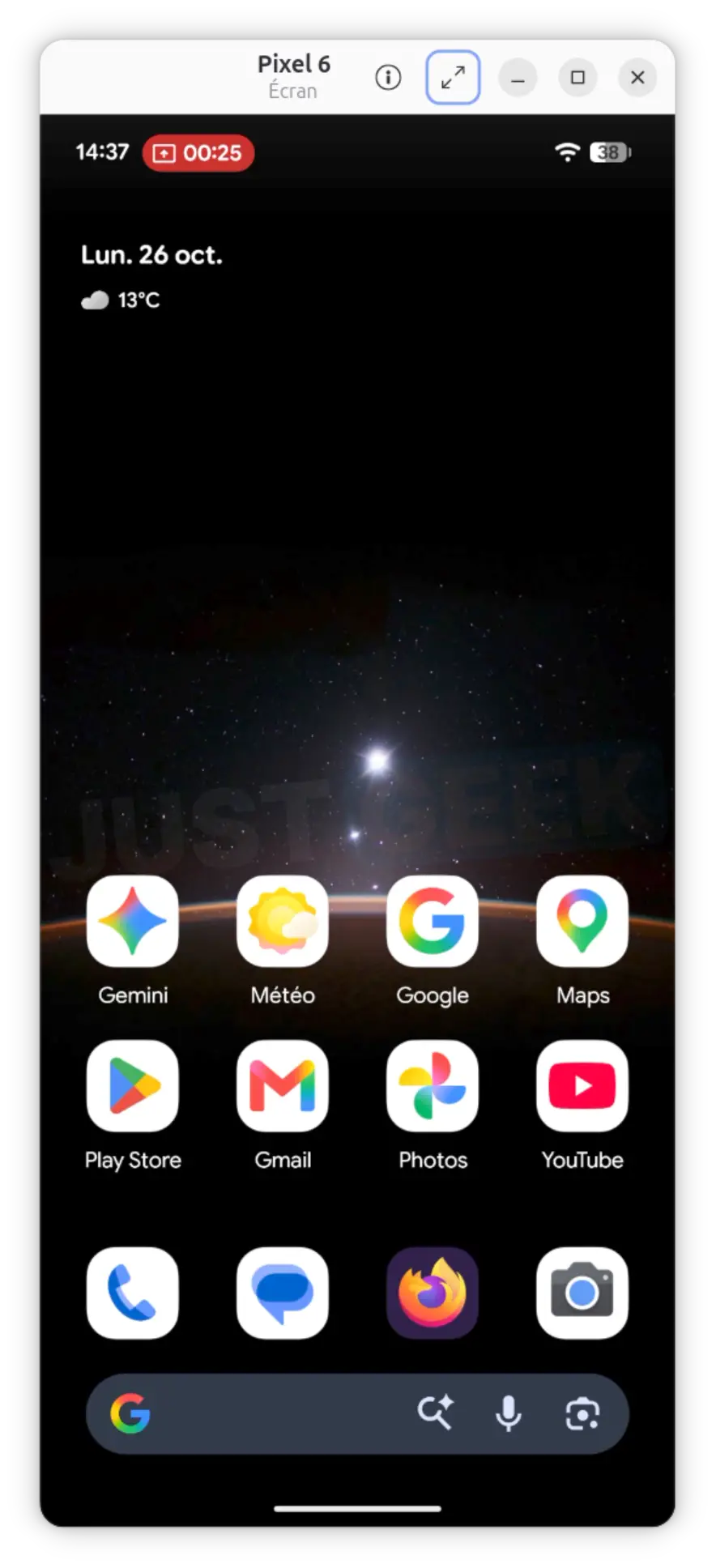
In the other direction, however, it is possible! From your smartphone, you can view the screen of your Linux PC, but also control it remotely. You will be able to navigate your desktop, open applications or perform various operations as if you were in front of your computer.
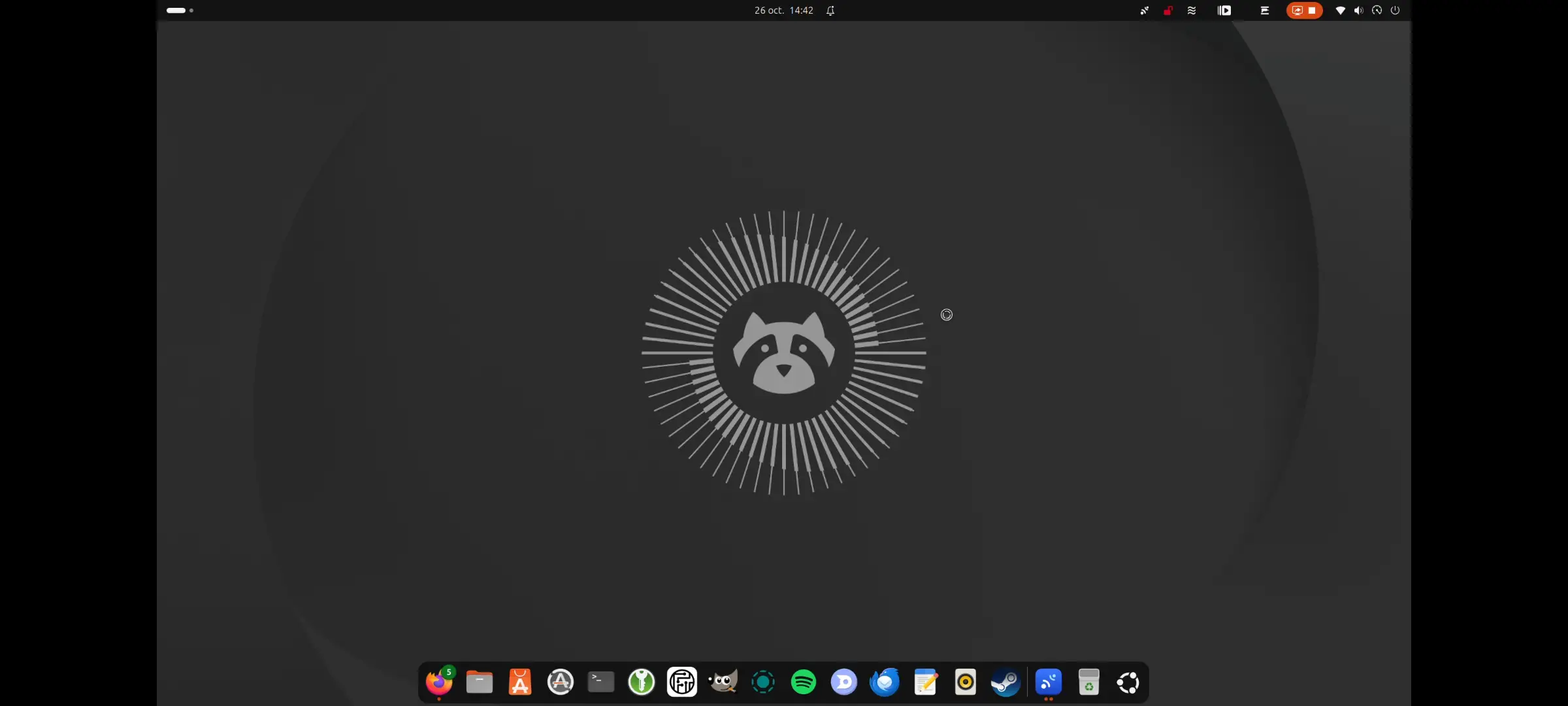
And that’s not all, since Linksy will even allow you to use your smartphone as a second screen on your Linux PC. It’s not just about screen mirroring: you can extend your desktop onto your phone’s screen, like an extra monitor.
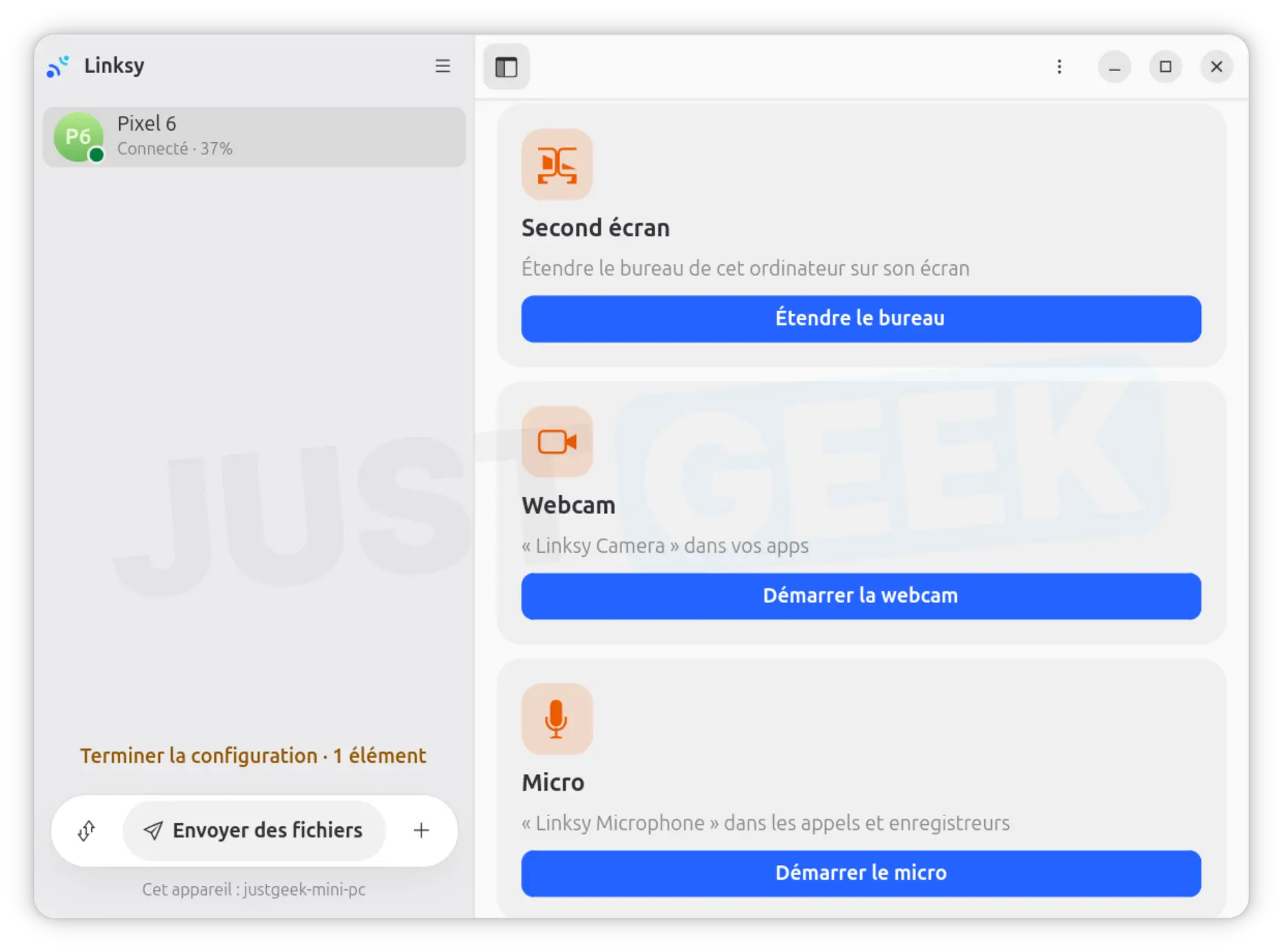
Another pretty handy feature, Linksy lets you use your Android smartphone as a webcam for your Linux computer. This way, you can take advantage of your phone’s camera to make video calls on your PC, for example with Jitsi Meet, kMeet, Zoom or Google Meet, without having to purchase a webcam. The software supports up to 1080p resolution at 60 frames per second, with the option to use your smartphone’s front or rear camera.
And if your computer doesn’t have a microphone, you can also use the one on your phone. Linksy then streams the sound captured by your smartphone to your Linux PC.
Finally, you can search for files on your smartphone directly from the Linux file manager. Simply choose the folder you want to access on Android. Then you can view its content from your computer, as if it were a USB memory.
To download Linksy, go to your official website. There you will find the different versions available for Linux, especially in DEB, RPM and Flatpak formats.
The developer also offers an automatic installation method using a command run in the terminal:
curl -fsSL https://linksy.diary.mg/install.sh | sh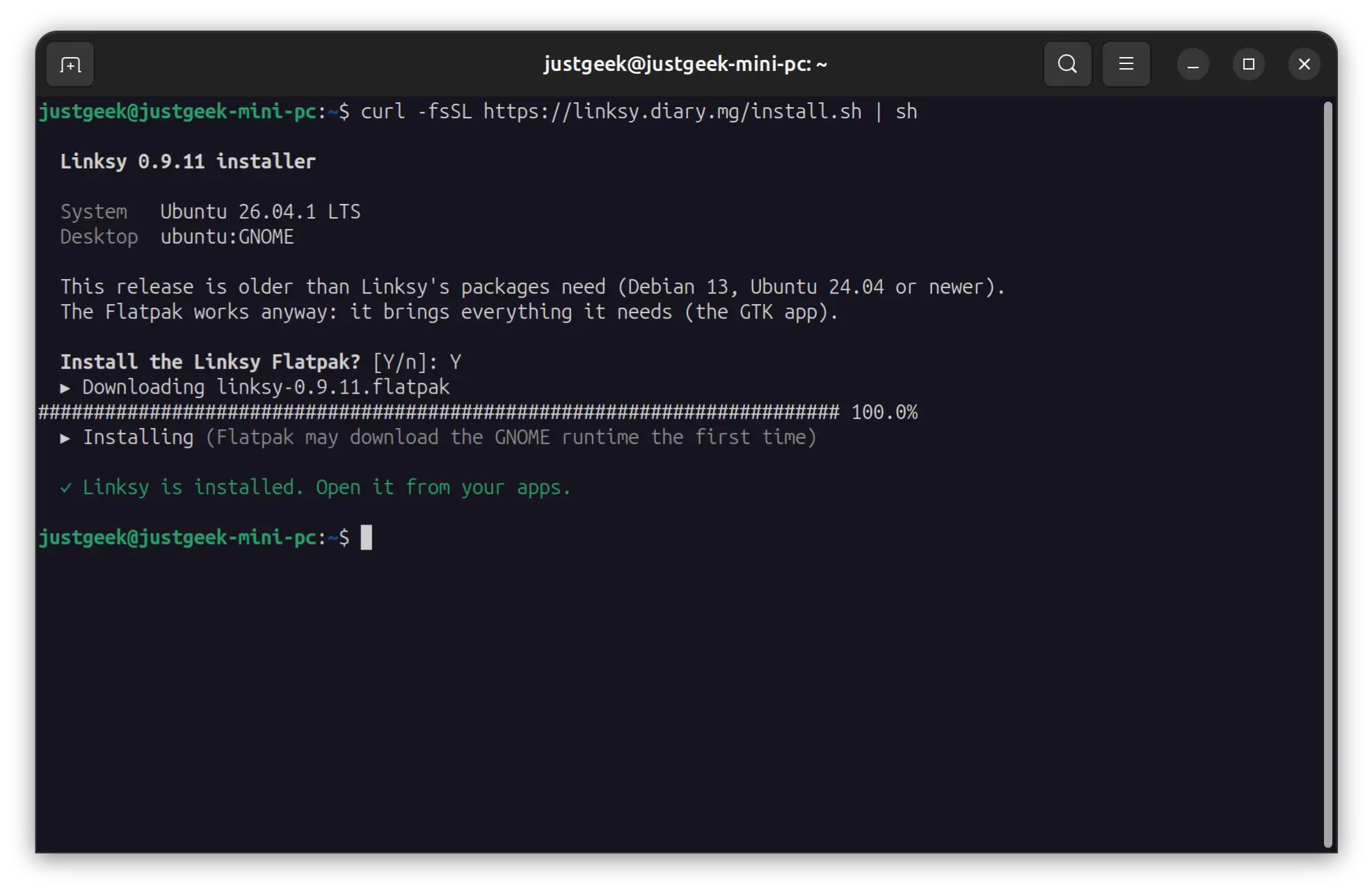
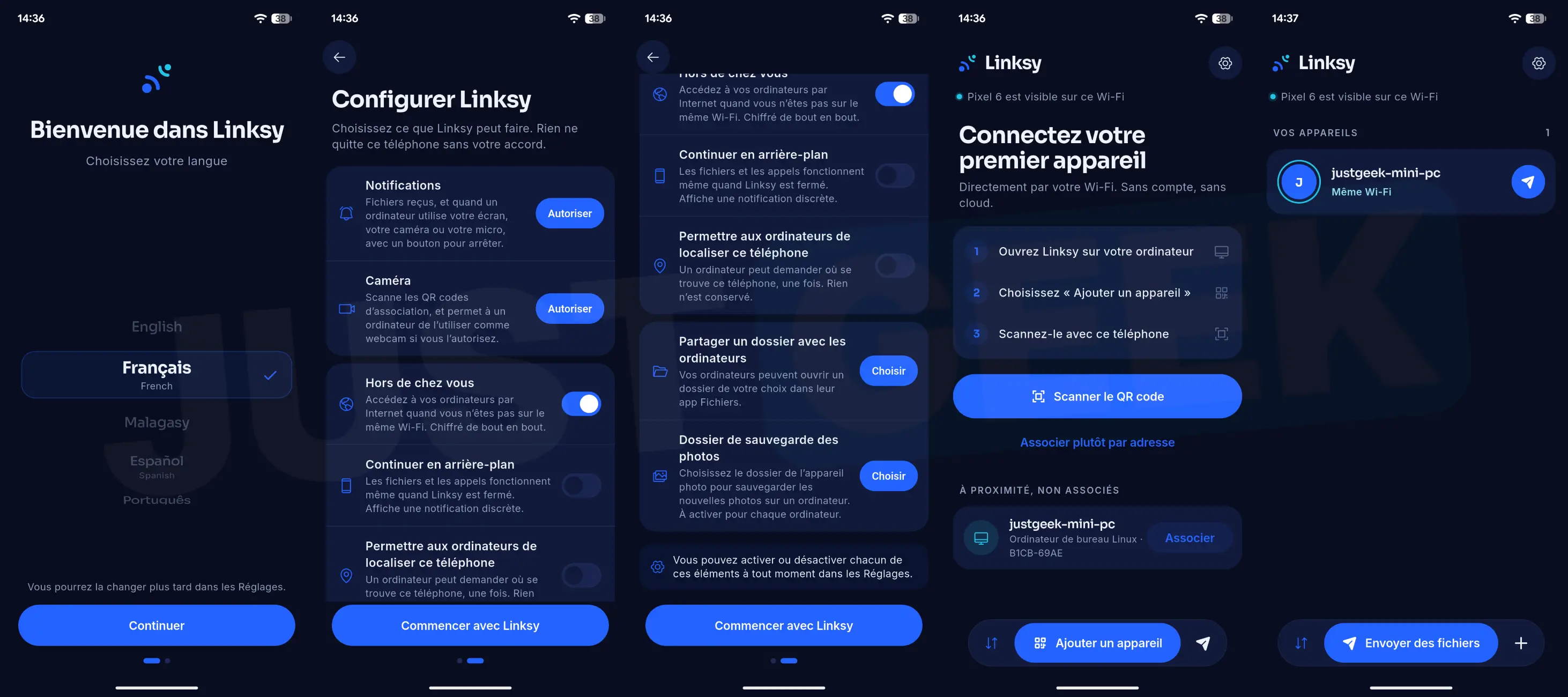
Once Linksy is installed on your computer, you will also need Install the application in APK format on your Android smartphone.. Then all you will have to do is pair the two devices by following the instructions on the screen.