Do you want to cut a video to eliminate an unnecessary passage or recover a short excerpt? You don’t need to purchase great video editing software for that. With LosslessCut you can cut your videos quickly, without having to re-encode them and, above all, without loss of quality.
Free and open source, this software is available on Windows, macOS, and Linux. It also allows you to merge multiple files, manage audio tracks or even extract images from a video. I will introduce it to you in detail and explain how it works.
LosslessCut: cut and manage your video and audio files
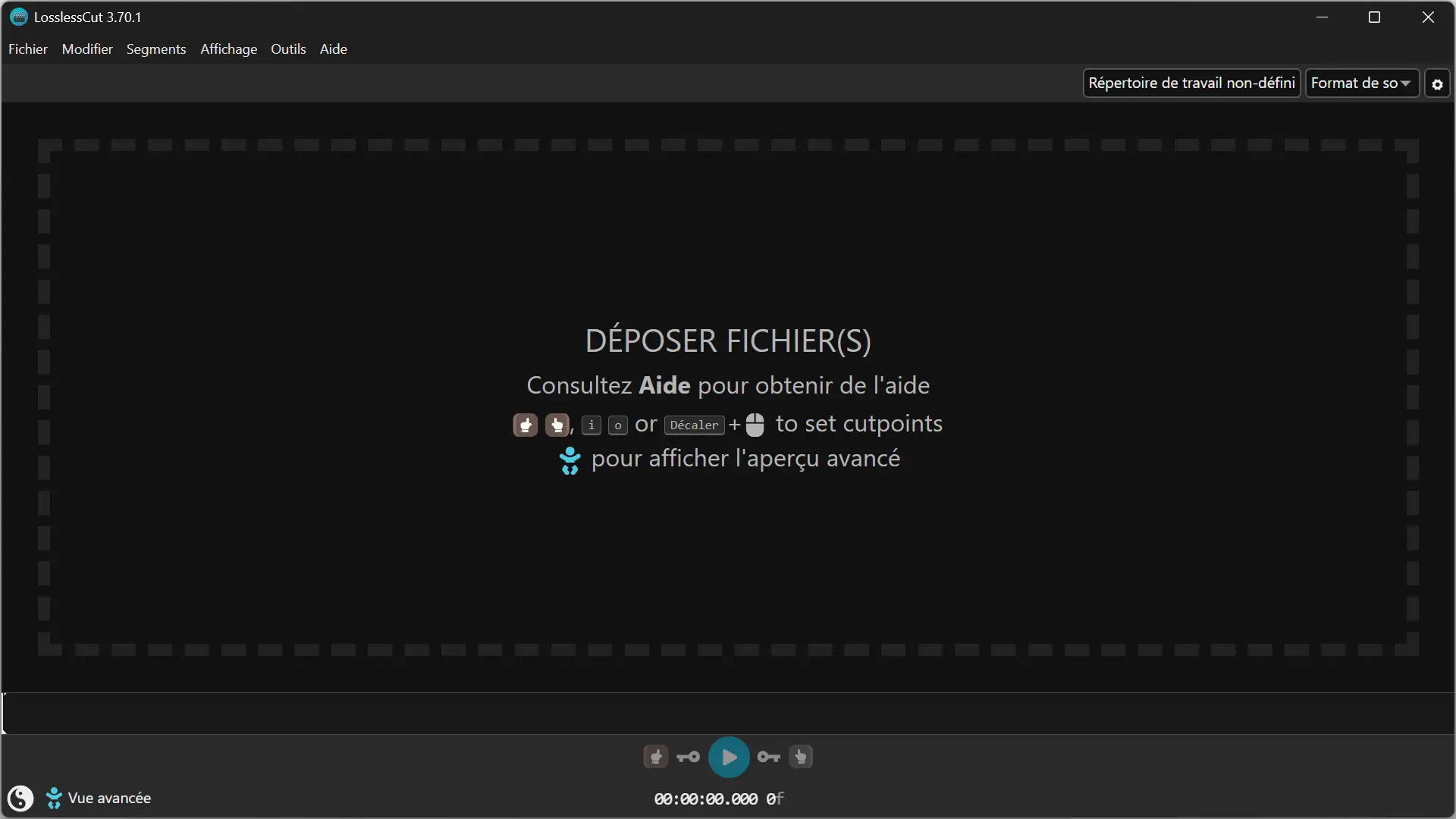
Created by Mikael Finstad, Lossless cutting Rely on FFmpeg to trim video and audio files without re-encoding them. Therefore, operations are usually very fast and the files retain their original quality.
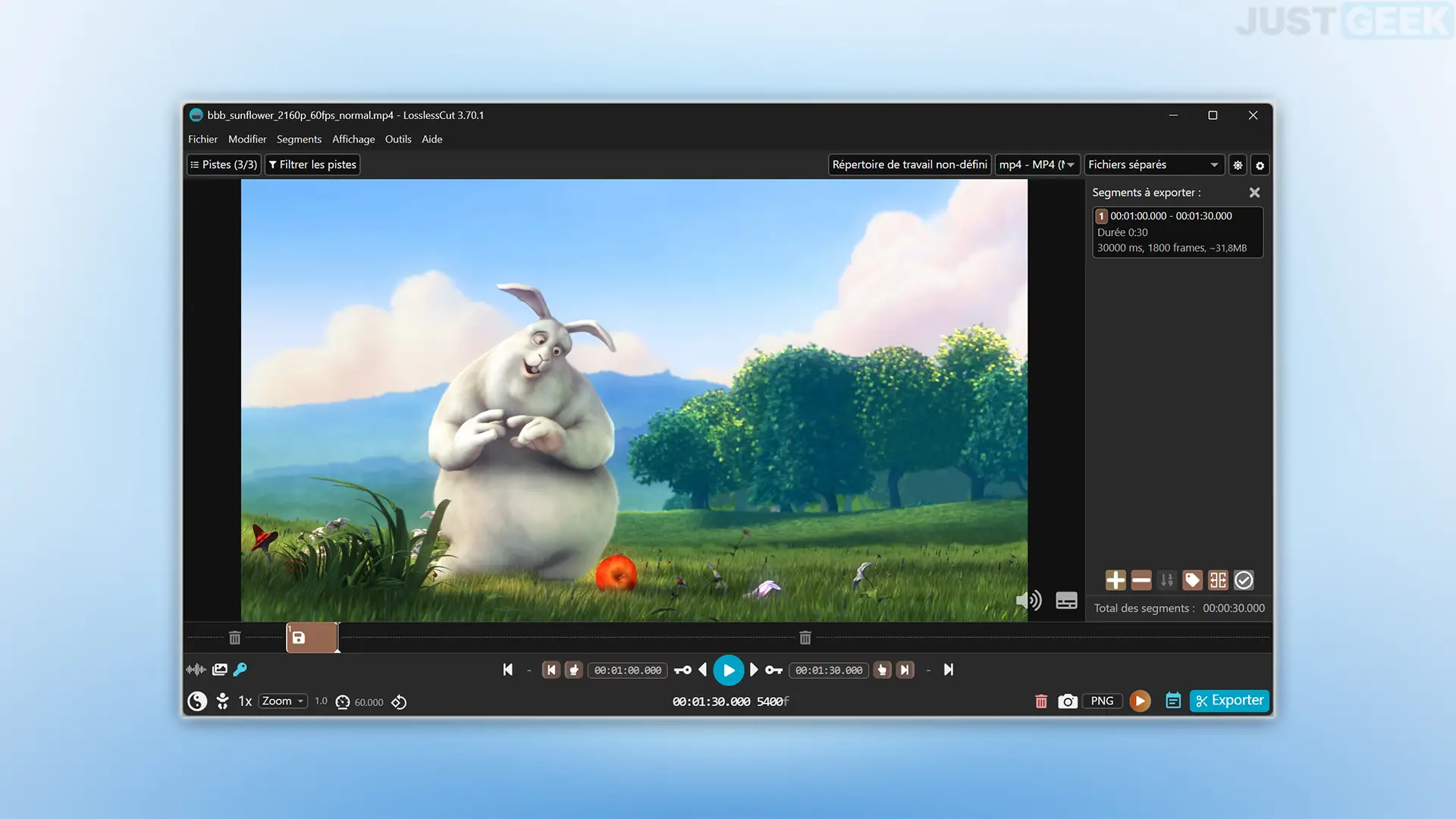
To get started, simply drag and drop a video into the software window. You’ll then find a preview of your video with a play bar at the bottom of the screen. It is from this bar that you can define the passages to keep or delete.
You can select multiple regions in a single video and then export them as separate files or combine them into one.
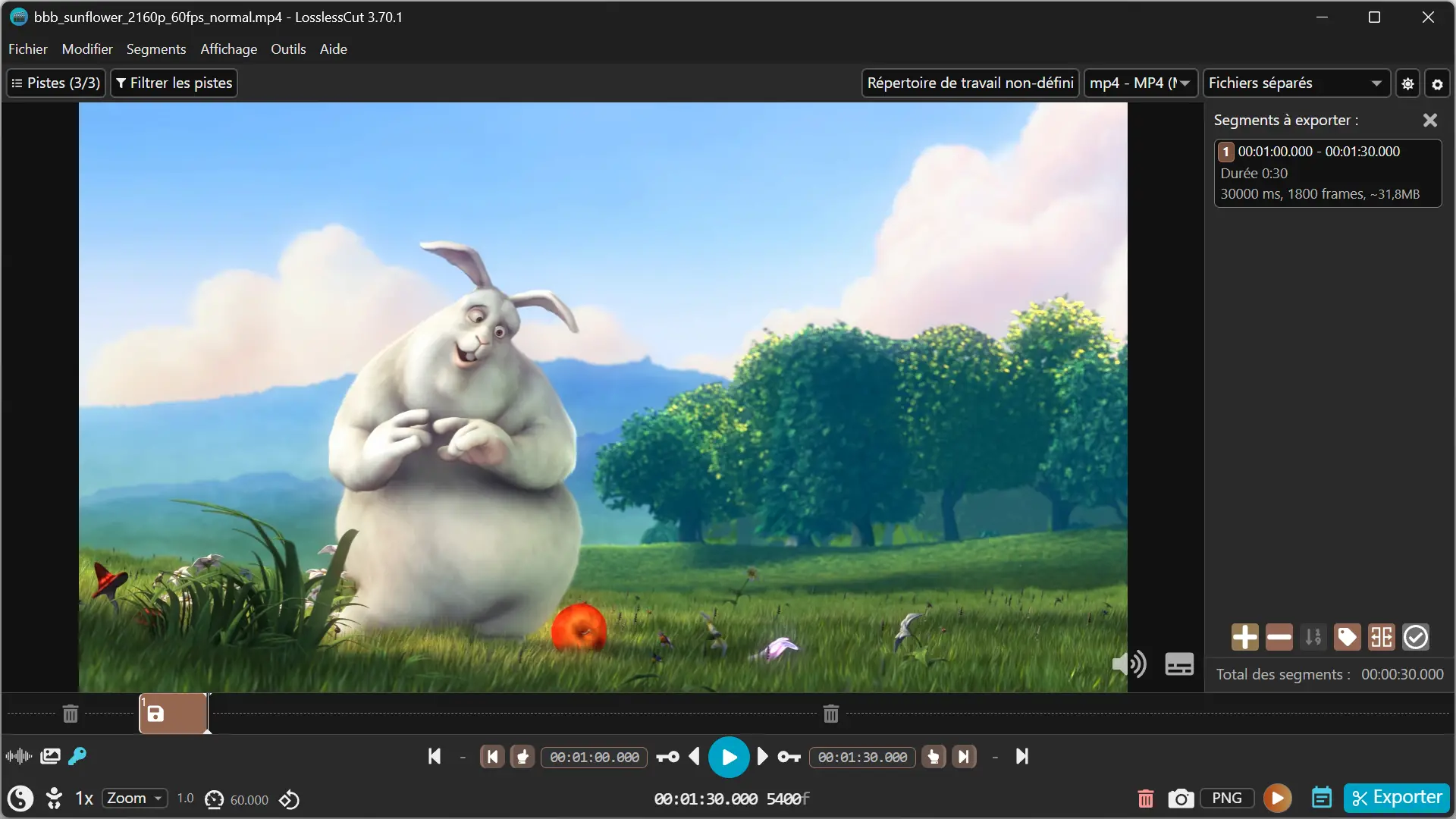
Small clarification from the developer: the crops are not always accurate with respect to the closest image. Depending on the keyframes in the video, the start of a clip may be slightly offset from the selected point.
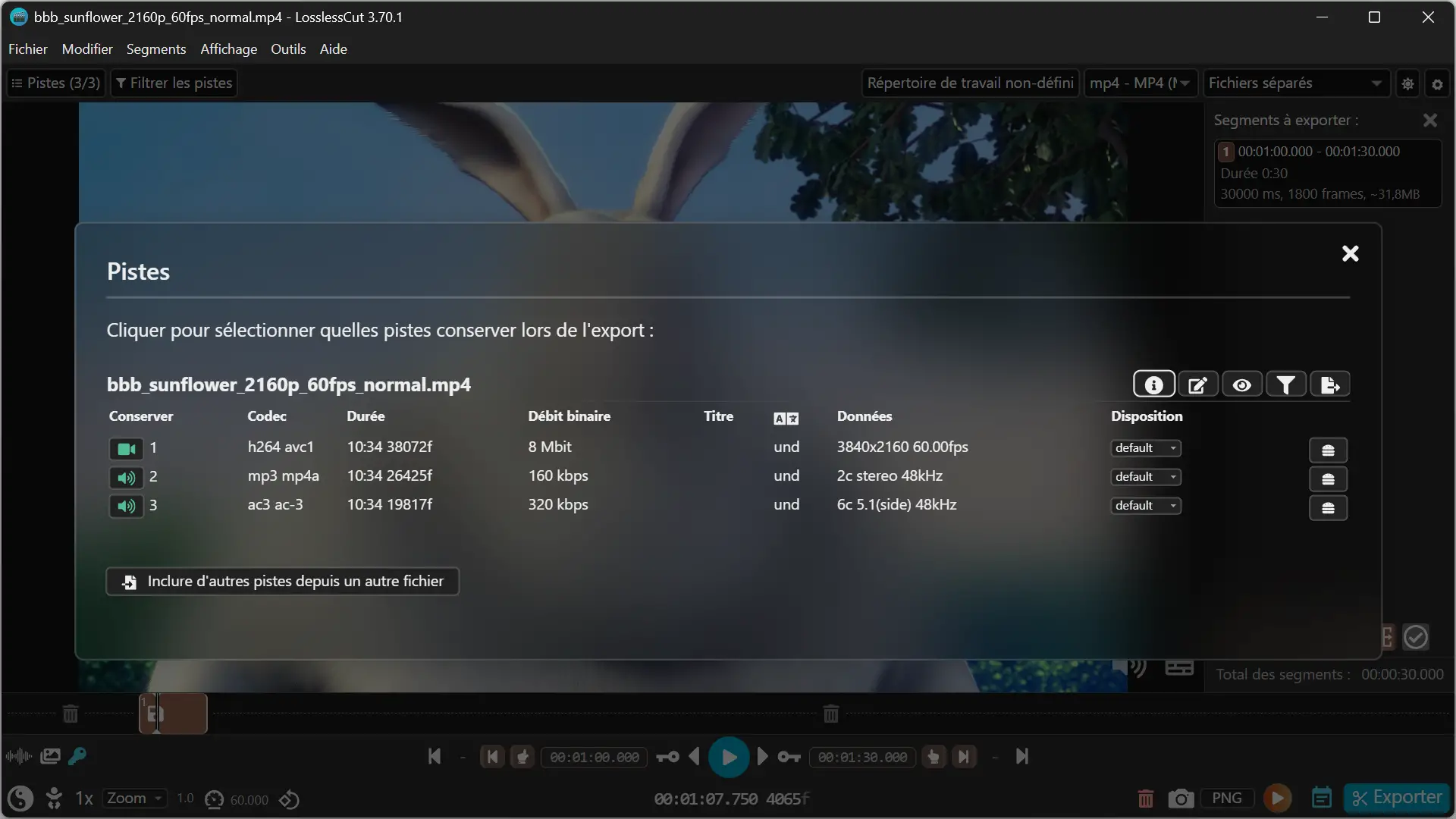
LosslessCut also allows you to merge multiple compatible videos. You can choose which video, audio, and subtitle tracks to keep during the export. For example, if your video contains multiple audio tracks, you can remove the ones you don’t need.
You will also find a camera-shaped button that allows you to extract an image from the video in JPG, PNG or WebP format. The software also offers tools to detect black scenes, silent passages and scene changes.
Download LosslessCut for free
LosslessCut is available for free on Windows, macOS, and Linux. To download it, go to project GitHub pagethen choose the file corresponding to your operating system.
On Windows, the software is offered in a 7z file format. Simply extract it with 7-Zip or NanaZip, for example, then launch the LosslessCut.exe file. On macOS, you’ll find DMG files for Intel and Apple Silicon Macs. Linux users can download an AppImage or a file tailored to their machine.
LosslessCut is also available in the Microsoft store AND the mac app storebut these versions are paid. The developer explains that purchases support their work and benefit from easier installation, with automatic updates.
To trim a video with LosslessCut, follow these steps:
- Open LosslessCut and drag and drop your video into the software window.
- Place the cursor at the beginning of the passage you want to keep, then click the one-handed button to the left of the play button. You can also press the key Yo of your keyboard.
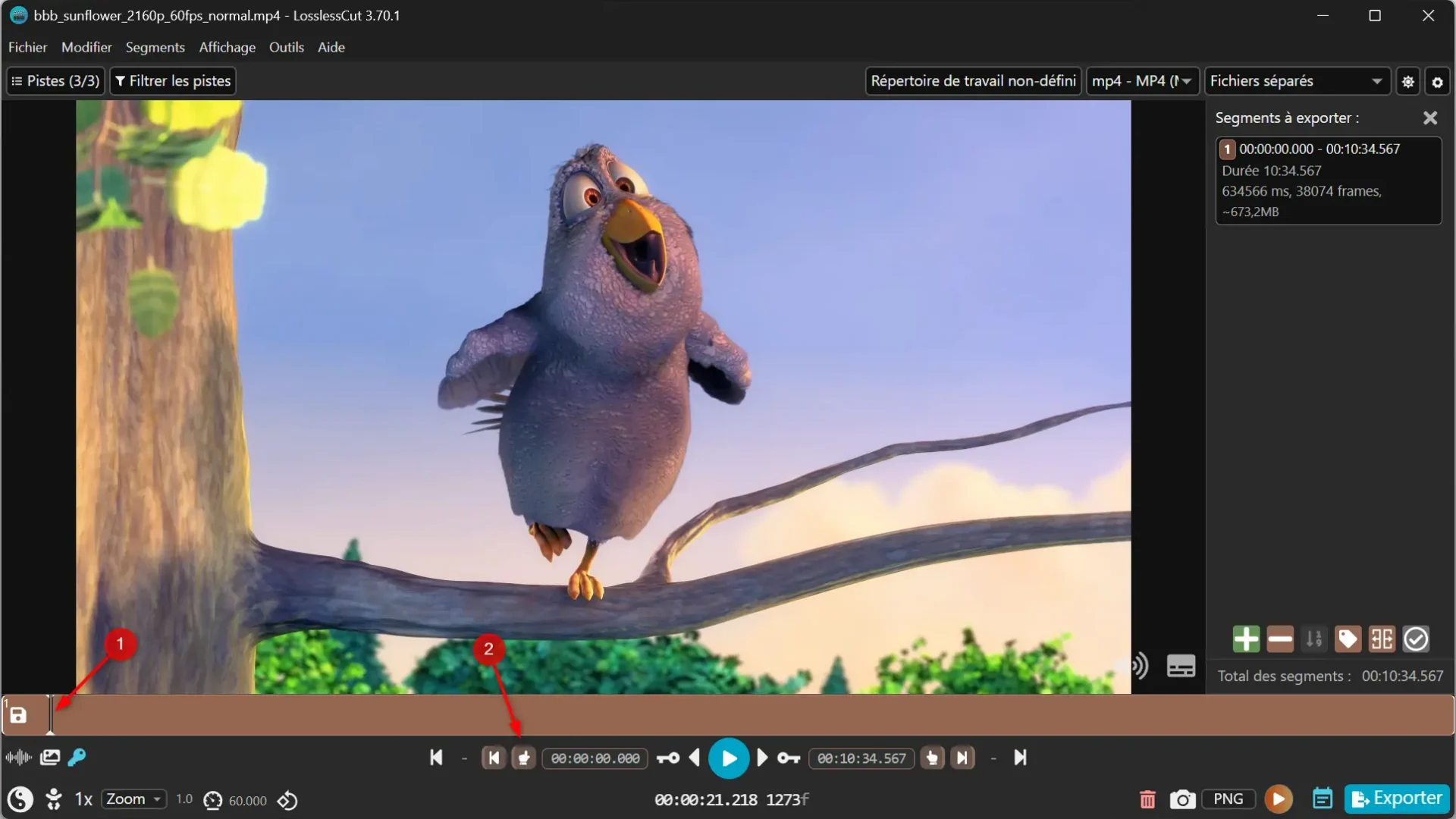
- Move the cursor to the end of the region, then click the one-hand button to the right of the play button, or press the oh.
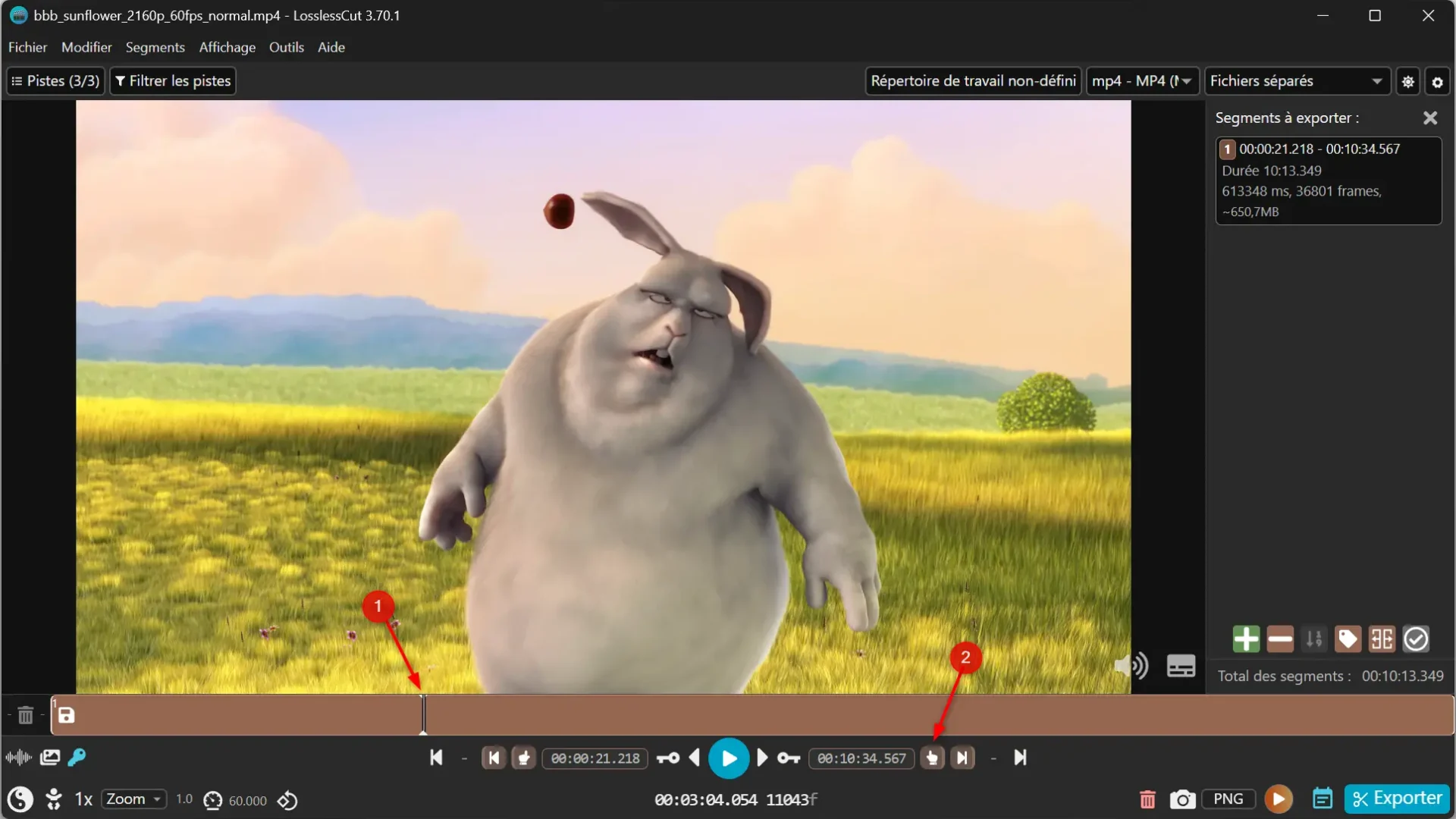
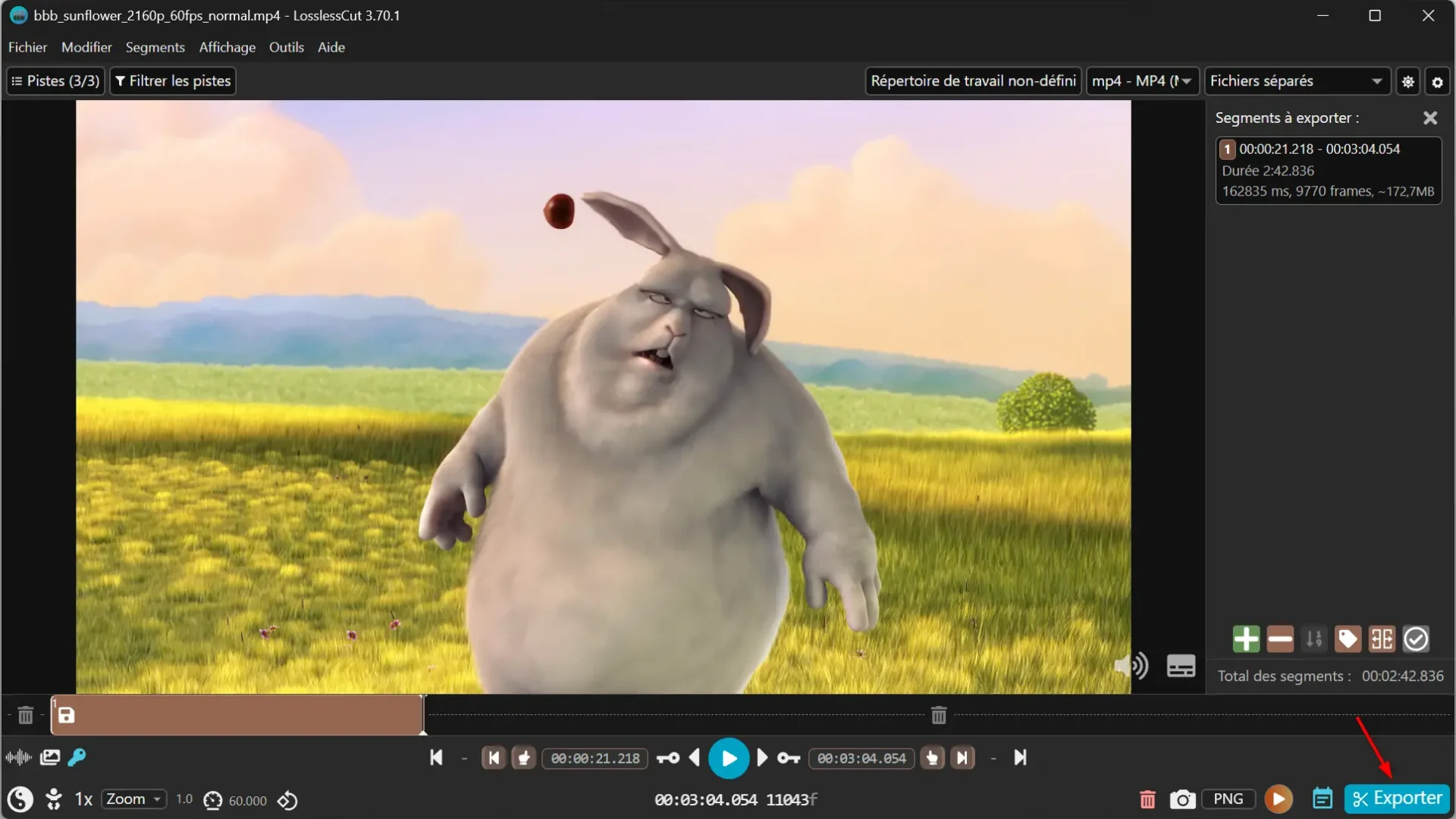
- Click “Export” at the bottom right of the window once you have selected your statement.
- Choose your export settings, including the file format, which tracks you want to keep, and the destination folder. Then click “Export” to save your video.
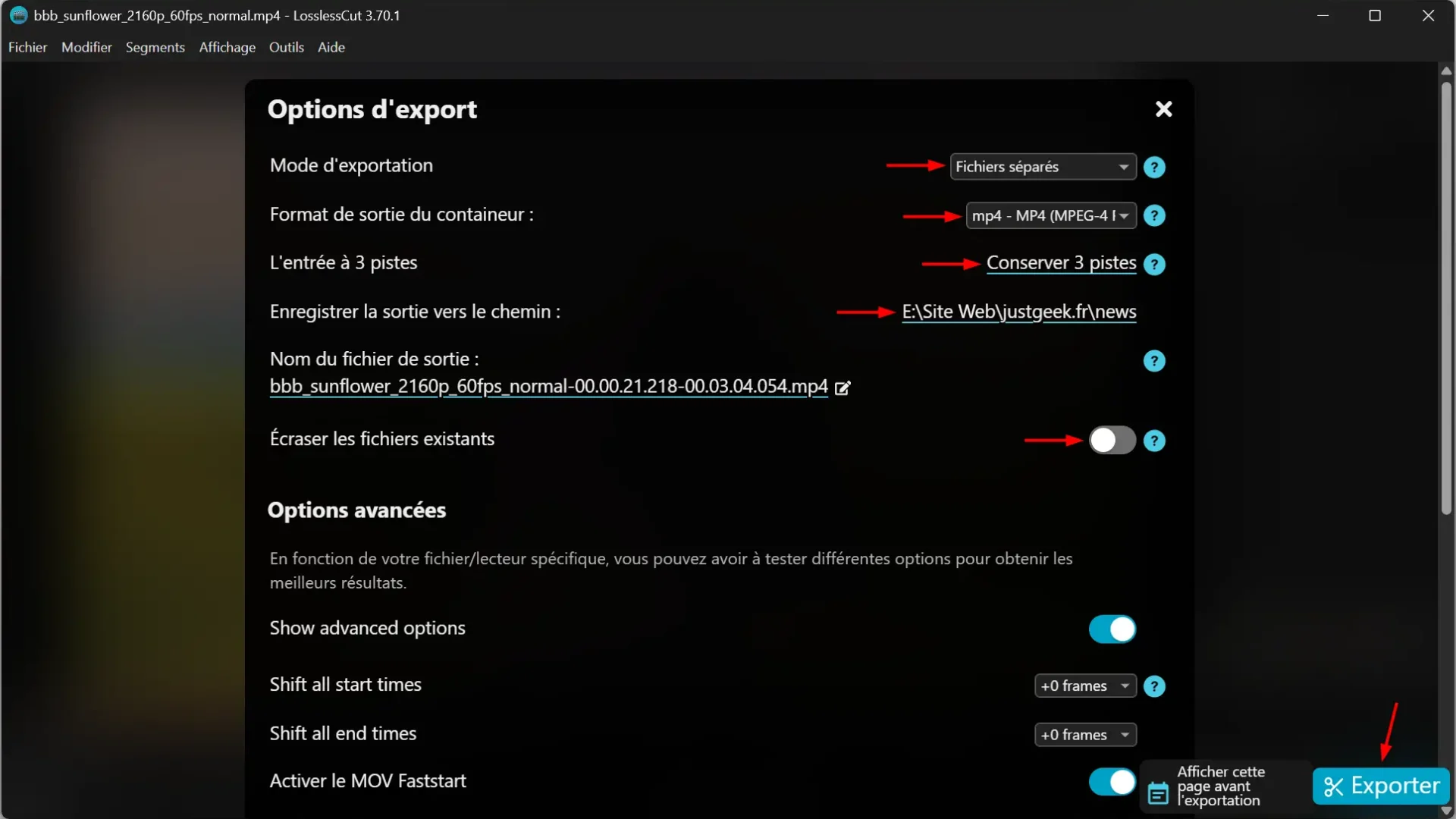
Your clip is saved as a new file, without modifying the original video.