Surely you know CrystalDiskMark, this very practical little software to measure the speed of an SSD or a hard drive in Windows. Well, on Linux there is a free and open source alternative called KDiskMark. It allows you to test the read and write speeds of your SSDs, hard drives and USB sticks, with an interface almost identical to CrystalDiskMark.
KDiskMark: testing the performance of your drives under Linux
KDiskMark is free and open source software that allows you to measure the read and write speeds of your storage media. It works just as well with SATA and NVMe SSDs as it does with hard drives (HDD) or USB sticks.
Like CrystalDiskMark on Windows, KDiskMark offers several types of tests. Sequential tests (SEQ) primarily measure the transfer speed of large files, while random tests (RND) evaluate performance when accessing many small blocks of data.
The software is based on fio (Flexible I/O Tester) to perform benchmarks. The results are displayed in table form, with read and write speeds expressed in MB/s.
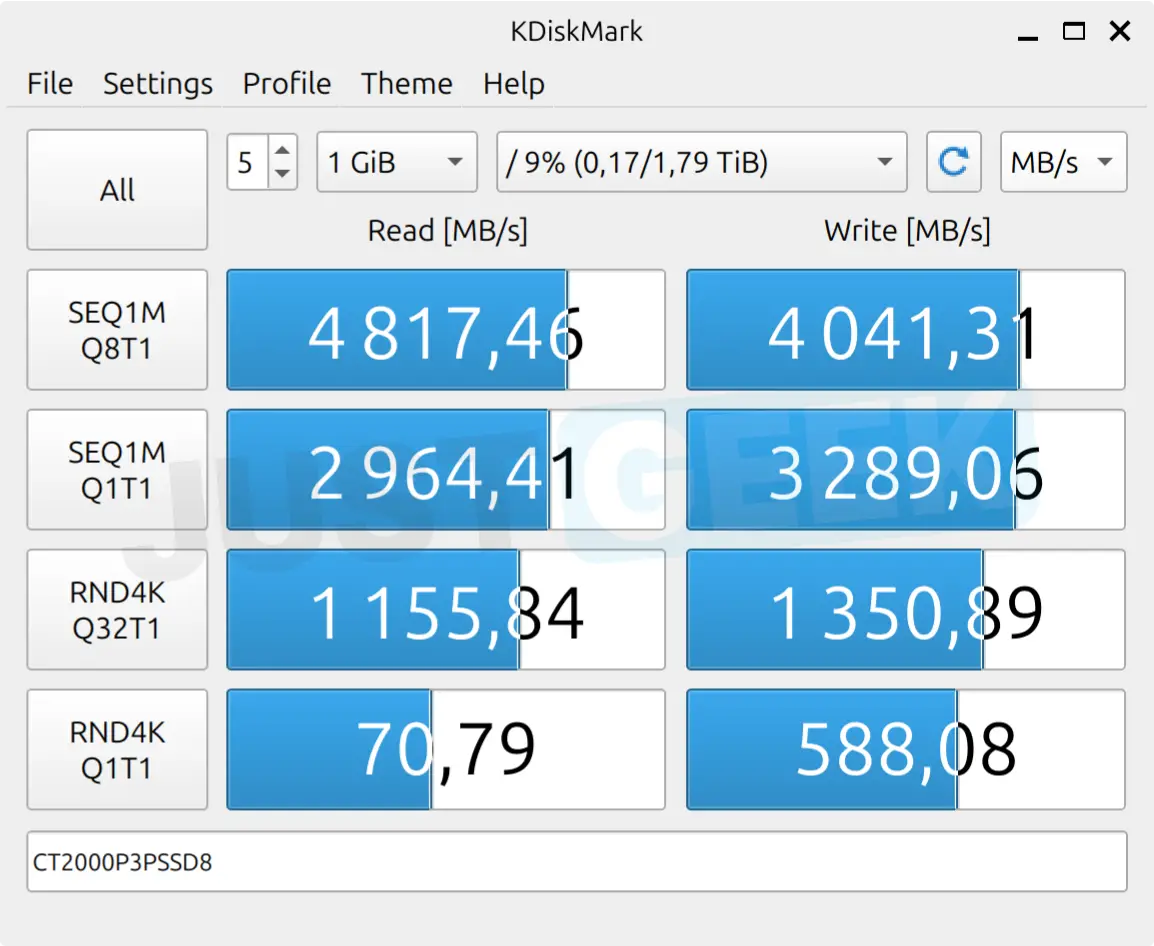
You can also customize the tests by choosing the number of runs, the size of data used, and the benchmark profile. KDiskMark offers several themes to modify its appearance, as well as an option to save the results and share them.
KDiskMark is available in the repositories of several Linux distributions. To install it, open a Terminal and enter the command corresponding to your system.
Ubuntu, Debian and derivatives :
sudo apt install kdiskmarkhat :
sudo dnf install kdiskmarkArch Linux and Manjaro :
sudo pacman -S kdiskmarkIf KDiskMark is not available in your distribution’s repositories, you can use Flatpak:
flatpak install flathub io.github.jonmagon.kdiskmarkAn AppImage version is also available at project GitHub page.
Launch KDiskMark from the applications menu, then select the disk you want to test from the drop-down menu at the top of the window.
You can then choose the number of passes and the file size used for measurements. In my case, I kept the default proposed configuration: 5 passages and a 1 GiB file.
Click the “All” button to start all tests. KDiskMark then measures read and write performance and then displays the results in MB/s.
The four lines of the table correspond to the following tests:
- SEQ1M Q8T1 : Measures the transfer speed of large files, with several pending operations.
- SEQ1M Q1T1 : Performs the same type of transfer, but with a single operation at a time.
- RND4K Q32T1 : Evaluates performance during random access to small blocks of data, with multiple operations pending.
- RND4K Q1T1 : It is a random access with a single operation at a time, which is closer to certain common uses of the PC.
Simply put, the SEQ tests are best suited for large file transfers, while the RND tests give insight into performance over many small disk accesses.
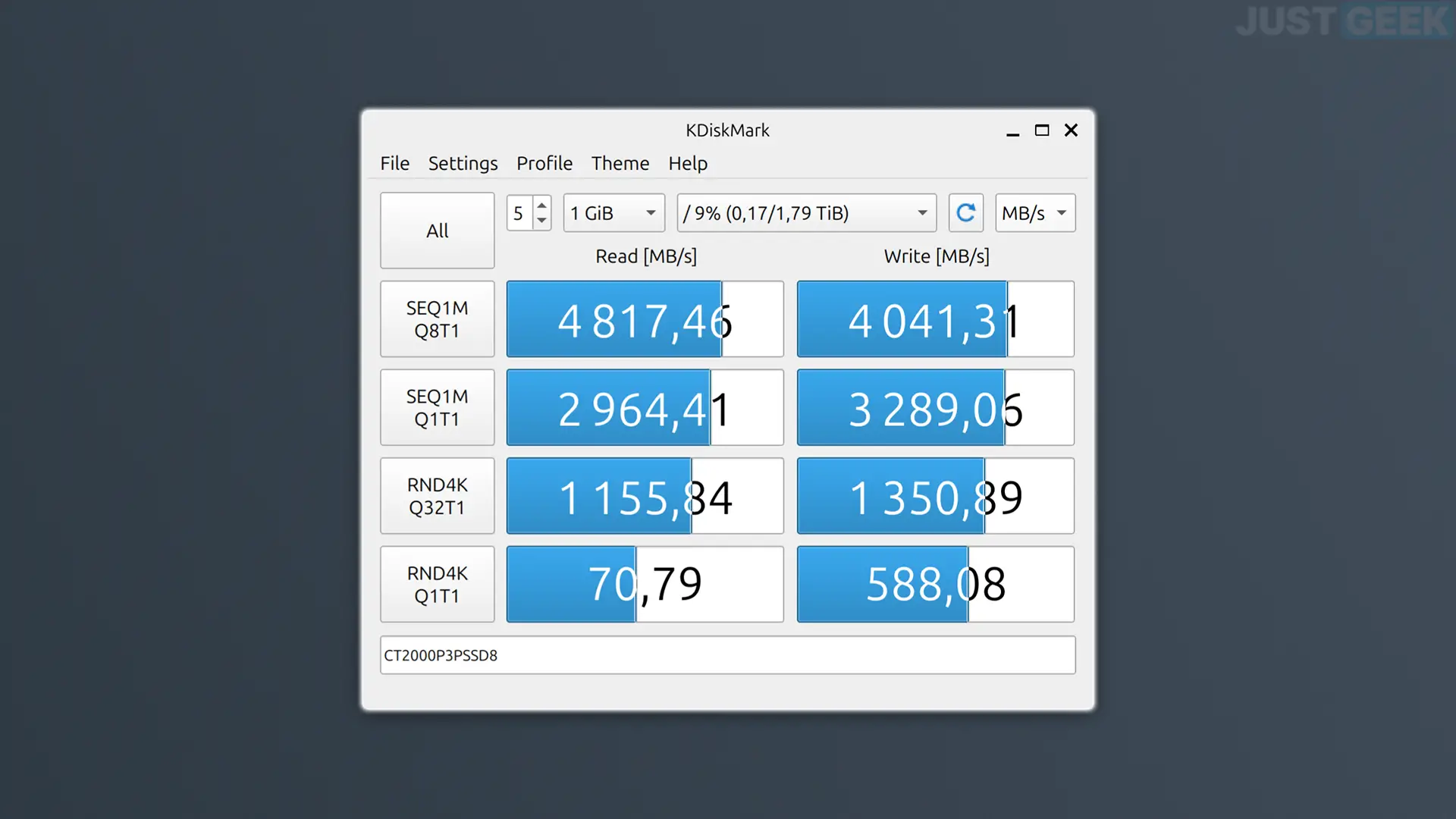
On my PC running Ubuntu 26.04, I got 4817 MB/s read and 4041 MB/s write with my 2 TB Crucial P3 Plus SSD, during the first sequential test. Results very close to the 5,000 MB/s reading and 4,200 MB/s writing announced by the manufacturer.
Obviously, these results may vary depending on the drive, its connection interface, software settings, and applications running in the background.
KDiskMark also offers several profiles in the “Profile” menu, including “Maximum Performance” to measure peak performance and “Real World Performance” for testing closer to daily use.